
Accessing New Flight Wizard
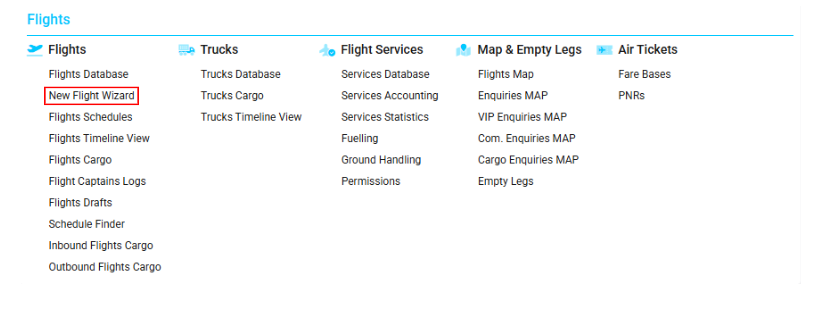
Navigate to the Flights section and under the Flights Section, click the “New Flight Wizard” Button.
Overview
The New Flight Wizard allows users to create new flights in the system. Access to this page is available from both the Home page and the Flights Database page.
Permission-Based Visibility:
Certain options may be shown, hidden, or restricted based on user permissions. Access to specific features or actions depends on the permission level granted.
Header
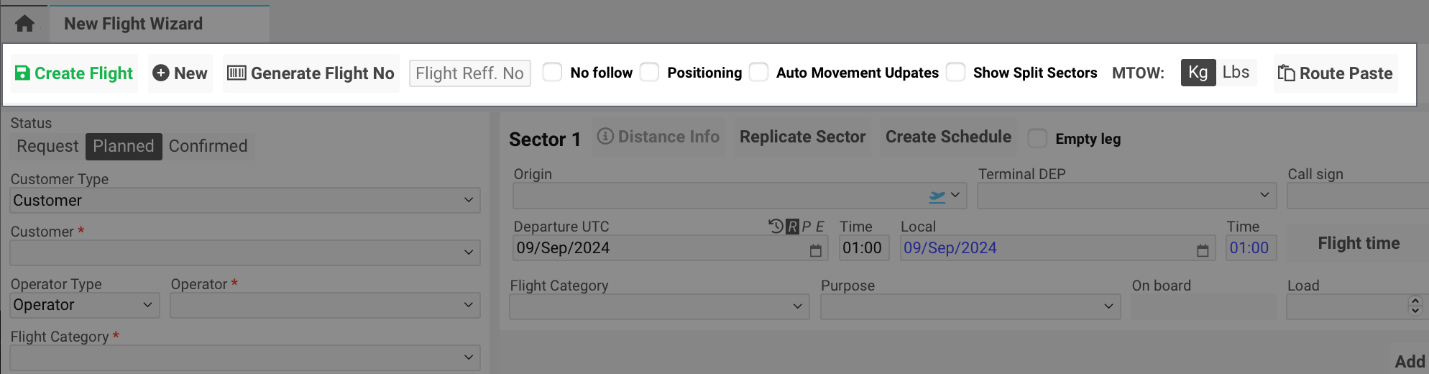
At the top of the page, the following actions and fields are available:
-
Create Flight – Creates a new flight.
-
New – Opens the page for the newly created flight.
-
Generate Flight No – Generates and saves a new flight number automatically. The flight number can also be entered manually. (Permission: canGenerateFlightNo)
-
No Follow Tick – Marks a flight as No Follow. (Permission: viewNoFollowTick)
-
Positioning Tick – Marks the flight as Positioning (used for transferring crew to another airport). (Permission: showPositioningTick)
-
Auto Movement Updates Tick – Enables live tracking for a flight. (Permission: liveTrackFlight)
-
Show Split Sectors Tick – Displays all split sectors.
-
MTOW (kg/lbs) – Maximum take-off weight unit.
-
Route Paste – Opens a form to paste flight sectors, allowing quick creation of multiple sectors at once. (Permission: showFlightRouteConsole)
Main Page
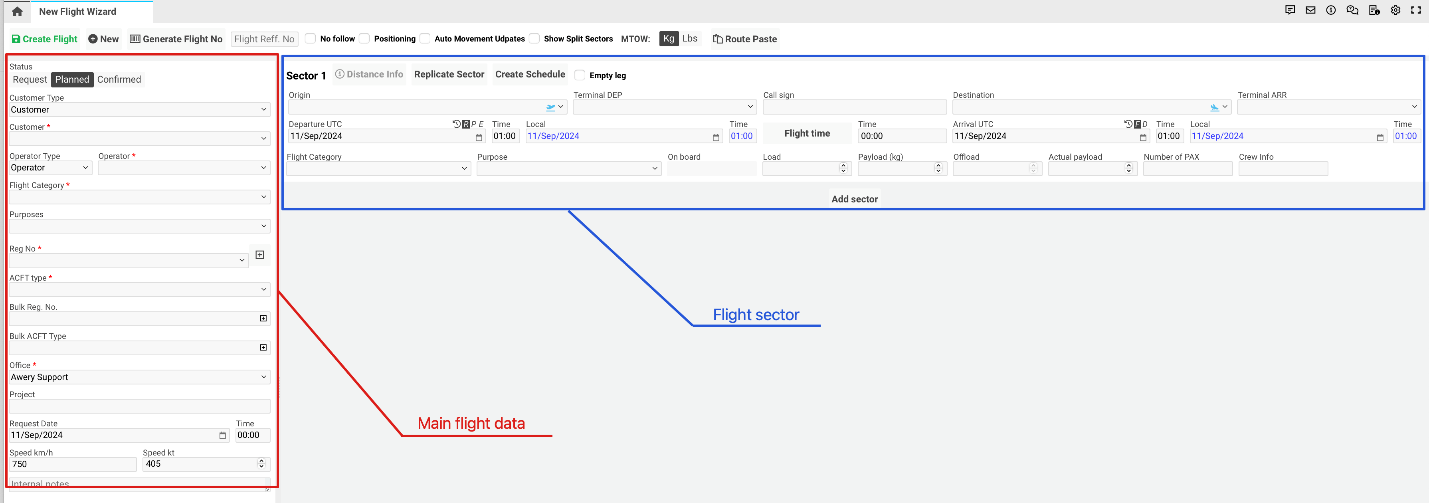
The main page consists of two sections:
-
Main Flight Data
-
Flight Sectors
Main Flight Data
(*Fields marked with * are mandatory)
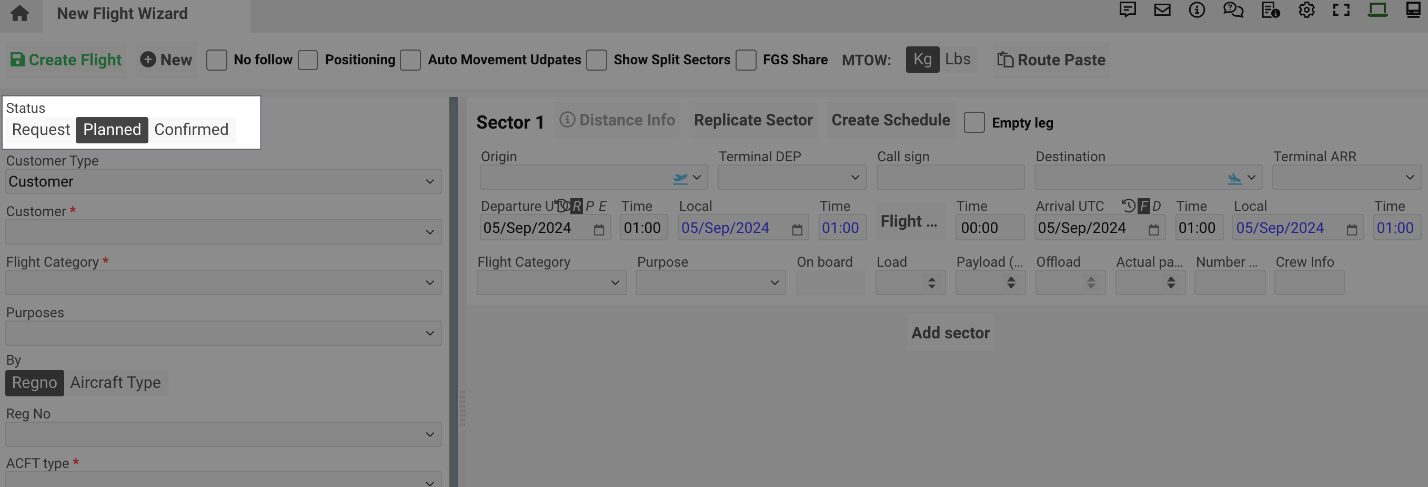
Flight Status
-
Request – Unconfirmed flight (request from Customer)
-
Planned – Agreement in place but contract not signed
-
Confirmed – Contract signed
Customer and Operator Details
-
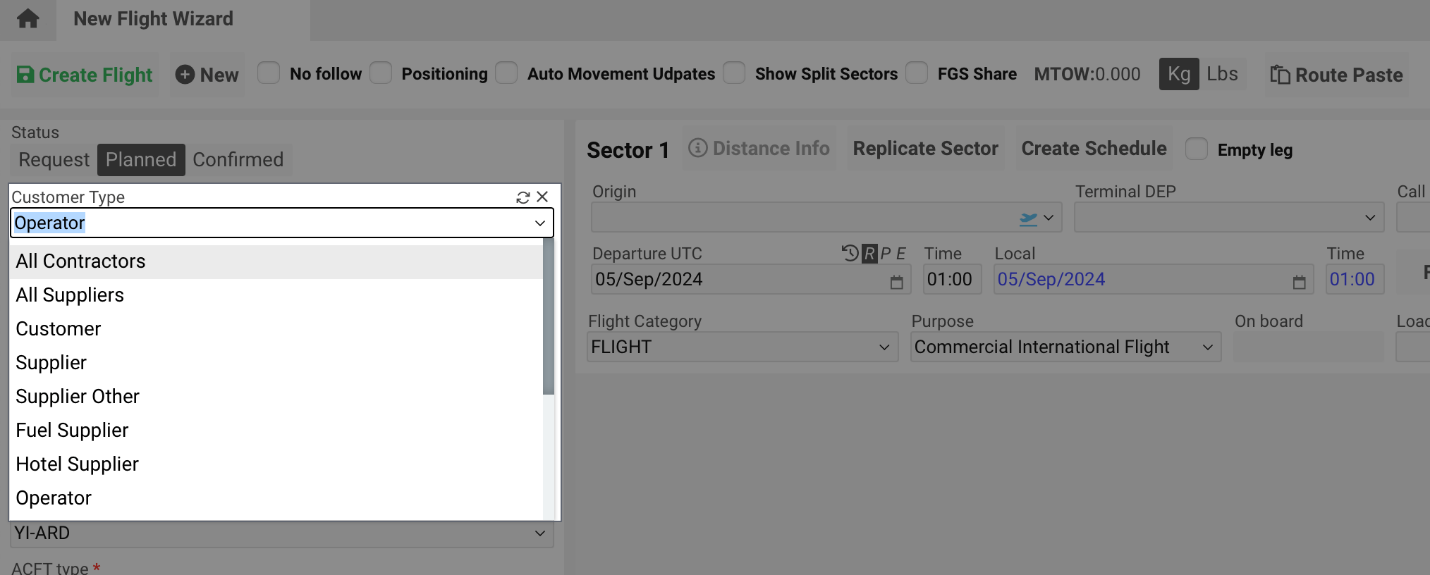
Customer Type – Select from drop-down list. (Permission: showFlightWizardCustomerAndType)
-
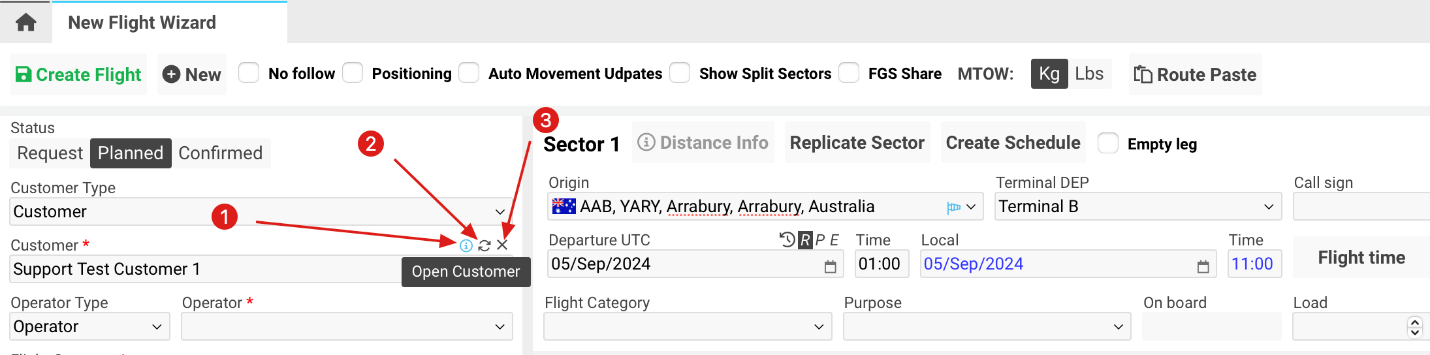
Customer – Select a customer, open profile, refresh, or delete. (Permission: selectCustomerObligatory)
-
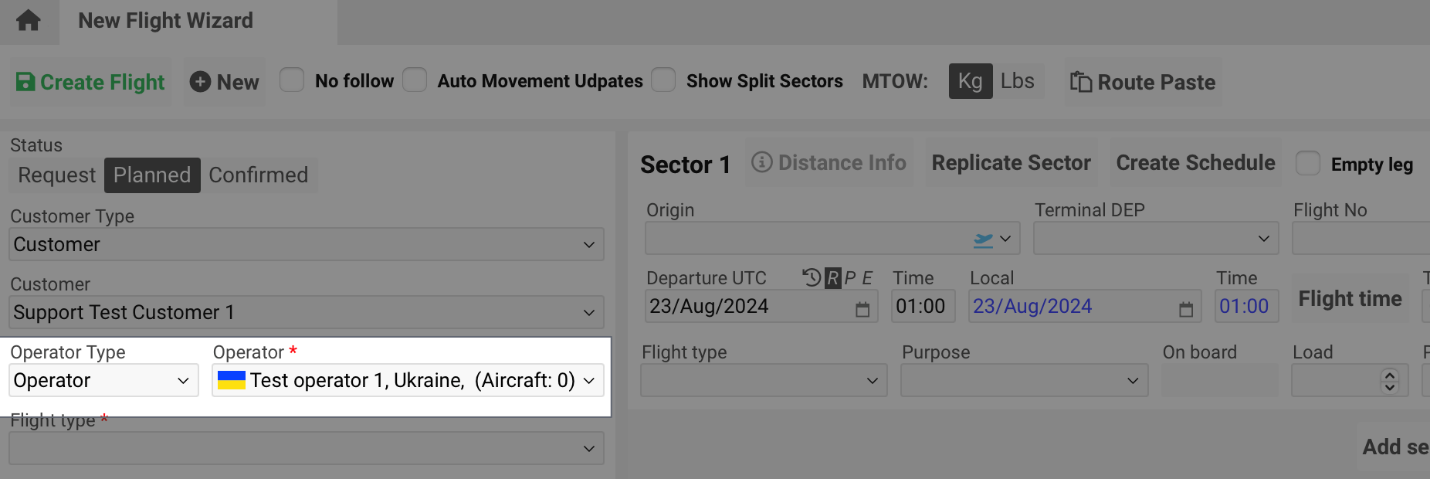
Operator Type and Operator* – Choose from lists. Operators can be automatically assigned, manually selected, or added if not available. (Permission: needToSelectOperator)
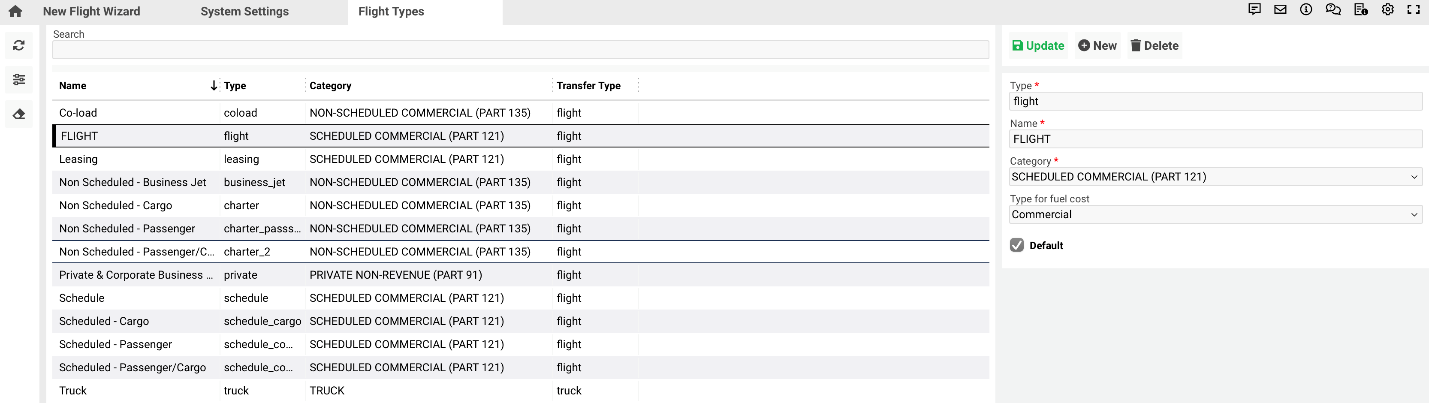
Flight Category
Select the appropriate category:
-
Co-load
-
Flight
-
Leasing
-
Non Scheduled – Business Jet
-
Non Scheduled – Cargo
-
Non Scheduled – Passenger
-
Non Scheduled – Passenger/Cargo
-
Private & Corporate Business Jet
-
Schedule
-
Scheduled – Cargo
-
Scheduled – Passenger
-
Scheduled – Passenger/Cargo
-
Charter
-
Truck
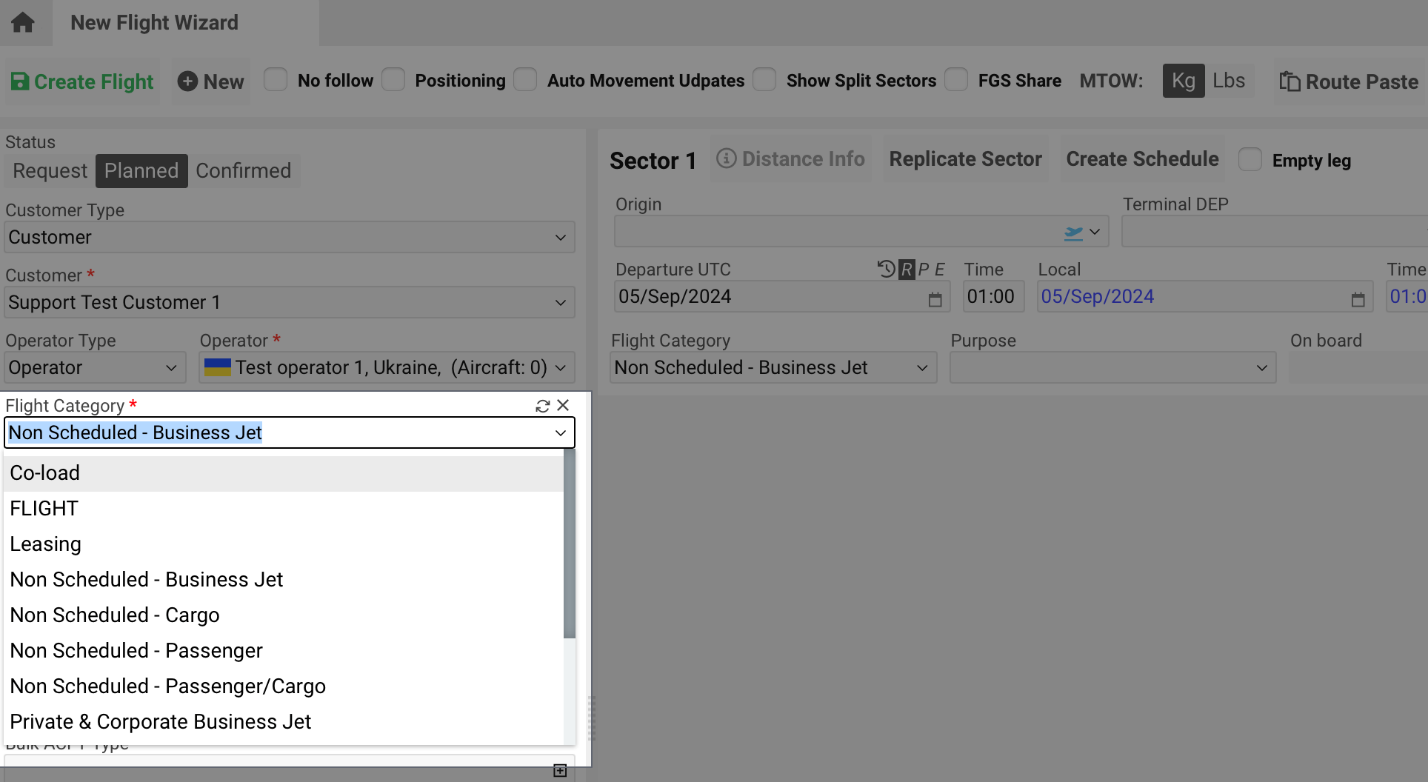
Flight categories can be configured in:
Home → System Settings → Flights → Flight Types
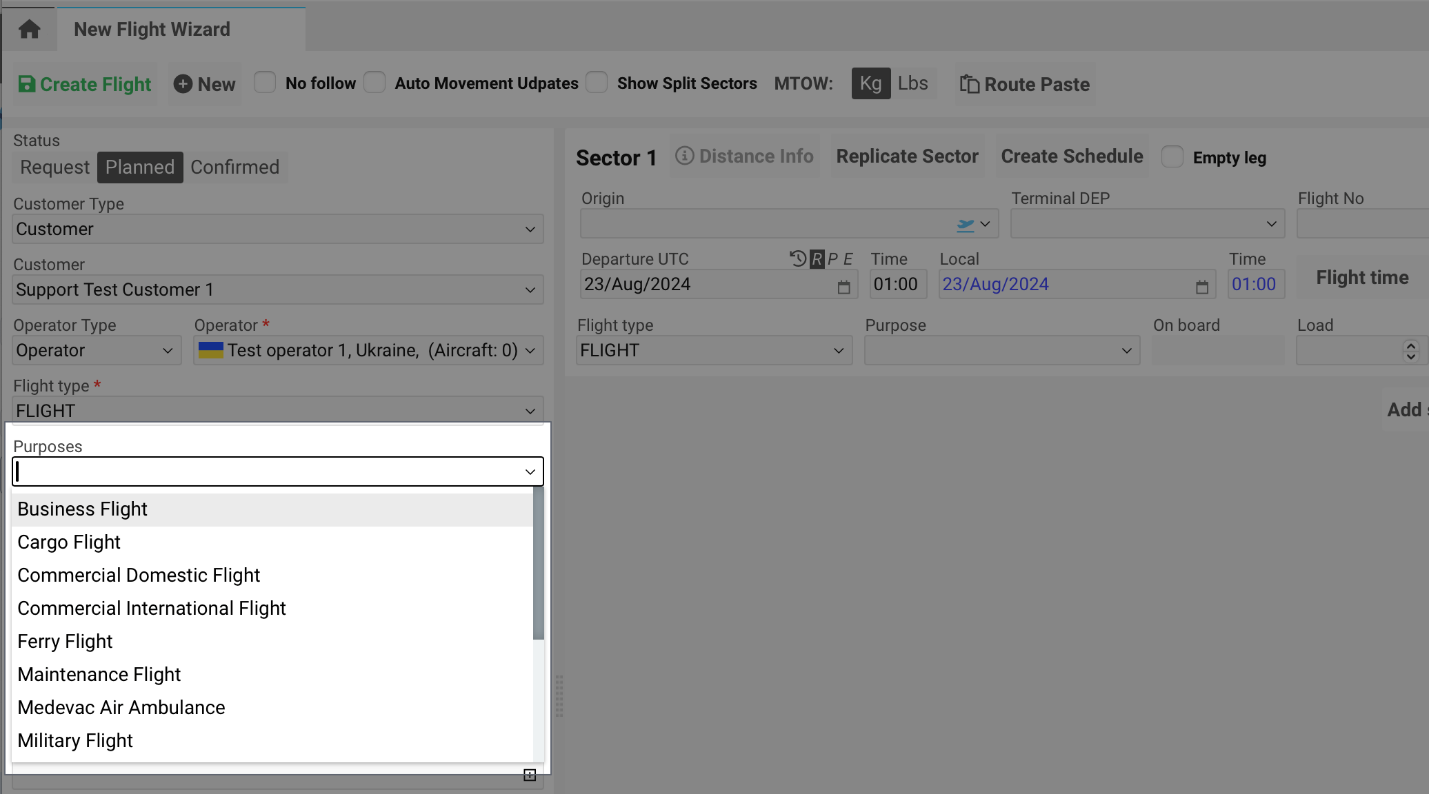
Purpose
Select the Purpose of the flight from the preset list.
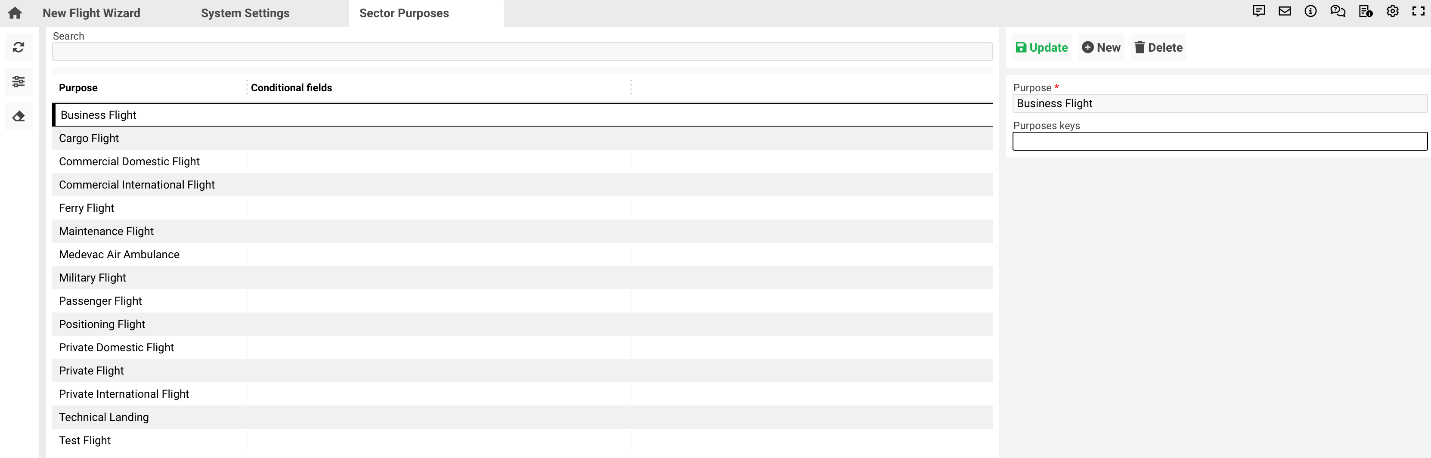
Can be edited at:
Home → System Settings → Flights → Sector Purposes
(Permissions: showPurpose, hideMainPurpose)
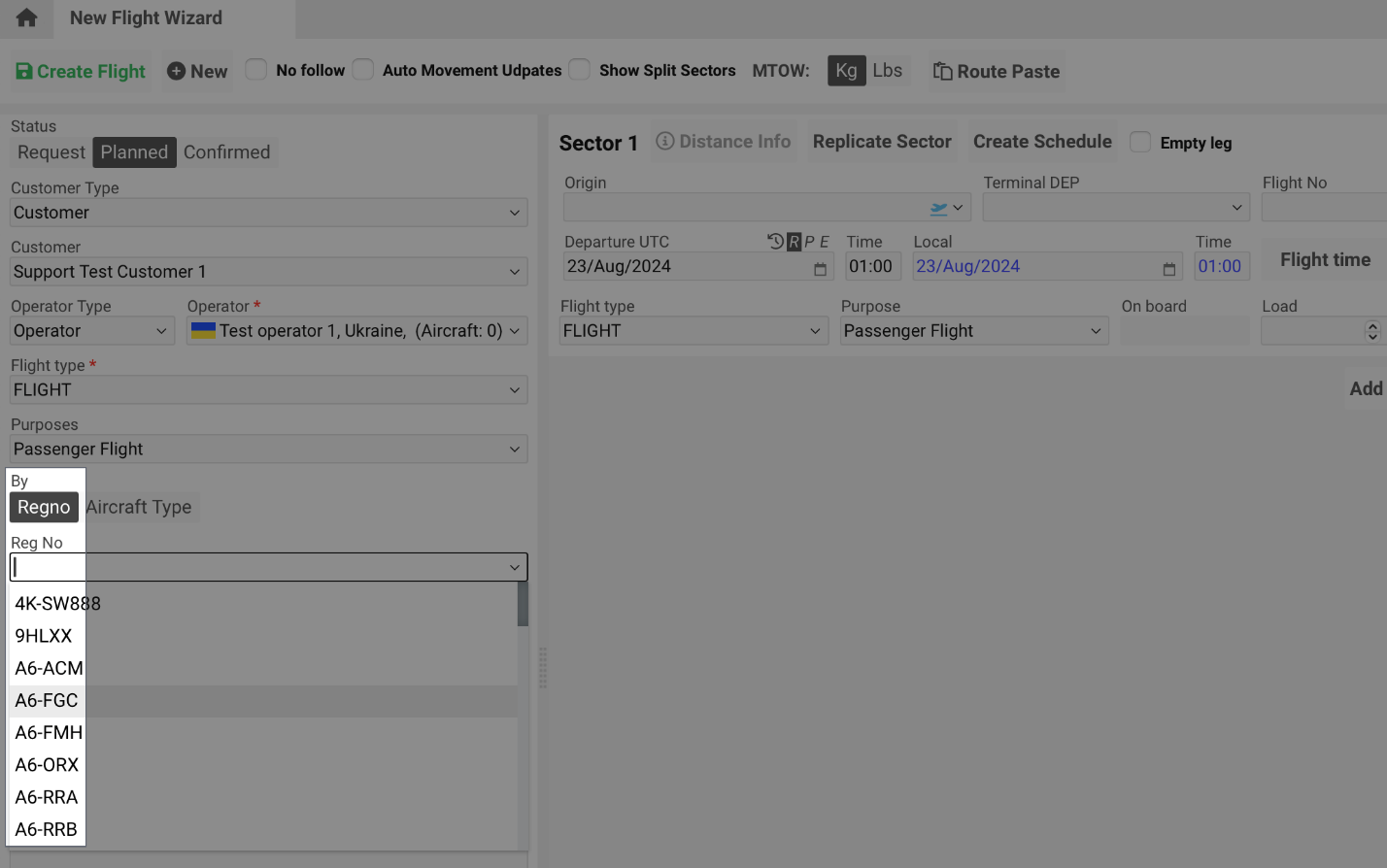
Aircraft Details
-
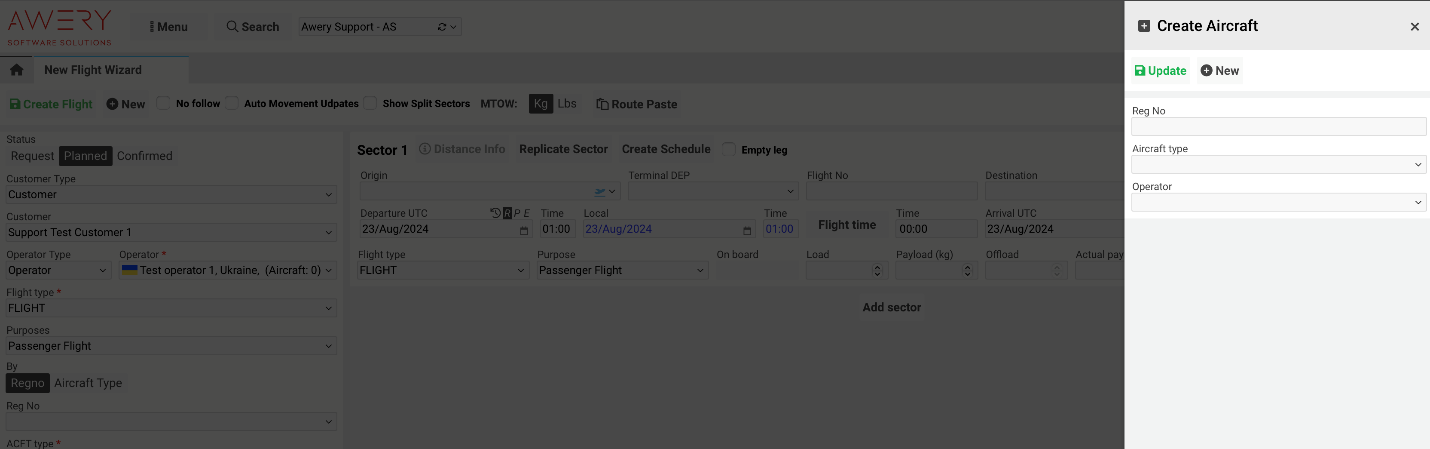
Reg No. – Select an aircraft from the system list or create a new one if unavailable.
-
Aircraft Type* – Choose from existing aircraft types managed by the Awery team.
-
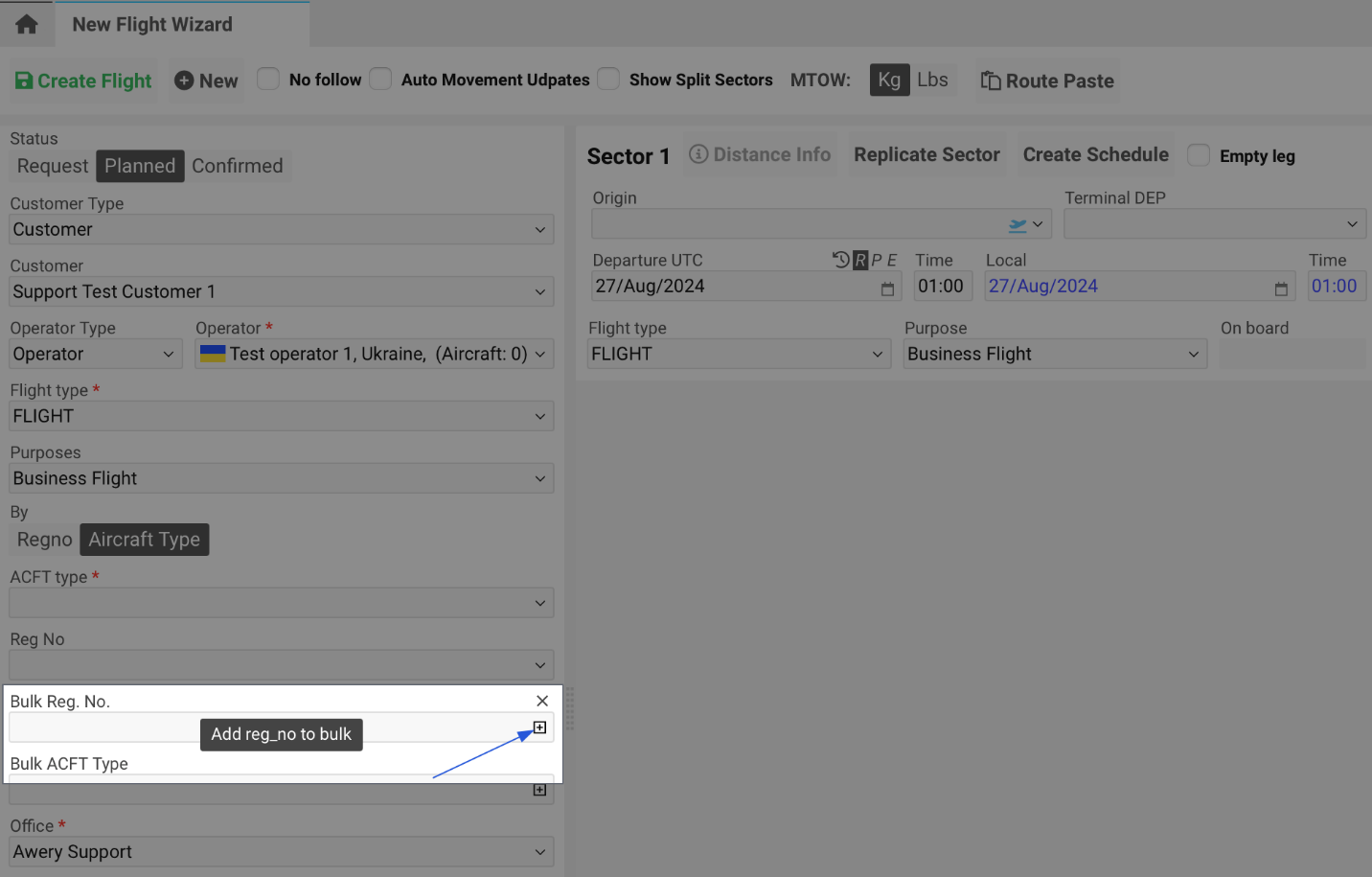
Bulk Reg. No. – Optional text field for multiple registrations. (Permission: hideBulk)
-
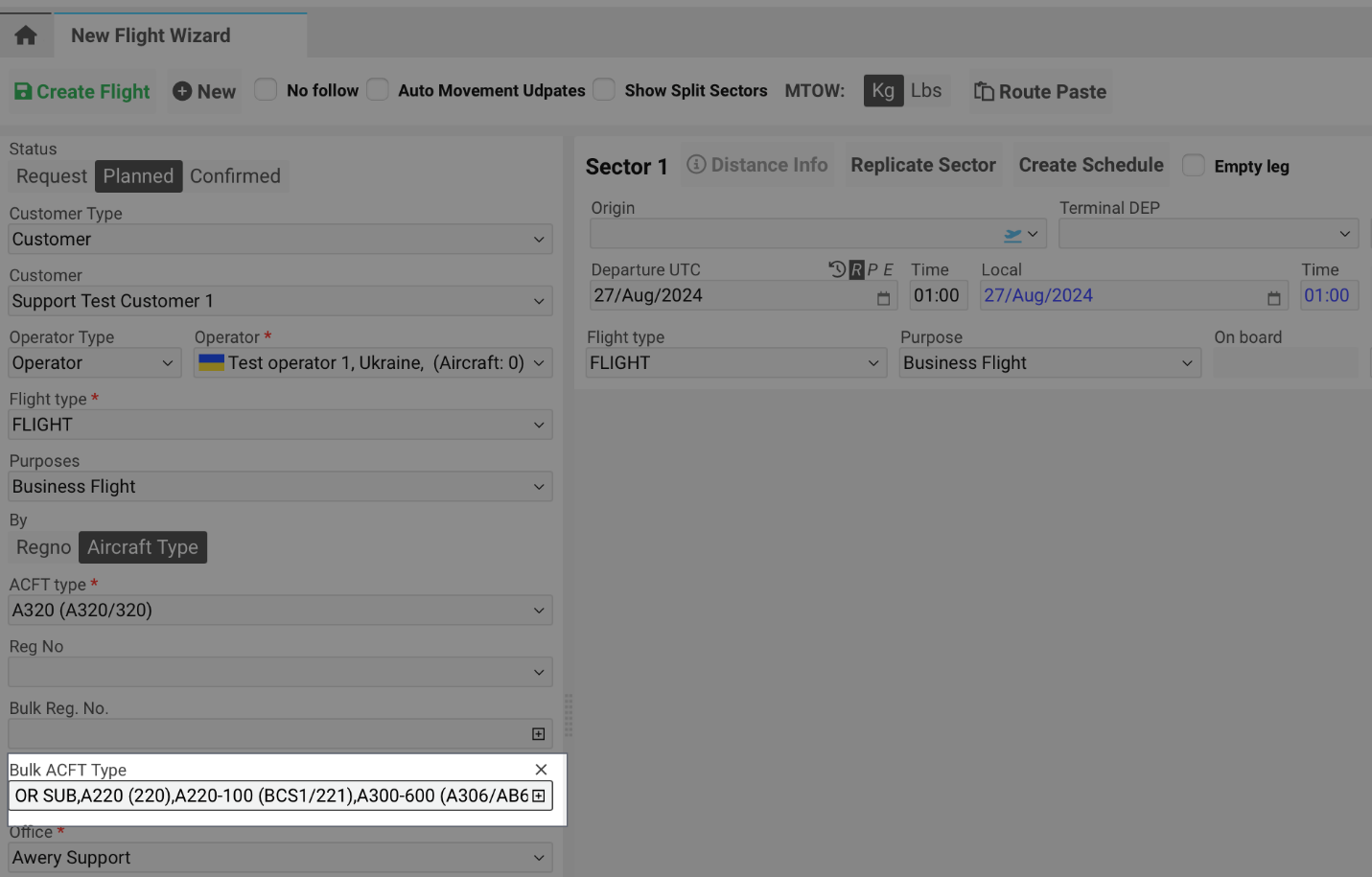
Bulk ACFT Type – Optional text field for multiple aircraft types. (Permission: hideBulk)
-
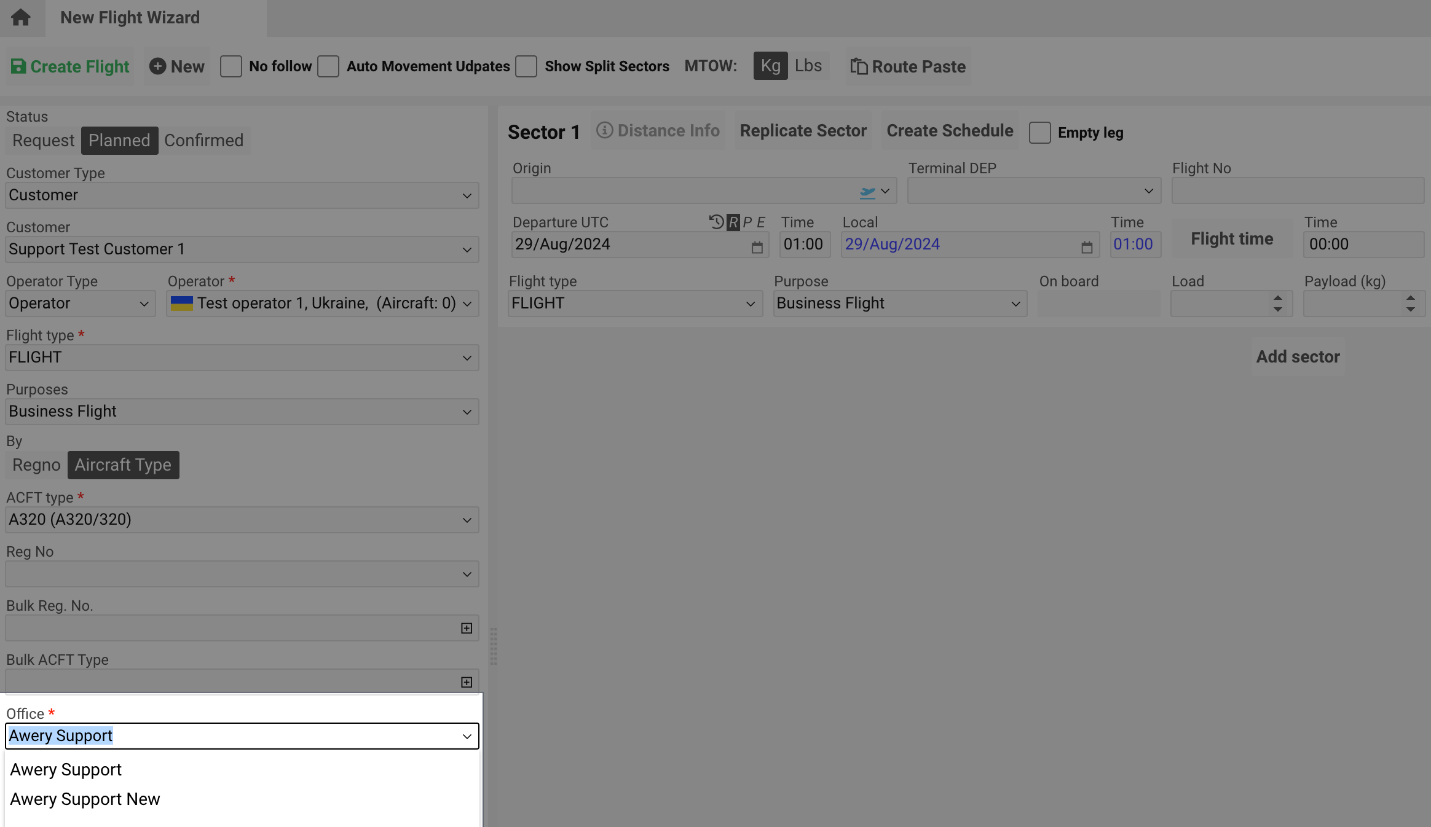
Office – Assign the related office. (Permission: disableEditCompany)
Additional Fields
-
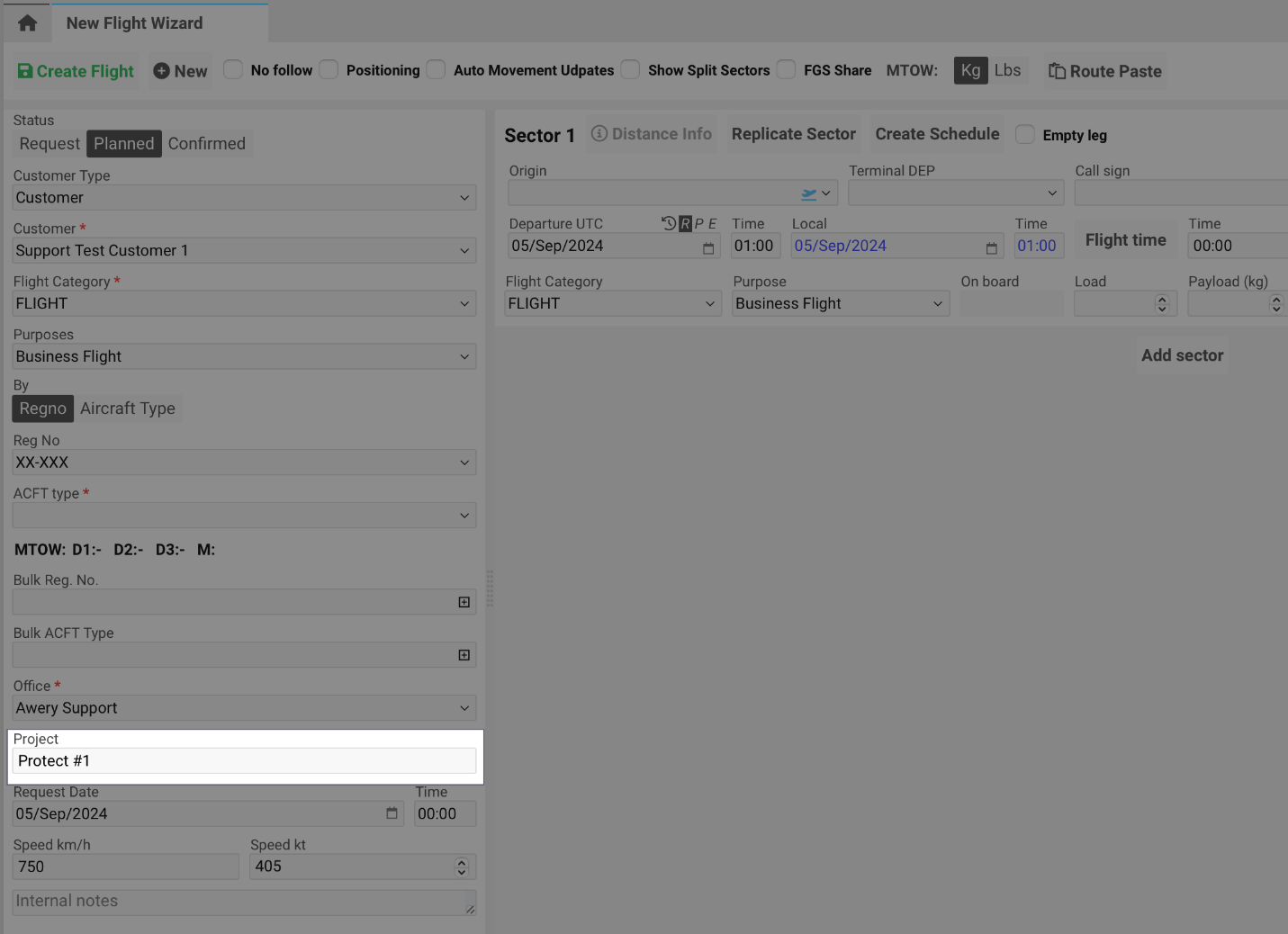
Project – For filtering and data management across AWBs and Cargo Quotes.
-
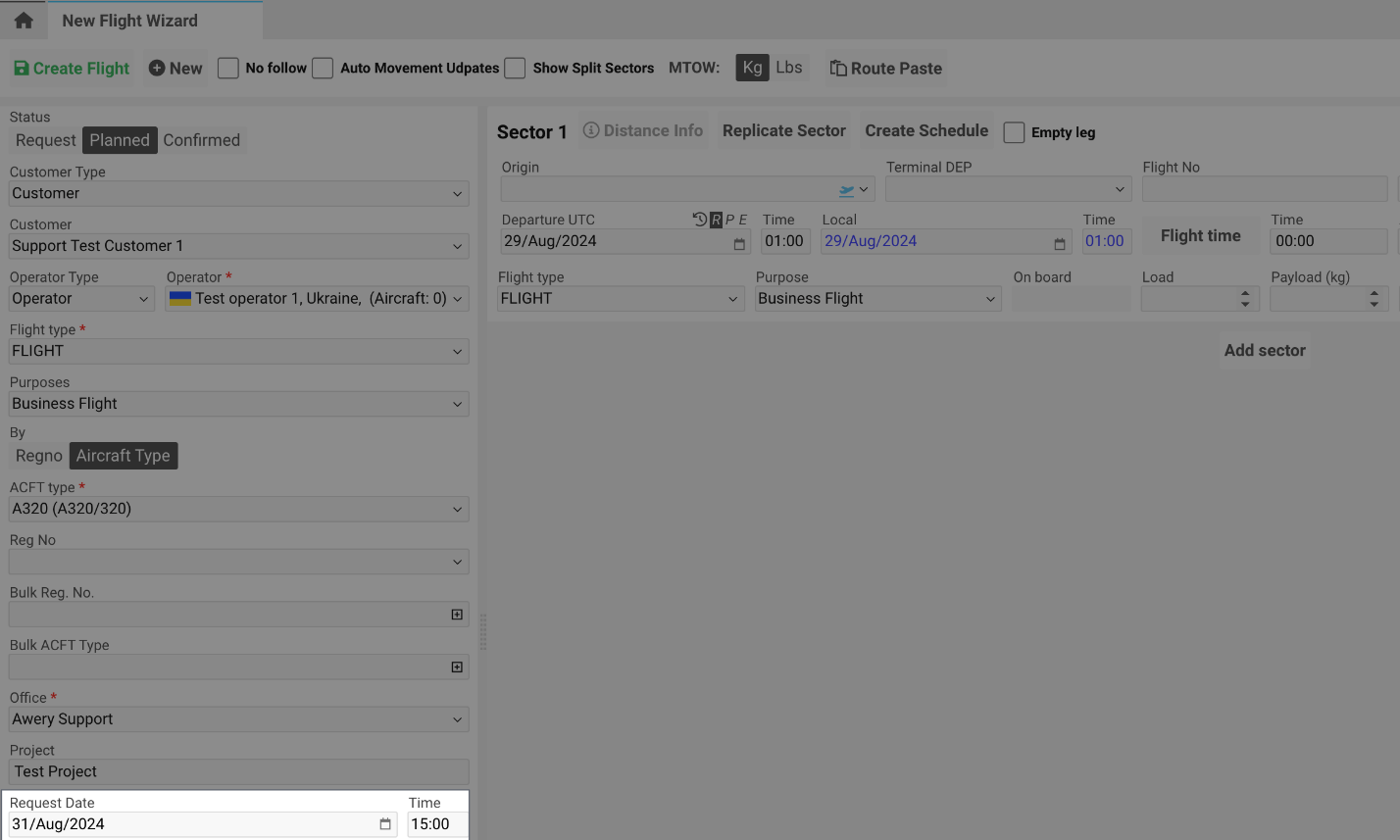
Request Date/Time – Automatically filled when created or derived from inquiries. (Permission: showFlightRequestDate)
-
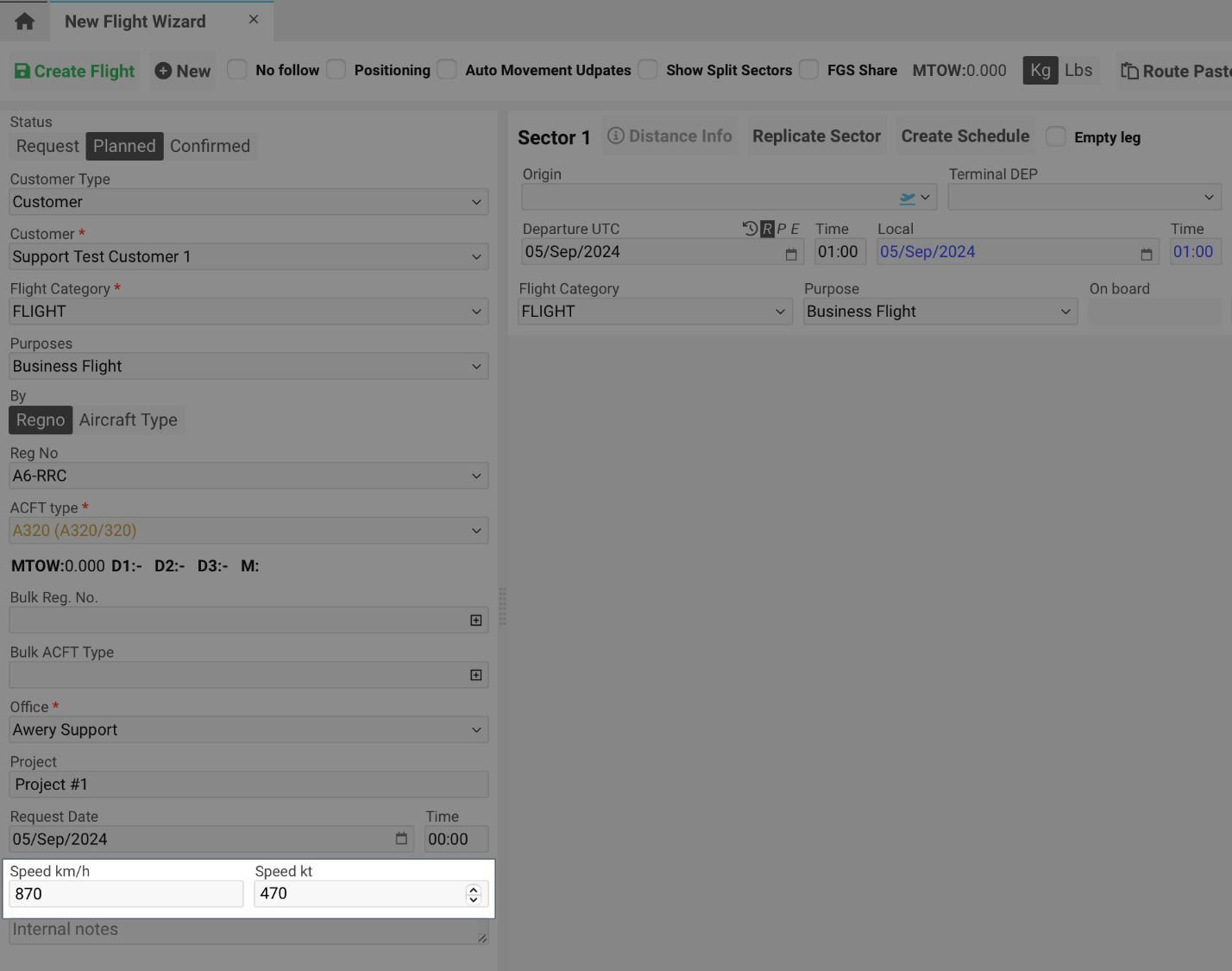
Aircraft Type Speed (km/h) – Average speed used for flight time estimation.
-
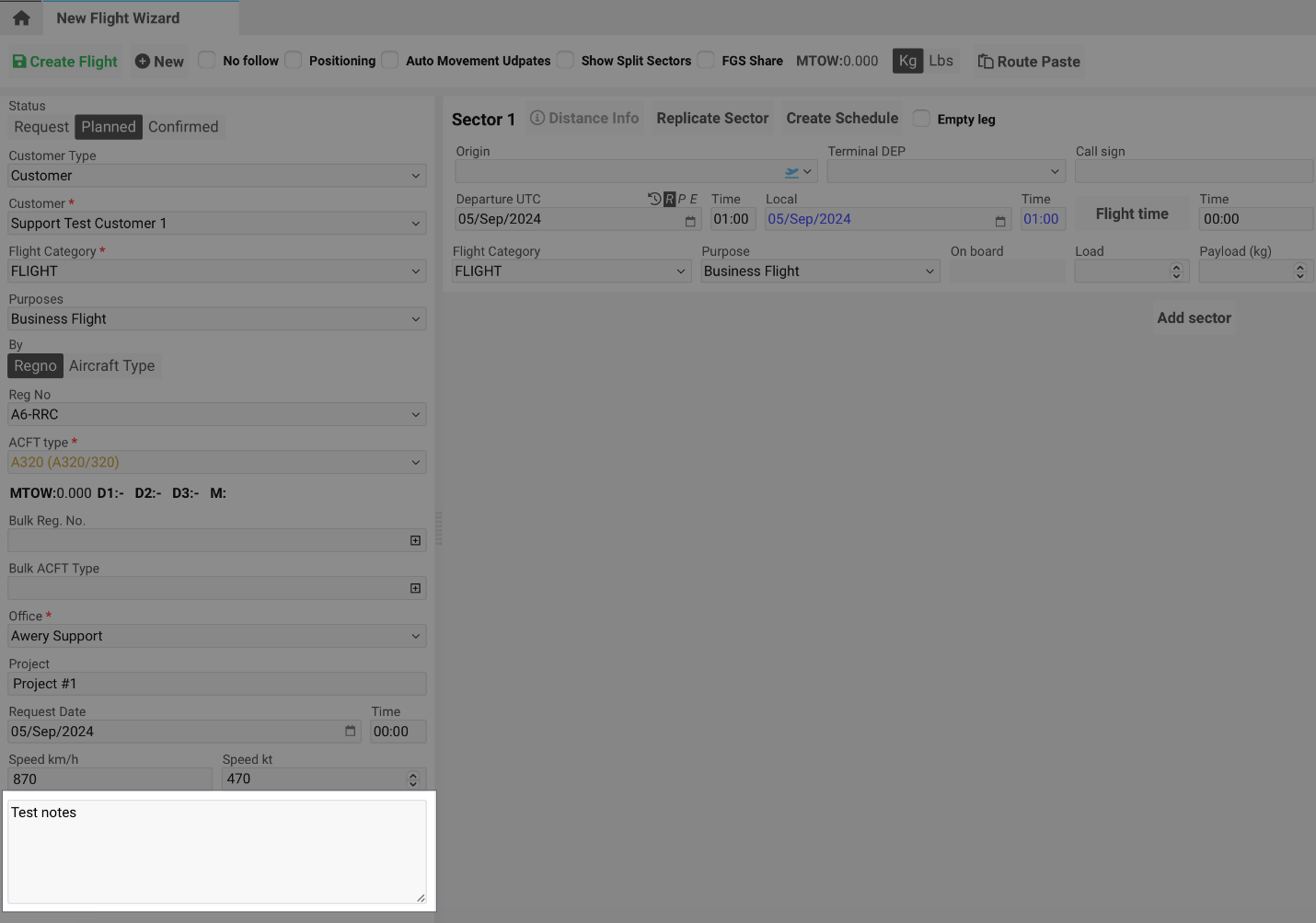
Internal Notes – Internal-use-only field for private comments. (Permission: showInternalNotes)
Flight Sector
Each flight can contain one or multiple sectors.
A sector represents a segment between the origin and destination airports.

Sector Actions
-
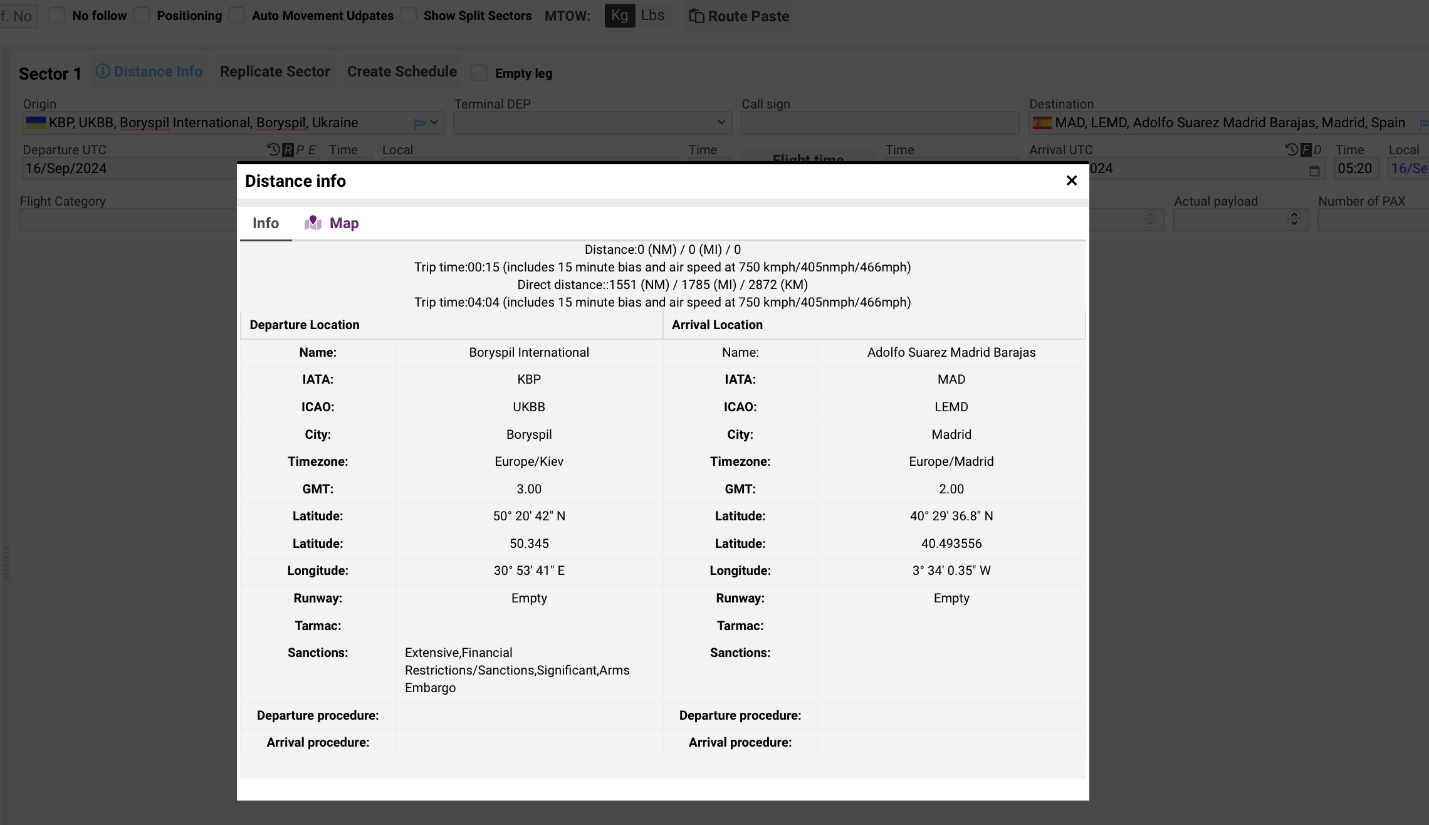
Distance Info – Opens a sidebar showing detailed distance information. (Permission: hideViewDistanceInfo)
-
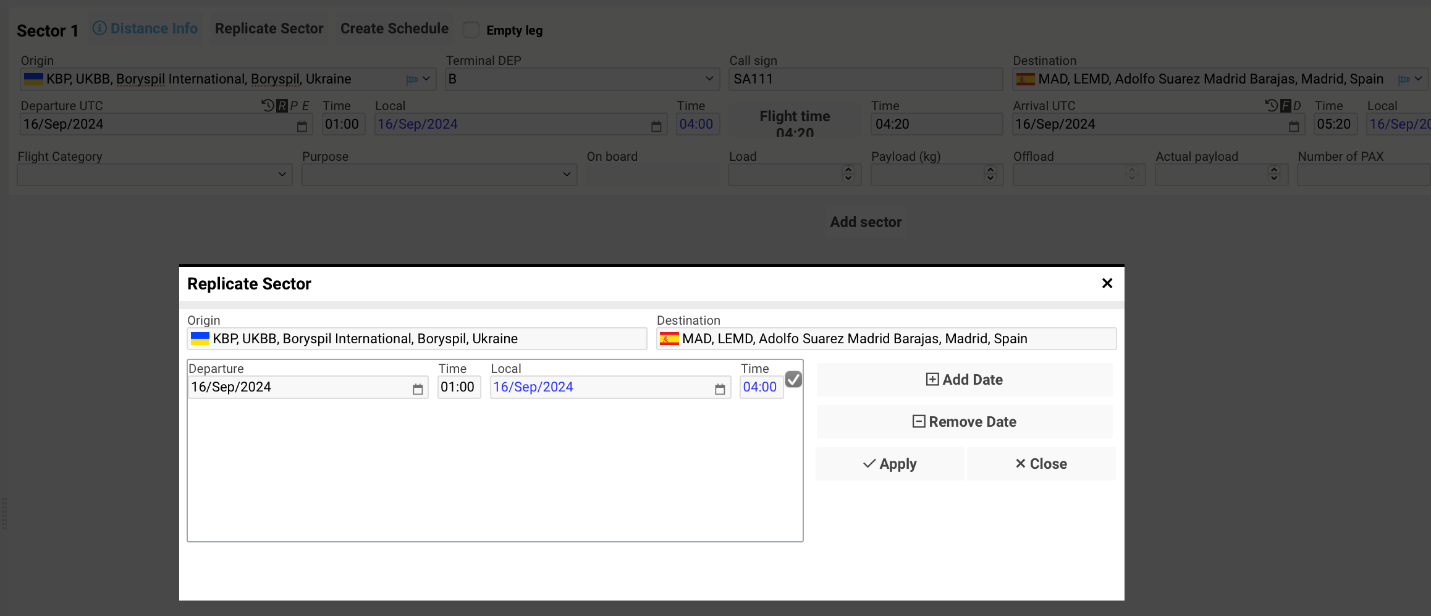
Replicate Sector – Copies the selected sector to other dates.
-
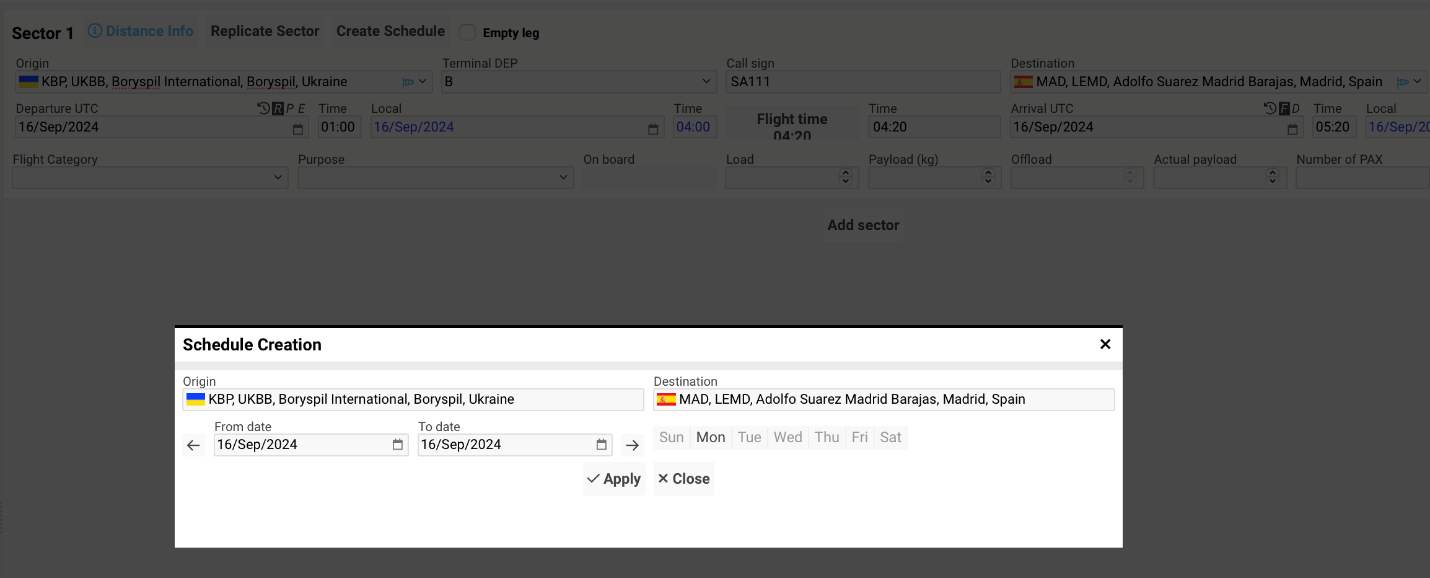
Create Schedule – Generates a flight schedule based on the selected sector. (Permission: hideCreateSchedule)
-
Split – Adds an interrupt mark to exclude a waypoint. (Permission: canInterrupt)
-
Empty Leg – Marks the sector as an empty leg. (Permission: viewEmptyLegDetails)

Sector Fields
-
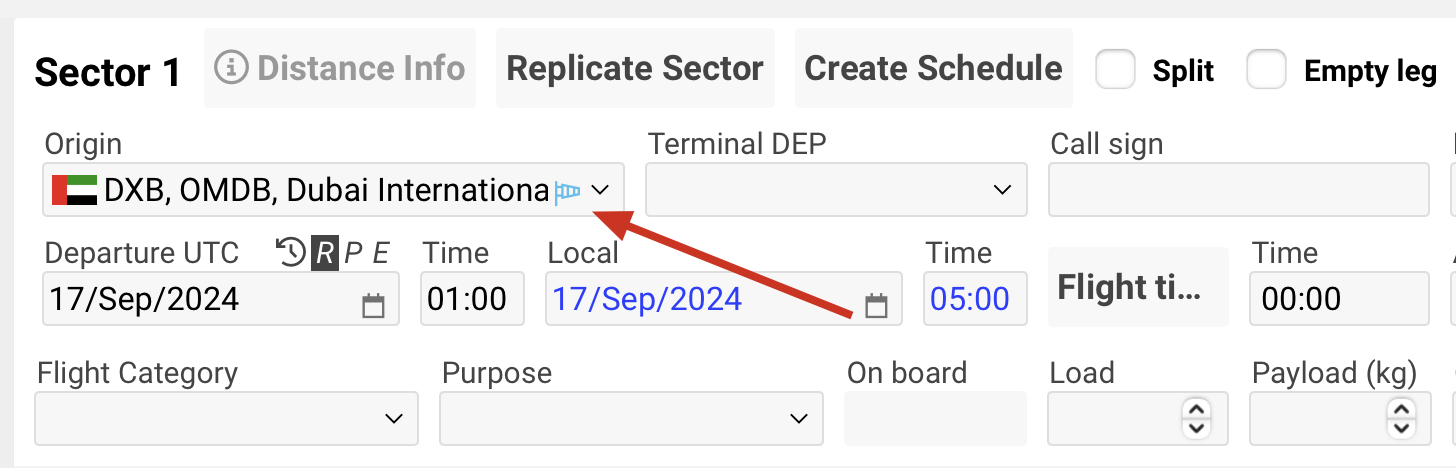
Origin – Starting airport of the sector. Can be entered via ICAO code, IATA code, city name, or country name. Displays alerts and weather info if configured.
-
Terminal DEP (Departure) – Available if defined in the airport profile.

-
Call Sign – Enter the sector call sign.
-
Destination – Destination airport of the sector.
-
Terminal ARR (Arrival) – Available if defined in the airport profile.
Date and Time Fields
-
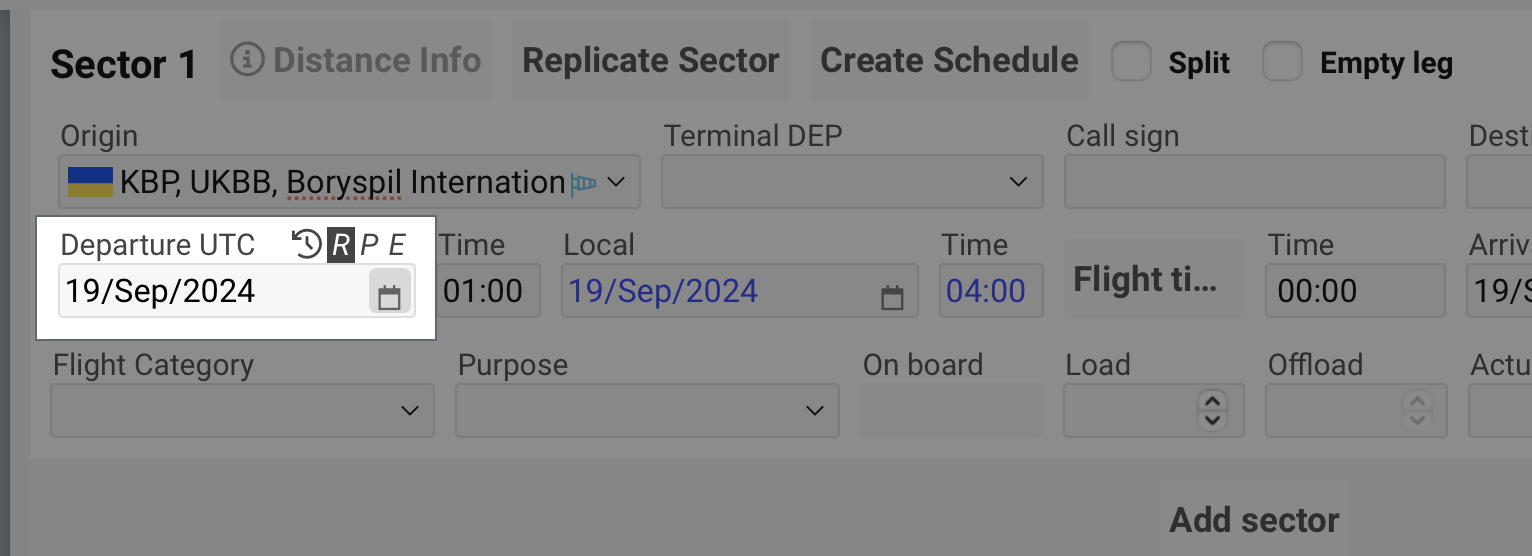
Departure UTC / Time (Black) – Enter or select UTC departure time.
-

-
is to open Field History with all the changes in the Departure UTC field.
-

-
is to reschedule the sector (original flight time + change to arrival).
-

-
is to postpone all the next sectors.
-

-
is to edit flight time (keep arrival time as is).
-
Local (Blue) – Local departure time at the origin airport.
-
Flight Time (Calc) – Automatically calculated based on aircraft speed and distance.
-
Arrival UTC / Time (Black) – Enter or select UTC arrival time.
-
Local (Blue) – Local arrival time at the destination airport.
Editing options include recalculating or adjusting based on time changes.

Additional Flight Details
-
Flight Category – As set in the main flight data; can be customized per sector.
-
Purpose – Defaulted from the main tab; can be modified.
-
On Board – Number of passengers or cargo items on board.
-
Load – Weight of cargo or goods being loaded. (Permission: hideOffload)
-
Payload – Total carried weight excluding aircraft and fuel. (Permission: hidePayload)
-
Offload – Items or passengers removed at the destination. (Permission: hideOffload)
-
Actual Payload – Adjusted payload after changes during flight.
-
Number of PAX – Total passengers on board. (Permission: hideNumberOfPaxInSectors)
-
Crew Info – Details about crew members and their roles. (Permission: hideCrewInfo)
Add or Remove Sectors
-
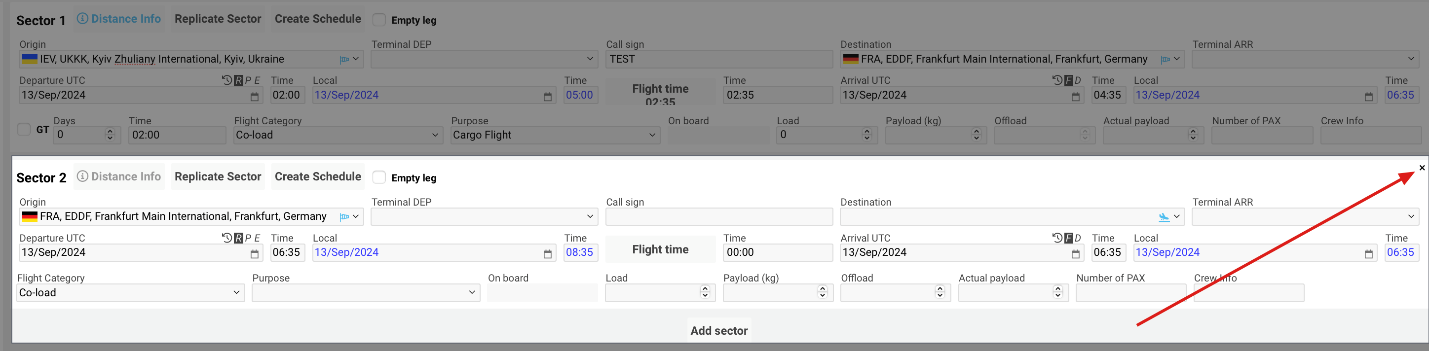
Add Sector – Create additional flight sectors.
-
Delete Sector – Only the last created sector can be deleted.
Permission-Based Visibility Notes
|
Permission Code |
Description |
|
canGenerateFlightNo |
Allows generating flight numbers manually |
|
viewNoFollowTick |
Enables the “No Follow” option |
|
showPositioningTick |
Displays “Positioning” tick |
|
liveTrackFlight |
Enables Auto Movement Updates |
|
showFlightRouteConsole |
Displays Route Paste console |
|
showFlightWizardCustomerAndType |
Displays Customer Type field |
|
selectCustomerObligatory |
Requires selecting Customer |
|
needToSelectOperator |
Enables manual operator selection |
|
showPurpose / hideMainPurpose |
Controls visibility of Purpose section |
|
hideBulk |
Hides bulk registration and type fields |
|
disableEditCompany |
Disables office editing |
|
showFlightRequestDate |
Displays Request Date/Time |
|
showInternalNotes |
Enables Internal Notes section |
|
hideViewDistanceInfo |
Hides Distance Info sidebar |
|
hideCreateSchedule |
Disables Create Schedule button |
|
canInterrupt |
Allows sector interruption |
|
viewEmptyLegDetails |
Enables Empty Leg tick |
|
hideOffload / hidePayload |
Hides related weight fields |
|
hideNumberOfPaxInSectors |
Hides passenger count |
|
hideCrewInfo |
Hides crew information |