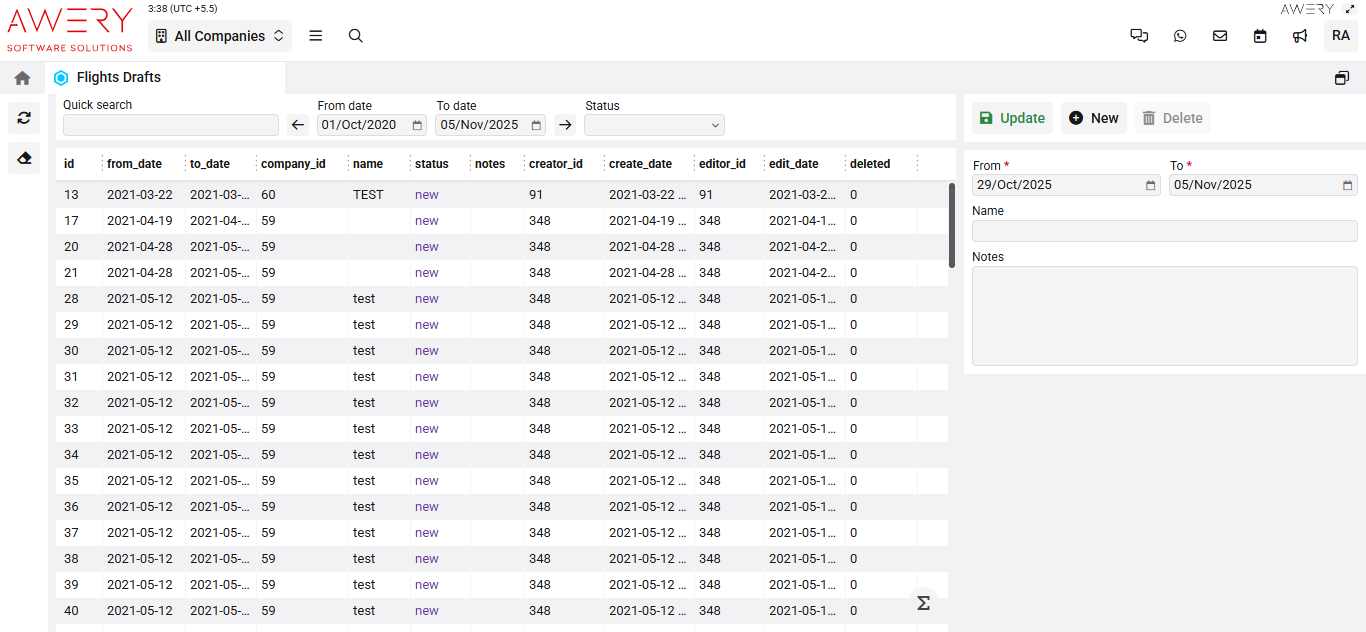
Accessing Flights Drafts
Navigate to the Flights section and under the Flights Section, click the “Flights Drafts” Button.
Overview
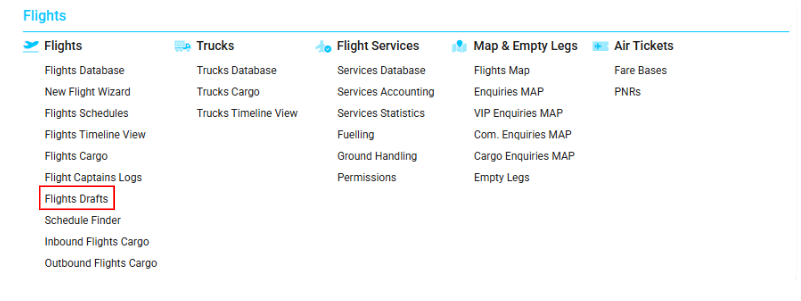
The Flights Drafts page provides a comprehensive table listing all flight draft records. Users can search, filter, create, update, and delete flight drafts as permitted by their access level. All relevant data fields and action columns are presented in a structured grid for efficiency and review.
Main Table Columns
-
id: Unique system identifier for each draft row.
-
from_date: The scheduled start date for the draft flight entry.
-
to_date: The scheduled end/expiration date for the draft flight entry.
-
company_id: Numerical identifier for the associated company or operator.
-
name: Name or description given to the draft flight record.
-
status: Current status of the draft (e.g., new, pending).
-
notes: Contains any extra notes or comments regarding the draft.
-
creator_id: Unique ID of the user who first created the draft.
-
create_date: Timestamp marking when the draft was initially saved.
-
editor_id: Unique ID of the user who last edited the draft.
-
edit_date: Date and time when the draft was last edited or modified.
-
deleted: Logical flag indicating if the record has been marked as deleted.
Filters and Controls
-
Quick search: Enter keywords to rapidly filter visible records.
-
From date / To date: Select a date range to filter records by schedule period.
-
Status: Dropdown to filter drafts by their current workflow status.
-
Update: Save changes to an existing draft record.
-
New: Start a new flight draft record.
-
Delete: Permanently remove a selected draft (subject to permissions).
Record Editing Panel
Located on the right-hand side, the editing panel allows direct input and modifications:
-
From / To: Required fields to specify draft's applicable date range.
-
Name: Optional label or descriptor for the draft.
-
Notes: Free text field for any additional information related to the draft flight.
Visual Reference
(Screen below illustrates typical Flights Drafts interface, including all data columns and editing controls.)