Accessing Flights Cargo
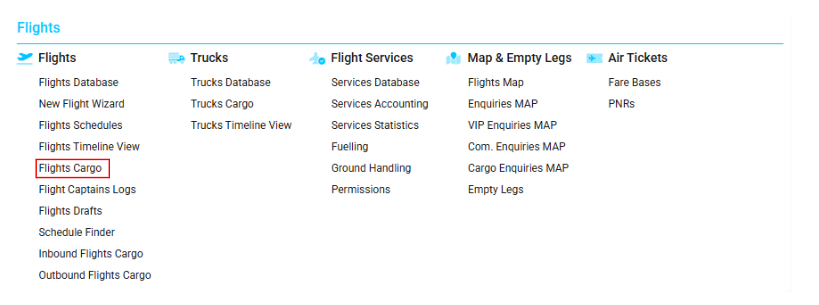
Navigate to the Flights section and under the Flights Section, click the “Flights Cargo” Button.
Overview
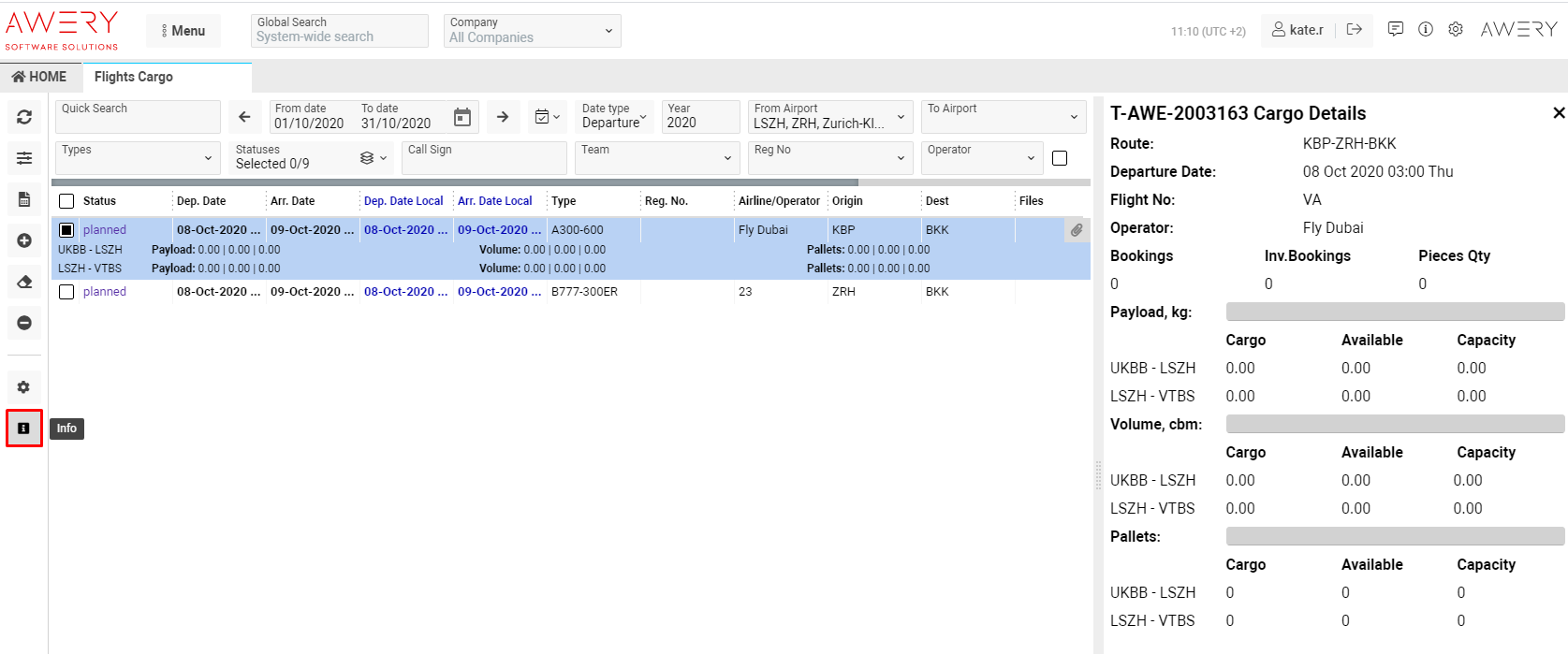
This interface allows you to view and manage detailed information about cargo flights, including payload, pieces, and volume.
It also provides the ability to review deleted flights, change Revenue and Expense statuses, and apply various filters for precise data visualization.
List Description
Status – Indicates the current condition of the flight.
Flight ID – The internal flight number, which can be set according to different rules.
Airline/Operator – The company responsible for conducting the flight.
Type – The aircraft type.
Origin – The departure point code.
Dest – The arrival point code.
Route – The flight path.
Dep. Date – The date and time of departure (UTC).
Arr. Date – The date and time of arrival (UTC).
Dep. Date Local – The local date and time of departure.
Arr. Date Local – The local date and time of arrival.
Company – The office associated with the flight.
Reg. No. – The aircraft registration number.
REV – Indicates the revenue status:
-
Double tick – Revenue closed.
-
Single tick – Revenue notified.
-
Empty cell – Revenue unnotified.
EXP – Indicates the expense status: -
Double tick – Expense closed.
-
Single tick – Expense notified.
-
Empty cell – Expense unnotified.
Files – Displays a clip icon when attachments are available.
Manuals
How to Open Flight Details
-
Click the Info button next to the desired flight.
-
The sidebar will open with detailed flight information.
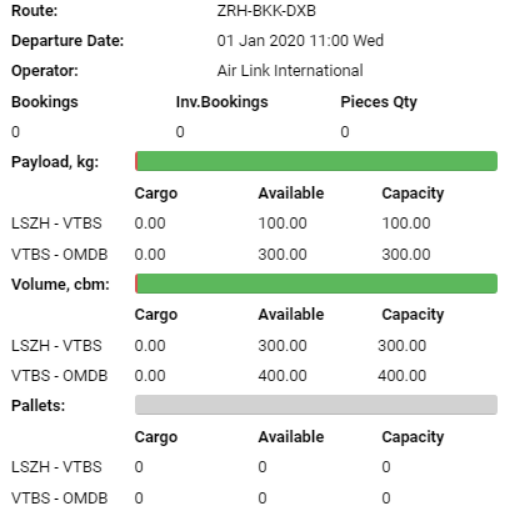
Elements in the Sidebar:
-
Route – Displays the path of the flight.
-
Departure Date – The starting date of the flight.
-
Flight No – The flight’s call sign.
-
Operator – The company operating the flight.
-
Bookings – The total number of linked Air Waybills (AWB).
-
Inv. Bookings – Number of bookings linked to jobs.
-
Piece Qty – The quantity of pieces loaded.
-
Payload, Volume, and Pallet Details – Shown for each sector, including quantity and percentage of capacity.
How to Change the Selected Period
-
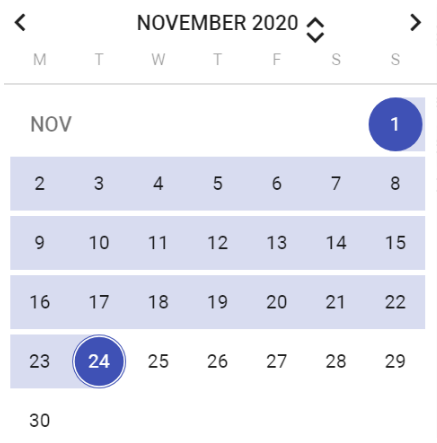
Click the calendar icon.

-
Select the start date, then the end date.
-
The selected period will appear highlighted on the interface.
Sorting and Filtering
-
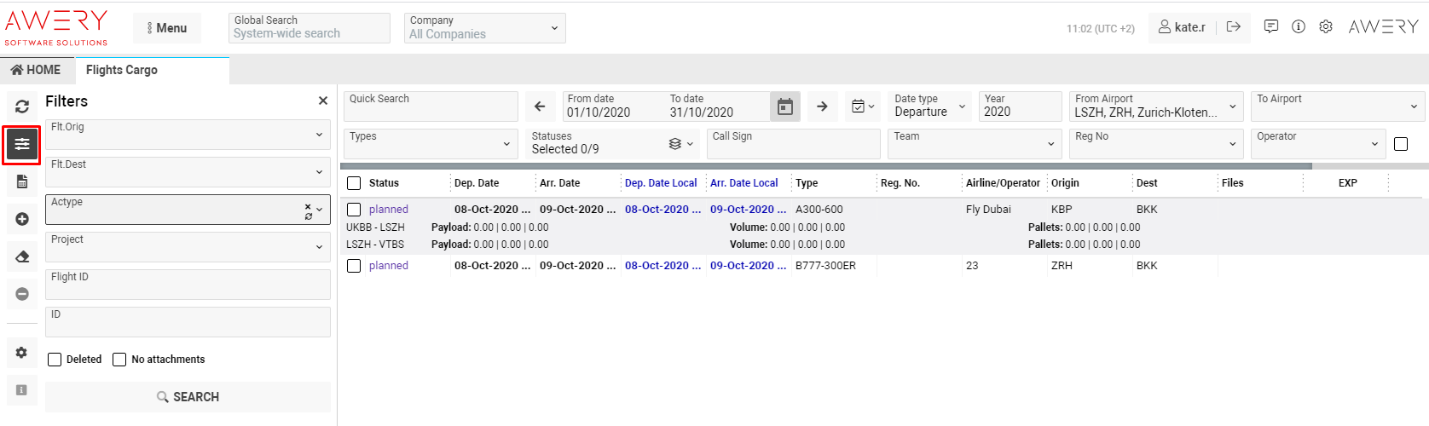
Click the Filters button to refine your view.
-
Filter data by the following parameters:
-
Origin
-
Destination
-
Aircraft Type (Actype)
-
Project
-
Flight ID
-
ID
-
-
Choose options from the dropdown lists or enter values manually.
-
Click Search to apply filters.
Additional filtering options:
-
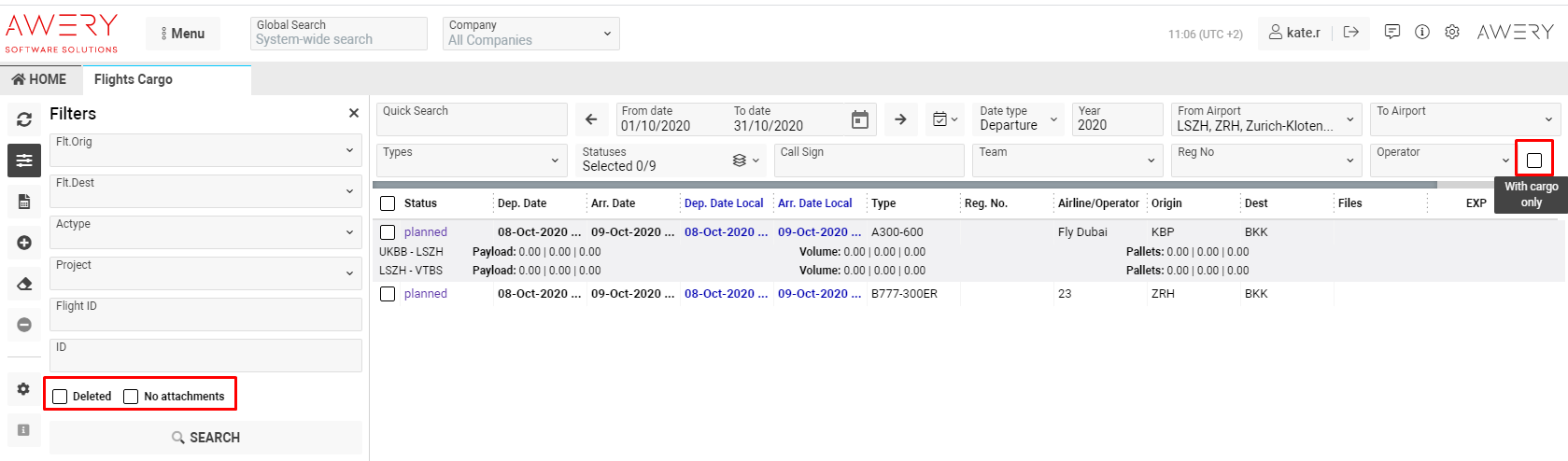
Deleted – Show deleted flights.
-
No Attachments – Show flights without attachments.
-
With Cargo Only – Display flights linked with AWBs.
-
Quick Search – Use for fast keyword-based filtering across Status, Flight ID, Airline/Operator, Type, Origin, Dest, Route, and Reg. No.
How to Change Revenue and Expense Status
-
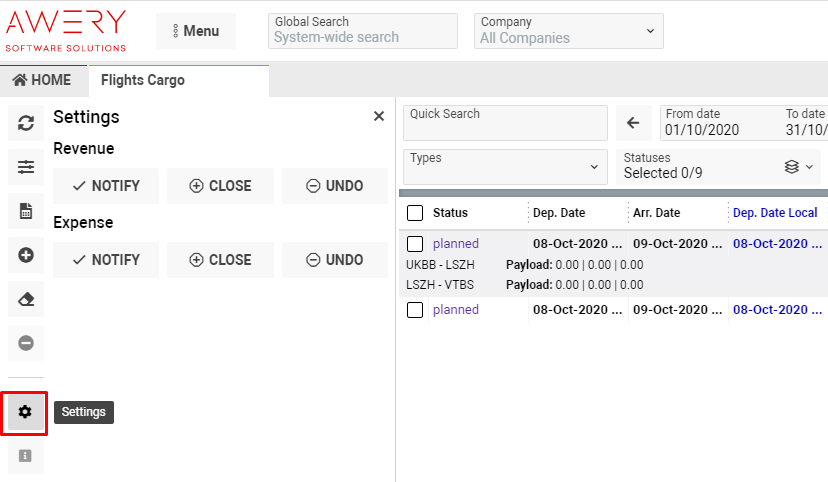
Click the Settings button.
-
Select the required entry using the checkbox.
-
Click the corresponding status field to update Revenue or Expense.