
1. How to begin
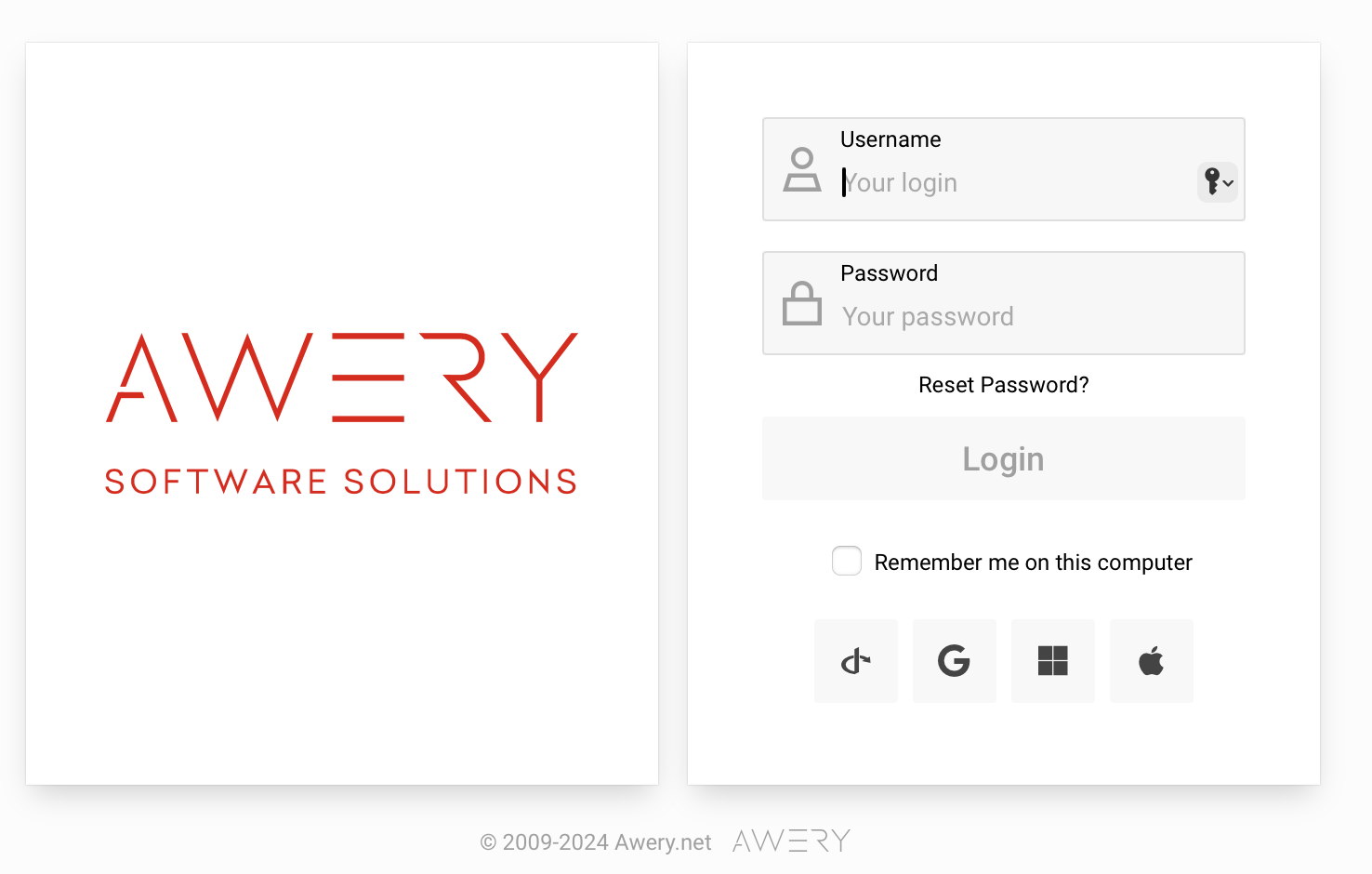
Once you get your login and password, enter the System using the Login form.
We will use our demo server to show you the fundamentals. To enter your system, you will need your Company’s link
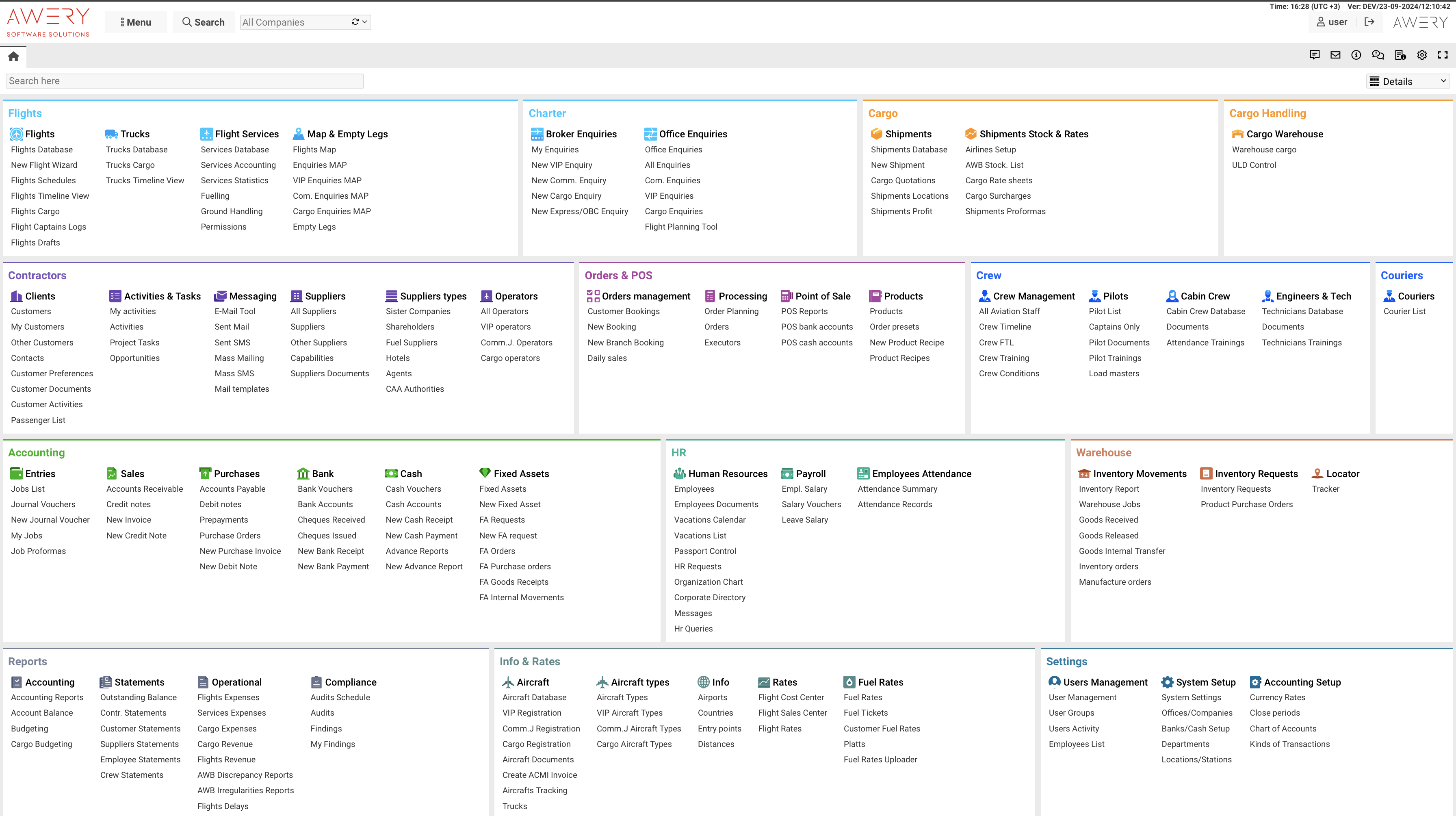
Once you are logged in, you will be redirected to the ERP Home Page (displaying can be different depending on your System setup)
2. How to get in the Awery ERP interface
Here we will explain key features and give you some tips on how to switch between the modules and find the right items to get what you need.
Let’s divide the System interface in few blocks:
-
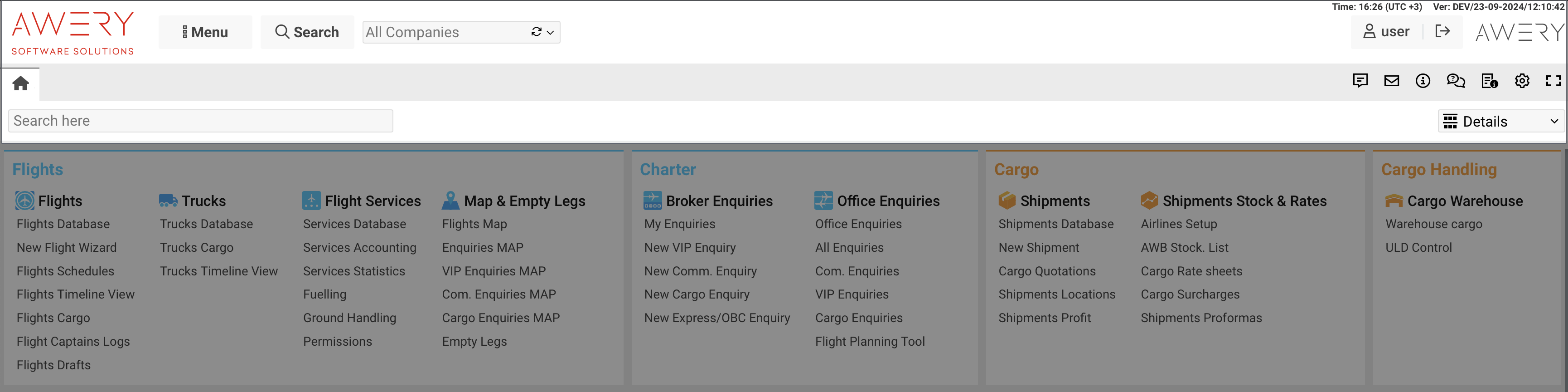
First block is Header
|
Button/Field/Function |
Description |
|---|---|
|
|
Logo is also the Home-returning button. It will redirect you to the home page from anywhere. |
|

|
Also it is the Search here. Type anything to this field and press Enter or click the Search button |
|
|
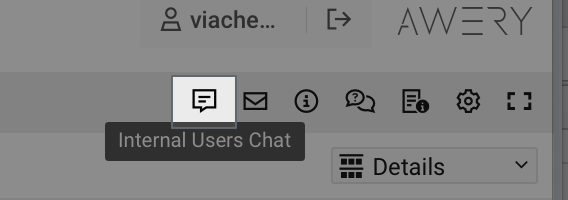
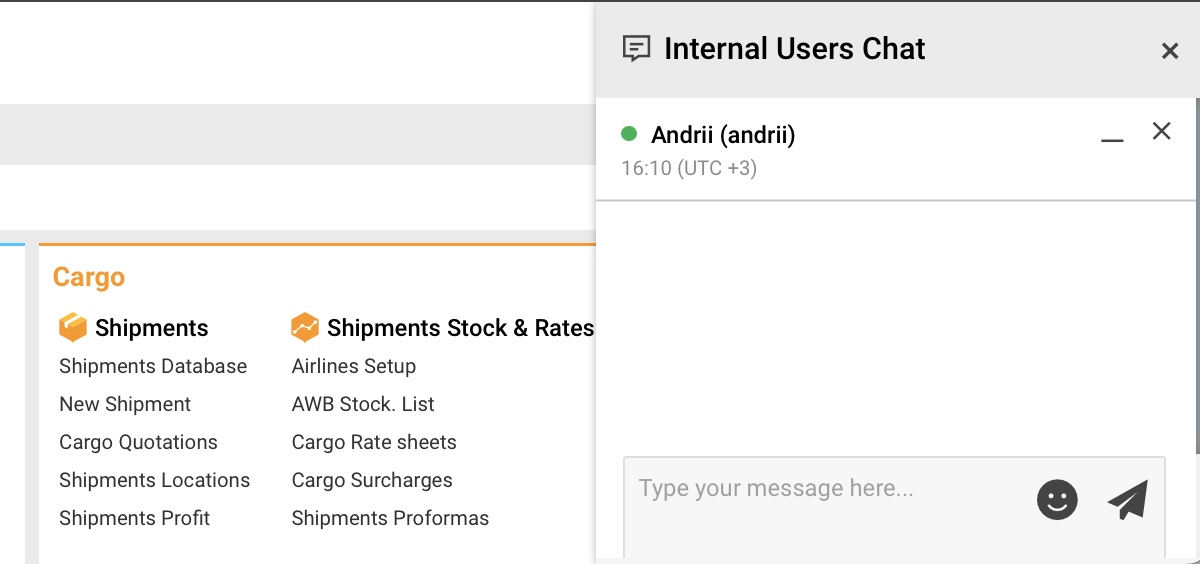
Chat: you can write to your colleagues from the System. Just open it by clicking on it, choose the user you need and drop him a line 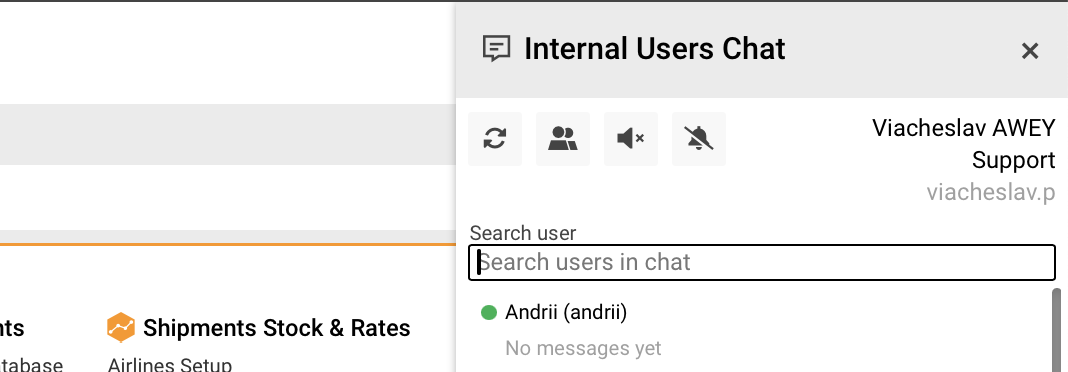
|
|
|
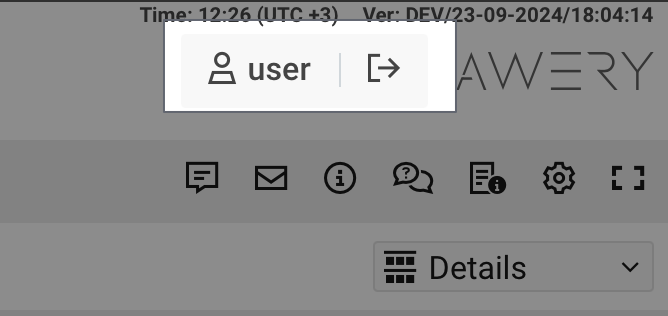
User Settings & Logout icon. Click on your login and see the Editing fields 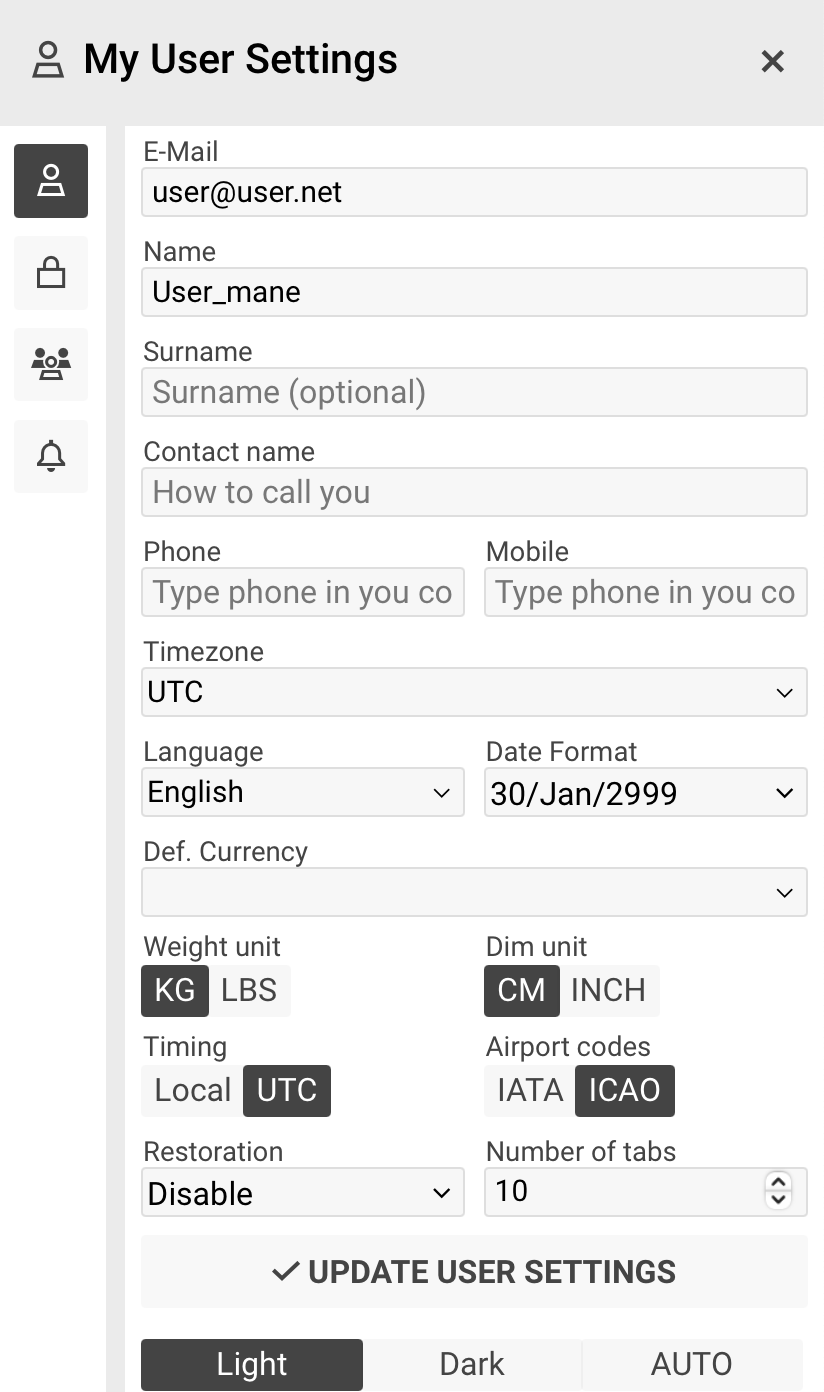
|
|
|
Support Chat button. Click on it and the chat will pop up. Then click on the ‘New message’ button and start your conversation with Awery Support Team 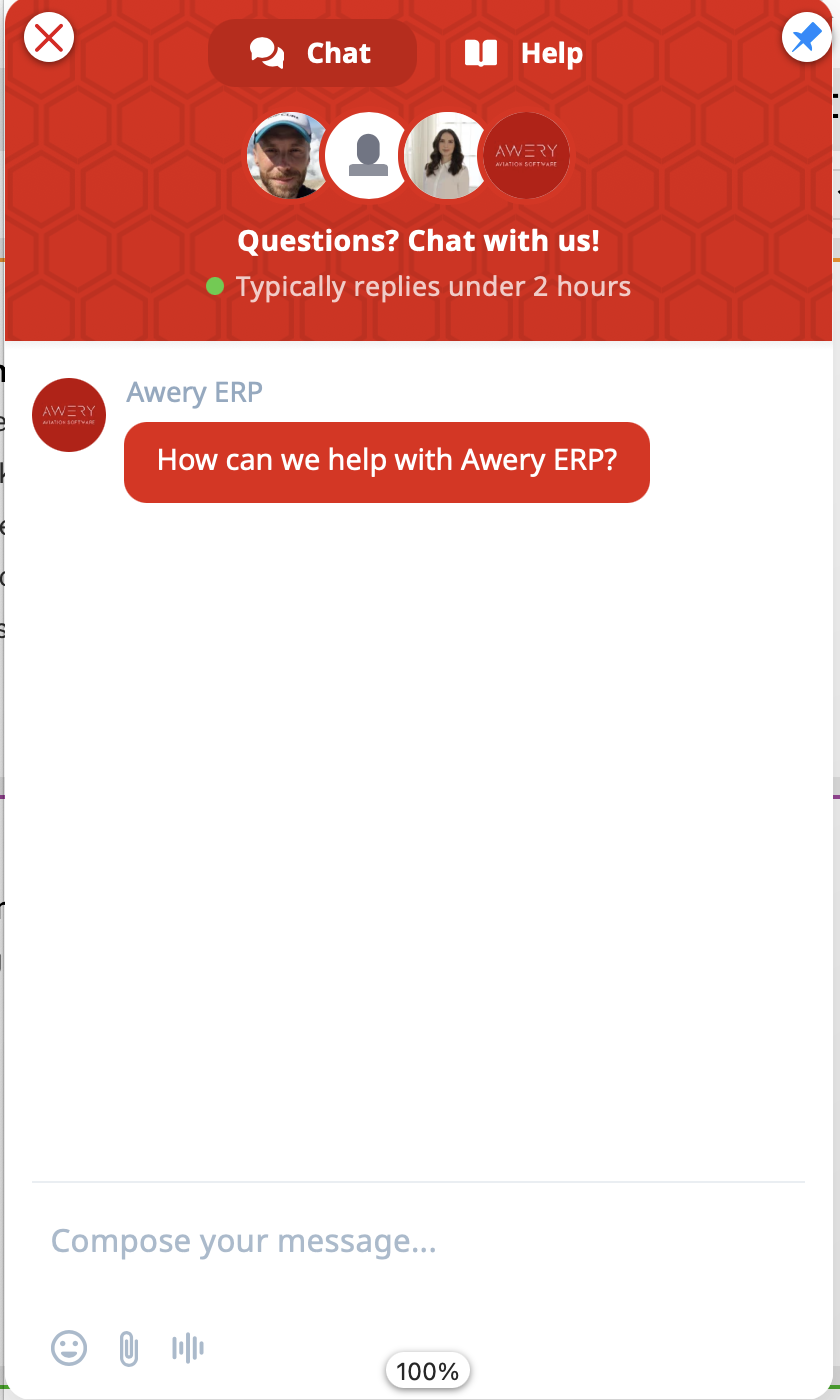
|
|
|
Once you click on the Documentation button a new page opens in your browser. This is where we store all the useful materials for you. 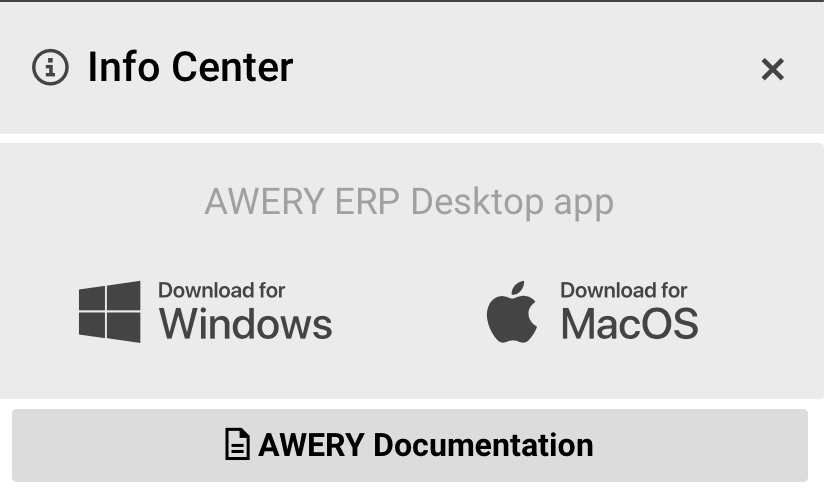
|
|
|
this is a list of Awery features. You can always find the most recent System updates here. 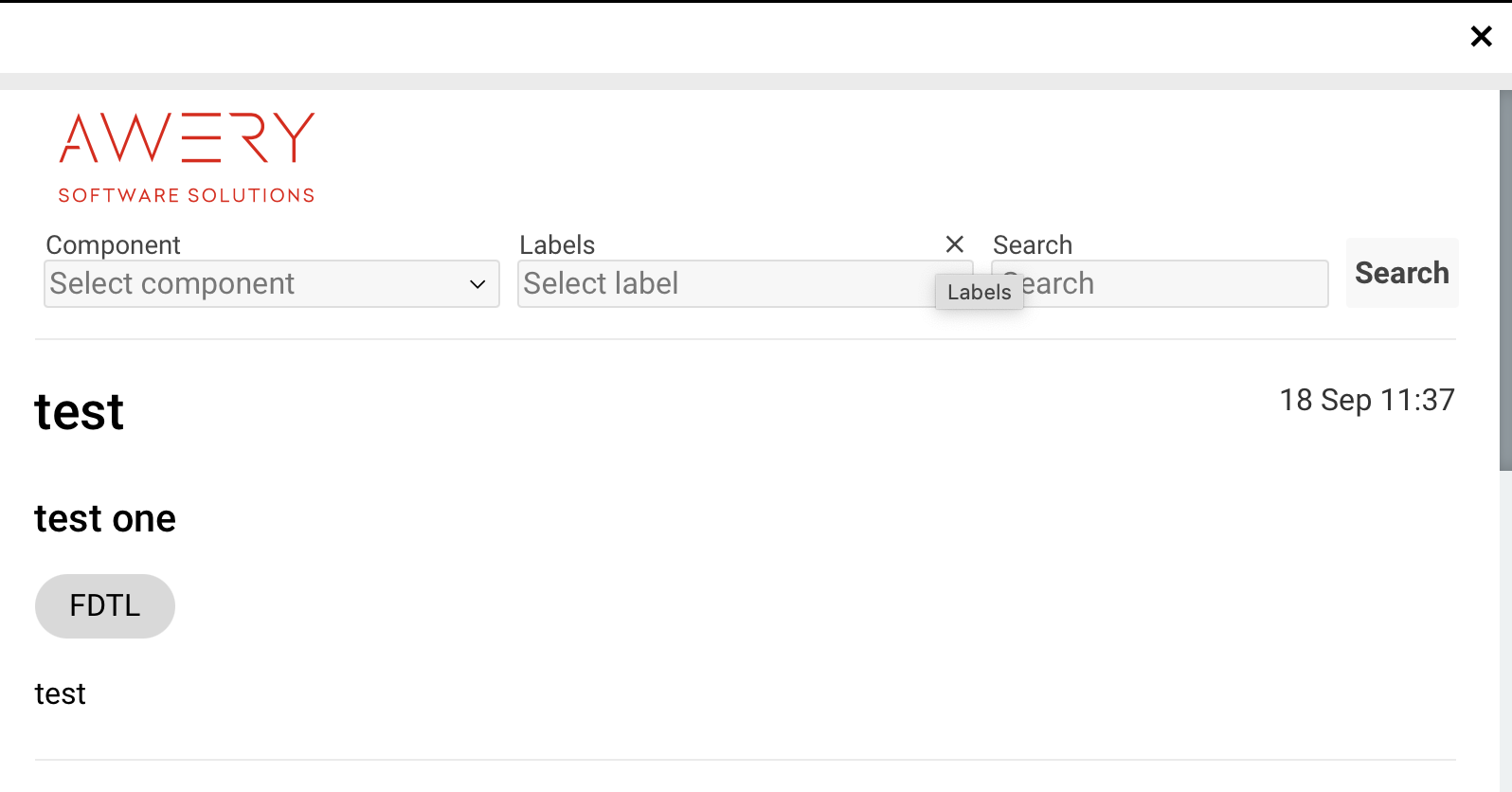
|
|
|
Awery logo — click it to open Awery web-site in a new tab. There you can find everything you need about Awery products and solutions. 
|
-
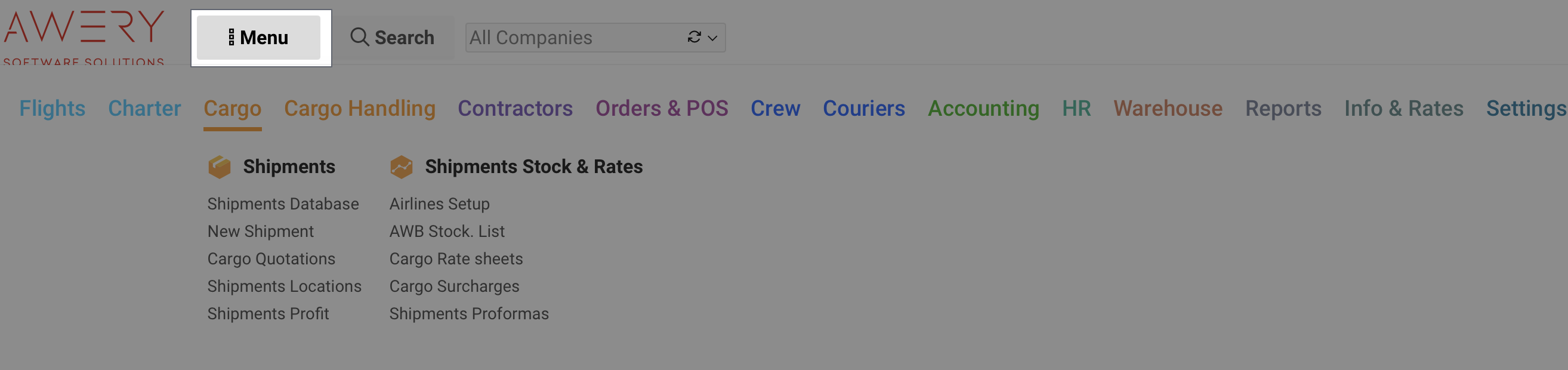
The second block is the Menu
|
Button |
Description |
|---|---|
|
|
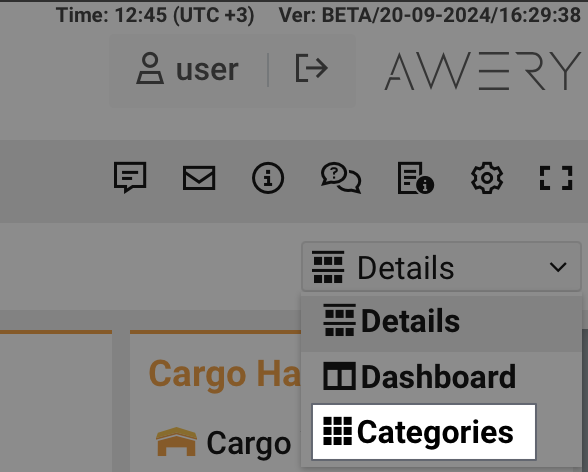
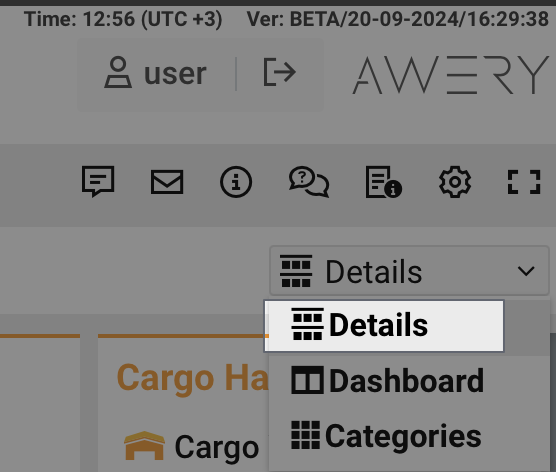
Categories mode will display menu as sections — click on any of them to see the dropdown list of menu items: 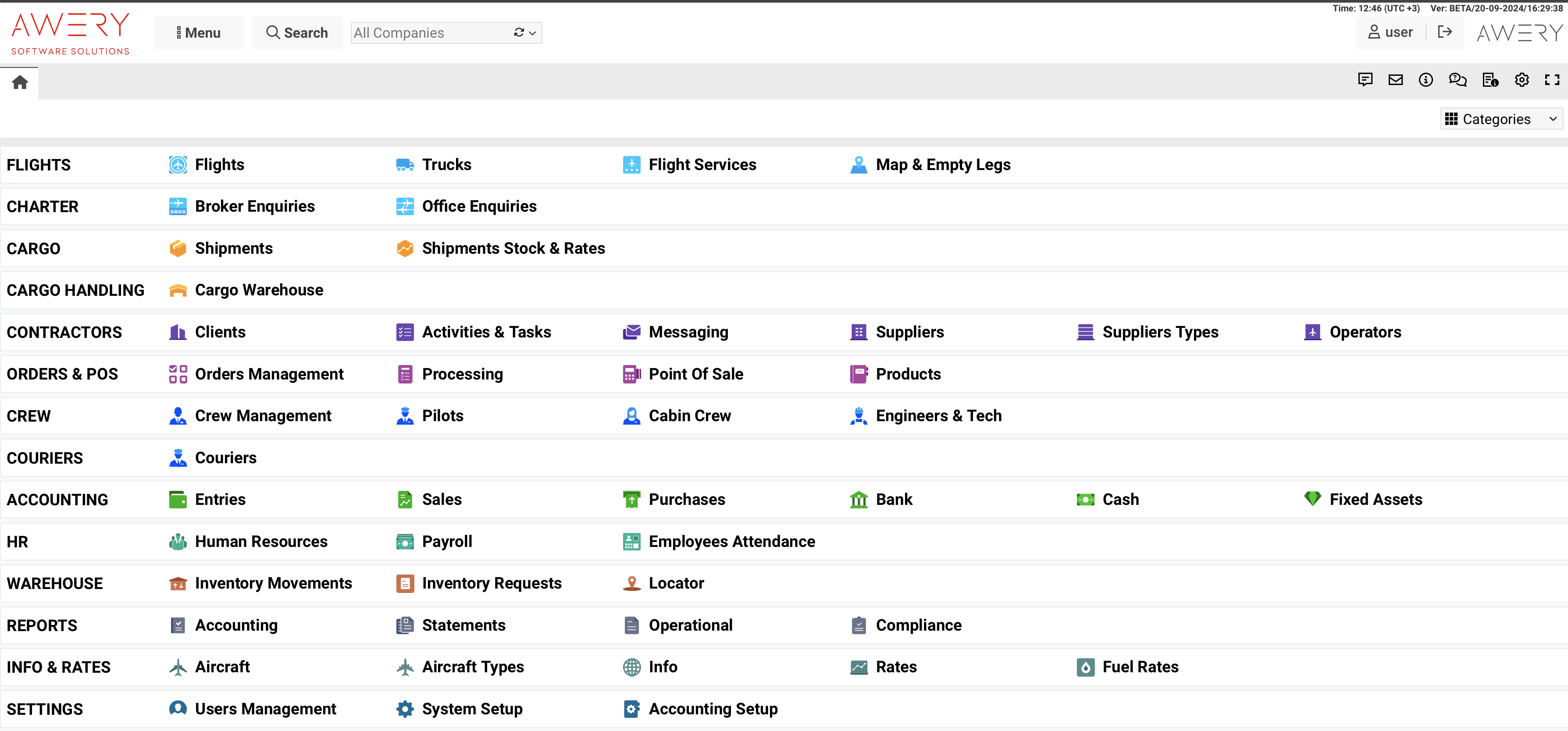
|
|
|
Details mode will show all the menu items on the screen 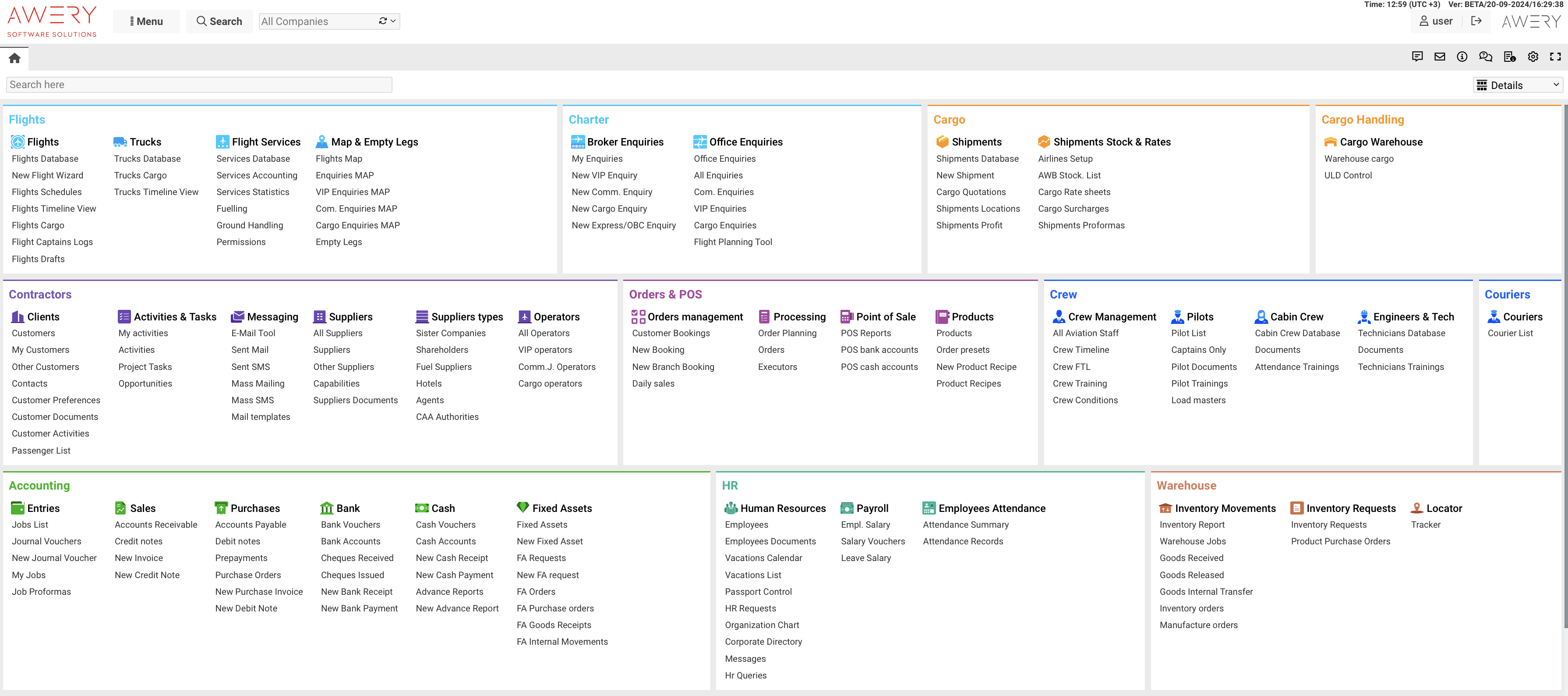
|
|
|
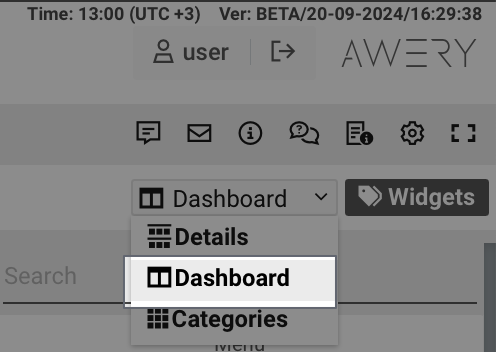
Dashboard will divide screen into two sections: 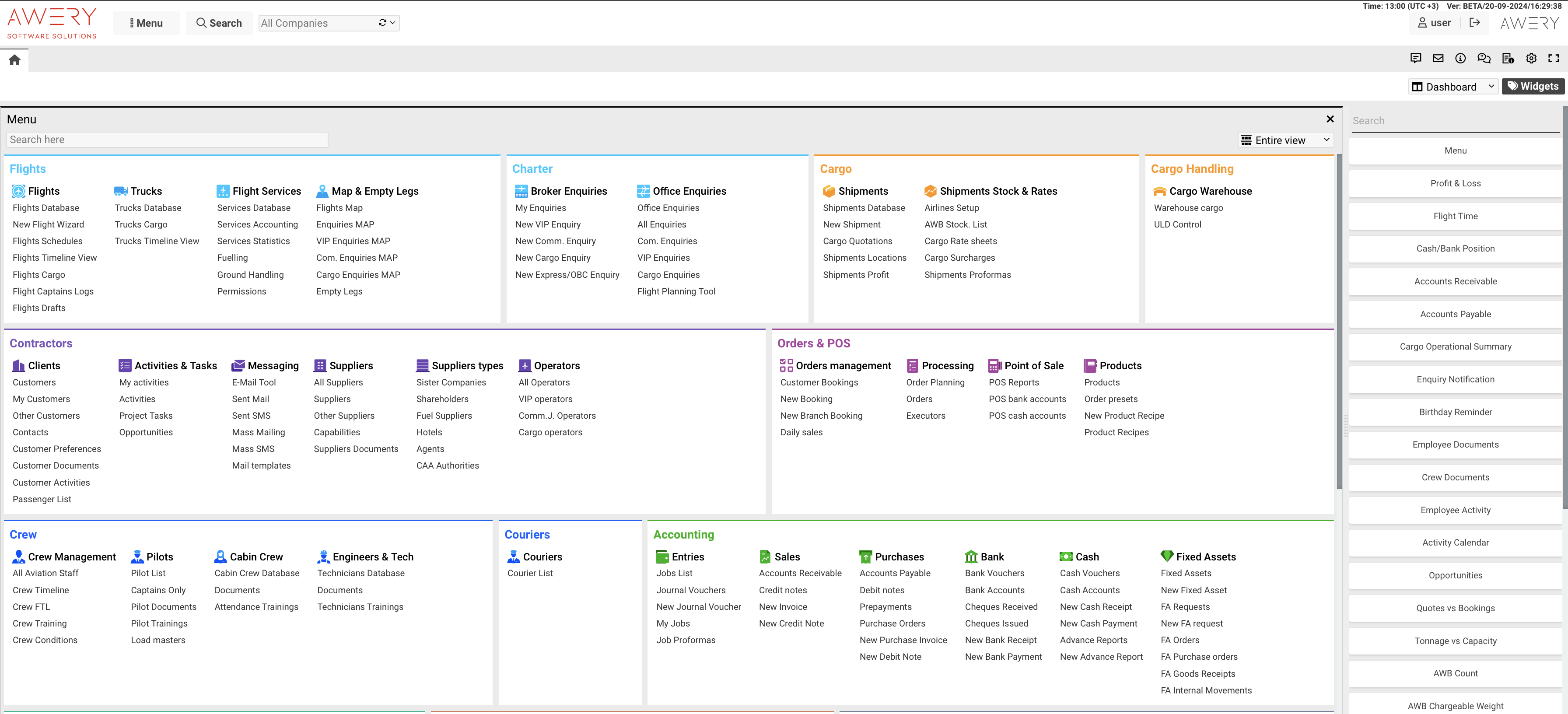
Here you can add widgets by clicking on ‘Add widget’ button: 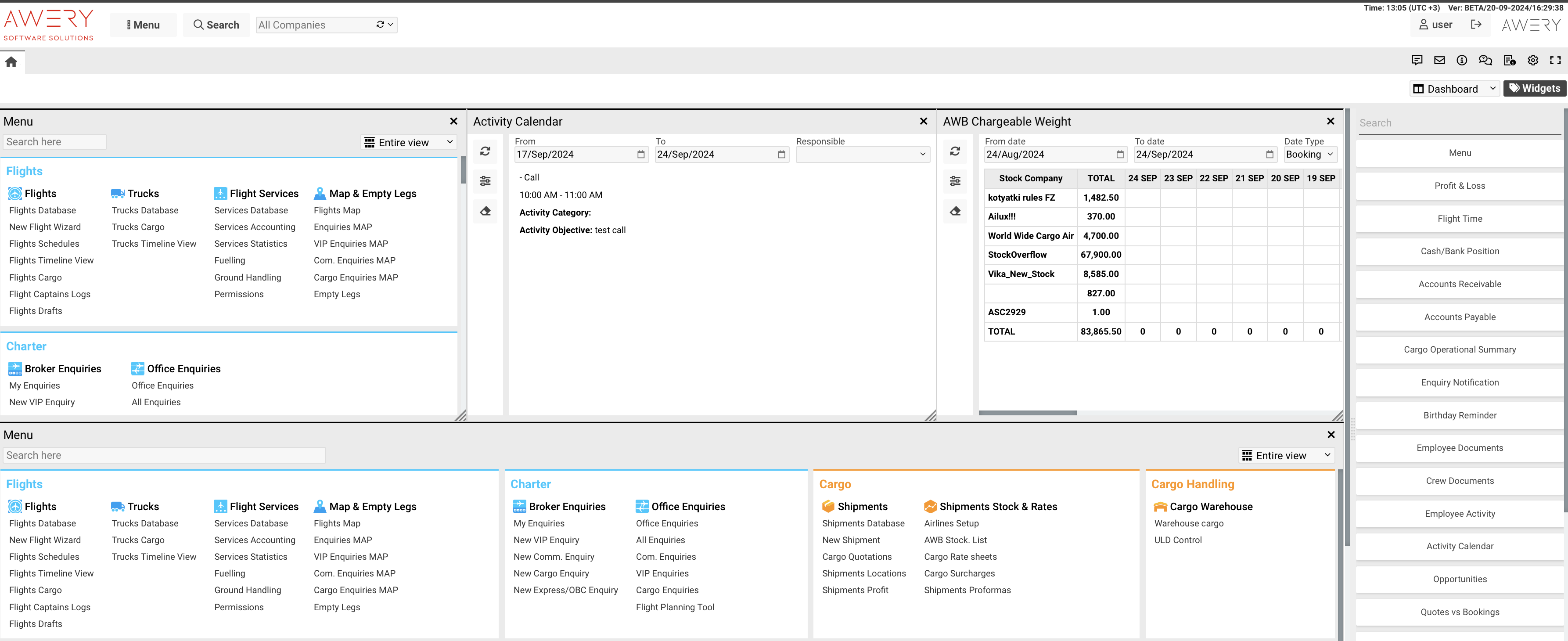
|
|
|
Dashboard view mode is an empty space for widgets. It is convenient to add many widgets here 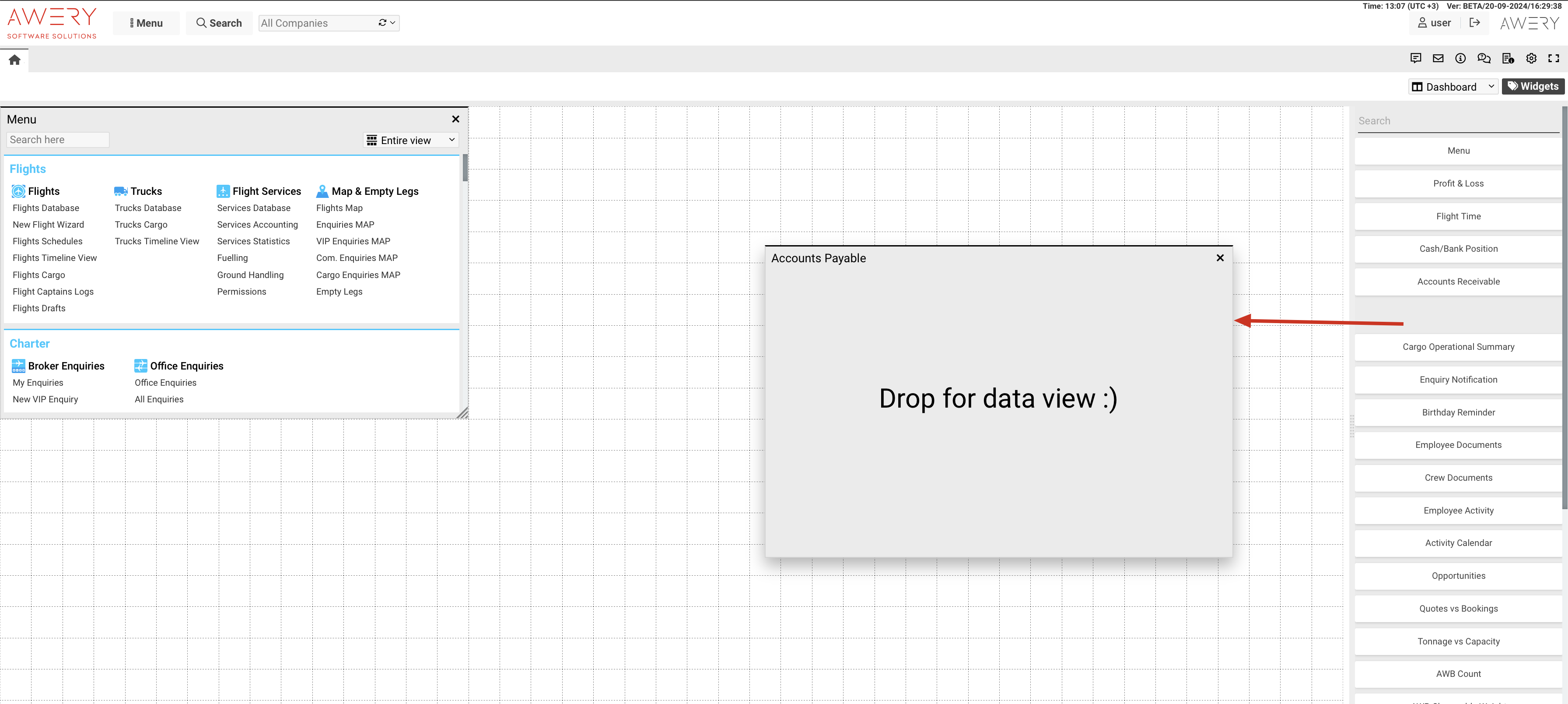
|
|

|
Personal menu is a fully personalized space. Every user can set it up himself and add menu items for easier everyday usage.
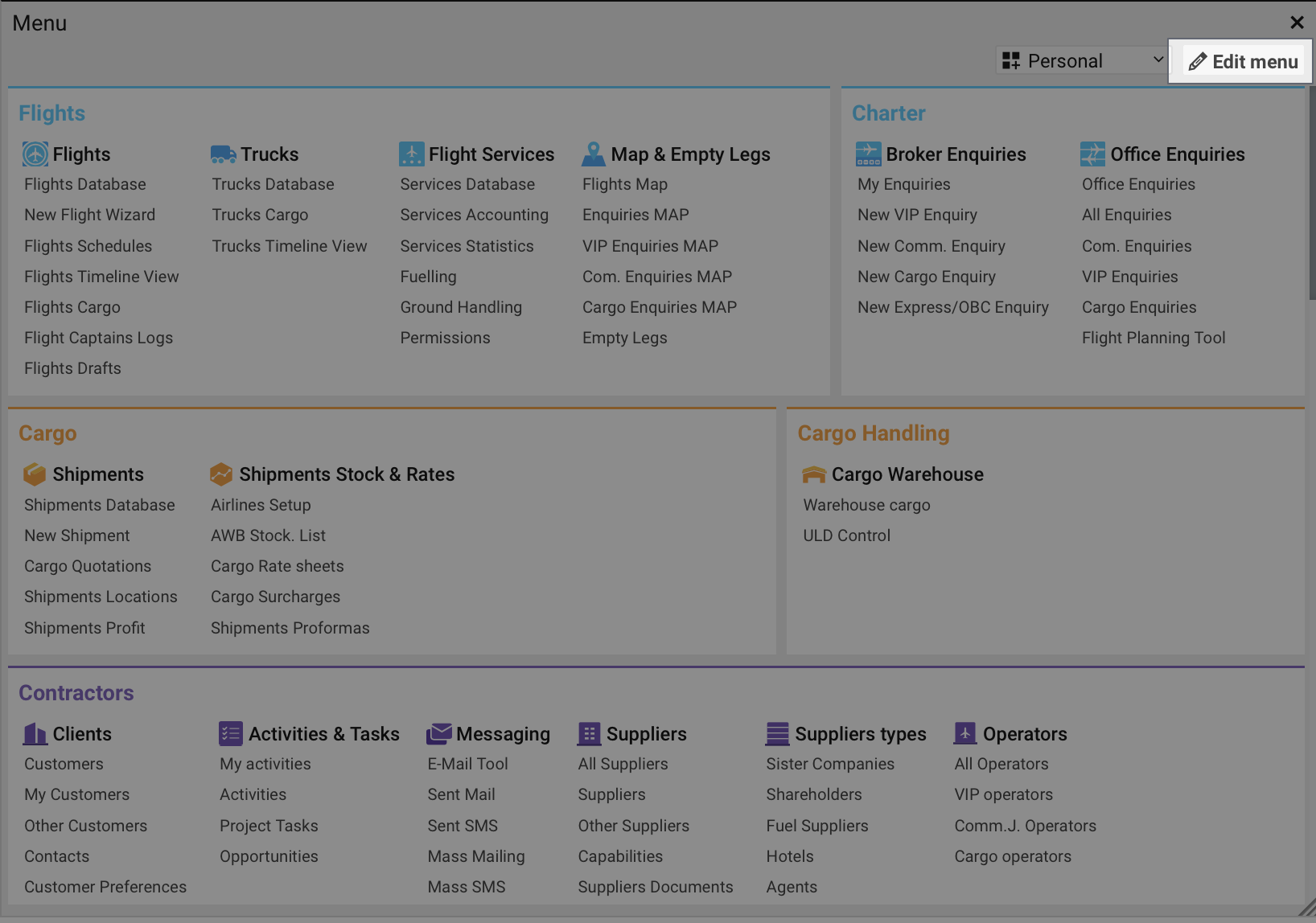
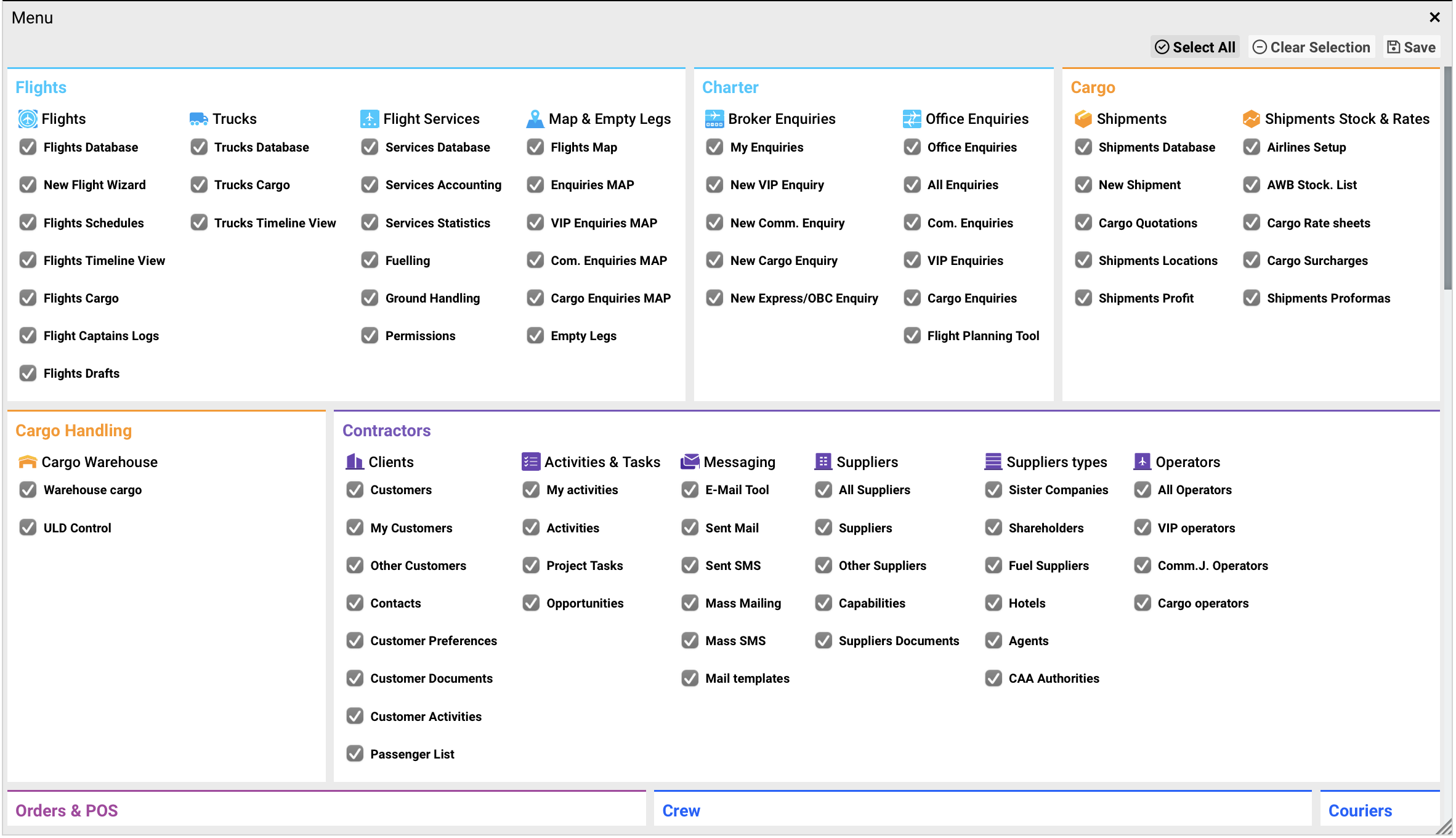
|
3. Some extra features
Here are some extra tips on how to use the system:
|
Function |
Description |
|---|---|
|
Tabs moving |
Drag and drop the tabs 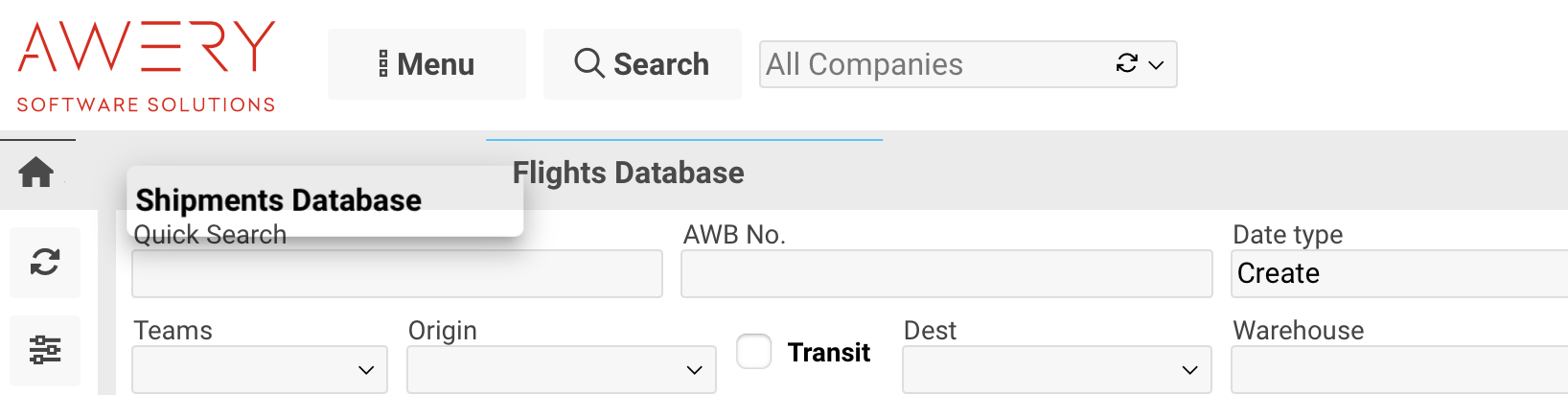
|
|
|
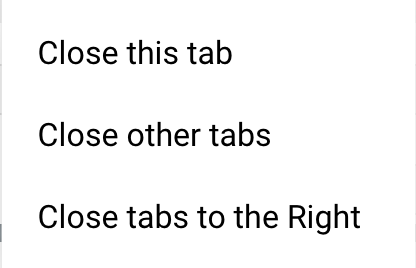
Opened far too many tabs? Close it by two clicks: right click on the tab name, then click on “Close other tabs”/”Close tabs to the right” 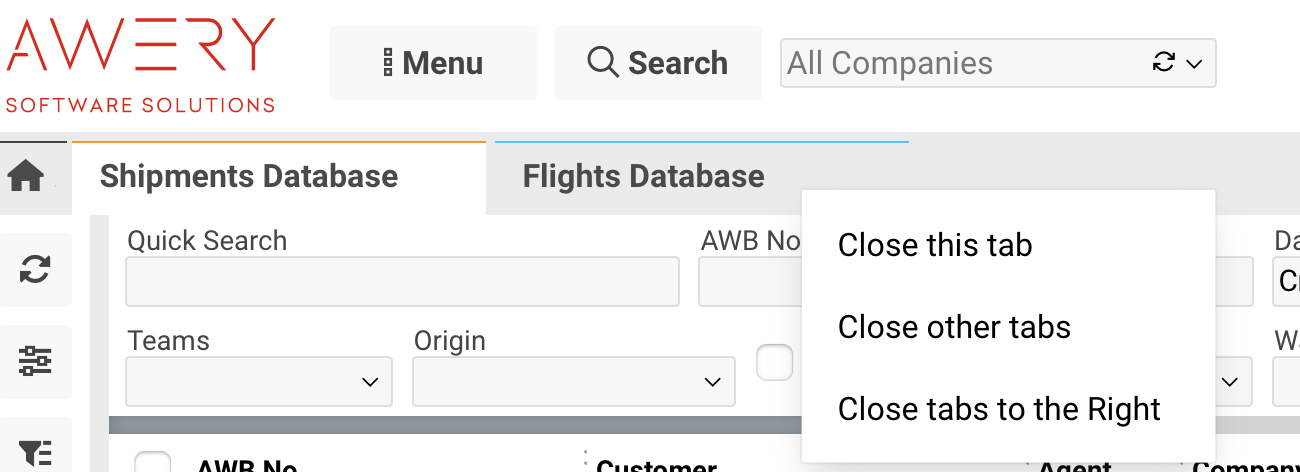
|
If you have any difficulties with the system setup don't hesitate to contact us at support@awery.aero
We hope that Awery will make your work faster and easier.
Always yours,
Awery Support Team