
Accessing Flights Database
Navigate to the Flights section and under the Flights Section, click the “Flights Database” Button.
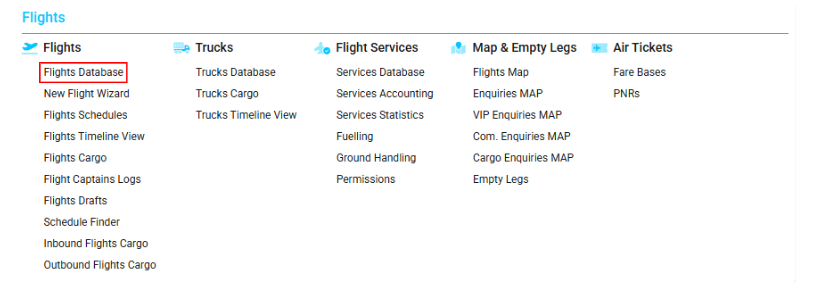
Overview
The Flights Database interface allows users to view, manage, and analyze detailed information about flights within a selected period.
Using the available filters, users can quickly locate specific flights or display only those meeting defined criteria—such as invoiced flights, allocated flights, or flights with a particular revenue or expense status.
Users can also view deleted or closed flights, flights without attachments or schedules, and empty legs. Reports can be generated for data export and analysis.
Additional tools enable status updates, creation of flight schedules or reports, and modification of revenue and expense conditions directly from the interface. The view selector allows customization of how flight data is displayed.
List Description
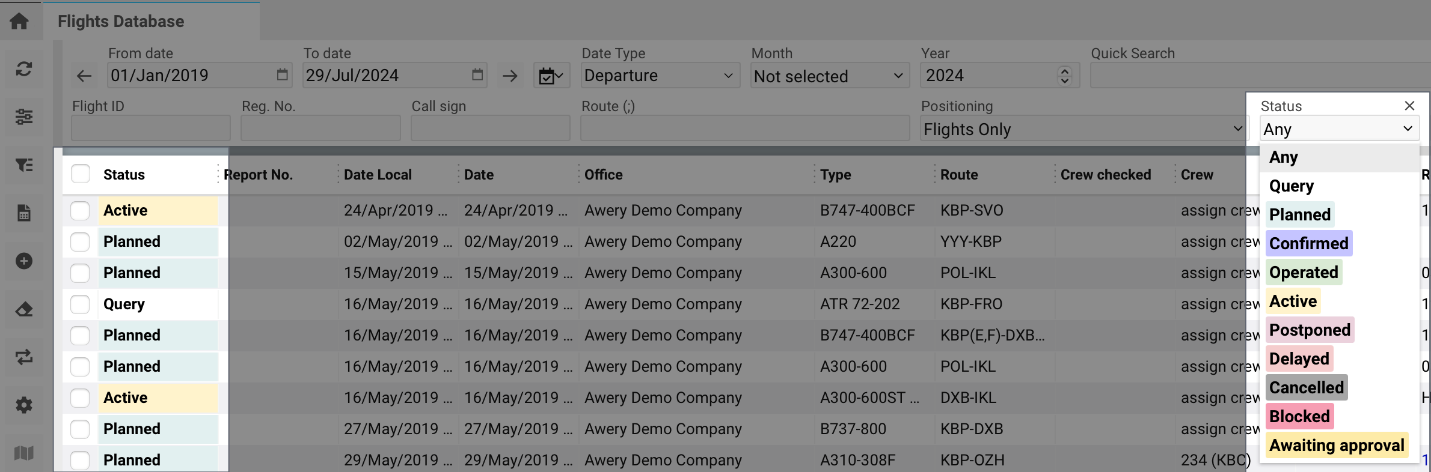
Status – Indicates the current condition of the flight:
-
Planned – Cyan
-
Active – Yellow
-
Completed – Green
-
Cancelled – Gray
-
Confirmed – Blue-magenta
-
Postponed – Pink
-
Delayed – Red
-
Request – No color
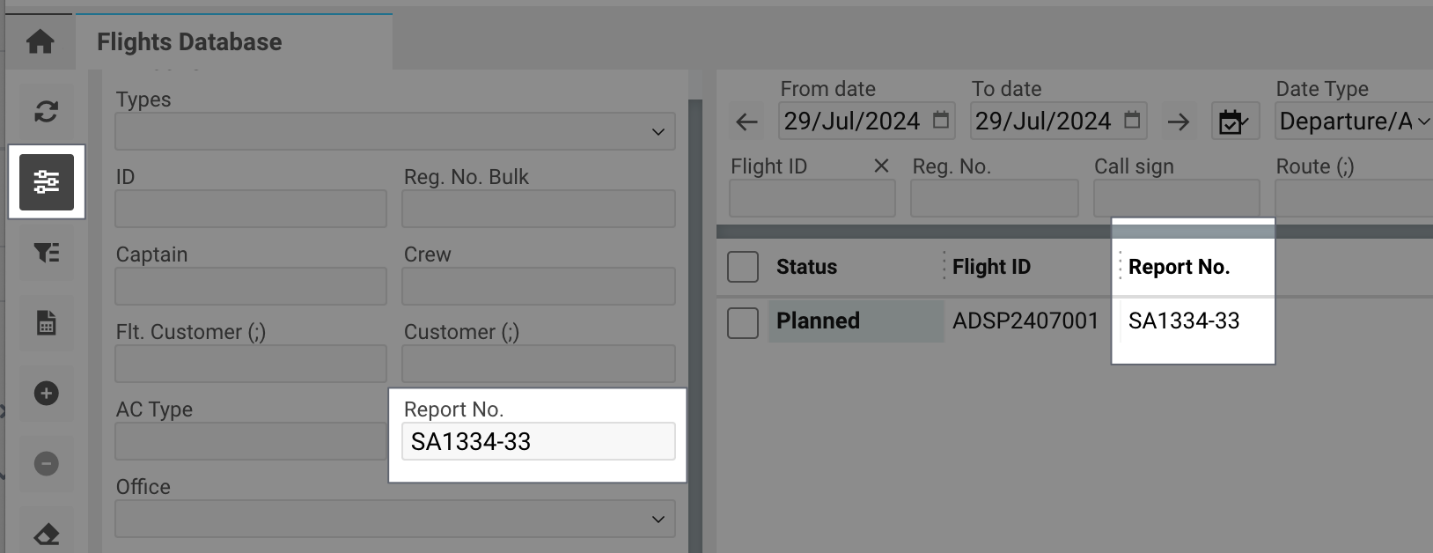
Report No. – The flight report number.
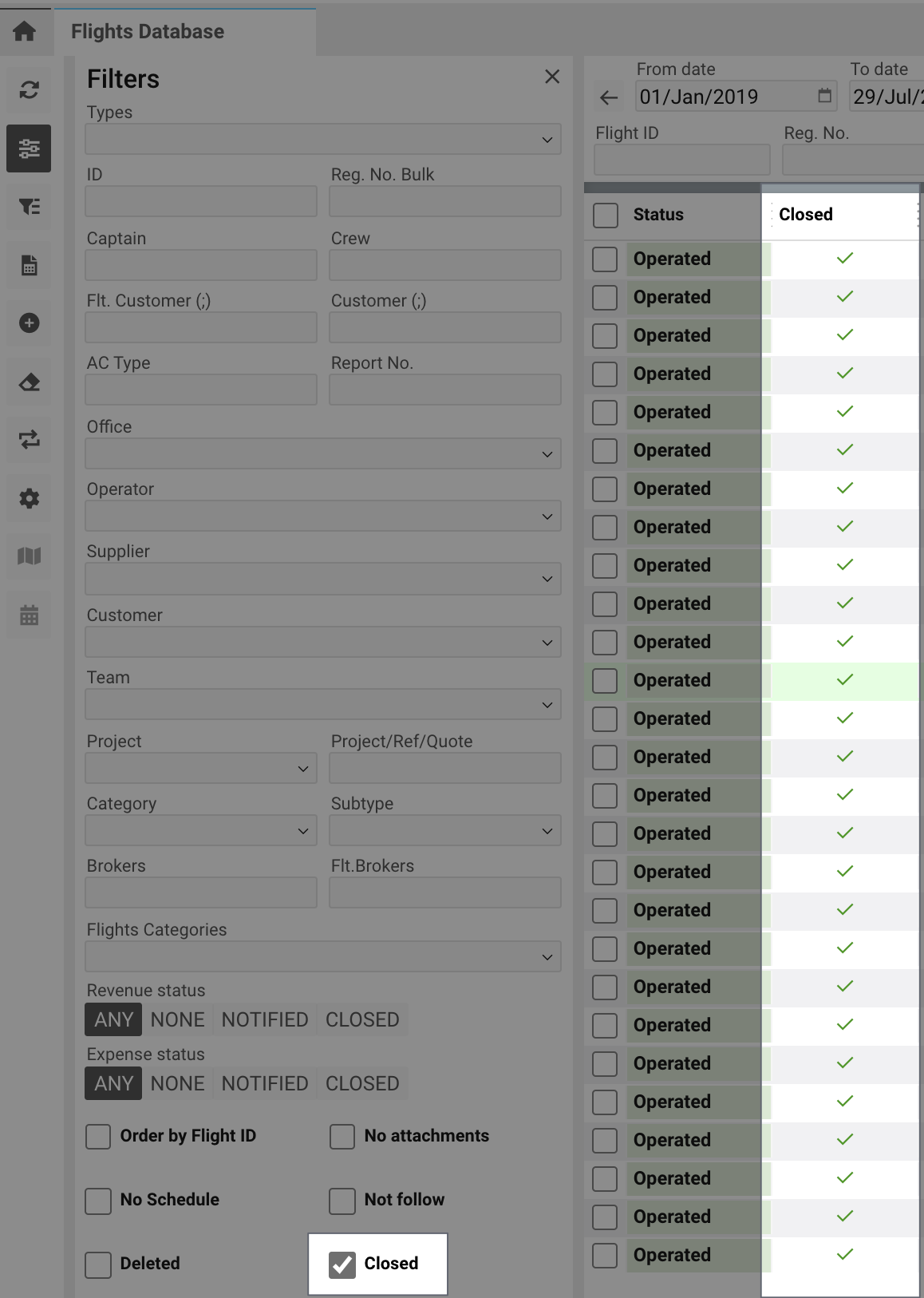
Closed – Displays a tick if the flight is operated.
Flight ID – Unique flight identifier. Highlighted in red for empty legs.

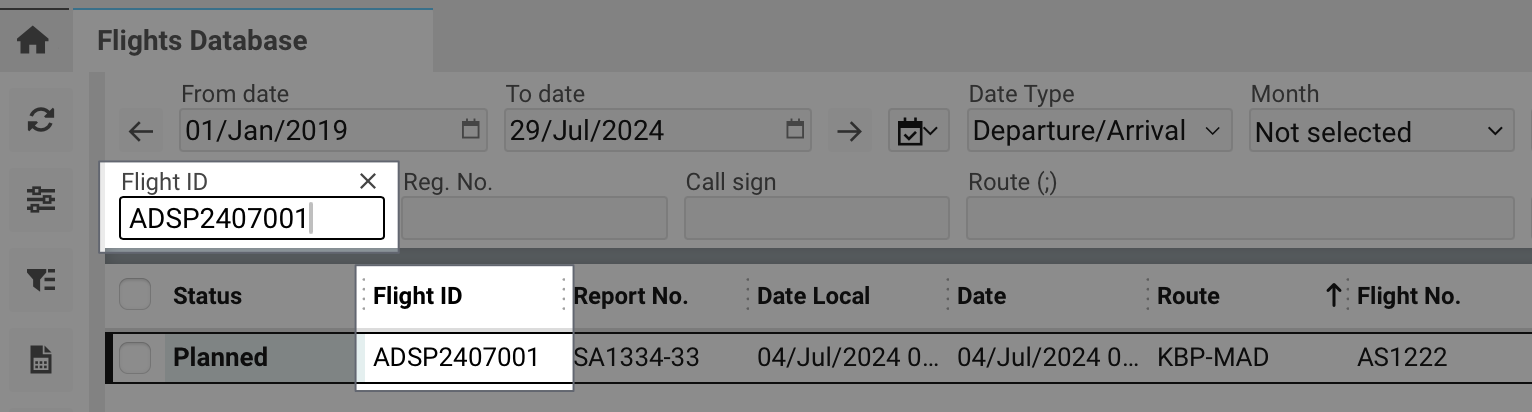
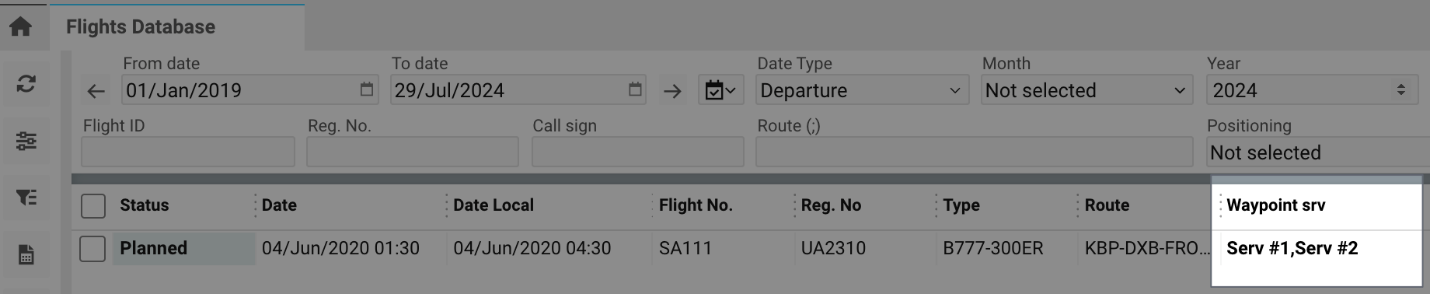
Waypoint Srv – Number of waypoint services.
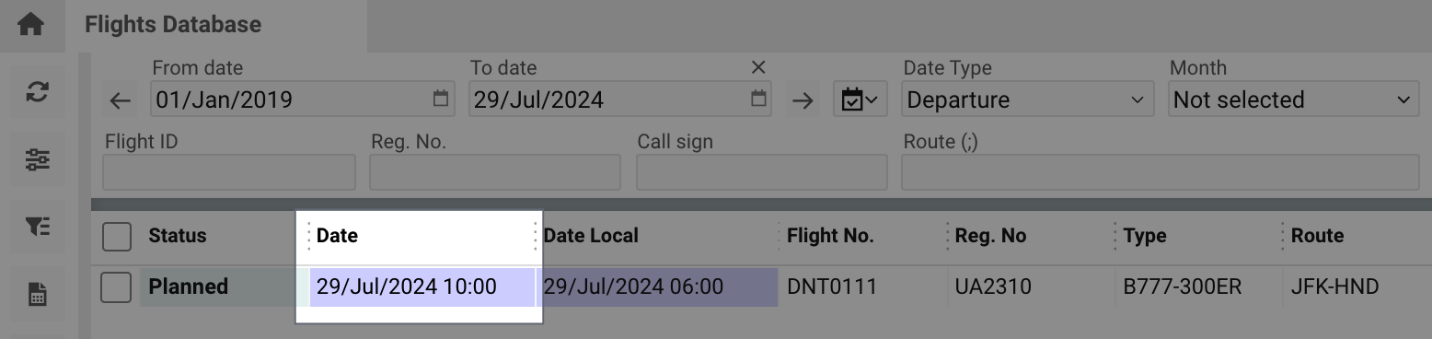
Date – Flight start date/time (planned or actual). Highlighted in blue if “No Follow” is selected.
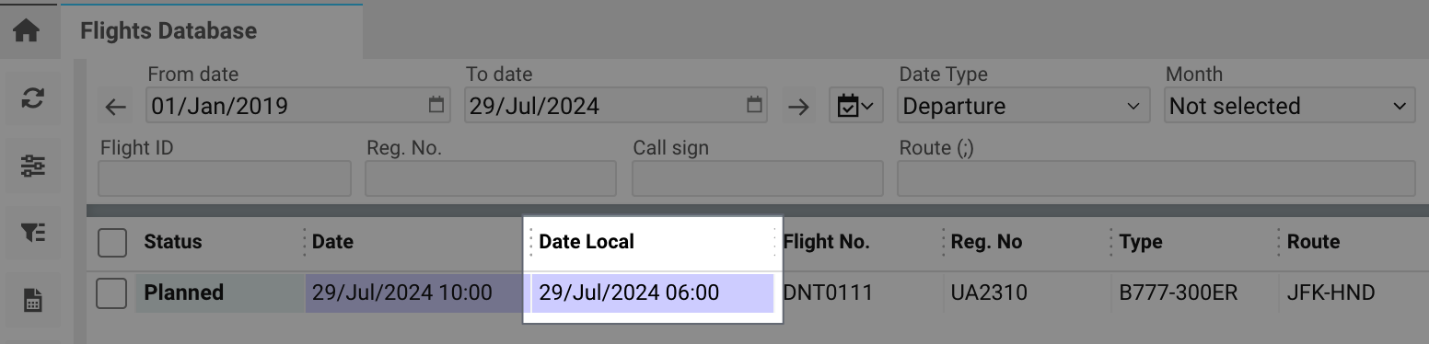
Date Local – Local start date/time. Highlighted in blue if “No Follow” is selected.
Reg. No – Aircraft registration number.
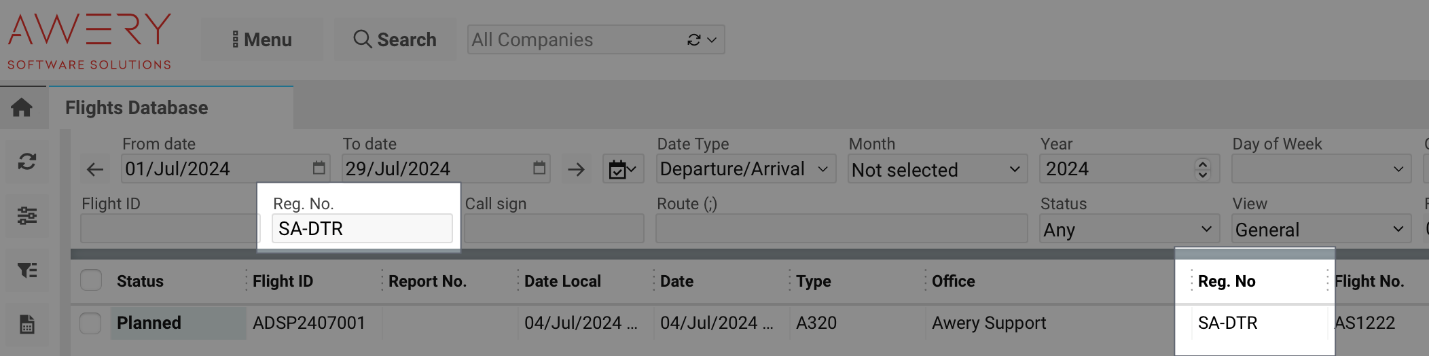
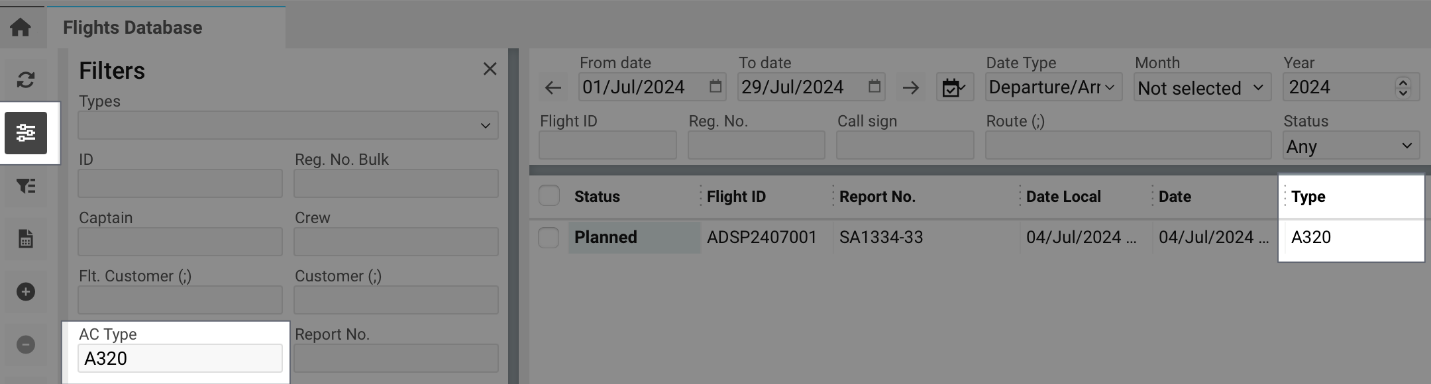
Type – Aircraft model.
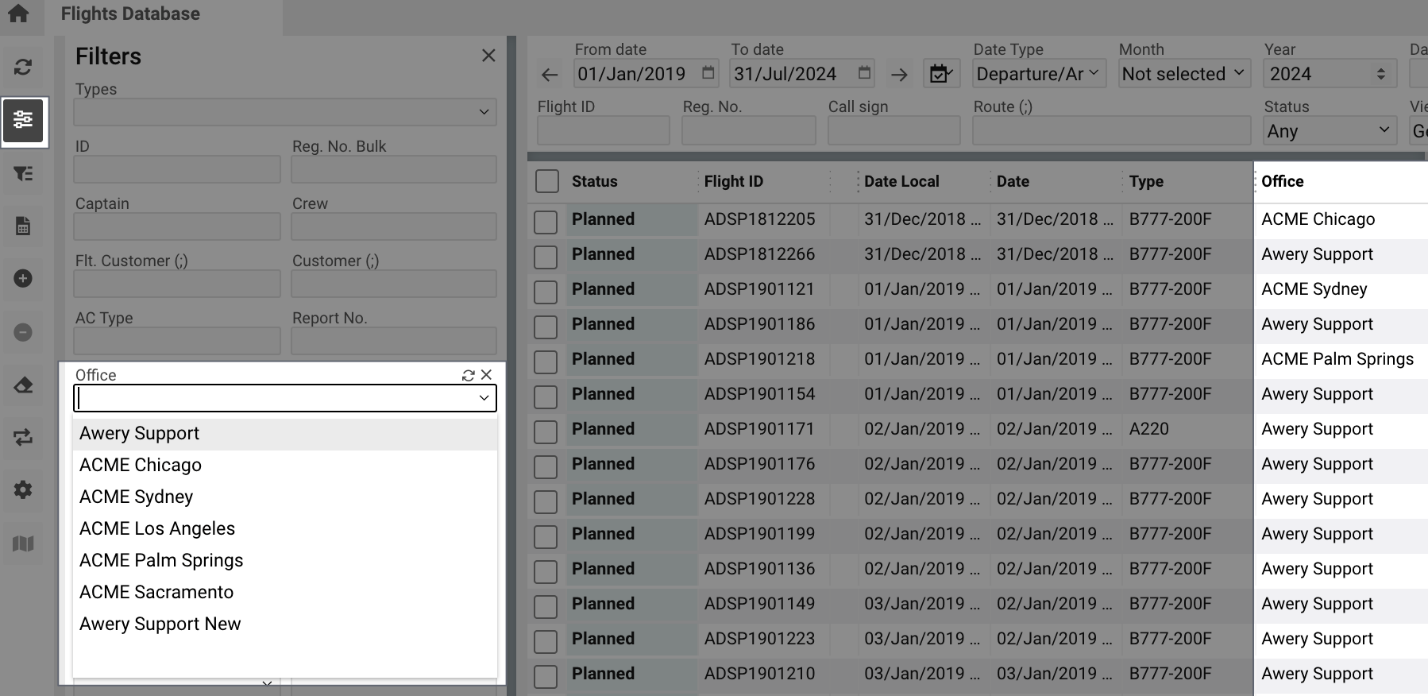
Office – Company name.
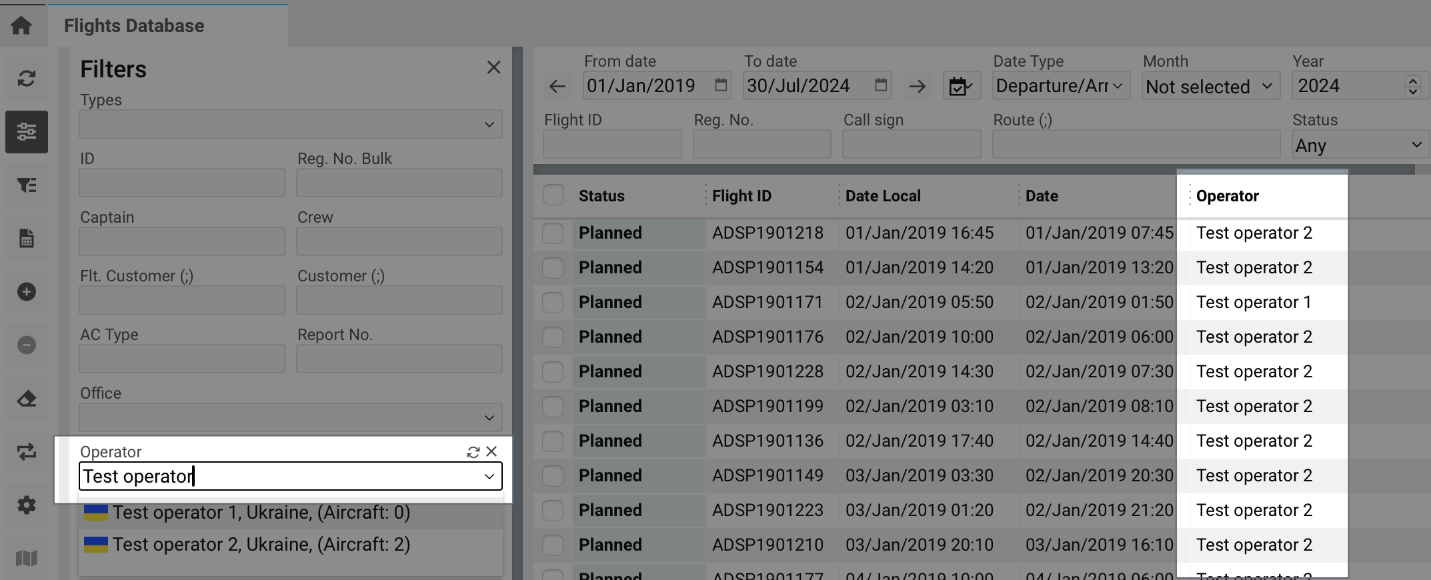
Operator – Operating company.
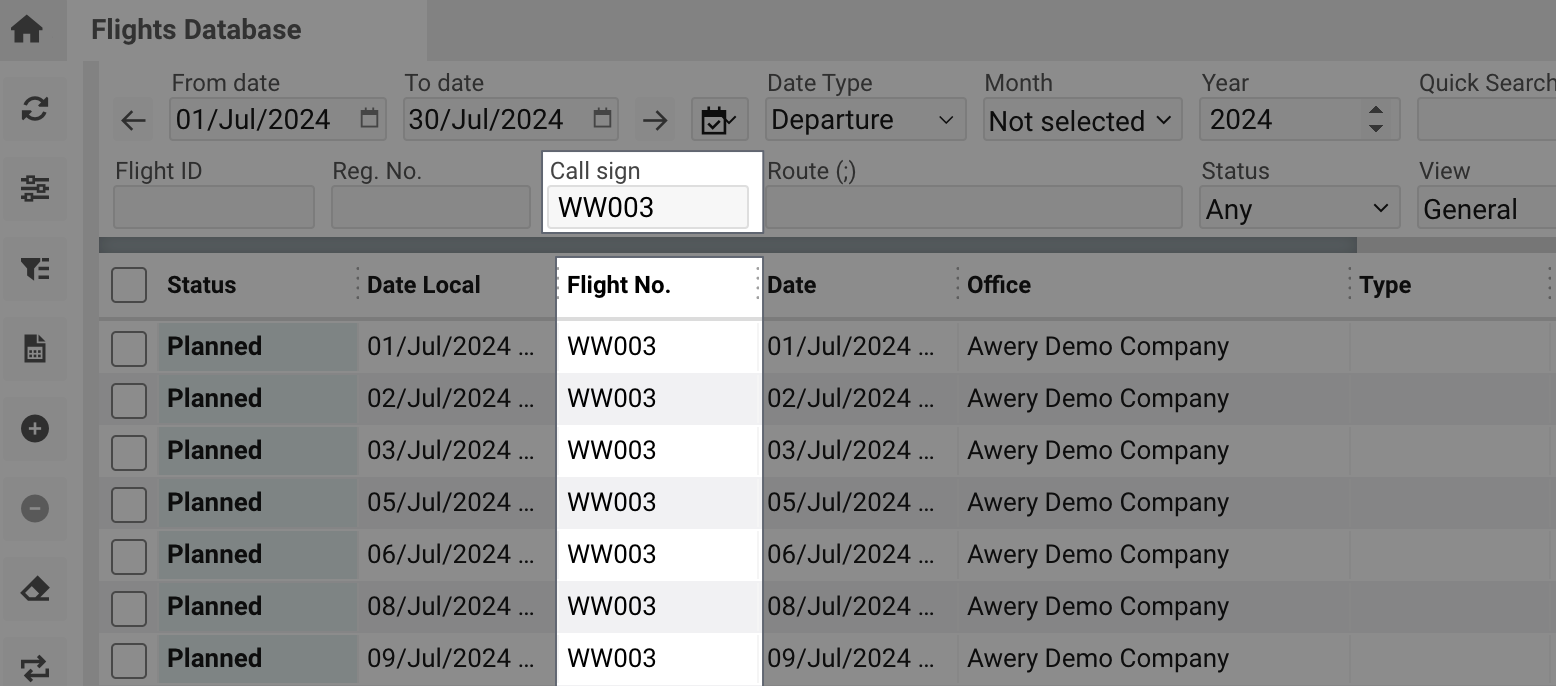
Flight No. – Call sign of the flight.
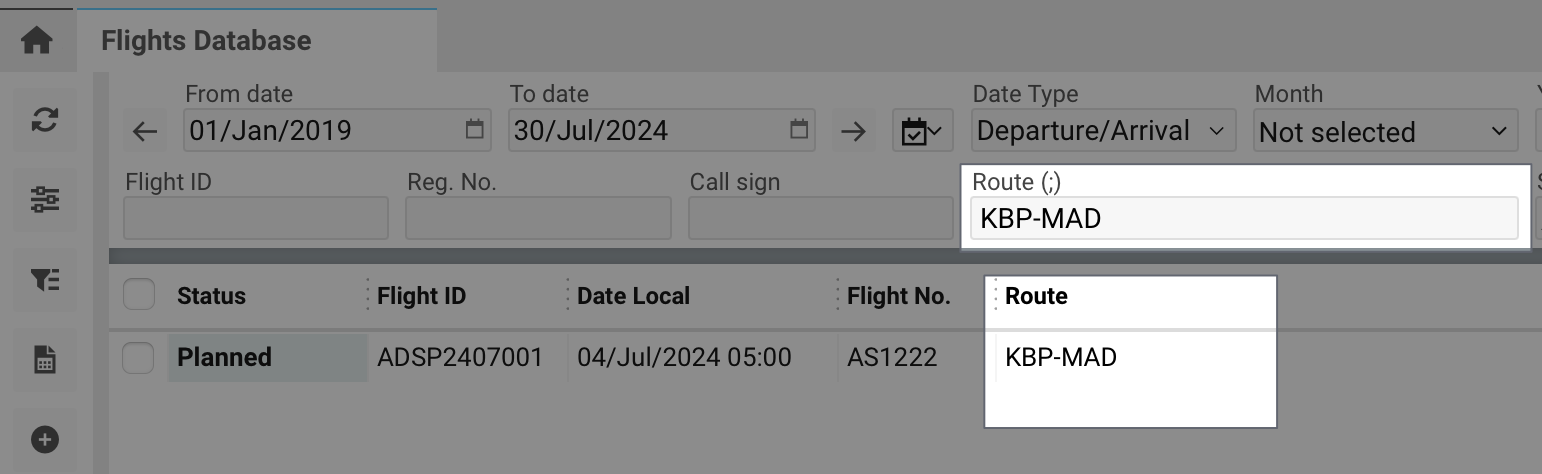
Route – Path of the flight.
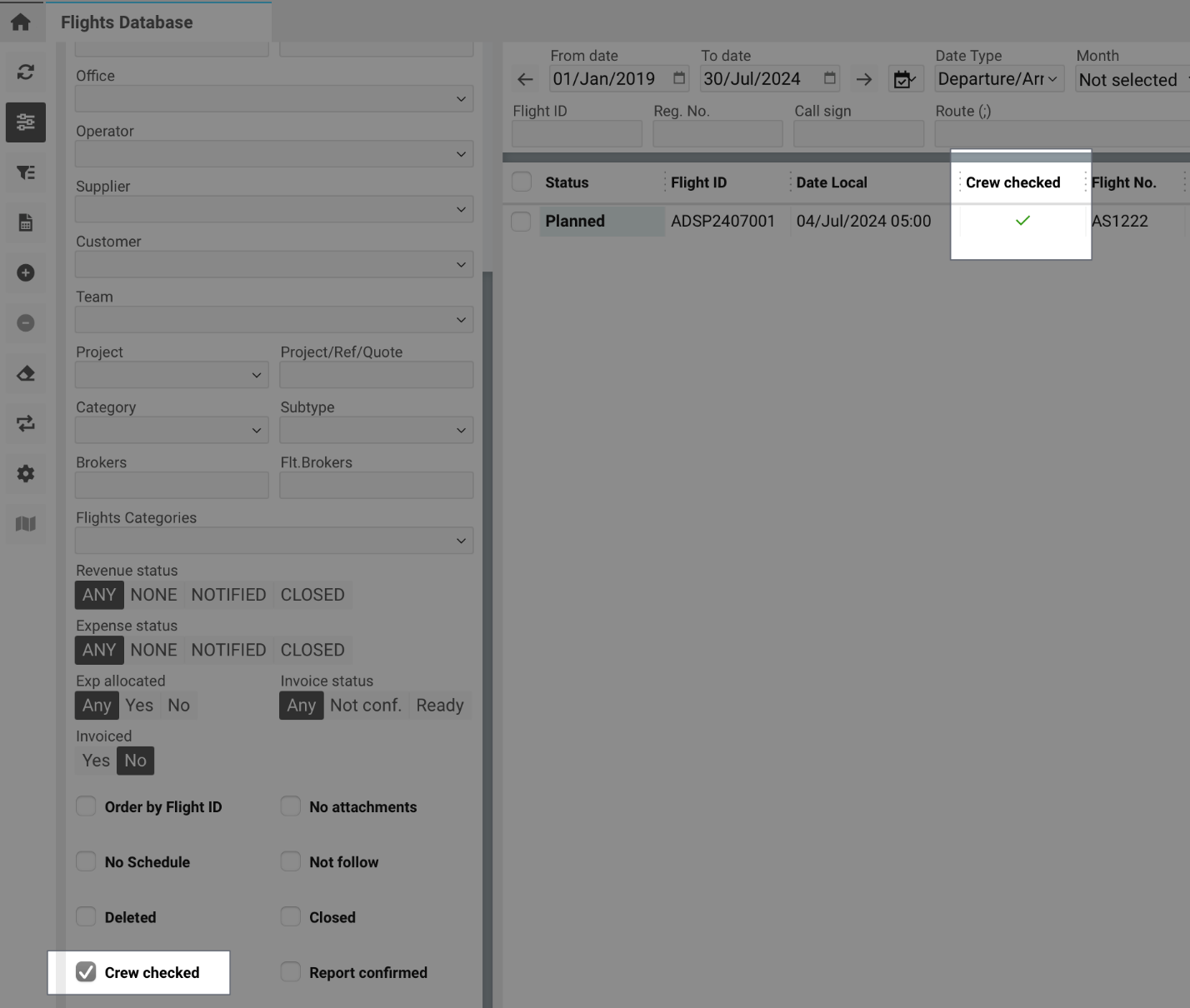
Crew Checked – Displays a tick when crew is confirmed.
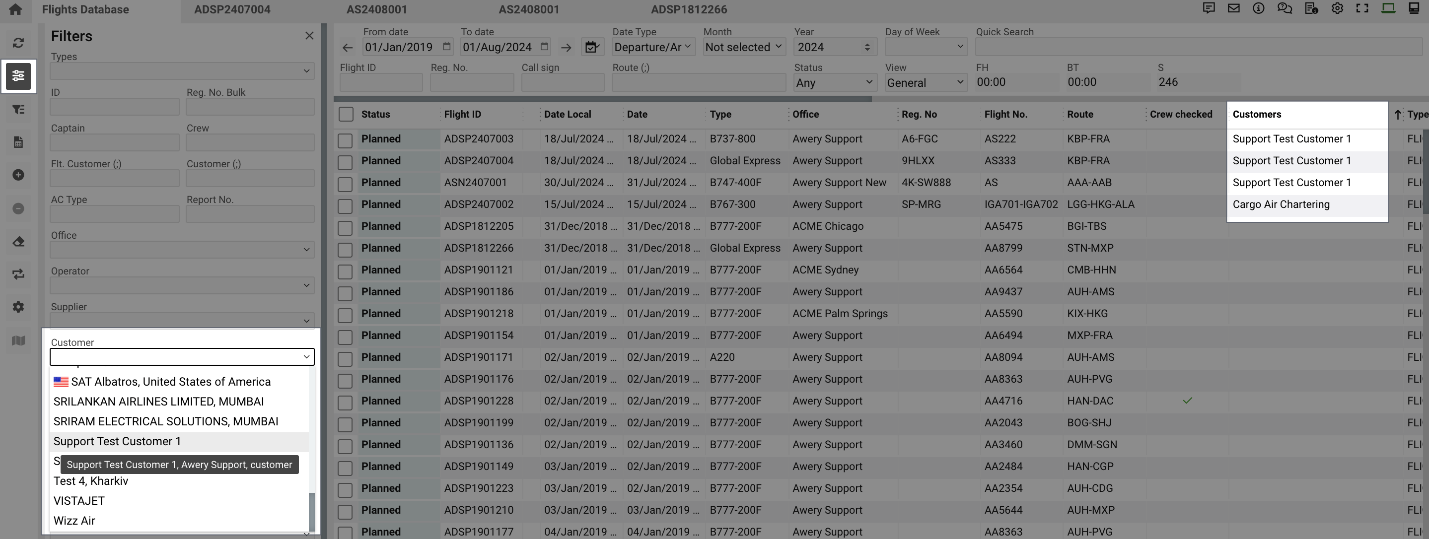
Customers – Name of the customer associated with the flight.
Type (Category) – Flight category.

CPT – Assigned captain’s name.
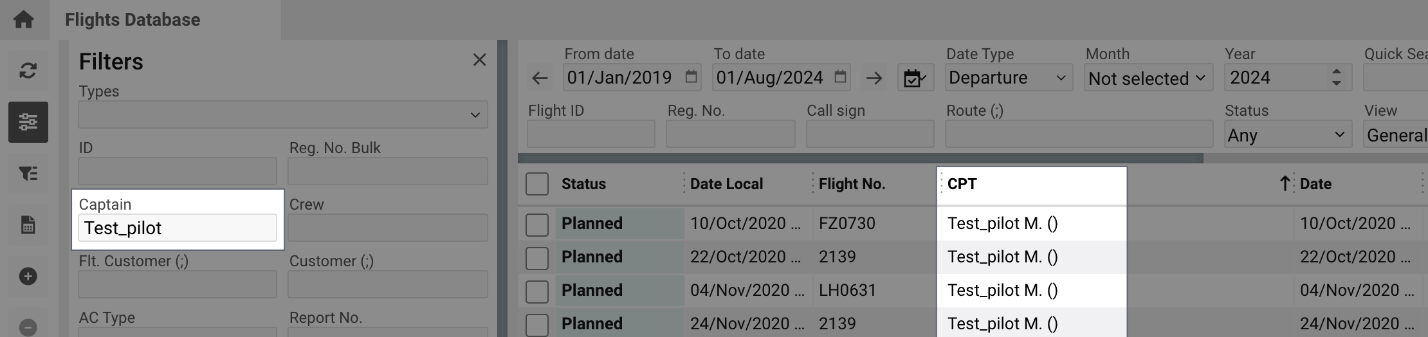
Crew – Names or codes of assigned crew members.
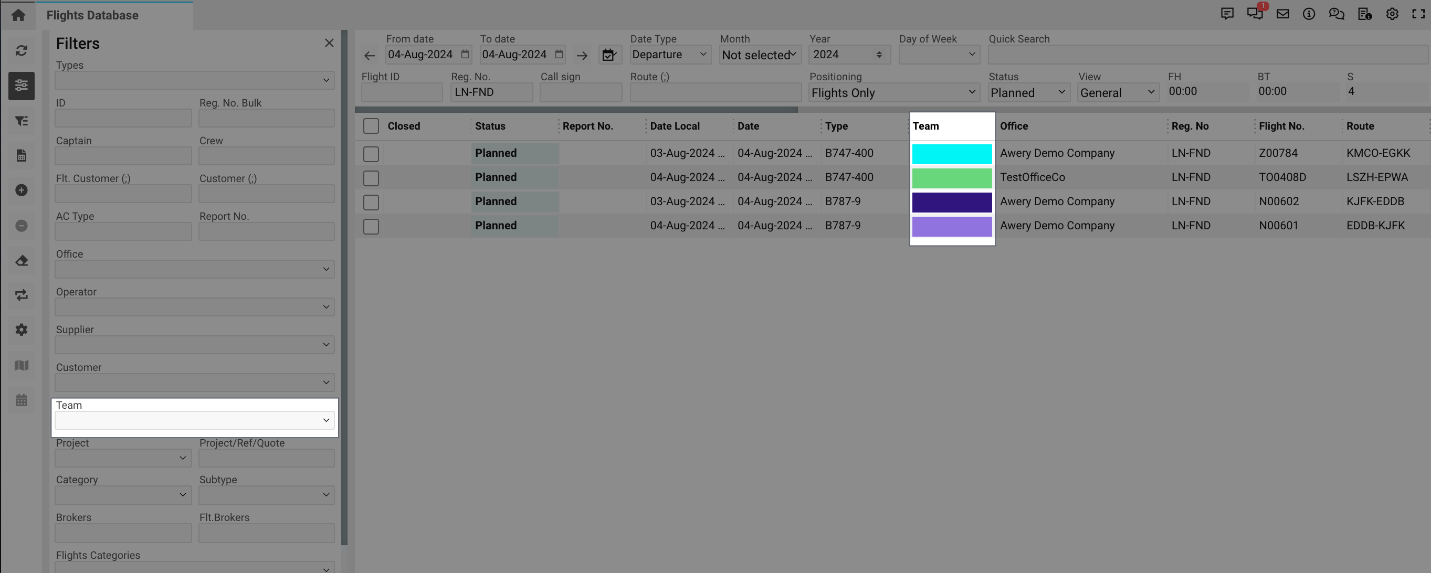
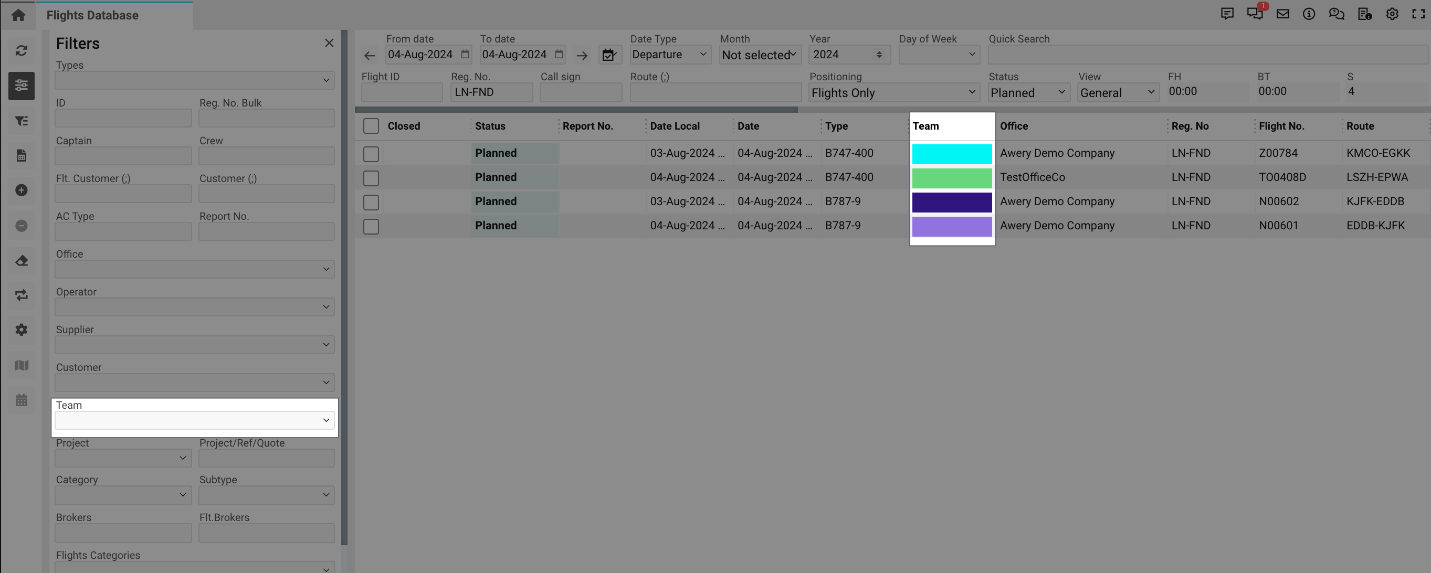
Team – Team color indicator.
F.P. – Available payload at the first waypoint.
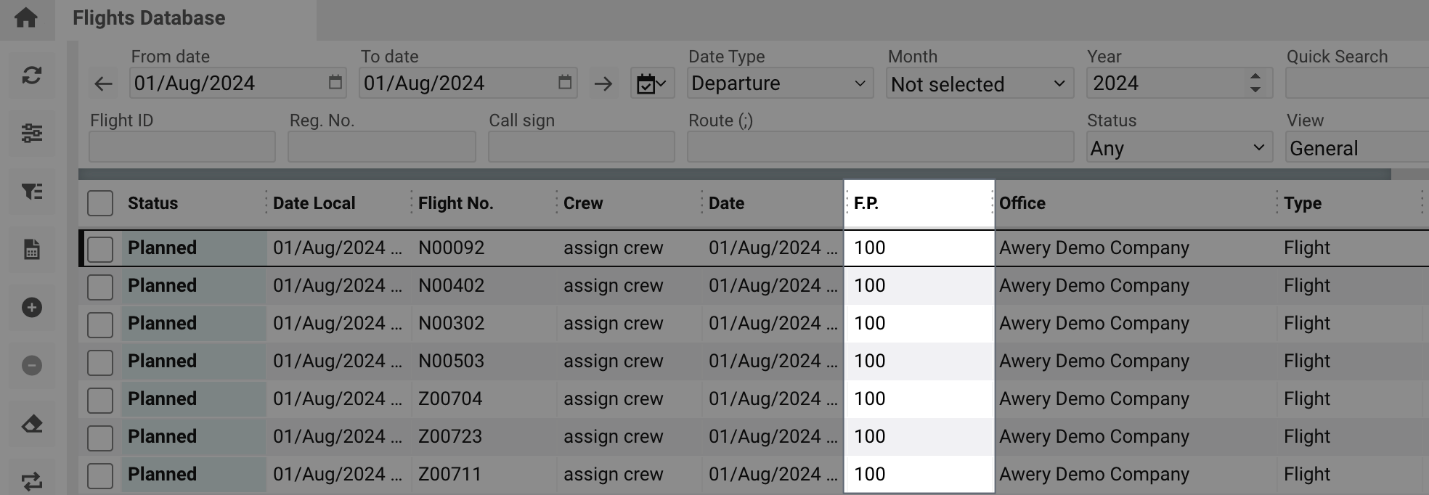
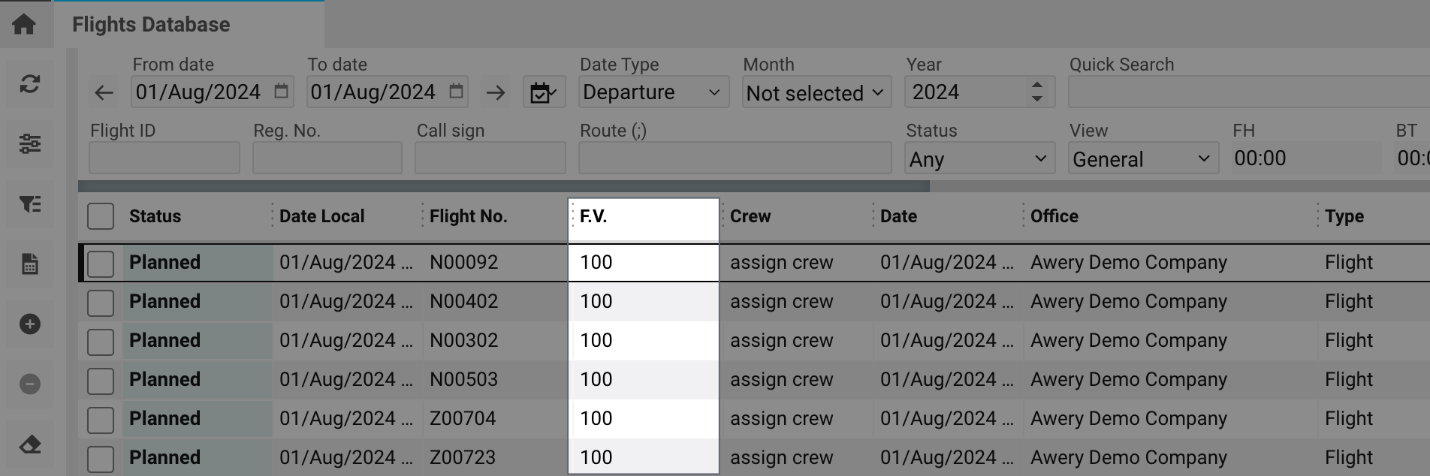
F.V. – Available volume at the first waypoint.
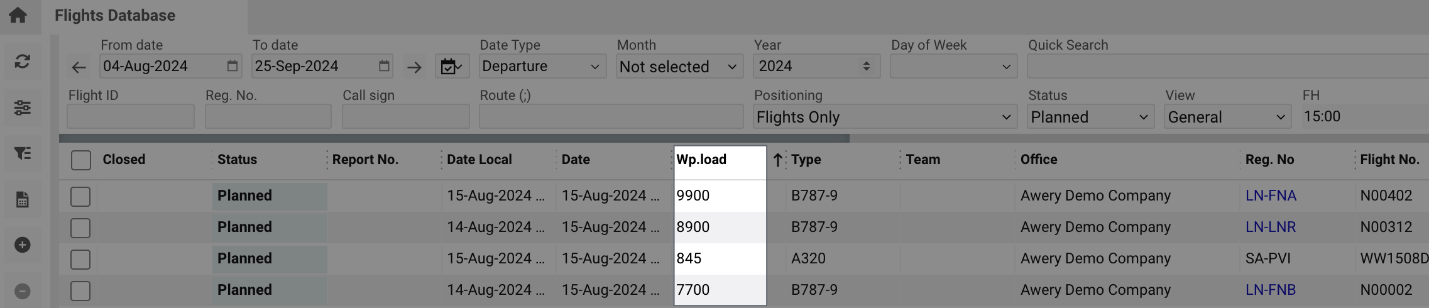
Wp.Load – Total flight waypoint load.
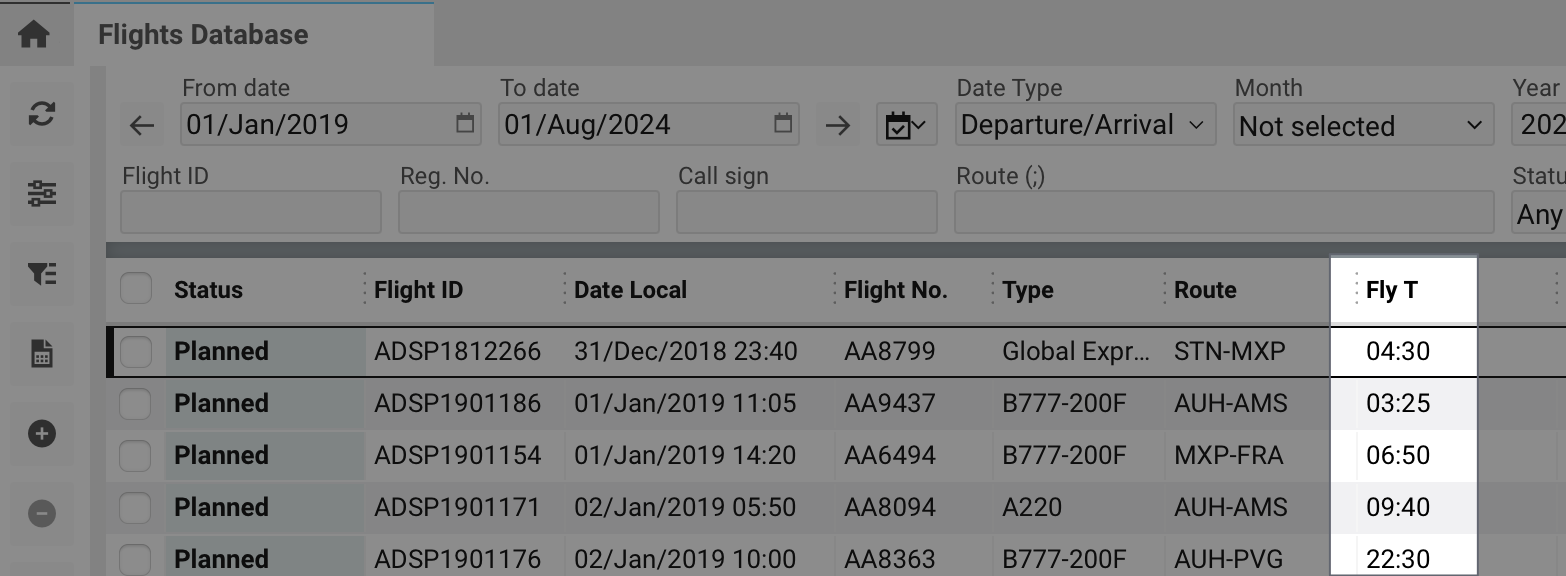
Fly T – Total flight time.
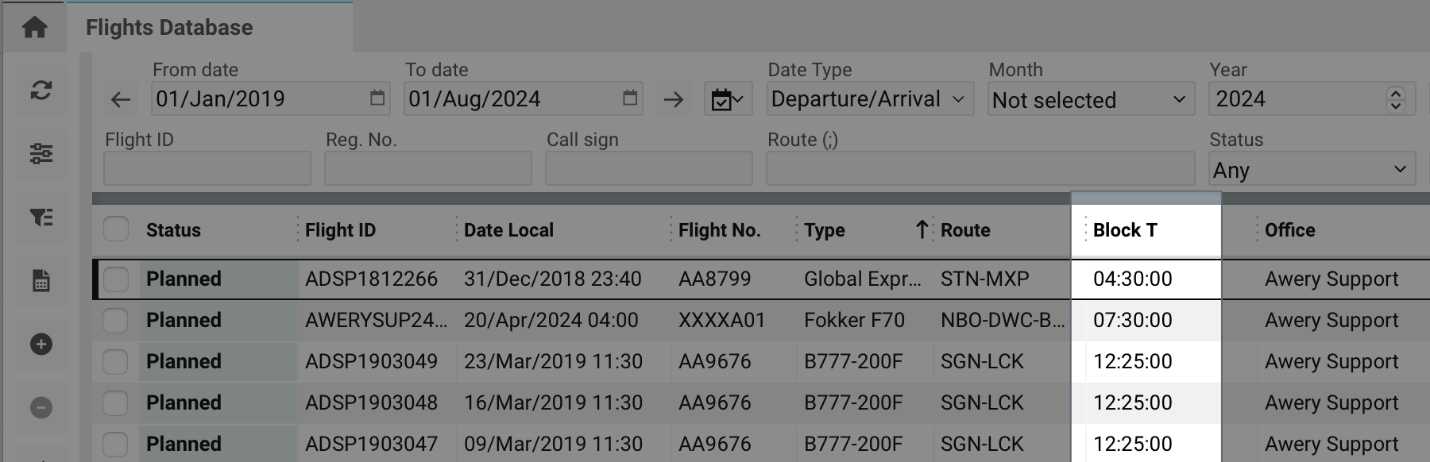
Block T – Total block time between stops.
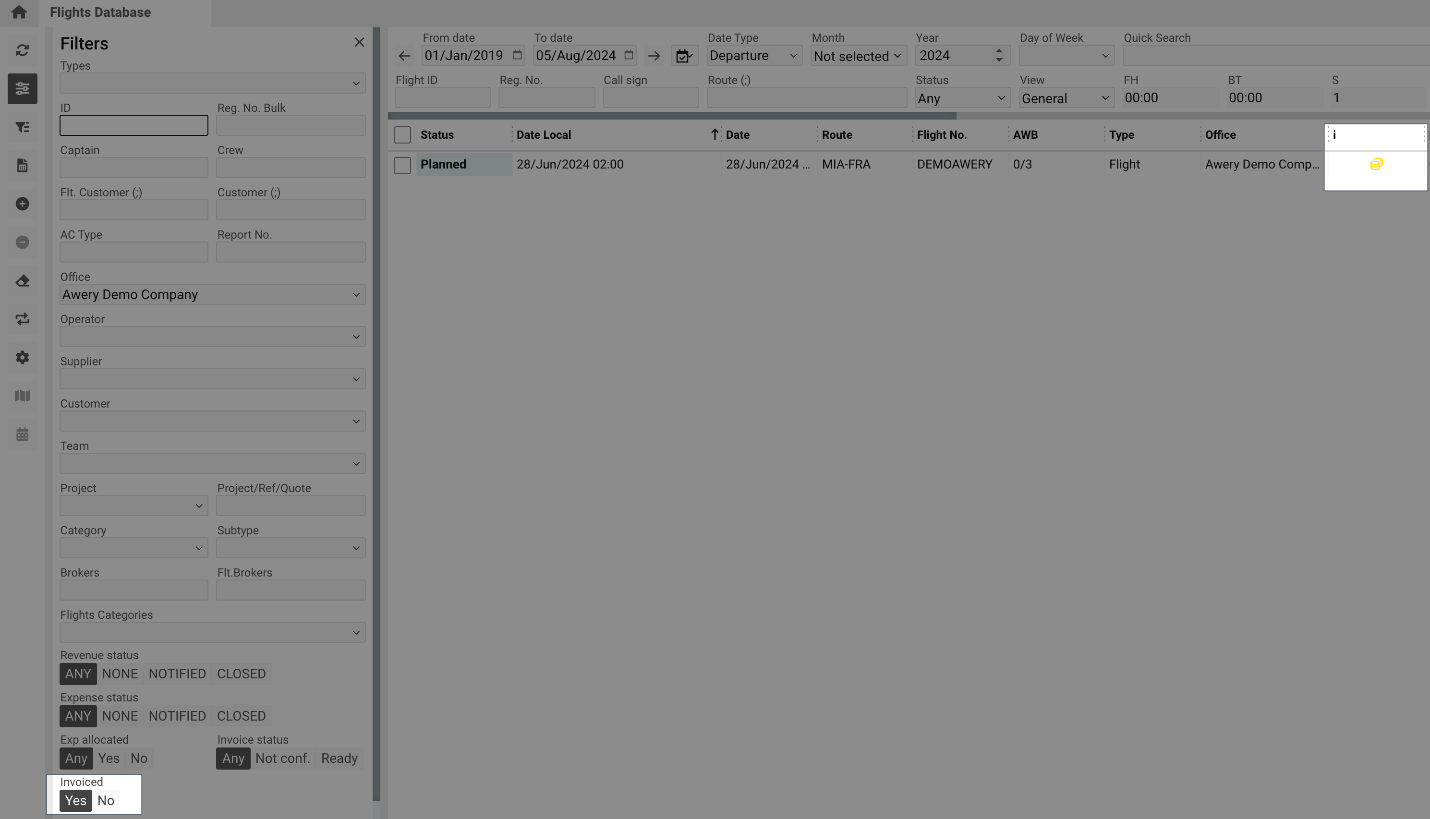
I – Displays if flight is invoiced.
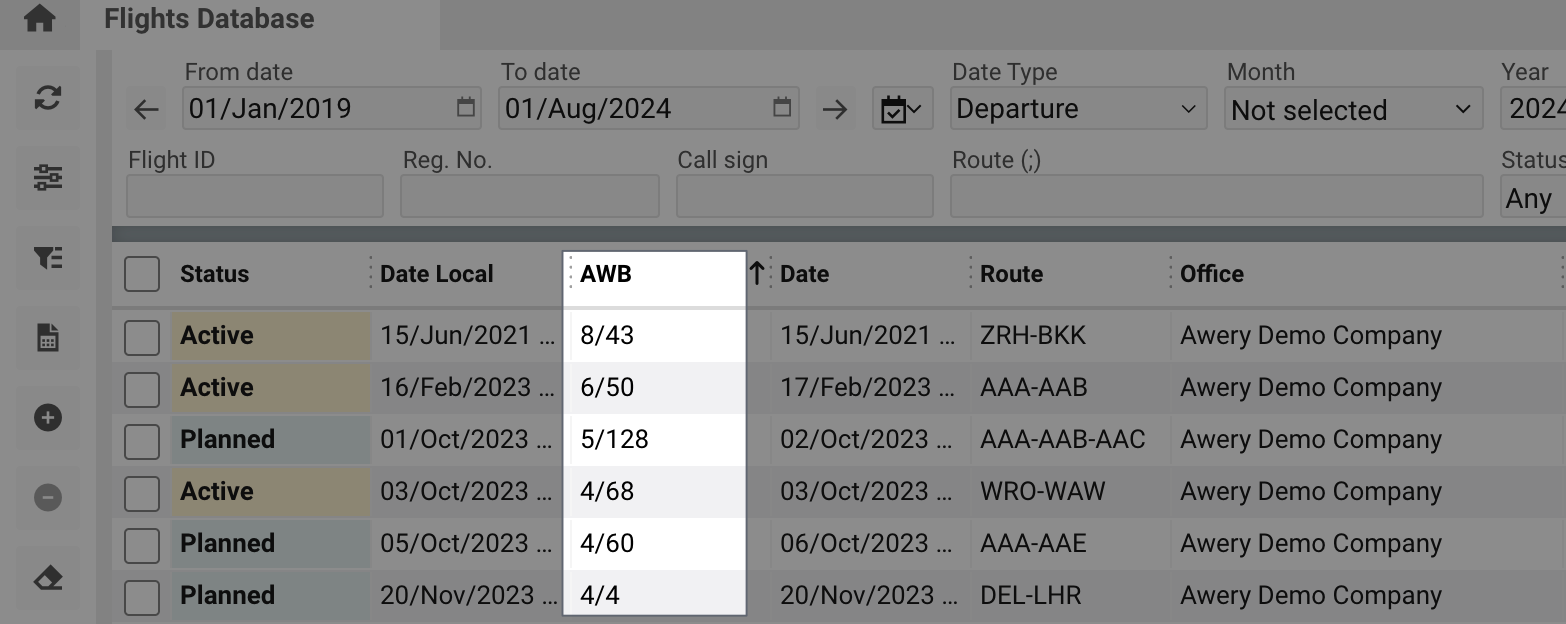
AWB – Number of invoiced AWBs / total AWBs on flight.
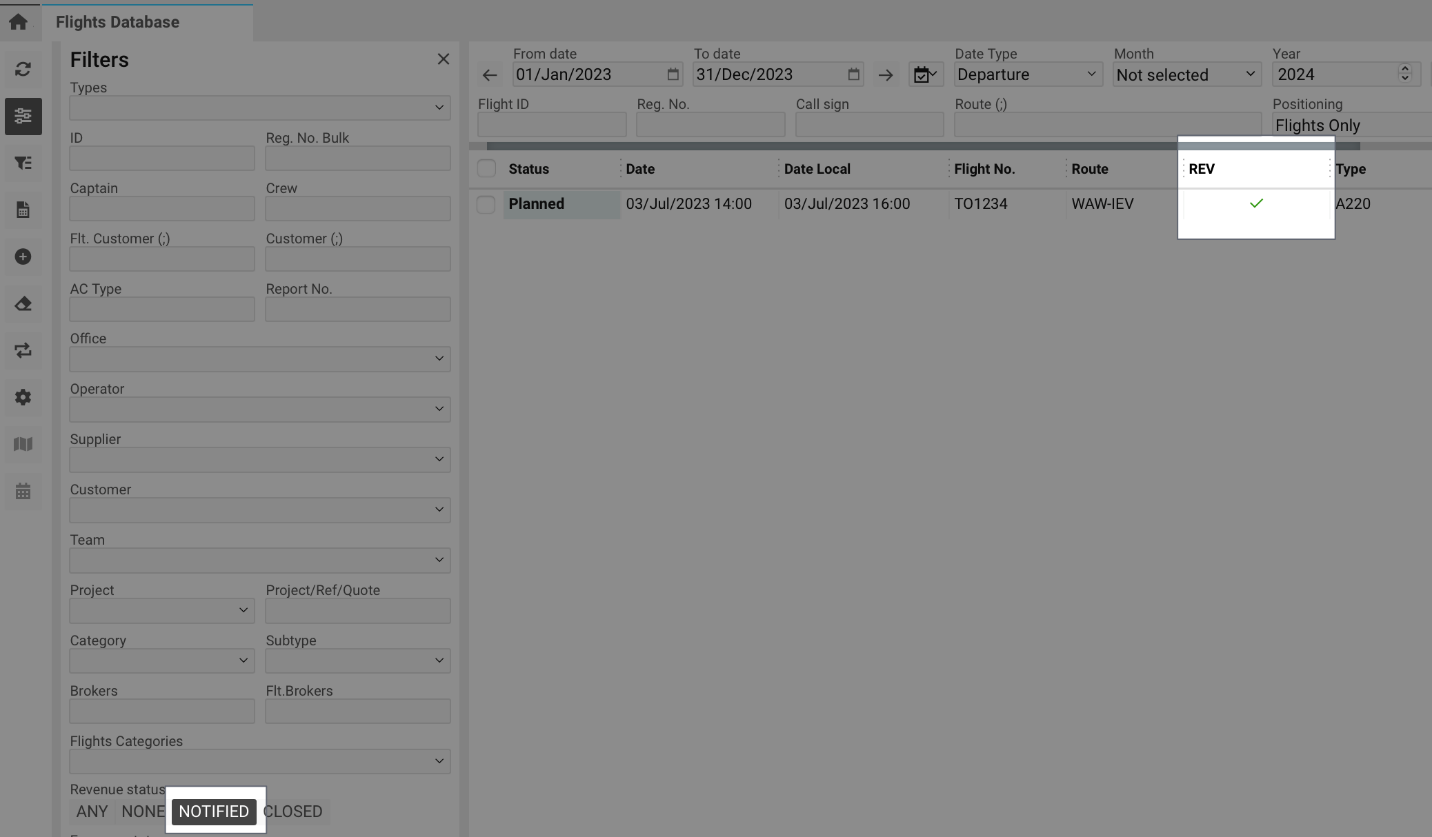
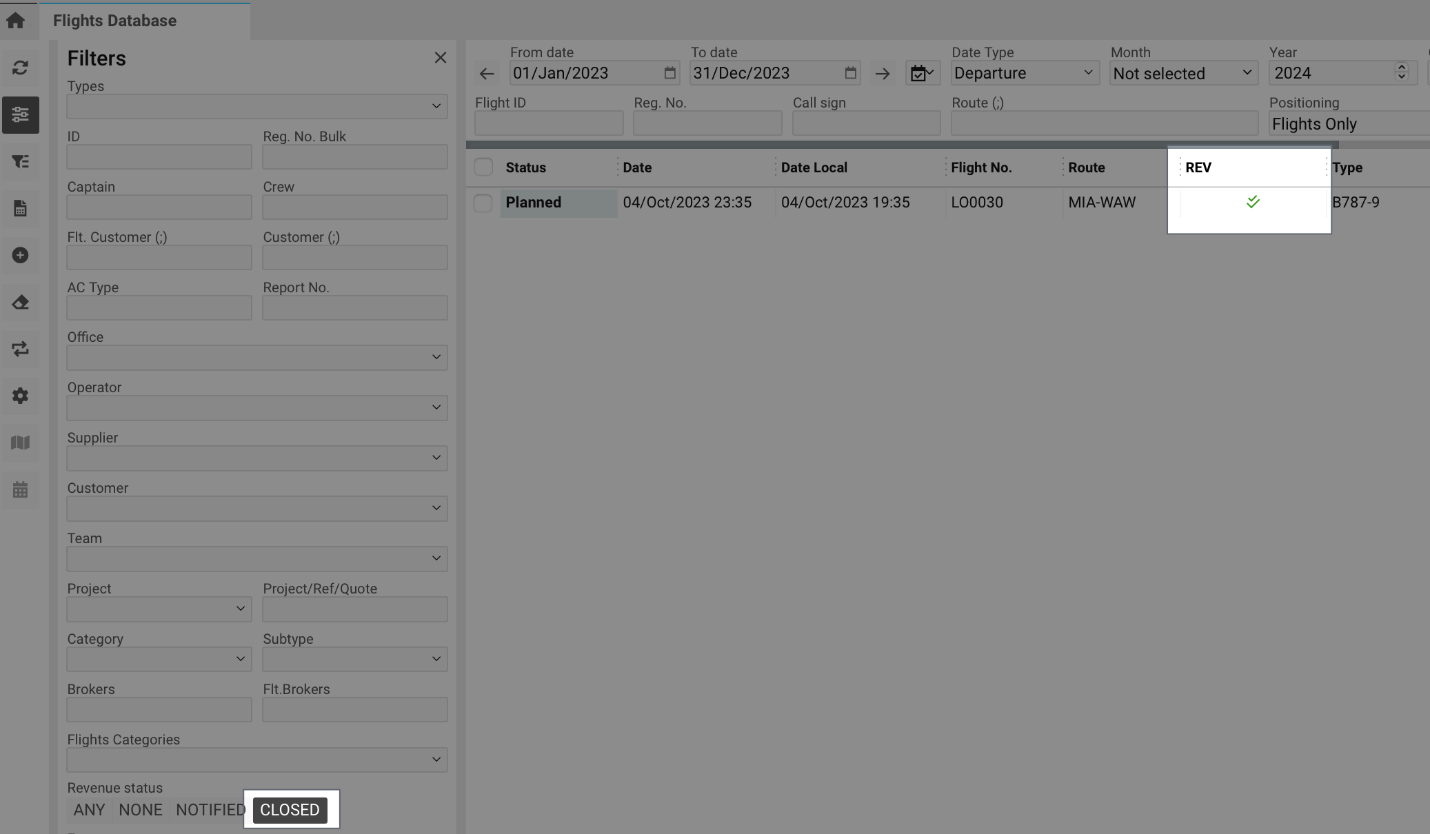
REV – Flight revenue status (tick for notified, double tick for closed).
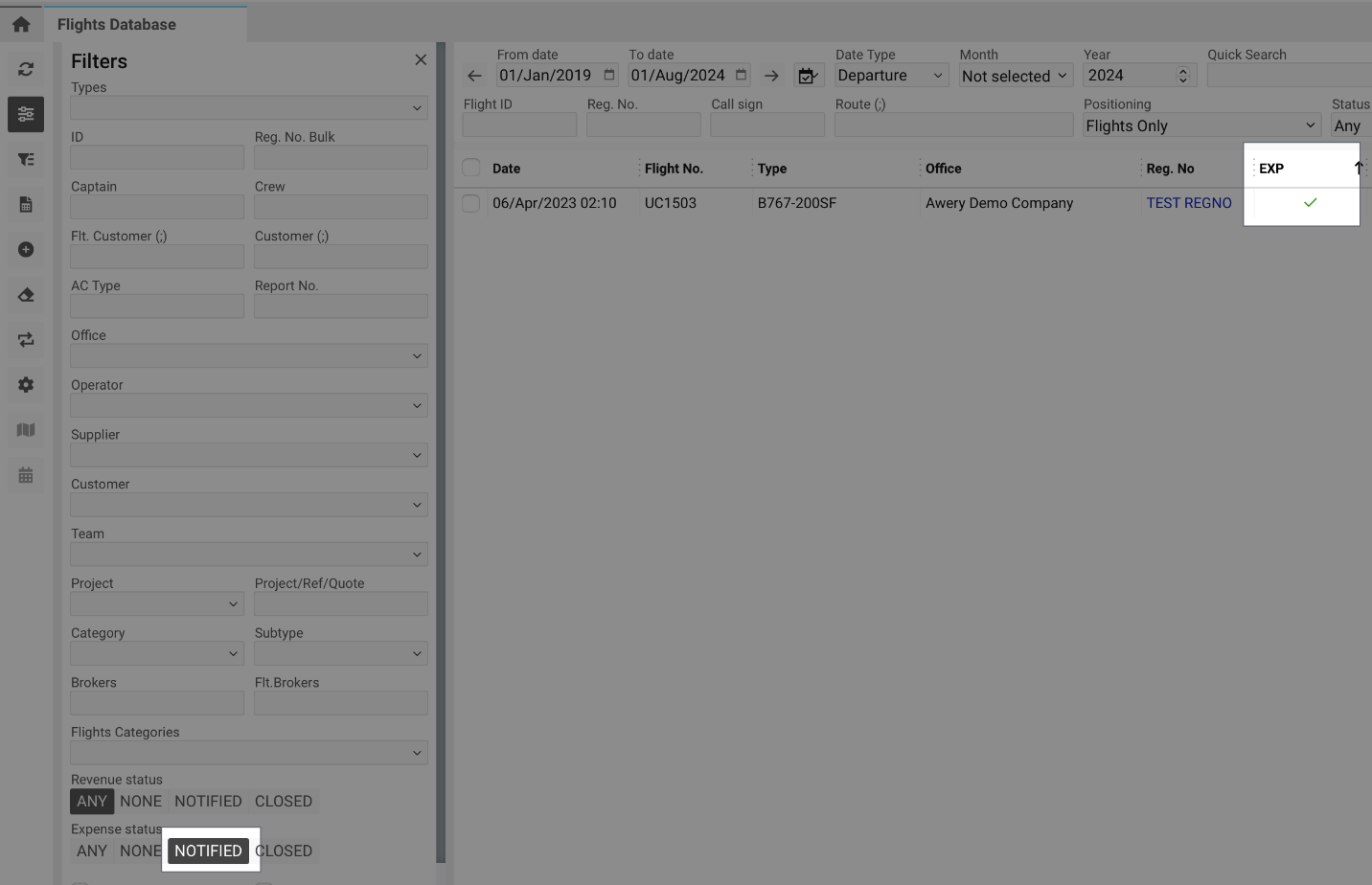
EXP – Flight expense status (tick for notified, double tick for closed).
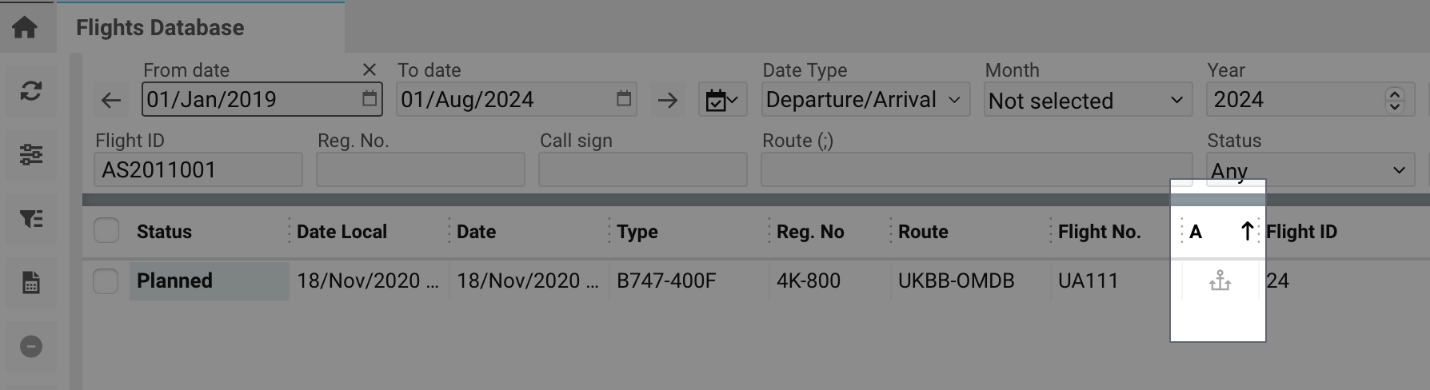
A – Indicates allocated expenses (anchor symbol).

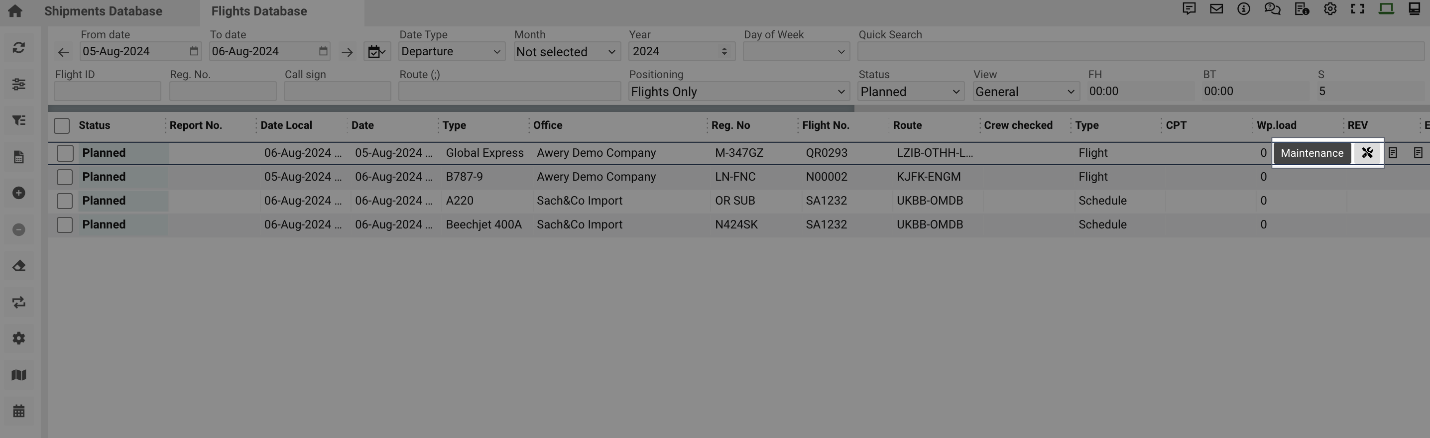
Maintenance – Displays maintenance information icon when applicable.
Manuals
How to Display Different Views
-
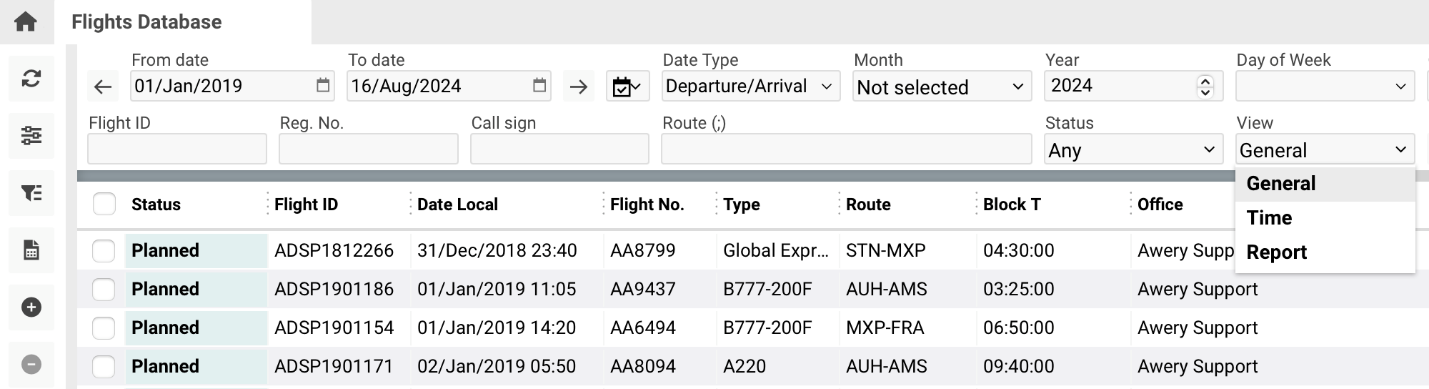
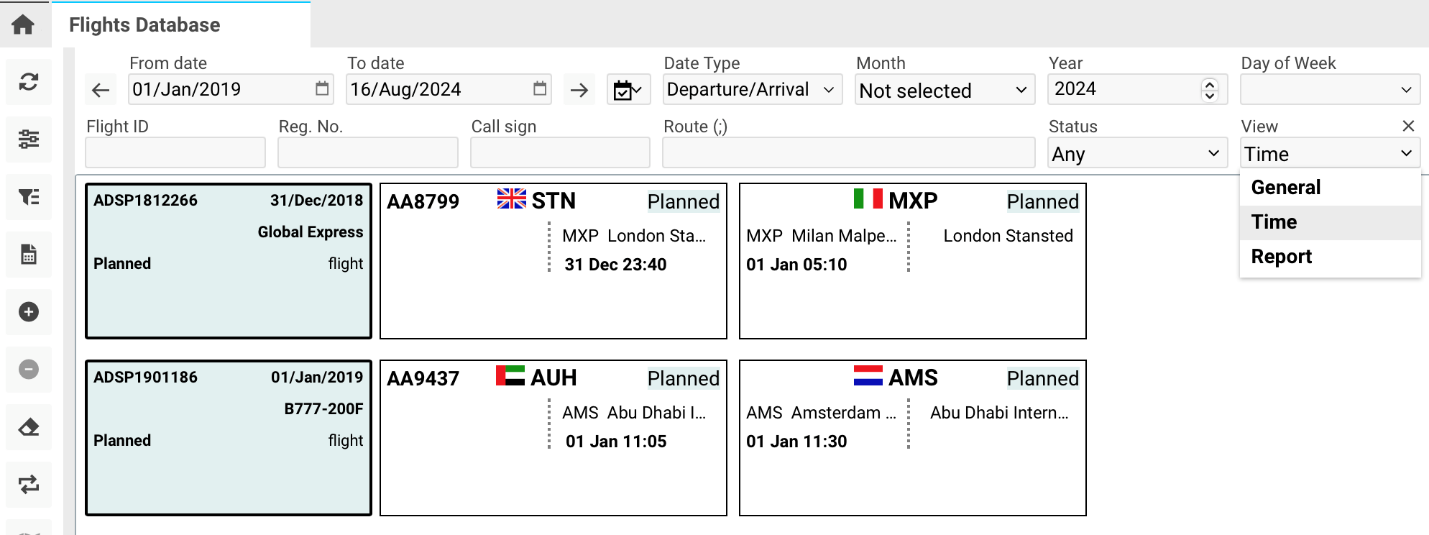
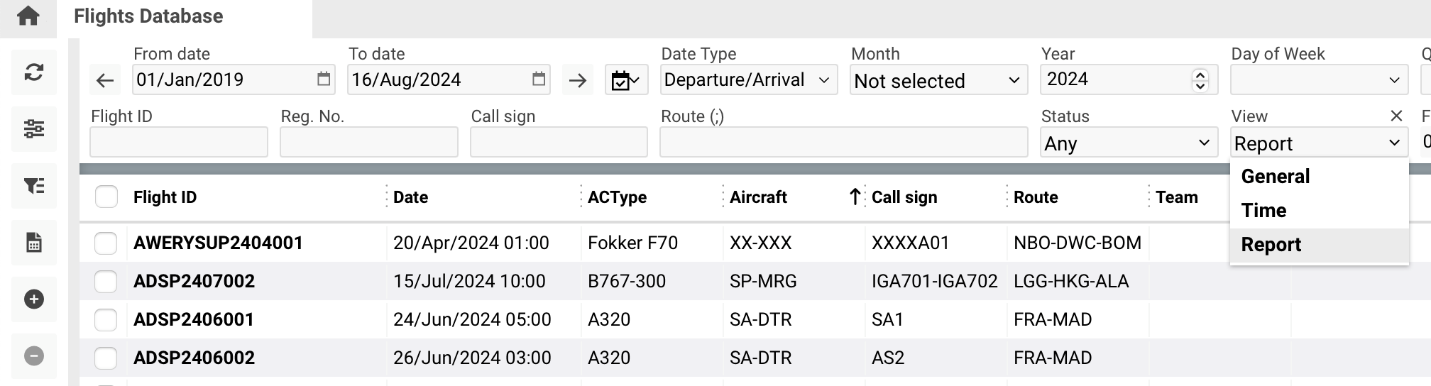
Open the View Selector.
-
Choose the desired view type:
-
General – Full list of flight details (default view).
-
-
Time – Each sector displayed in separate boxes.
-
Report – Compact flight summary view.
How to View Maintenance Information
-
Hover over the flight line to display the maintenance icon.
-
Click the icon to open a sidebar showing maintenance details, including:

-
Start and end dates
-
Reason and status
-
Remaining time/cycle
-
Backlight Conditions:
-
Days left > 50: Black text
-
Days left < 50–0: Orange text
-
Days left < 0: Red text
Quick Search
Quick Search is available in columns such as:
Status, Report No, Flight ID, Waypoint Srv, Type, Office, Operator, Brokers, Flight No, Route, Customers, CPT, Wp.Load, Cargo, Block T, AWB, Cargo Weight, etc.
Sorting and Filtering
-
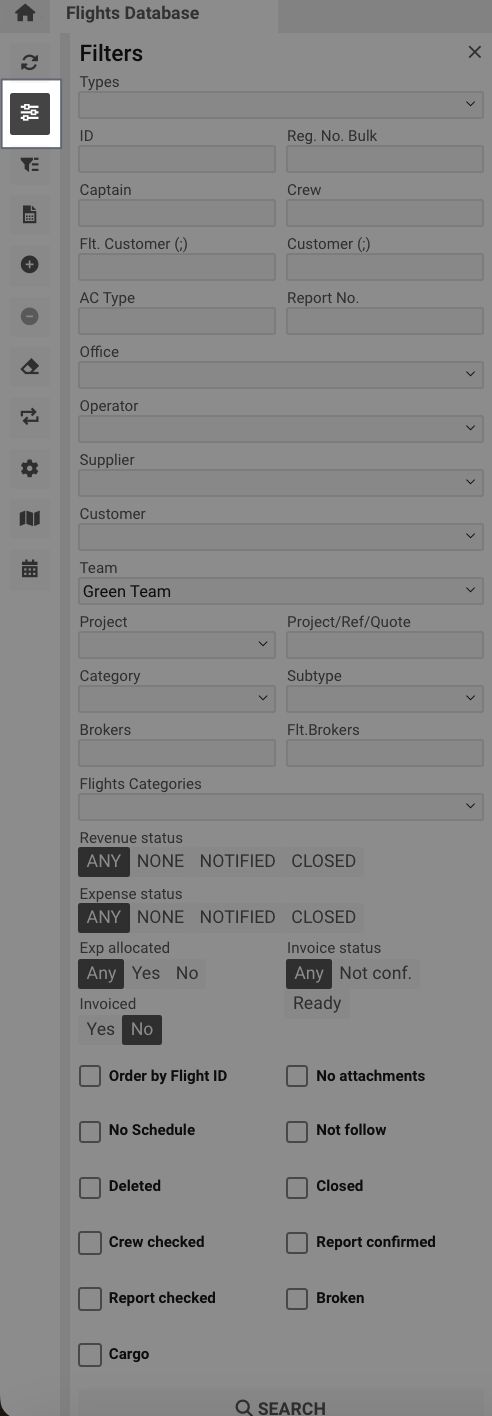
Click the Filters button.
-
Choose fields to filter by:
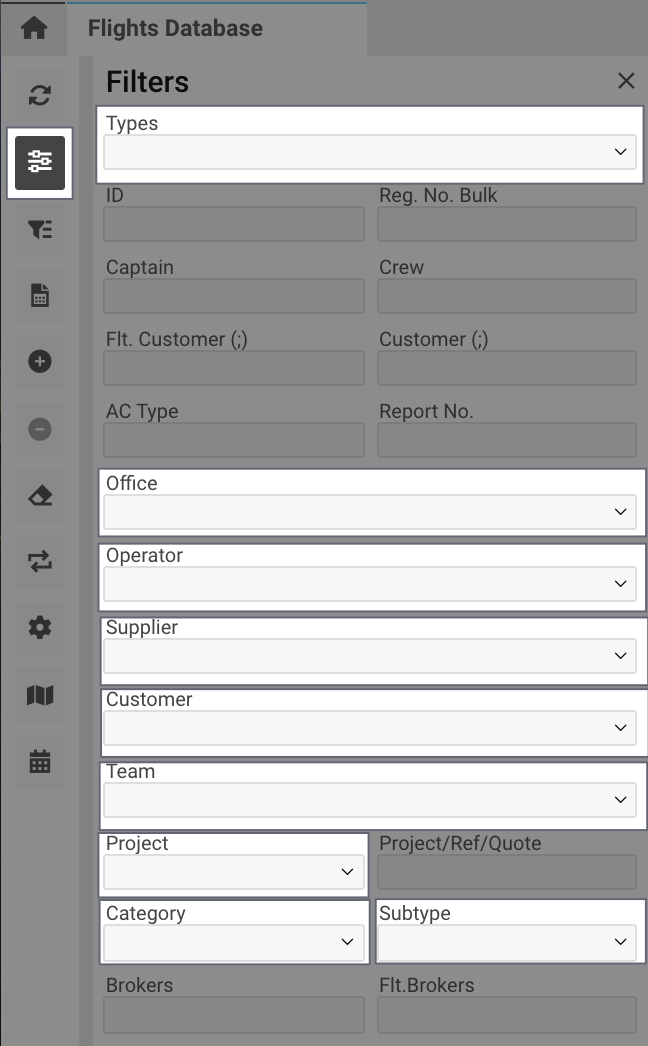
Selectors:
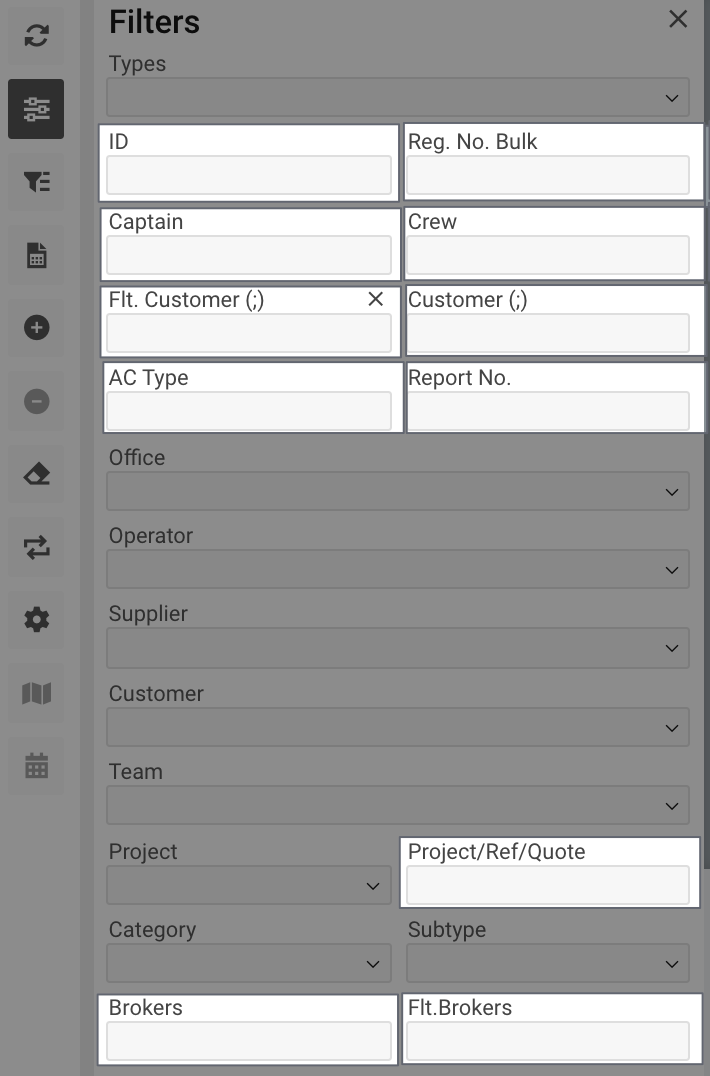
Types, Office, Operator, Supplier, Customer, Team, Project, Category, Subtype
Input Fields:
ID, Reg. No., Captain, Crew, Customer, AC Type, Report No., Brokers, Project/Quote, etc.
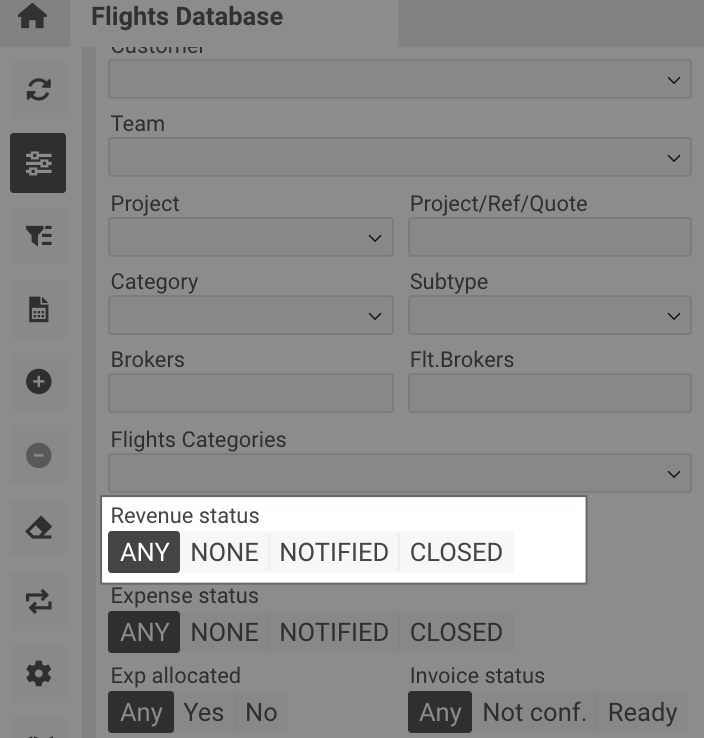
Filter by Revenue (REV column):
-
Any – All revenue statuses
-
Notified – Notified only
-
Closed – Closed only
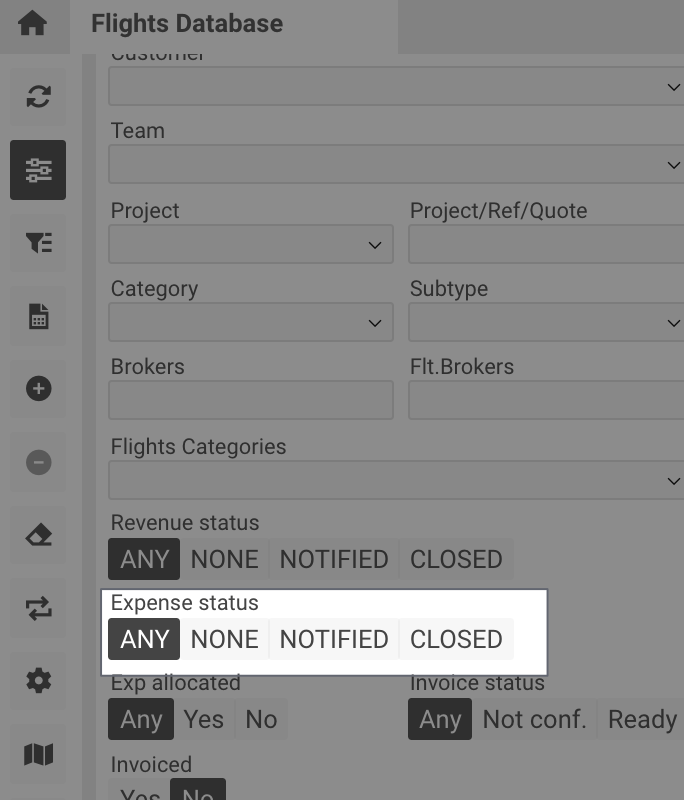
Filter by Expense (EXP column):
-
Any – All statuses
-
None – Unnotified only
-
Notified – Notified only
-
Closed – Closed only
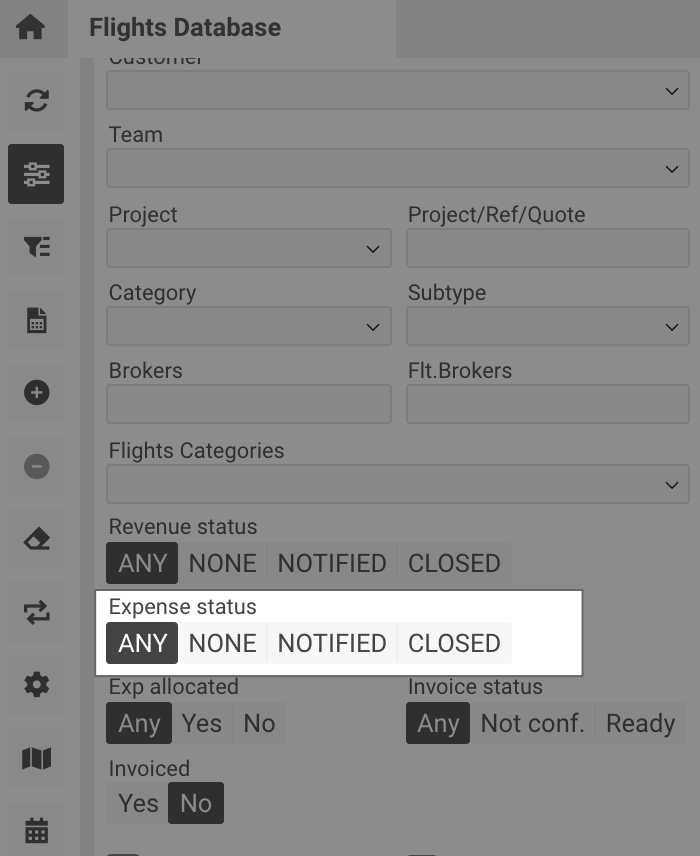
Filter by Allocated Expenses (A column):
-
Any – All
-
Yes – Allocated only
-
No – Unallocated only
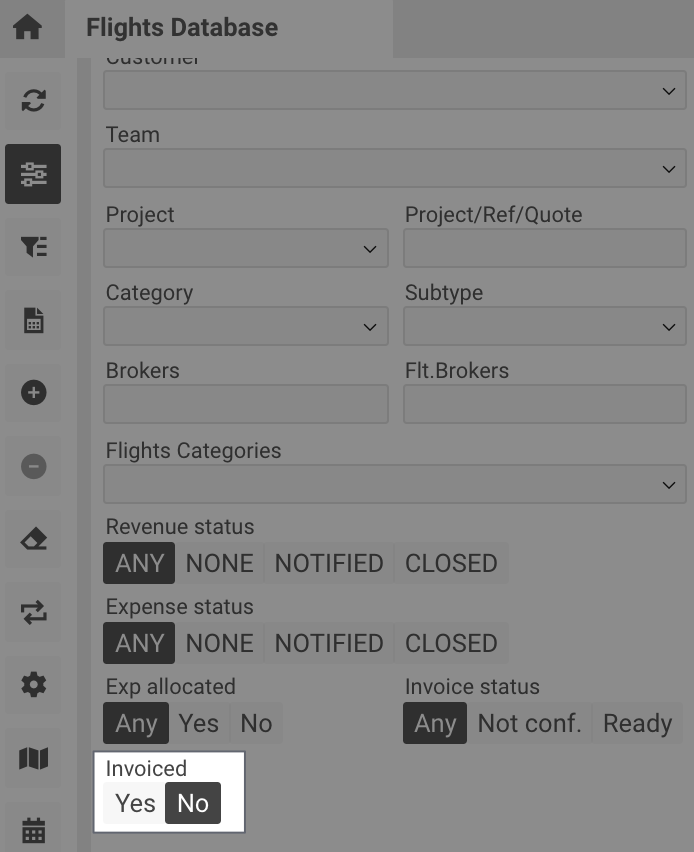
Filter by Invoiced Status (I column):
-
Yes – Flights linked to jobs
-
No – Flights without linked jobs
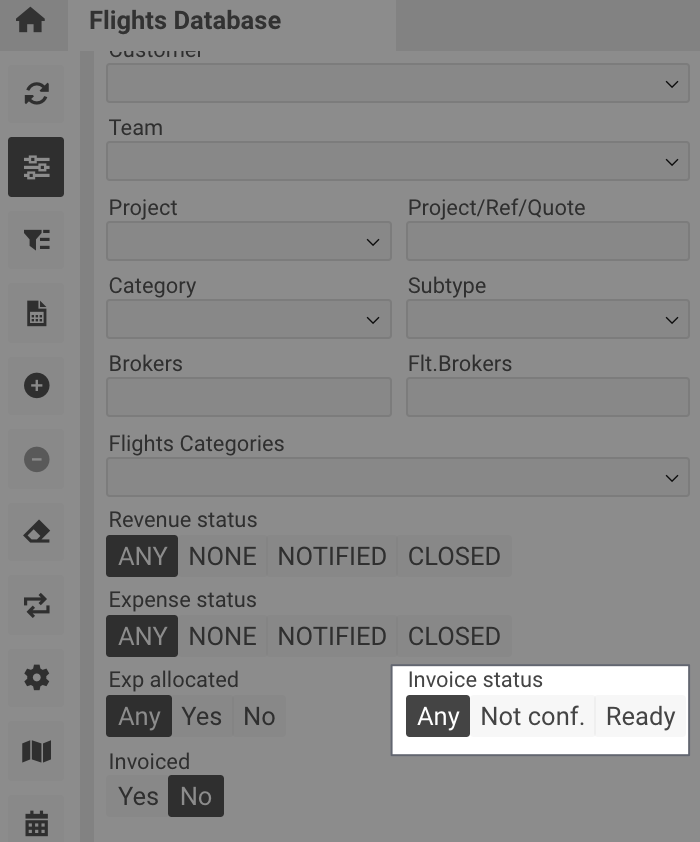
Filter by Invoice Status:
-
Any – All flights
-
Not Confirmed – Unconfirmed revenue
-
Ready – Confirmed revenue
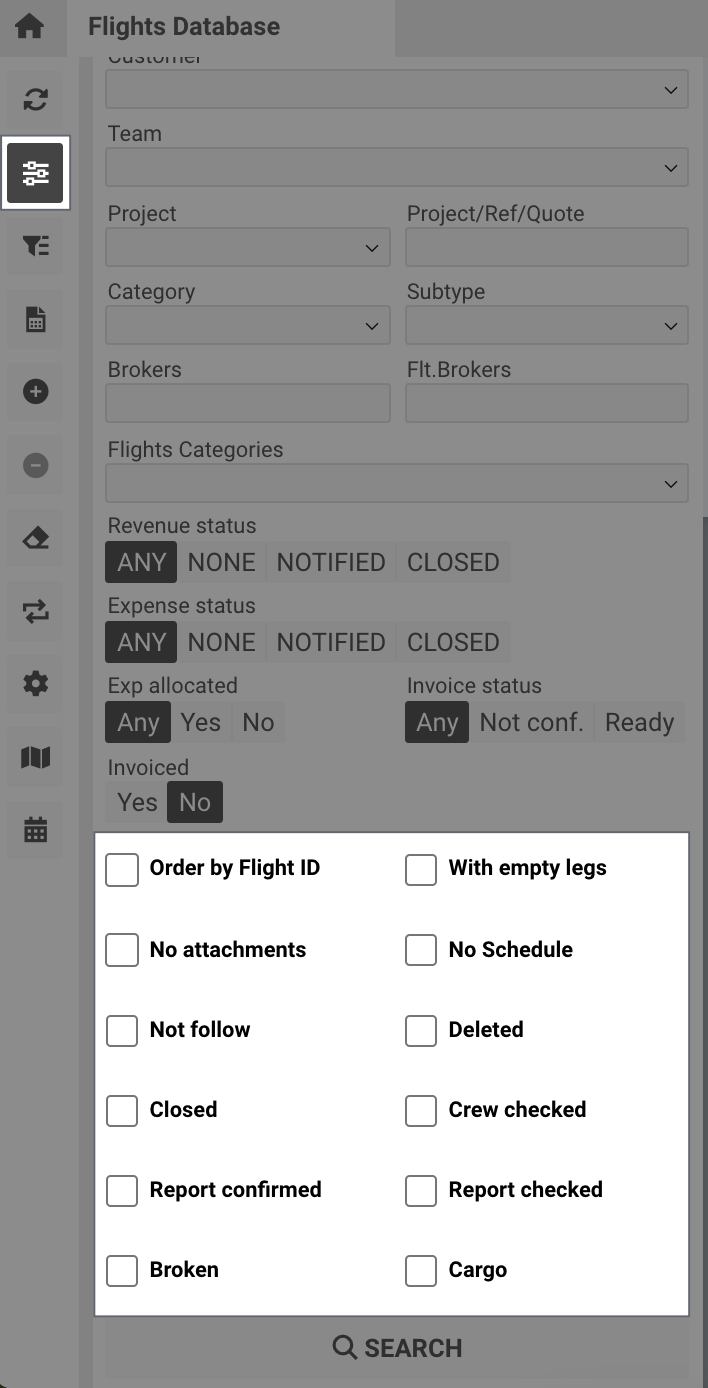
Sorting Options (Checkboxes):
-
Order by Flight ID
-
No Attachments
-
Not Follow
-
Closed
-
Report Confirmed
-
Broken
-
No Schedule
-
Deleted
-
Crew Checked
-
Report Checked
-
Cargo
Additional Options
-
Auto Update: Refreshes the flight list automatically every 5 minutes.

-
Flight Map: Opens a world map (requires at least one selected flight).

-
Flight Report: Opens the flight report creation page.

-
Create Schedule: Opens the schedule/trip cloning form.

Quick Actions and Edits
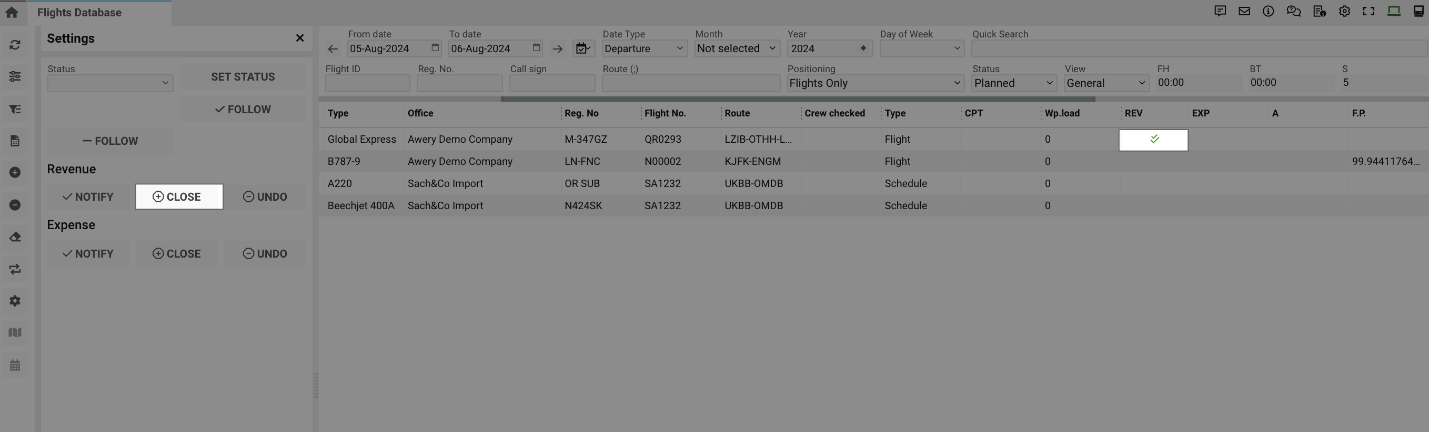
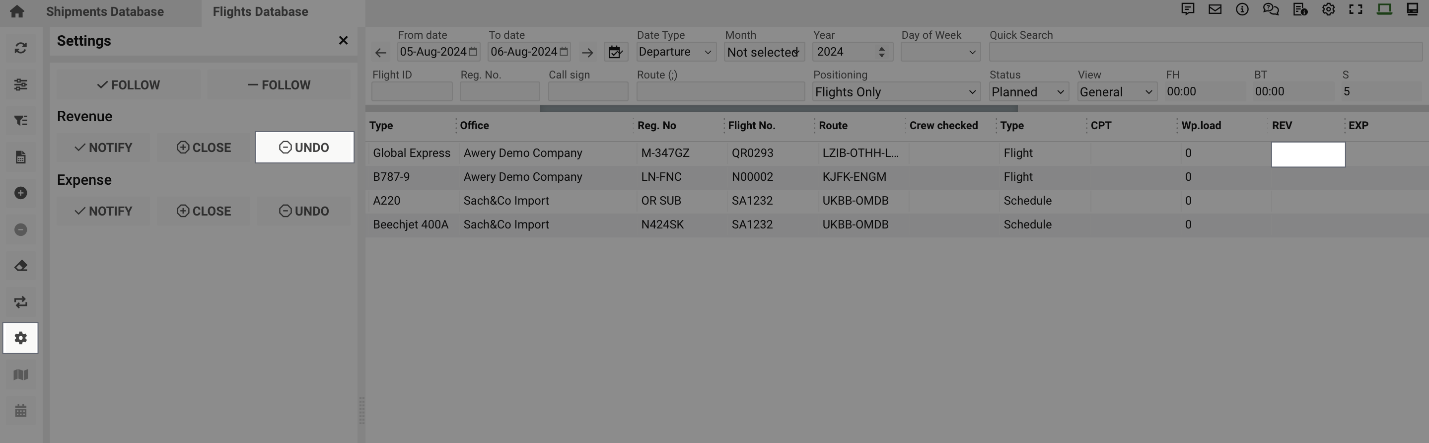
Changing Revenue/Expense Status
-
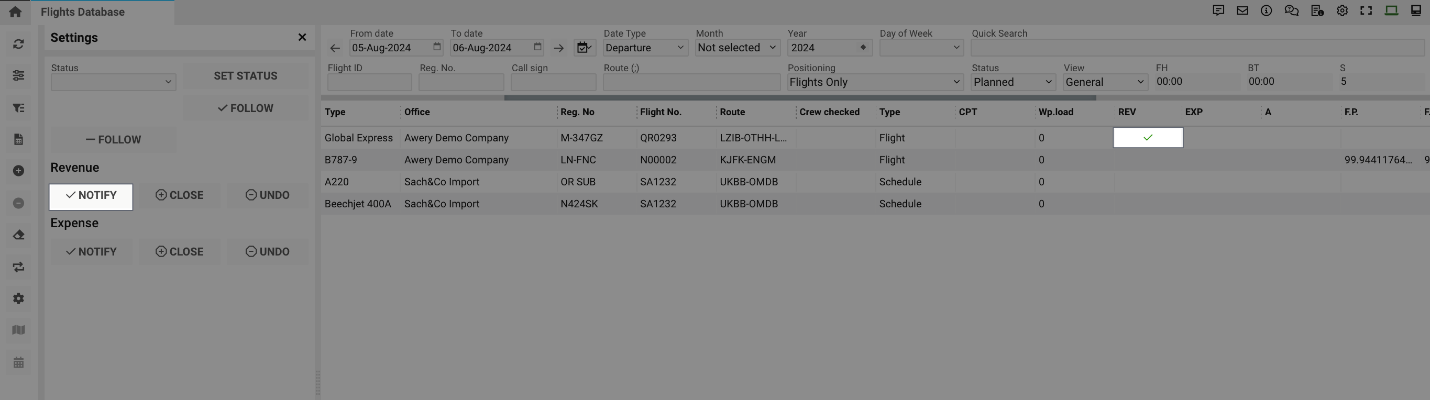
Select the flight and click Settings.
-
Choose one of the following:
-
Notify – Marks as notified.
-
-
Close – Marks as closed.
-
Undo – Reverts to Unnotified.
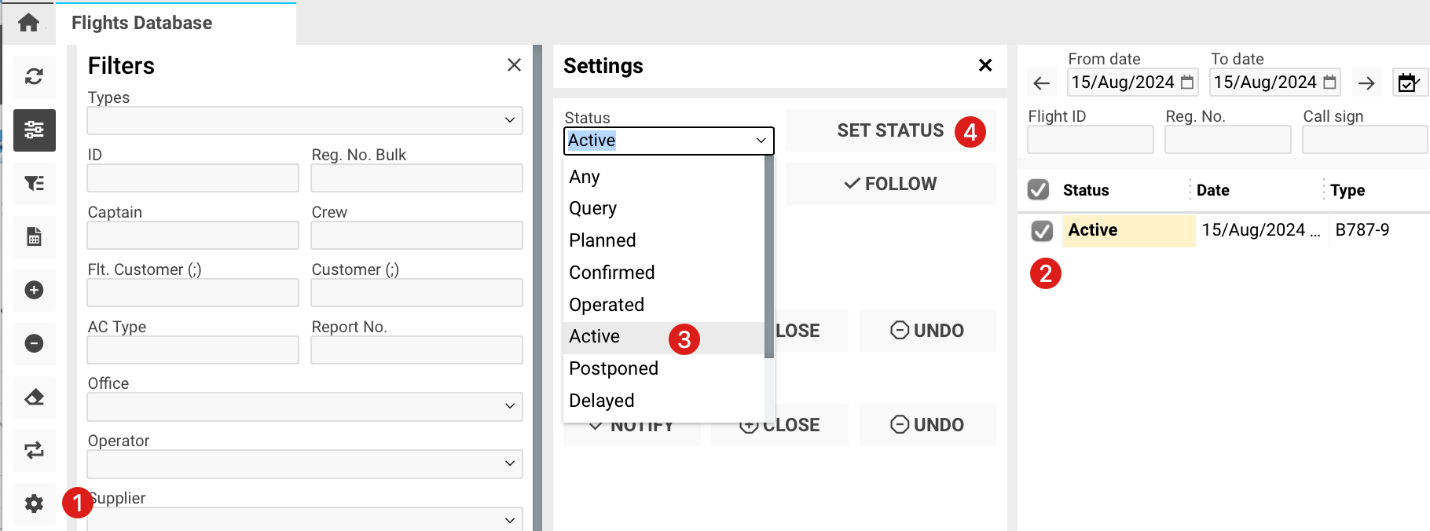
Changing Flight Status
-
Select the flight using the tick box.
-
Choose a new status from the selector.
-
Click Set Status.
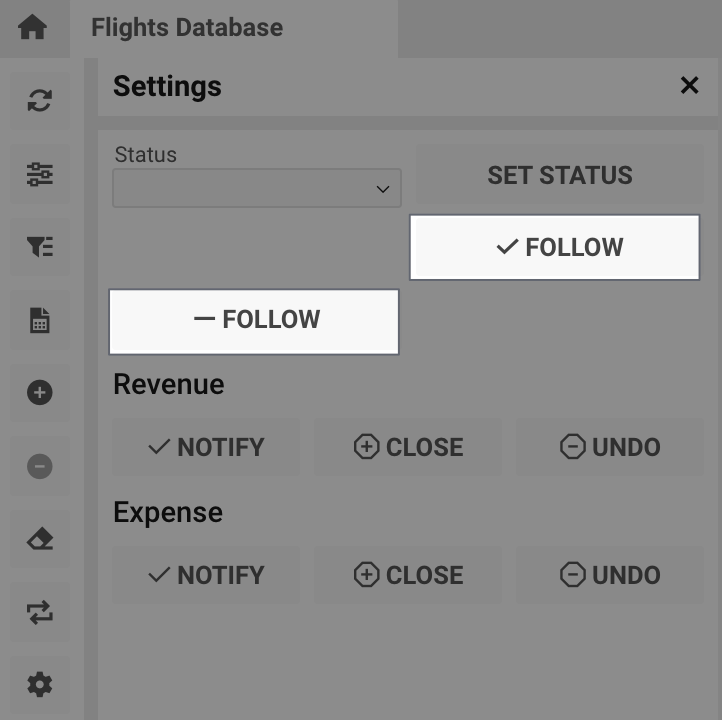
Follow/Unfollow Flight
-
Select the flight using the tick box.
-
Click either ✓ Follow or – Follow as needed.
How to Create a Schedule
-
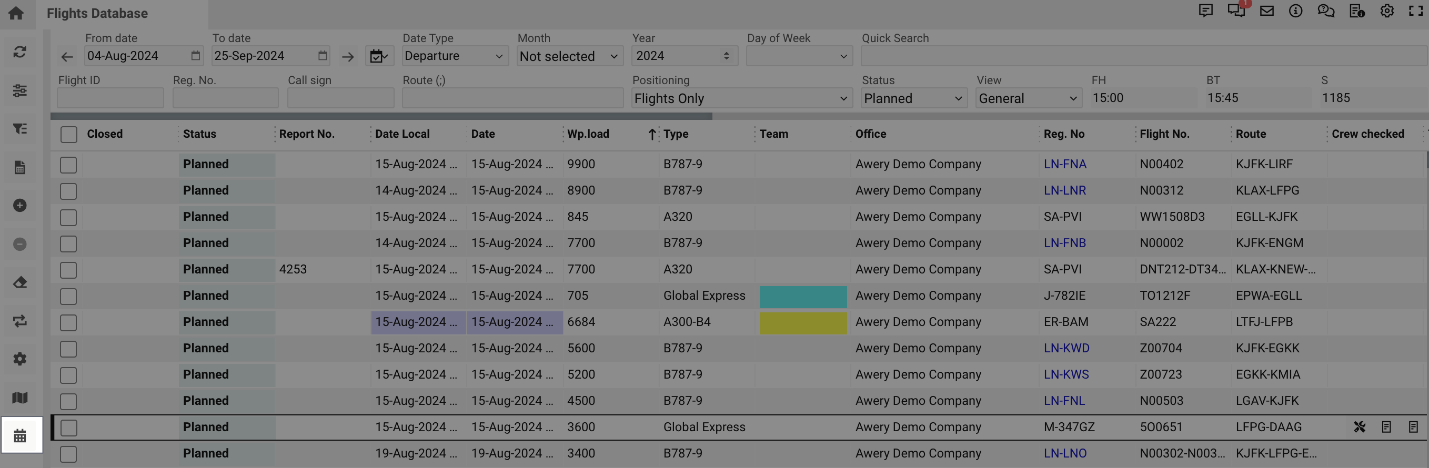
Select the flight using the tick box.
-
Click Create Schedule.
-
Choose one of the following options:
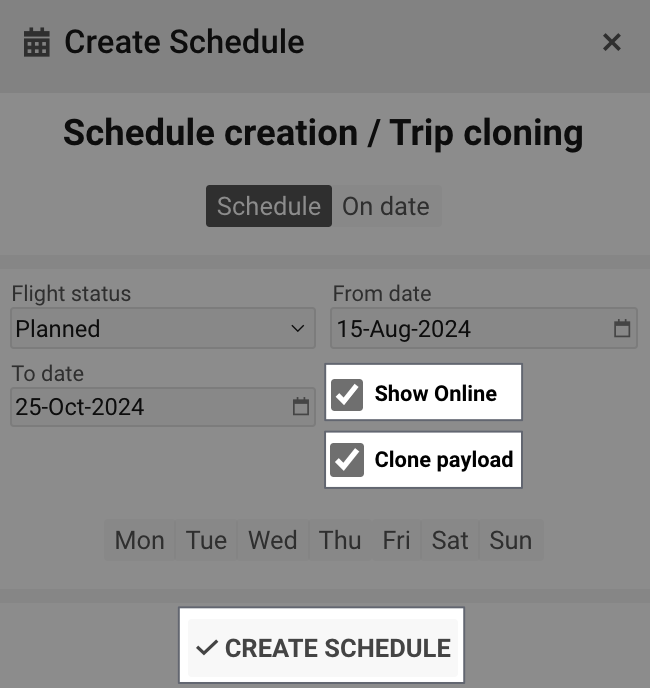
Schedule:
-
Tick Clone Payload to duplicate payloads.
-
Select period, status, and weekdays.
-
Tick Show Online to display on the website.
-
Click Create Schedule.
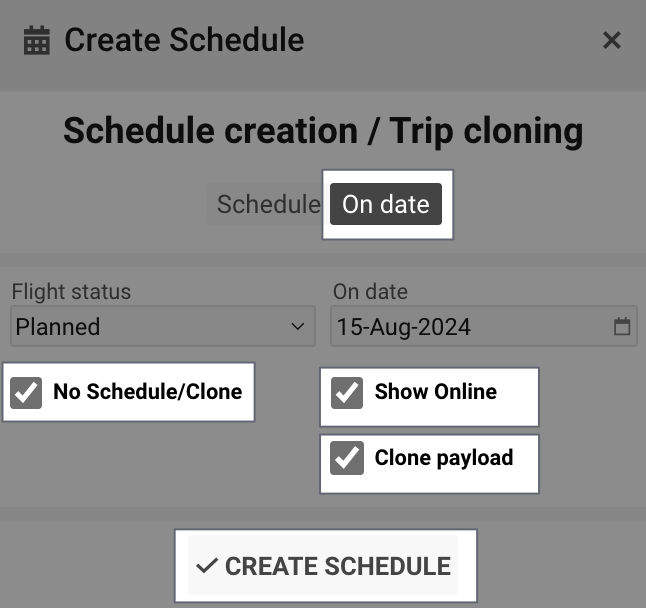
On Date:
-
Tick Clone Payload to create a duplicate flight for a specific date.
-
Tick No Schedule/Clone if you only wish to clone the flight.
-
Click Create Schedule.
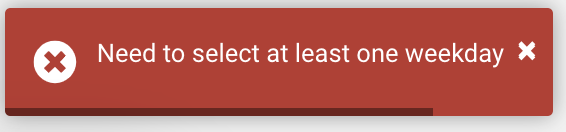
Error messages appear if no weekdays are selected or if the flight cannot be cloned due to restrictions.
Deletion Restrictions
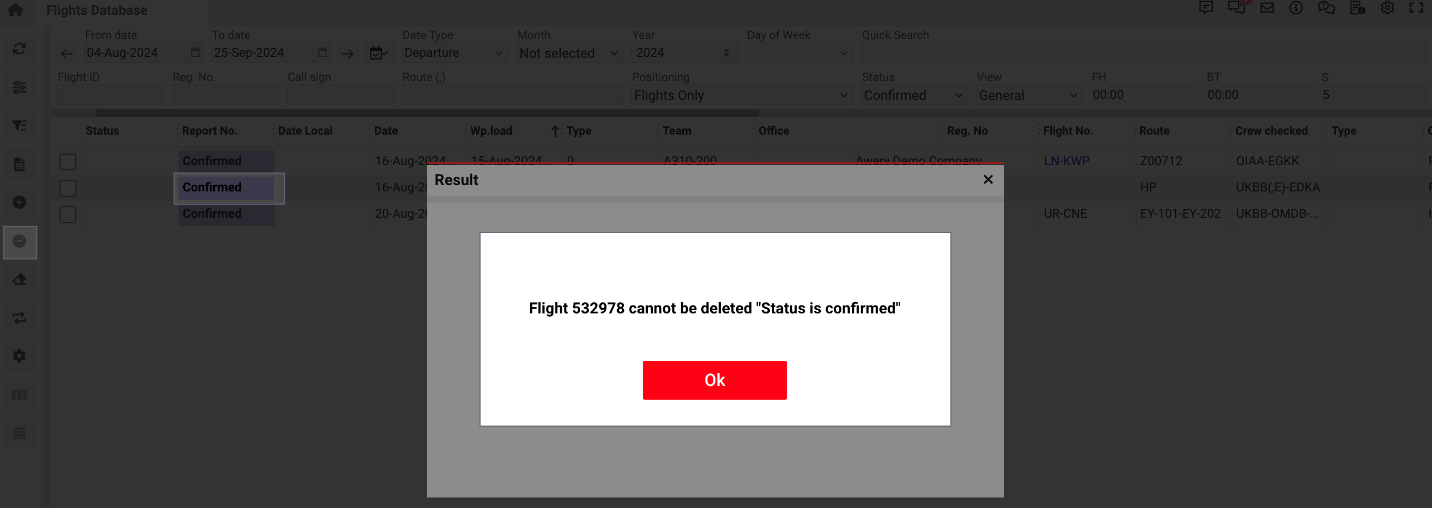
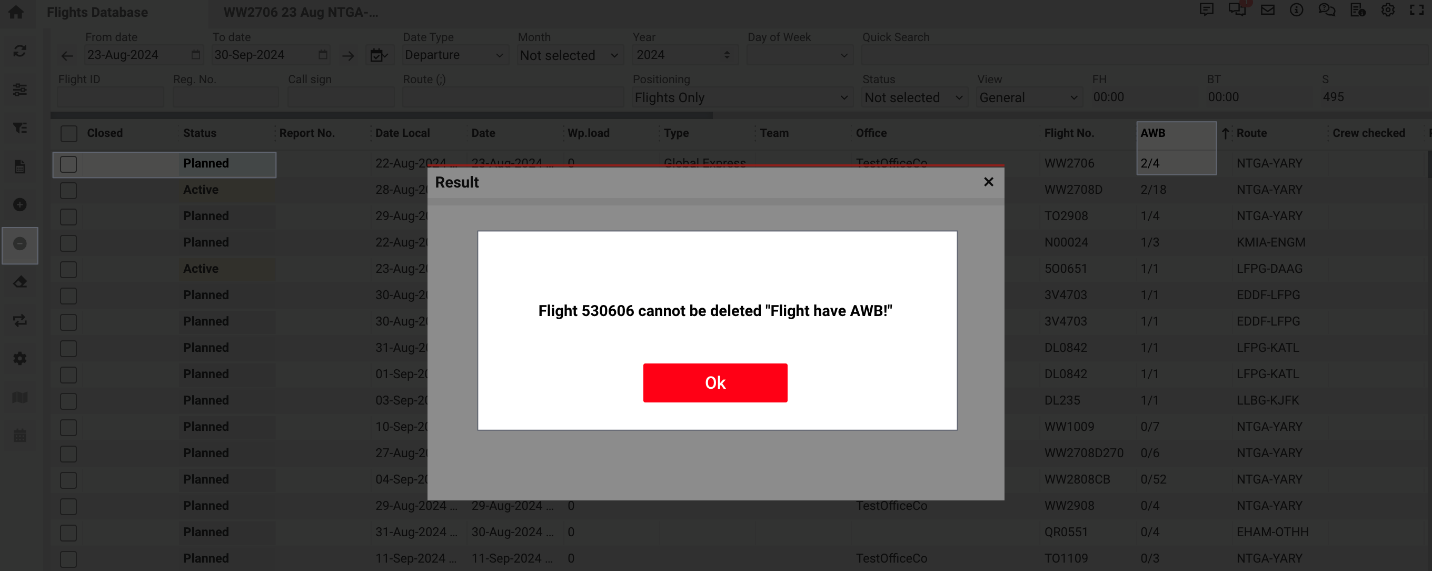
Flights cannot be deleted if:
-
The status is Confirmed, Active, Delayed, Cancelled, or Completed.
-
The flight has linked AWBs, flight reports, jobs, or allocations.
Reports
Click the Report button to open the list of available reports.
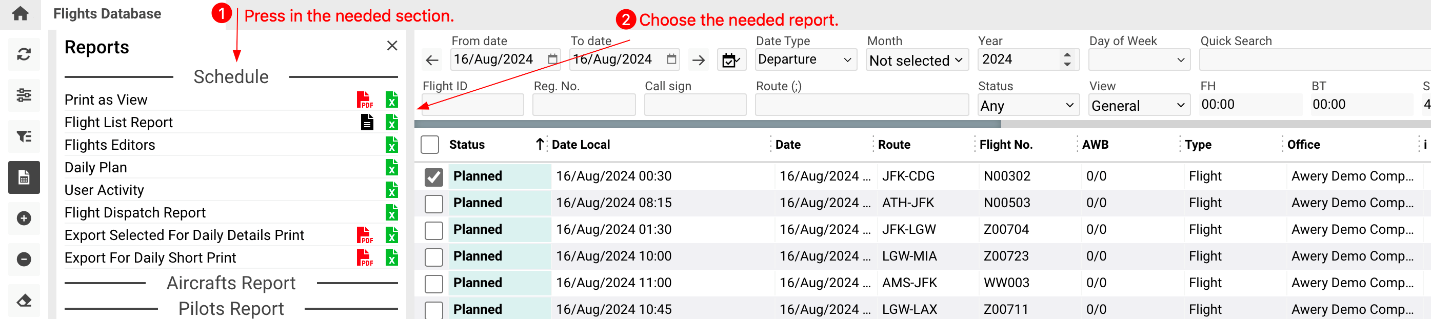
Select any category to view all related reports.
If a report is missing, verify user permissions on the page.