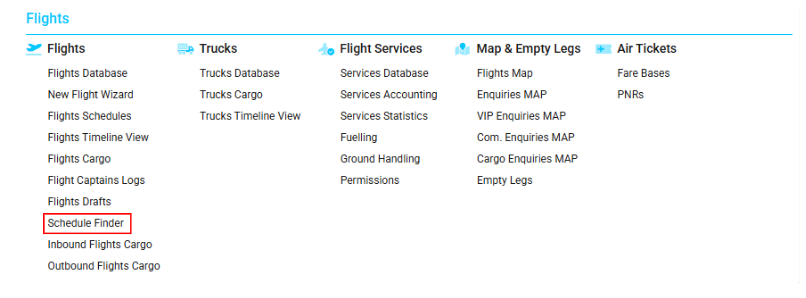
Accessing Schedule Finder
Navigate to the Flights section and under the Flights Section, click the “Schedule Finder” Button.
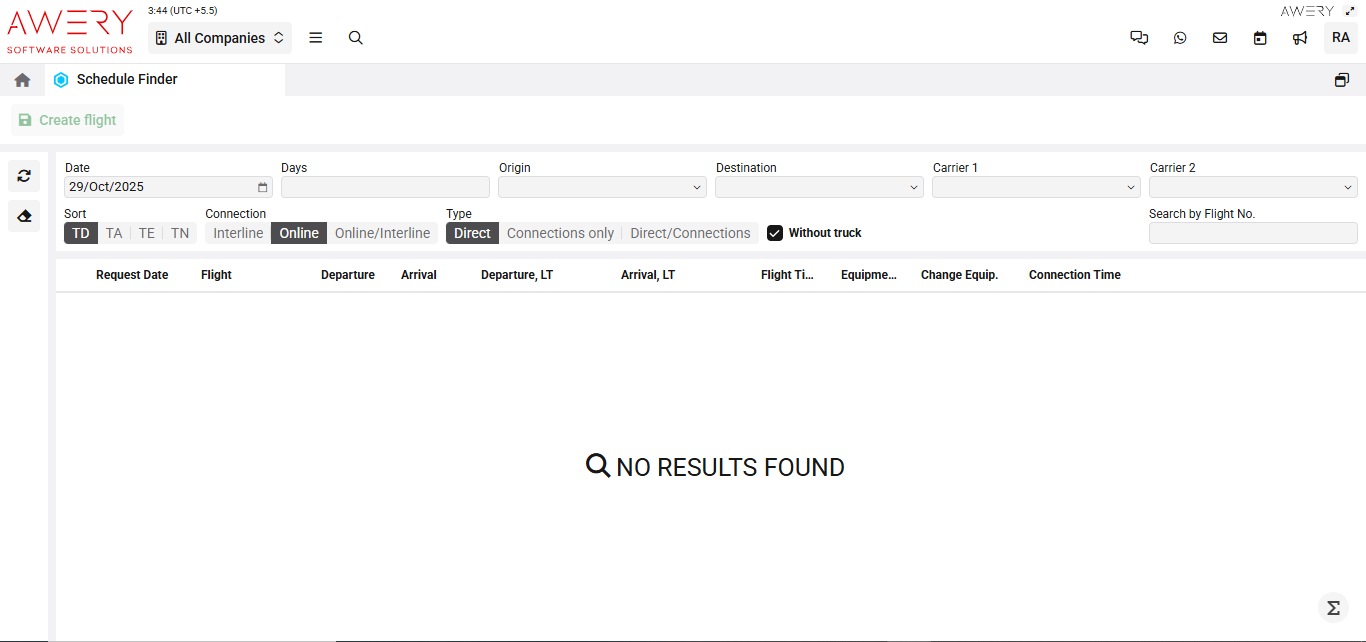
Interface Overview
The Schedule Finder module allows users to search for available flights based on selected criteria. Users may specify date, origin, destination, connection type, carrier, and additional options to locate direct or connecting flights.
Search Filters and Controls
-
Date: Choose the desired date for flight availability using the calendar picker.
-
Days: Optional field to filter by specific days of operation.
-
Origin: Airport or city of departure.
-
Destination: Airport or city of arrival.
-
Carrier 1 / Carrier 2: Select one or two air carriers to refine the search.
-
Search by Flight No.: Directly input a flight number to find matching schedules.
Sorting and Options:
-
Sort: Use TD, TA, TE, TN to sort based on operational criteria.
-
Connection: Filter between Interline or Online flights.
-
Type: Choose Direct, Connections only, or both.
-
Without truck: Checkbox to exclude truck-involved connections.
-
Create flight: Shortcut button to initiate a new flight record if no scheduled match exists.
Results Table Columns
When results are found, the following columns will display:
-
Request Date: Date when a schedule request was submitted.
-
Flight: Flight number or identifier.
-
Departure: Scheduled departure time or location.
-
Arrival: Scheduled arrival time or location.
-
Departure_LT / Arrival_LT: Local time values for departure and arrival points.
-
Flight Time: Total duration of the scheduled flight.
-
Equipment / Change Equipment: Equipment used and whether there is a change of equipment on route.
-
Connection Time: Total time allowed for connections (when applicable).
Visual Reference
(The following screenshot illustrates the default state of the Schedule Finder interface with defined filter areas and table columns.)