Accessing Empty Legs
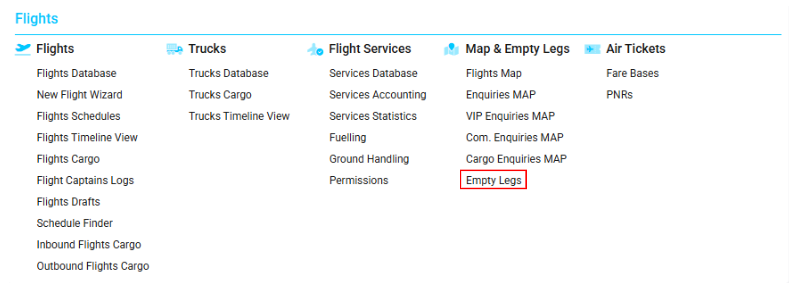
Navigate to the Flights section and under Maps & Empty Legs, click the “Empty Legs” Button.
Overview
The Empty Legs interface allows you to view, create, and manage empty legs.
You can quickly search for available empty legs using multiple filters, including the ability to find the nearest legs by radius or restrict results to the same country.
The list displays key operational data such as available seats (PAX), payload, origin/destination, and flight dates, allowing you to easily identify suitable empty legs.
List Description
Each empty leg in the list includes the following details:
-
ID – Unique identifier of the empty leg
-
Status – Current condition of the leg
-
Type – Aircraft type
-
Source – Origin of the empty leg (Enquiry, Manual, Operator, Avinode)
-
Valid From – Departure date
-
Valid To – Arrival date
-
From – IATA code of departure airport
-
To – IATA code of arrival airport
-
From ICAO – ICAO code of departure airport
-
To ICAO – ICAO code of arrival airport
-
From City – Departure city
-
To City – Arrival city
-
Operator – Company operating the flight
-
Aircraft Type – Model of the aircraft
-
Reg. No – Aircraft registration number
-
Available PAX – Maximum number of available seats
-
Available Payload (kg) – Maximum load capacity
-
Broker – Broker initials
-
Office – Company office
-
Notes – Additional information
Sorting and Filtering
You can filter empty legs by the following parameters:
Location-based Filters
-
From Airport / To Airport
-
Radius (available only when From/To airport is selected)
-
From Country / To Country
-
From Region / To Region
Operational Filters
-
Office
-
Operator
-
Broker
-
Source
-
Type
-
Aircraft Type
-
Registration number
-
Contact
-
Status
Select your desired filters and click Search to apply them.

Finding the Nearest Empty Legs
You can search for nearby empty legs using radius filtering:
-
Select Origin and Destination airports
-
Select a Radius value
-
The system will find all available airports within the defined radius
You can also tick SC (Same Country) to restrict the search to airports in the same country.

Pay Attention
Certain location filters cannot be used together:
-
When From/To Airport is filled → Country and Region selectors are disabled
-
When From/To Country is filled → Airport and Region selectors are disabled
-
When From/To Region is filled → Airport and Country selectors are disabled
Permissions
No special permissions are required to view the Empty Legs list.
Interior Interface
Double-click on any empty leg to open its detailed page.
Interface Elements
The detailed view includes:
Selectors
-
Office
-
Operator
-
Status
-
Broker
-
Type
-
Aircraft
-
From Airport
-
To Airport
-
Currency
-
Rate
Date Fields
-
From Date
-
To Date
Editable Fields
-
Price
-
Registration
-
Pax Available
-
Payload Available
-
Contact Name
-
Contact Tel.
-
Contact Email
-
Comments

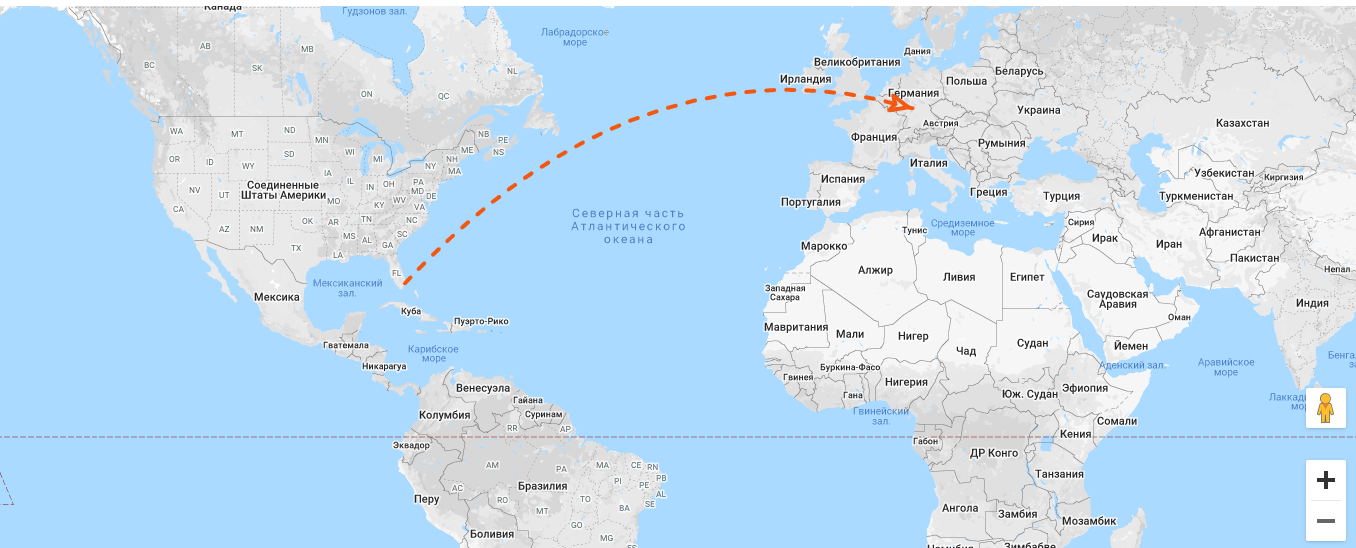
A map showing the empty leg route is displayed below these fields.
Important
The following fields are mandatory:
-
Operator
-
Aircraft
-
From Airport
-
To Airport

Linking Empty Legs to Enquiries
You can link an empty leg directly to an enquiry:
Link to Enquiry
-
Click Link to Enquiry to select an enquiry from the sidebar
-
Only enquiries from the current month will appear
-
Link to Enquiry A
-
Click Link to Enquiry A to link the empty leg to an enquiry with the same route
When linking is successful, the selected enquiry number will be displayed.