Accessing Flight Map
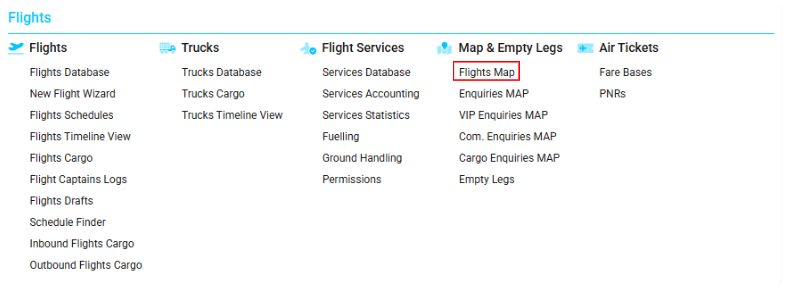
Navigate to the Flights section and under Maps & Empty Legs, click the “Flights Map” Button.
Overview
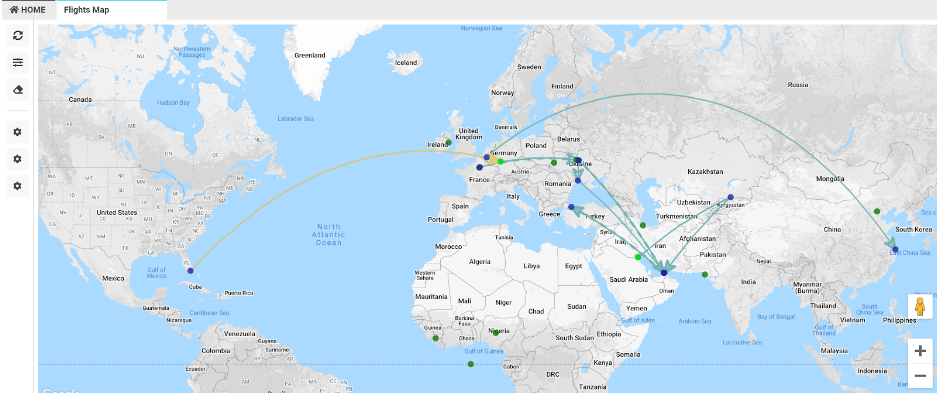
The Flight Map allows you to visualize flight paths on an interactive map for any selected period.
You can filter flights by multiple parameters and view aircraft locations and crew locations in real time.
Map Description
For the selected date range, the map displays all relevant flights.
Each flight is shown in a specific color depending on its status:
-
Planned – slightly desaturated cyan
-
Active – soft orange
-
Completed – slightly desaturated green
-
Canceled – dark grayish red
-
Confirmed – very soft blue
-
Postponed – slightly desaturated pink
-
Request – slightly desaturated cyan (dotted line)
-
Delayed – slightly desaturated red
Direction Arrow
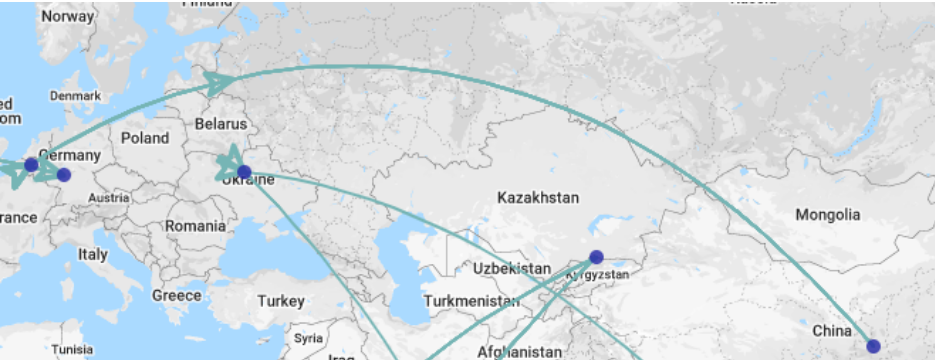
Each flight line includes an arrow showing the current position of the flight:
-
If the arrow is at the departure airport, the aircraft has not yet departed.
-
If the arrow is at the arrival airport, the aircraft has already landed.
Airport Information
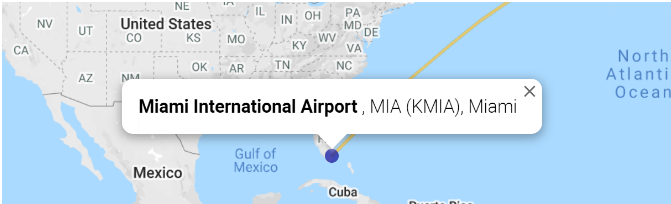
You can click on any blue airport point to view:
-
Airport Name
-
City
-
Airport Code
Additional Monitoring Features
The map includes optional layers for enhanced situational awareness.
Show Aircrafts
Click the Show aircrafts button to display aircraft locations as light green points.
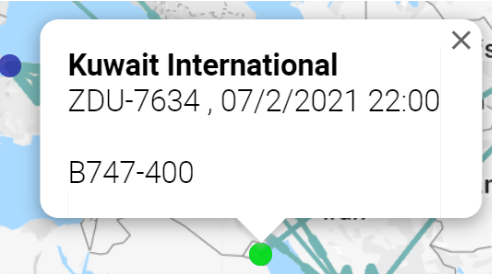
Selecting a point shows:
-
Airport Name
-
Aircraft Type
-
Aircraft Name
-
Arrival Date
Show Crew
Click the Show Crew button to display crew locations as green points.
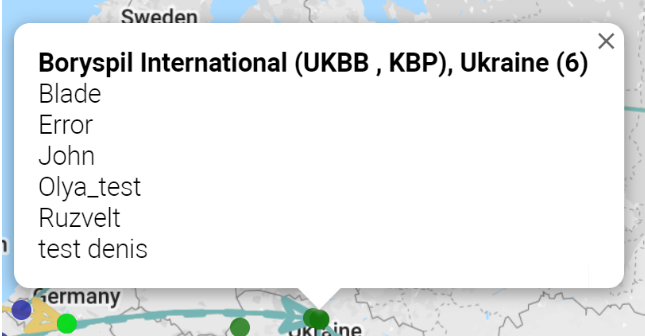
Selecting a crew point shows:
-
Airport Name
-
Country Name
-
Crew Names
-
Total crew count for the flight (shown in parentheses)
Flight List Sidebar
Click Show Flights to open a sidebar displaying all flights in list format.
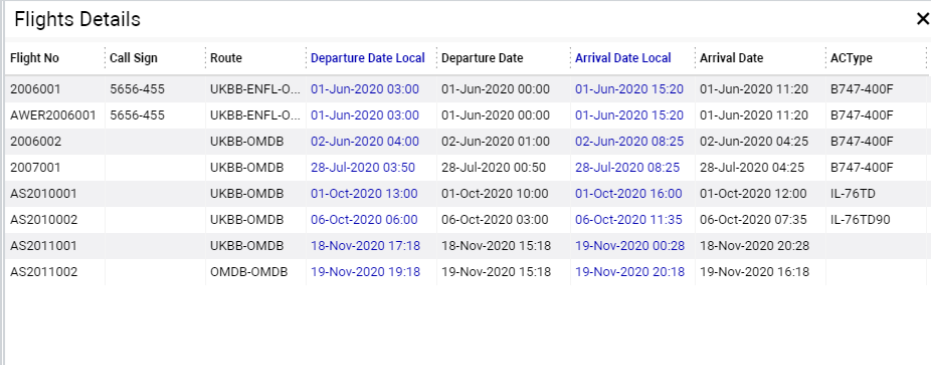
The list contains:
-
Flight No
-
Status
-
Call Sign
-
Operator
-
Route
-
Departure Date (UTC & local)
-
Arrival Date (UTC & local)
-
Aircraft Type
You can open any flight directly by double-clicking its row.
Sorting and Filtering
You can run searches using the Refresh button or by pressing Enter after entering filter criteria.
Click Filters to expand the full filter panel.
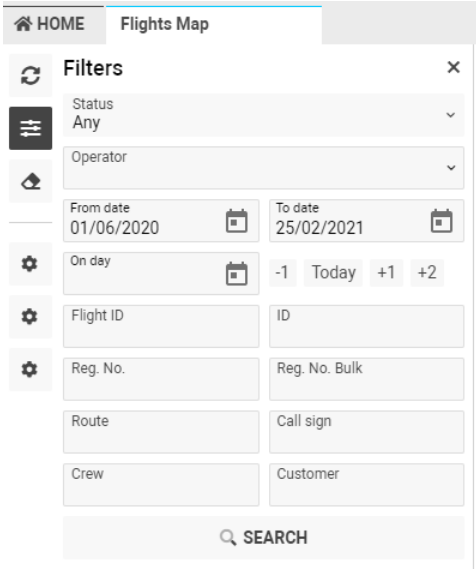
Available Filters
You may filter flights by:
-
Flight Status
-
Operator
-
Departure Date range
-
Quick date shortcuts: +2, +1, Today, -1
-
Flight ID
-
ID
-
Registration Number
-
Registration Number (Bulk)
-
Route
-
Call Sign
-
Crew
-
Customer
To reset all filters, click Clear Filters.