Accessing Enquiries Map
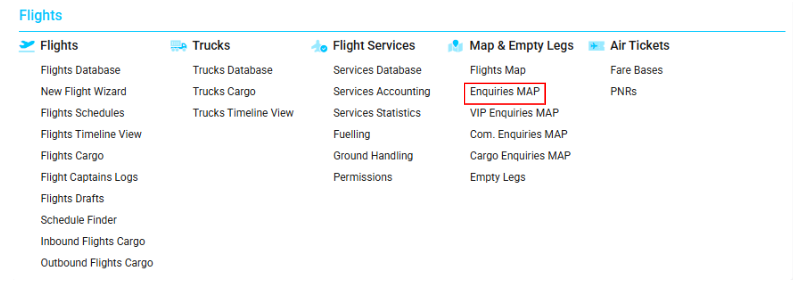
Navigate to the Flights section and under Maps & Empty Legs, click the “Enquiries Map” Button.
Overview
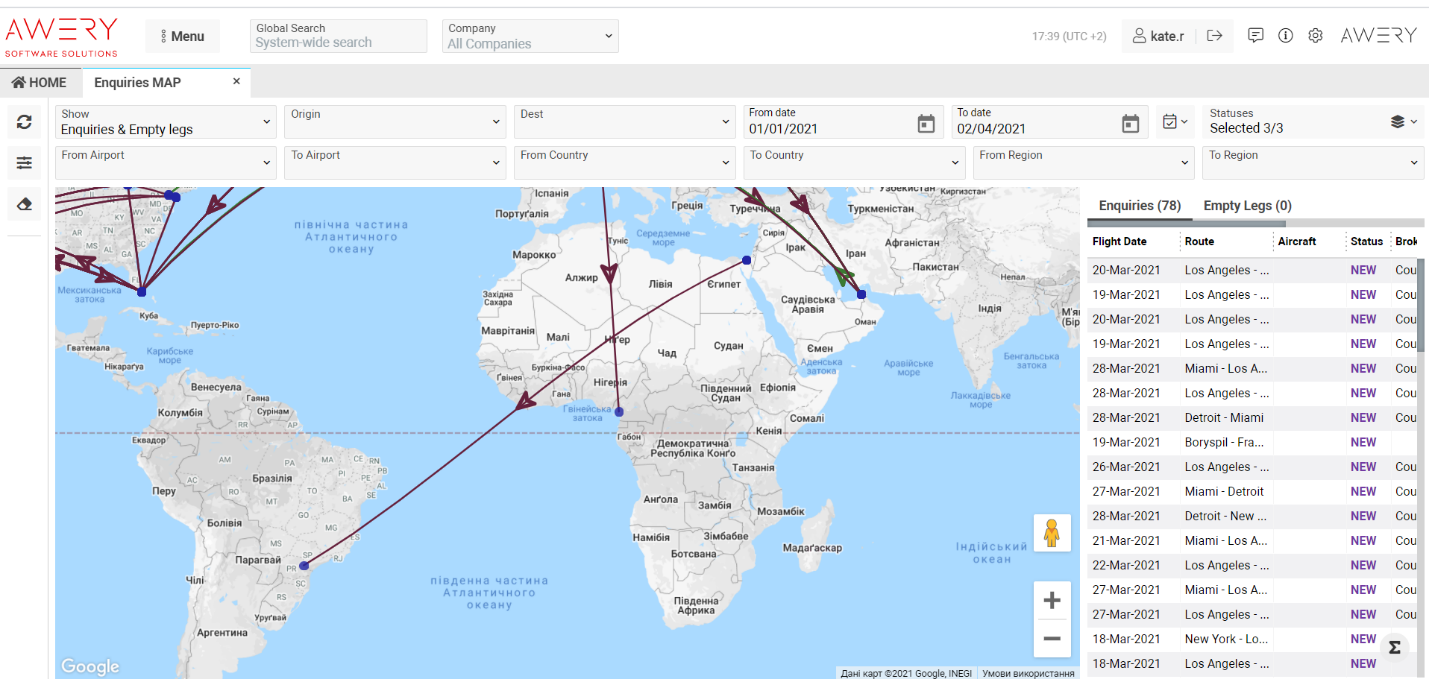
The Enquiries Map allows you to view enquiries and empty legs displayed on an interactive map for any selected date period.
You can filter both enquiries and empty legs by multiple parameters and retrieve detailed information based on your operational requirements.
Map Description
At the top of the interface, the Show selector controls which data is displayed on the map.
By default, the option Enquiries & Empty Legs is selected, and the map displays both record types for the selected period.
You may switch the view to:
-
Empty Legs only
-
Enquiries only
Enquiries Display
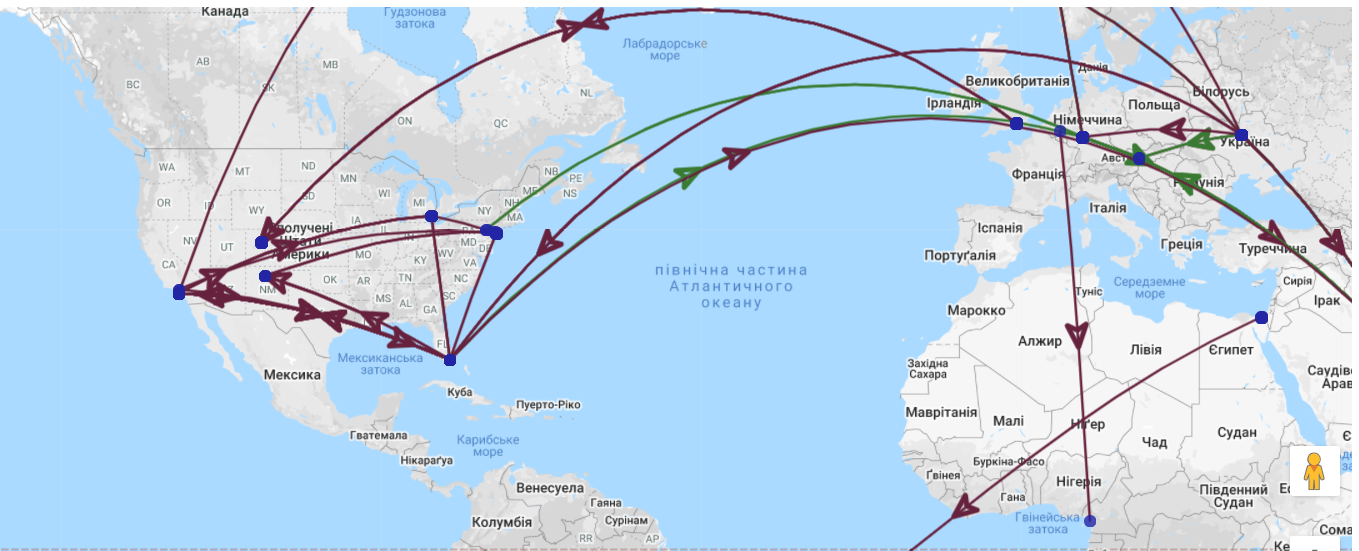
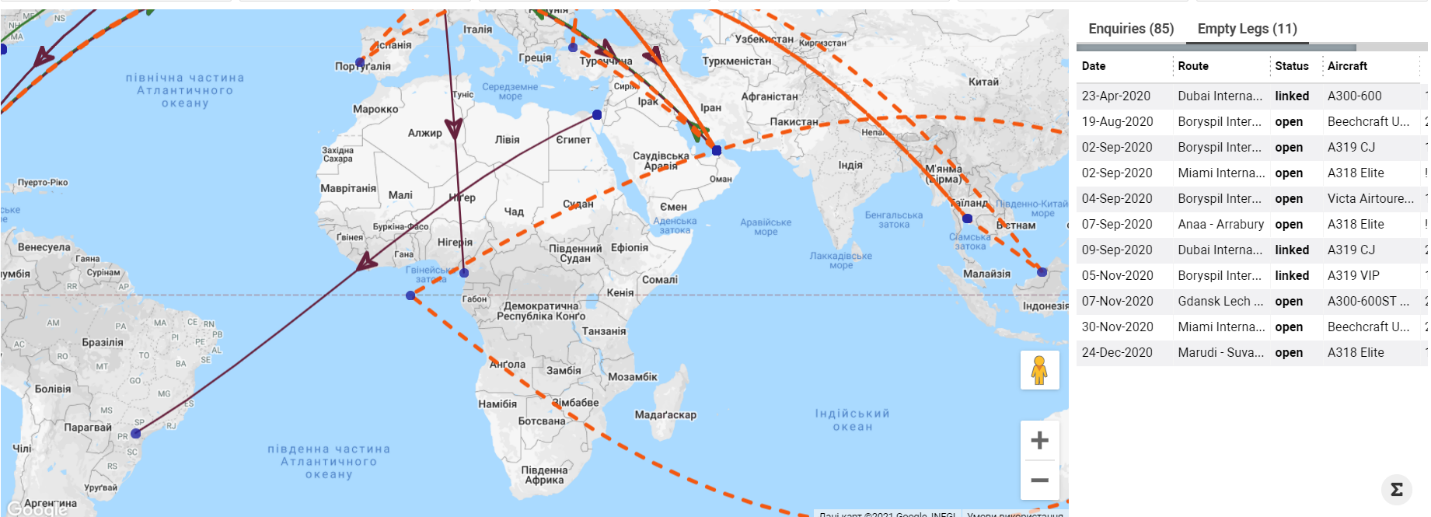
Enquiries appear as colored lines based on their status:
-
New – very dark pink
-
Quoted – dark blue
-
WON – dark moderate lime green
Each line also contains an arrow indicating the enquiry’s current position:
-
If the arrow is at the departure airport, the enquiry has not yet departed.
-
If the arrow is at the arrival airport, the enquiry has already completed its route.
Airport and Enquiry Details
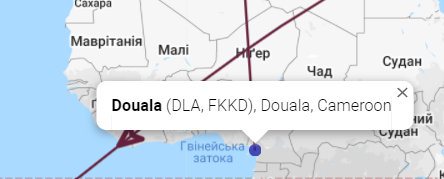
Hovering over a blue airport point displays:
-
Airport Name
-
Codes
-
City
-
Country
Clicking on the blue point displays full enquiry details:
-
Flight Departure Date
-
Route
-
Aircraft
-
Status
-
Broker
-
Office
-
Enquiry ID

Enquiries List
A list is available on the right side showing all enquiries displayed on the map.
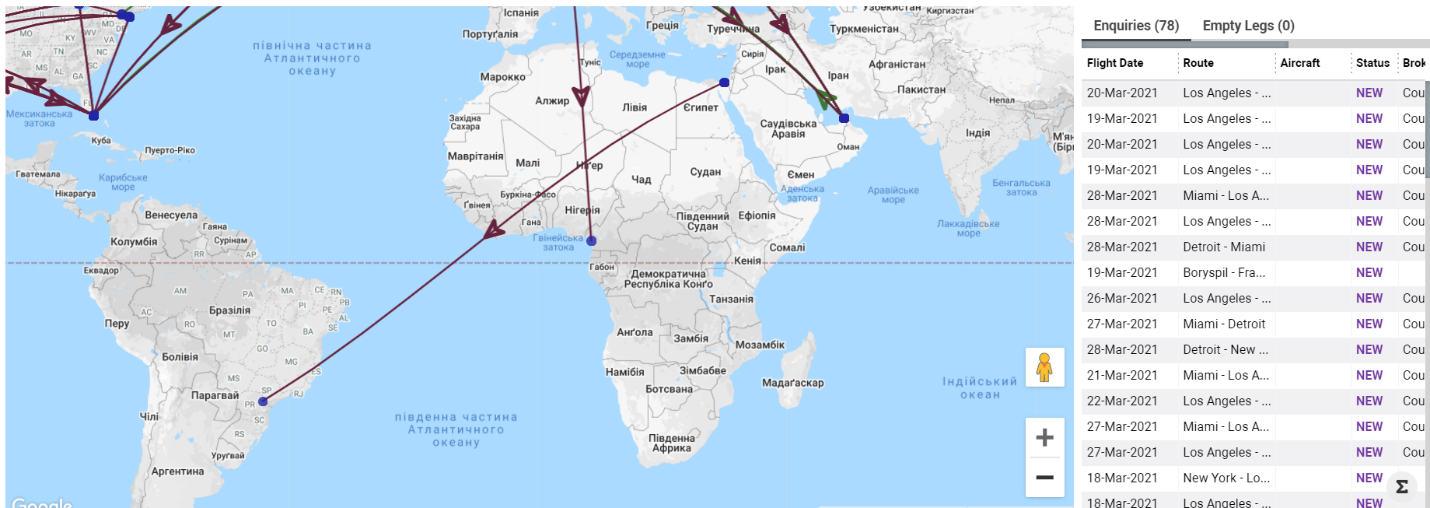
Click a row to highlight and display only that enquiry on the map.
Double-click the row to open the full Enquiry page.
Empty Legs Display
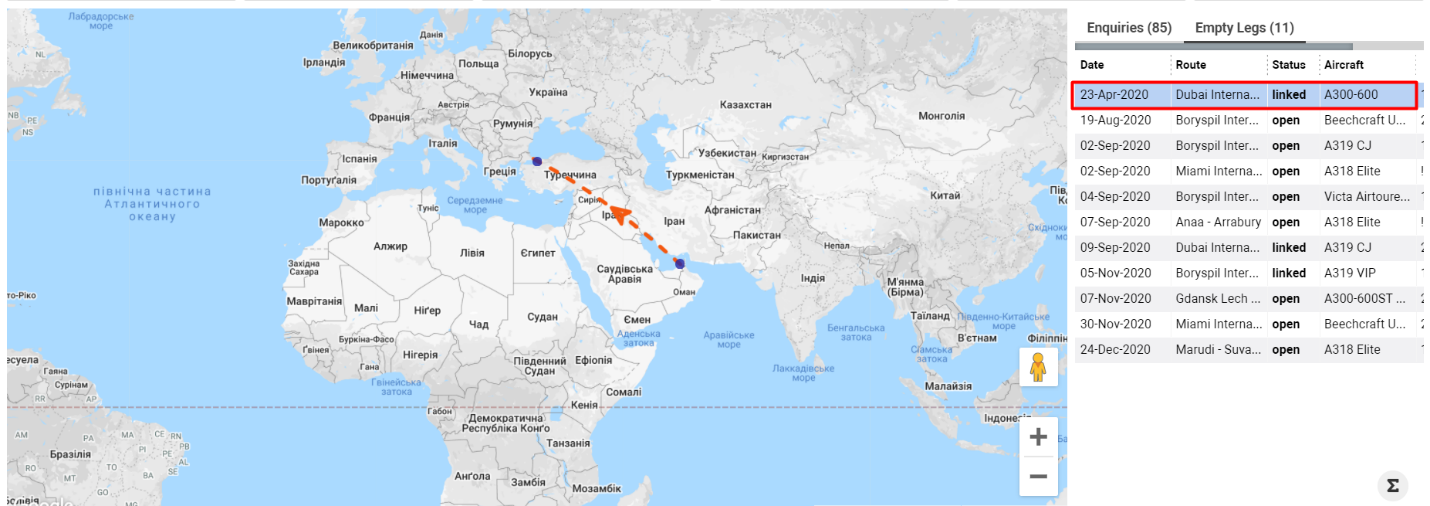
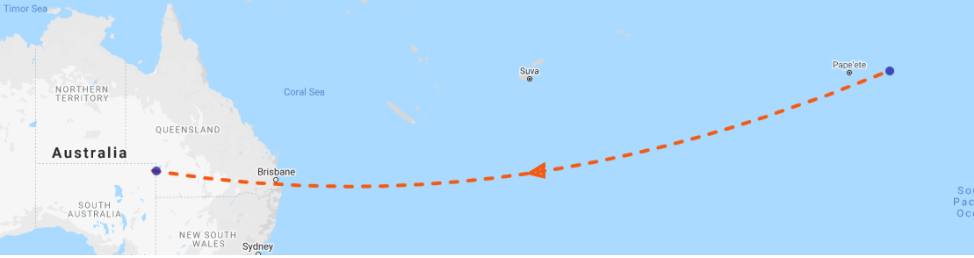
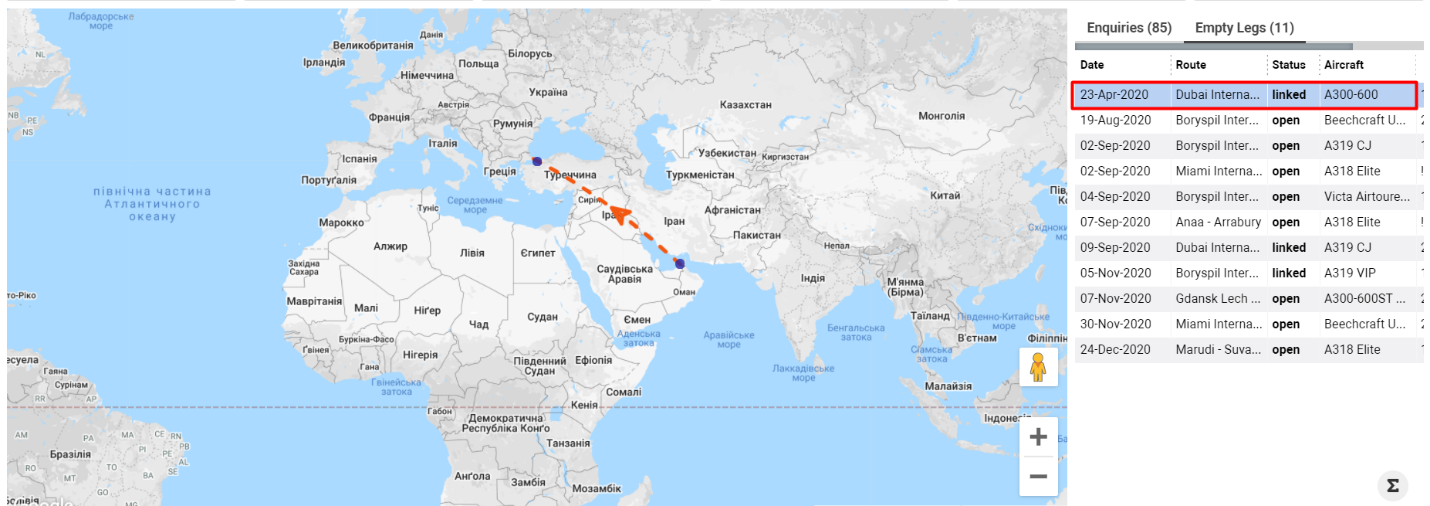
Empty legs appear as lines in vivid orange (dotted line).
An arrow shows the empty leg’s current position:
-
Arrow at departure airport – the empty leg has not departed.
-
Arrow at arrival airport – the empty leg has completed its route.
Only empty legs in Open status are displayed on the map.
Airport and Empty Leg Details
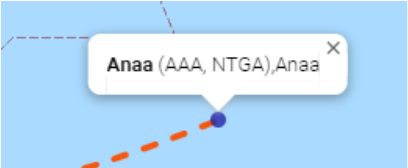
Hovering over a blue point displays:
-
Airport Name
-
Codes
-
City
Clicking the point shows empty leg details:
-
Flight Date
-
Route
-
Aircraft
-
Status
-
Operator
-
Empty Leg ID

Empty Legs List
The right-side list displays all empty legs visible on the map.
Click a row to highlight only that empty leg on the map.
Double-click the row to open the Empty Leg page.
Sorting and Filtering
Main filters are available at the top of the interface:
-
Origin – departure airport for enquiries
-
Dest – arrival airport for enquiries
-
From Date / To Date – selected period
-
Change Period Selector – shortcut period selection
-
Status – enquiry status
-
From Airport – empty leg departure airport
-
To Airport – empty leg arrival airport
-
From Country – empty leg originating country
-
To Country – empty leg destination country
-
From Region – empty leg originating region
-
To Region – empty leg destination region
Additional filtering options are available via the Filters button:
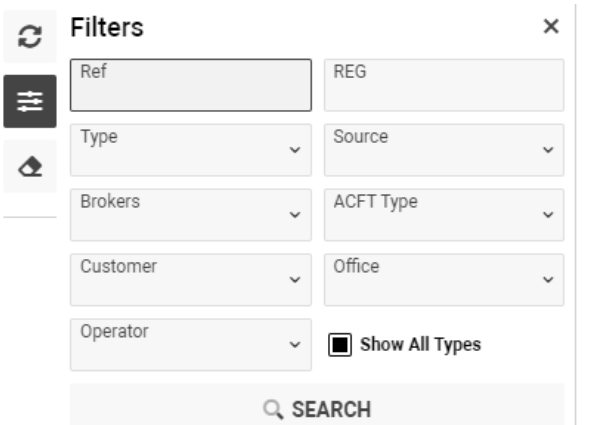
-
Ref – enquiry reference
-
REG – empty leg registration
-
Type – enquiry type
-
Source – enquiry source
-
Brokers – enquiry broker
-
ACFT Type – aircraft type
-
Customer – enquiry customer
-
Office – company
-
Operator – operator
-
Show all Type tick – displays all aircraft types
To clear all filters, use the Clear Filters button.