Accessing Services Accounting
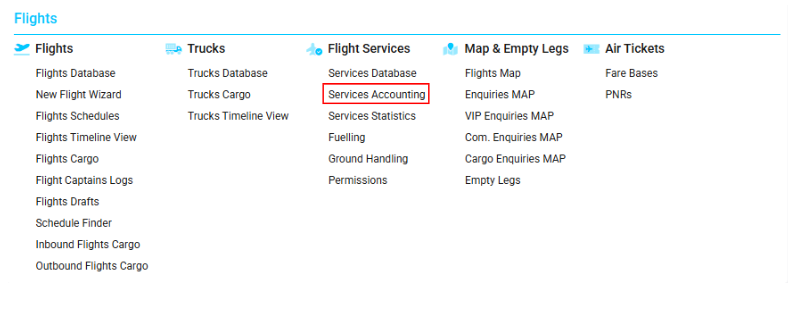
Navigate to the Flights section and under the Flight Services, click the “Services Accounting” Button.
Overview
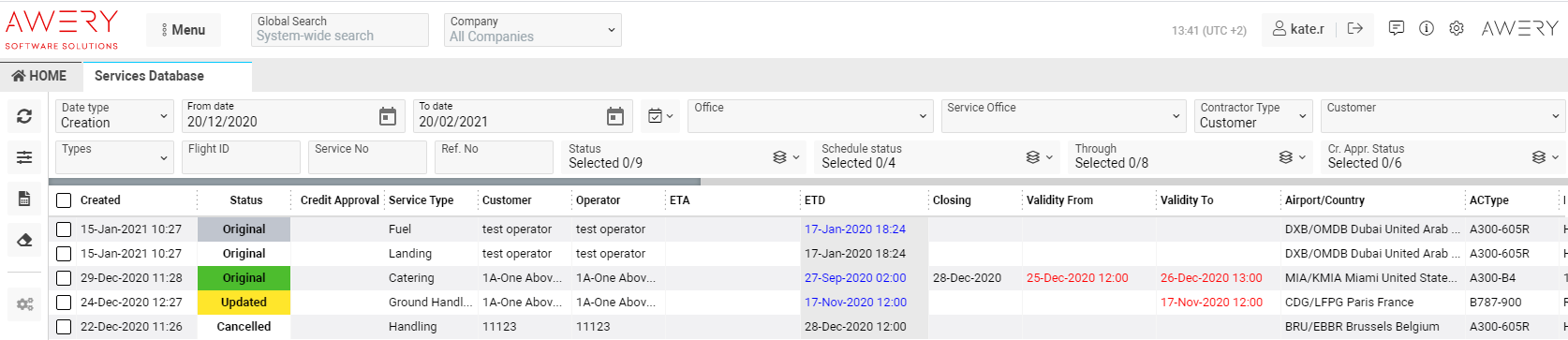
The Services Accounting list displays created flight services and allows you to manage their accounting efficiently.
List Description
Status – cells are colored depending on the service status:
-
Not actioned – white
-
Needs to follow up – yellow
-
Already followed up – orange
-
Confirmed – green
-
Expired – red
-
More information required – violet
-
Canceled – grey
-
Rejected – burgundy
-
Not required – blue
Credit Approval – displayed with text color based on approval status:
-
White listed – green
-
Not actioned – black
-
Requested – orange
-
Approved – green
-
Rejected – red
Service Type – indicates the type of service (e.g. fueling, handling).
Acc. Notes – accounting-related comments.
Through – responsible company or customer.
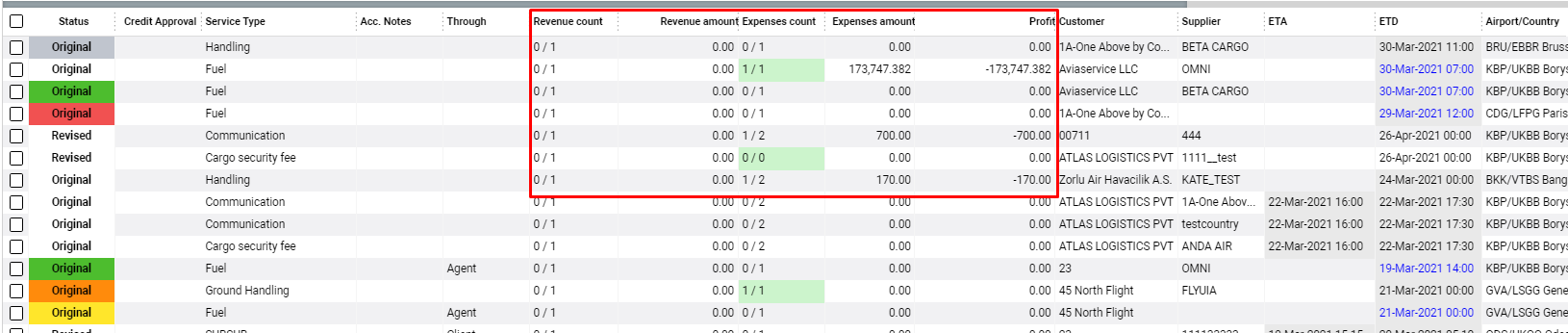
Revenue Count – first value shows number of revenue jobs created; second value shows total number of revenues.
Revenue Amount – total revenue amount linked with jobs.
Expenses Count – first value shows number of expense jobs created; second value shows total number of expenses.
Expenses Amount – total expense amount linked with jobs.
Profit – calculated automatically as the difference between Revenue Amount and Expenses Amount.
Customer – customer associated with the service.
Supplier – supplier associated with the service.
ETA – estimated arrival date at the waypoint where the service was created.
ETD – estimated departure date at the waypoint where the service was created.
Airport/Country – displays airport and country of the waypoint.
Call Sign – call sign of the flight.
ACType – aircraft type.
Reg. No – aircraft registration number.
Service No – unique service number.
At the end of each row:
-
Jobs Button (grey) – jobs not yet created for the service.

-
Jobs Button (green) – jobs for revenue or expenses have been created. Clicking opens the sidebar with job details.

Additional columns display:
-
Revenue Count / Revenue Amount / Expenses Count / Expenses Amount / Profit
For example:
If two revenues are created and one has a job worth 100 USD →
Revenue Count: 1 / 2 and Revenue Amount: 100
If all revenues have jobs → background turns green.
If revenue type = Fuel → violet background.
If revenue type = Catering → blue background.
The same rules apply for Expenses.
Profit = Revenue Amount – Expenses Amount.
Note: If you can’t find a column, please check your permissions on the page.
Manuals
How to Update a Service
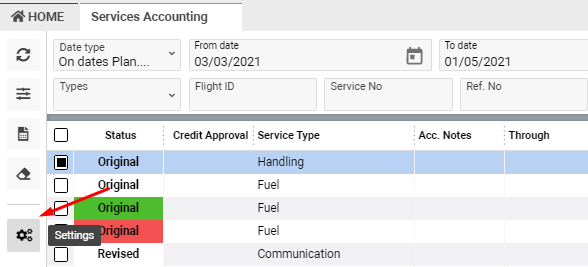
You can update services directly from the list by selecting one and clicking the Settings button.
A sidebar will appear:
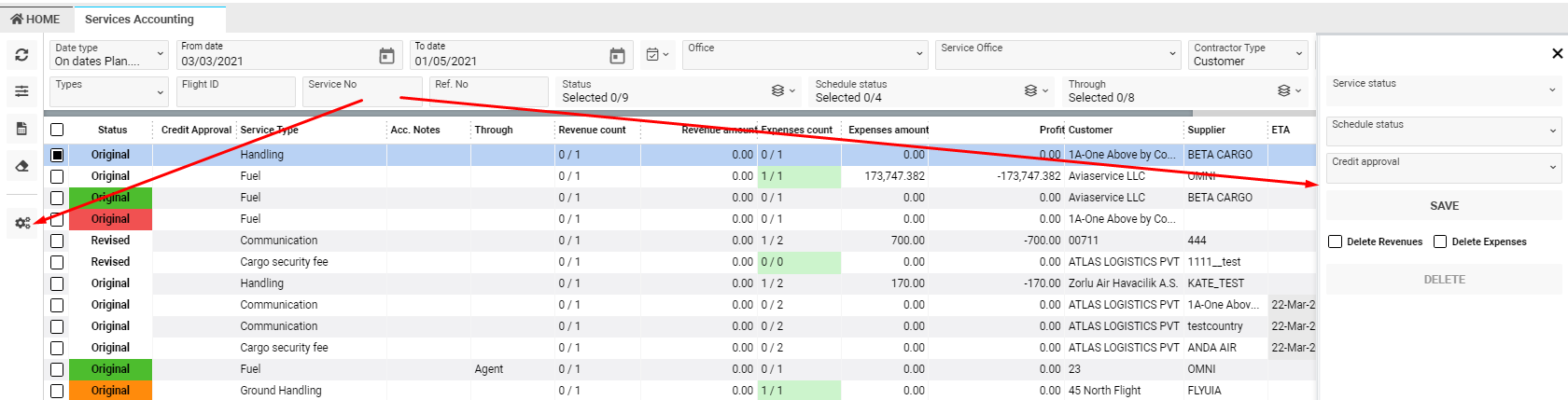
You can update:
-
Service Status
-
Schedule Status
-
Credit Approval
-
Through
-
Payment
Select one or multiple fields, then press Save.
You can also:
-
Set a Close Date – choose a date or keep the current one, then click Set Close Date.
-
Clear Close Date – removes the current close date.
-
Delete Revenues/Expenses – use Delete Revenues or Delete Expenses ticks and press Delete (button activates when at least one is ticked).
-
Close Sidebar – click Close.
Sorting and Filtering
Filtration is done by pressing the Search button or hitting Enter.
At the top of the page, filters include:
-
Date Type
-
From / To Dates
-
Office
-
Customer
-
Types
-
Flight ID
-
Service No
-
Ref. No
-
Service Office
-
Service Status
-
Schedule Status
-
Through
-
Credit Approval Status
Click Filters for additional options:
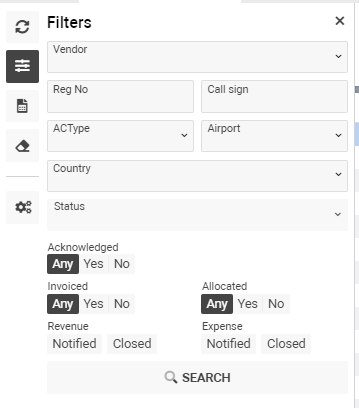
Additional filters:
-
Types – filter by service type
-
Vendor – filter by service vendor
-
Customer – filter by customer (can select customer type)
-
Flight ID – filter by flight ID
-
Service No – filter by service number
-
Reg. No – filter by aircraft registration
-
Call Sign – filter by flight call sign
-
ACType – filter by aircraft type
-
Airport / Country – filter by waypoint details
-
Team / Urgency – filter by team or urgency
You can also use:
-
Acknowledge / Non-Acknowledge – filter confirmed or non-confirmed services
-
Invoiced / Non-Invoiced – show services with or without revenue jobs
-
Allocated / Non-Allocated – show services with or without expense jobs
-
Revenue Notified / Expenses Notified – show informed services
-
Revenue Closed / Expenses Closed – show closed records
To clear all filters, click the Clear Filters button.

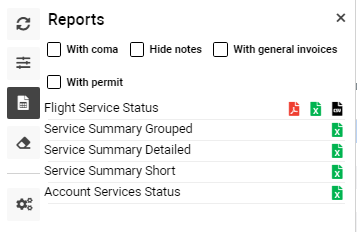
Click Reports to access all available reports on the page.