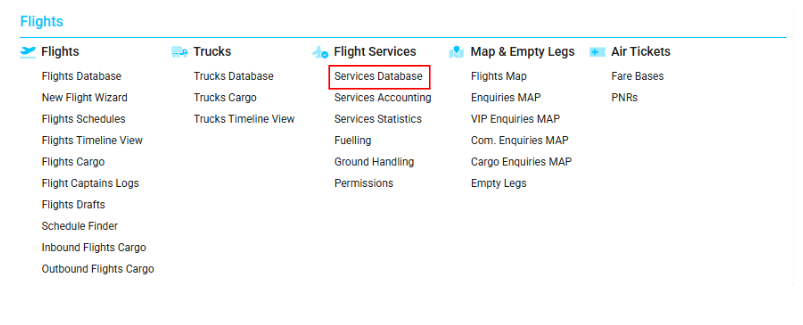
Accessing Services Database
Navigate to the Flights section and under the Flight Services, click the “Services Database” Button.
Overview
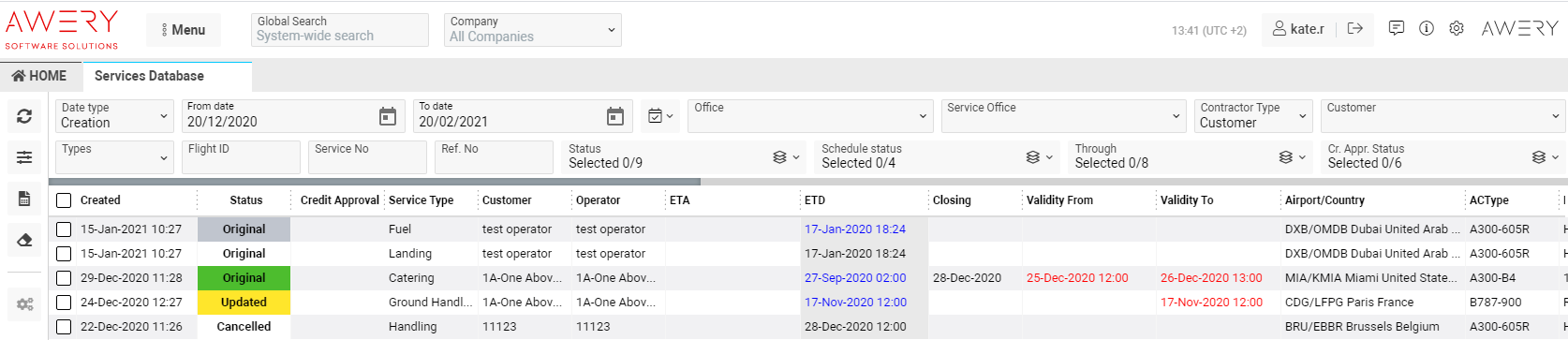
The Services Database interface displays the complete list of services created for various flights.
It allows users to view detailed service data, link information from associated flights, and filter results by multiple parameters.
List Description
Status – Indicates the current condition of a service.
The color represents the service status, while the text represents the schedule status.
Colors of Service Statuses:
-
Not actioned – white
-
Needs to follow up – yellow
-
Already followed up – orange
-
Confirmed – green
-
Expired – red
-
More information required – violet
-
Canceled – grey
-
Rejected – burgundy
-
Not required – blue
Credit Approval – Displays the credit approval status using color-coded text:
-
White Listed – green
-
Not actioned – black
-
Requested – orange
-
Approved – green
-
Rejected – red
Service Type – Specifies the type of service (e.g., Fuel, Handling).
Acknowledged services are displayed in green text.
Created – Displays the date of service creation.
Customer – Shows the customer associated with the service.
Operator – Displays the operator responsible for the service.
ETD – Departure date of the waypoint where the service was created.
If the flight status is not planned, confirmed, or requested, and the actual departure date is valid, the text appears in blue.
A grey background appears if the departure date is invalid (0000-00-00) or in the past.
ETA – Arrival date of the waypoint where the service was created.
Similar display logic applies as for the ETD field.
Closing – Displays the service closing date, with a grey background if the date is invalid or in the past.
Airport/Country – Shows the airport and country of the waypoint.
AC Type / Reg. No – Displays the aircraft type and registration number.
Flight ID / Call Sign / F.Status / Route – Displays the flight details associated with the service.
Supplier – Vendor providing the service.
Validity From / To – Displays service validity dates.
-
Text in black – date more than 12 hours away.
-
Text in orange – less than 12 hours away.
-
Text in red – date expired.
Service No – Displays the service number (grey background for parent services).
Sub Srv No – Displays child service number(s).
Team / Team Color – Indicates assigned team name and corresponding team color.
Arranged By – Designation of the person responsible.
Office – Company associated with the service.
Note / Acc. Notes / Int. Notes – Display respective notes.
Ref. No – Displays the reference number.
Hovering over a service row reveals two action buttons:
-
Info – Opens the service details page.
-
Jobs – Opens the sidebar with job details.
-
Grey icon – jobs not yet created.
-

-
Green icon – jobs for revenue or expenses created.

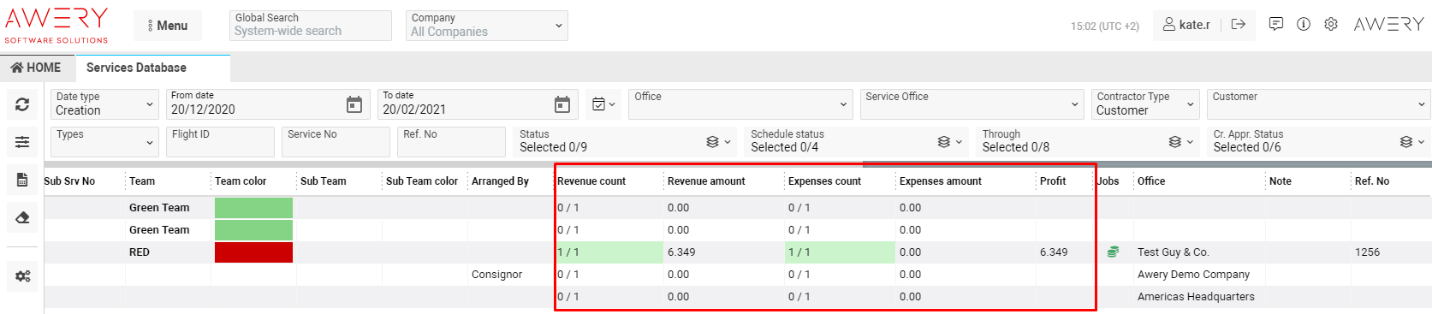
Revenue / Expense / Profit Columns:
-
Revenue Count – Displays job quantity and total count for revenue.
Example: 1 / 2 means 1 job created out of 2 revenues. -
Revenue Amount – Displays total revenue for jobs created.
-
Green background – all revenues have jobs.
-
Violet text – revenue type Fuel.
-
Blue text – revenue type Catering.
-
-
Expenses Count / Expenses Amount – Display job quantity and total amount for expenses.
Same color logic as revenue columns. -
Profit – Calculated as (Revenue Amount – Expenses Amount).
Note: If a column is missing, verify your user permissions for the page.
Manuals
How to Update a Service
The list allows you to update service details directly:
-
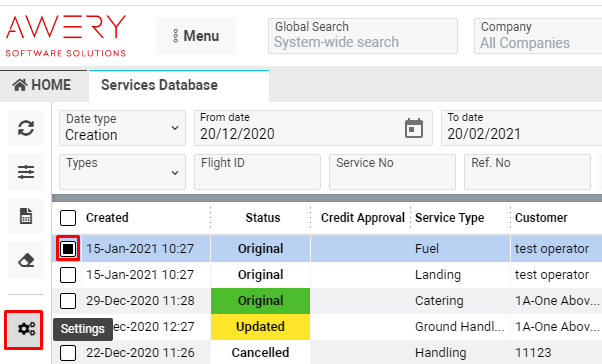
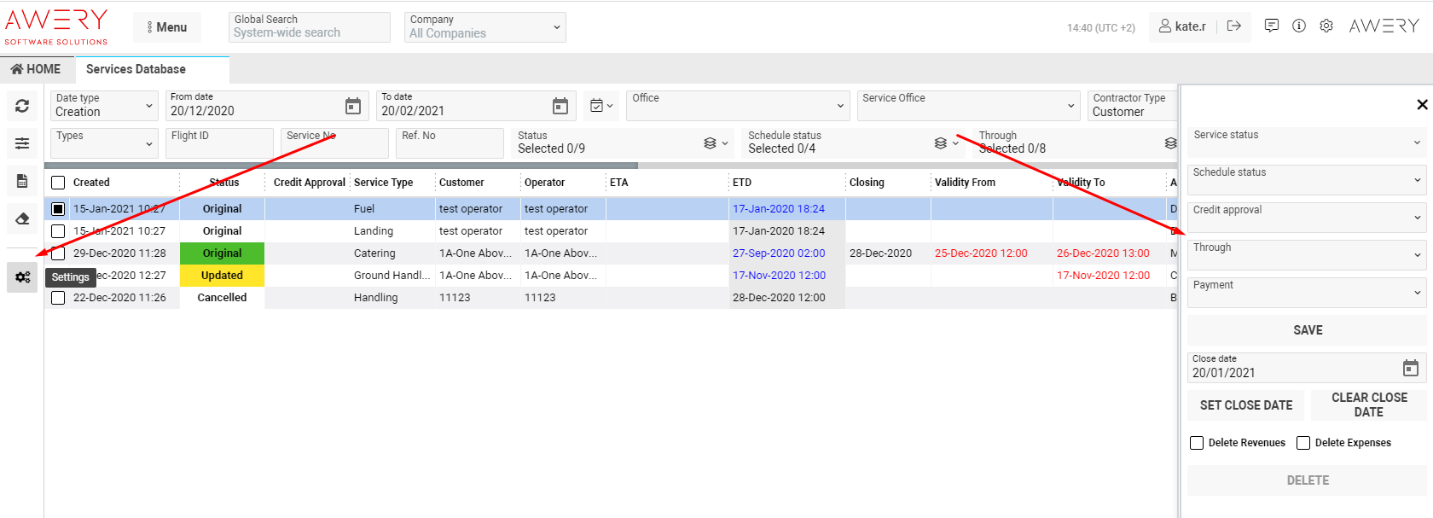
Select the required service and click the Settings button.
-
A sidebar will appear where you can update:
-
Service Status
-
Schedule Status
-
Credit Approval
-
Through
-
Payment Status
-
-
Select one or multiple fields and click Save.
-
You can also:
-
Set a close date using the datepicker and click Set Close Date.
-
Clear the close date by clicking Clear Close Date.
-
Delete revenues or expenses using Delete Revenues or Delete Expenses checkboxes, then click Delete.
-
-
To exit, click the Close button.
Sorting and Filtering
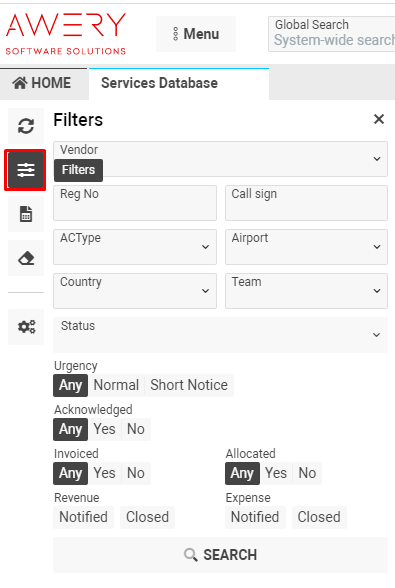
Filtering can be done by clicking the Search button or pressing Enter.
Main Filters:
-
Date Type, From/To Dates
-
Office
-
Customer
-
Types
-
Flight ID
-
Service No
-
Ref. No
-
Service Office
-
Service Status
-
Schedule Status
-
Through
-
Credit Approval Status
Additional Filters (via “Filters” button):
-
Type – filter by service type
-
Vendor – filter by vendor
-
Customer – filter by customer (with optional customer type)
-
Flight ID – filter by flight where service was created
-
Service No – filter by service number
-
Reg. No – filter by aircraft registration number
-
Call Sign – filter by flight call sign
-
AC Type – filter by aircraft type
-
Airport / Country – filter by location
-
Team – filter by team assigned to service
-
Urgency – filter by service urgency
Acknowledgment and Job Filters:
-
Acknowledge / Non-Acknowledge – filter by confirmation status
-
Invoiced / Non-Invoiced – filter services with/without revenue jobs
-
Allocated / Non-Allocated – filter services with/without expense jobs
-
Revenue Notified / Expenses Notified – show services where notifications were sent
-
Revenue Closed / Expenses Closed – show services with closed records
Click the Clear Filters button to reset all selections.

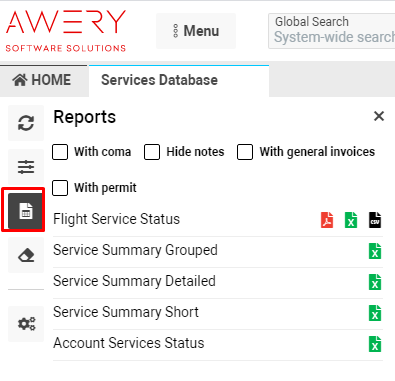
To view all available reports, click the Reports button.