
Accessing PNRs
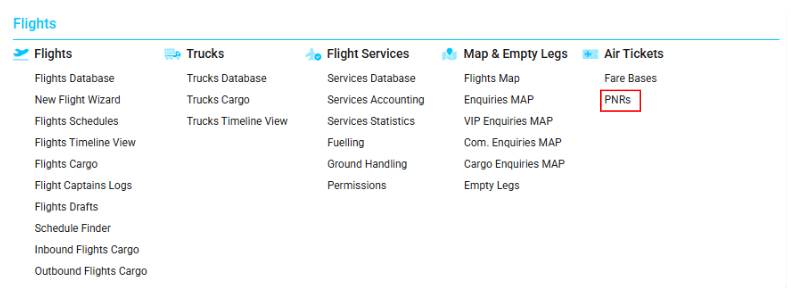
Navigate to the Flights section and under Air Tickets, click the “PNRs” Button.
Overview
The PNRs interface is designed to generate a unique PNR booking code for each flight.
Passengers can use this PNR code to view all flight-related details.
The interface also allows you to manage existing PNR entries by viewing, updating, or deleting them.
List Description
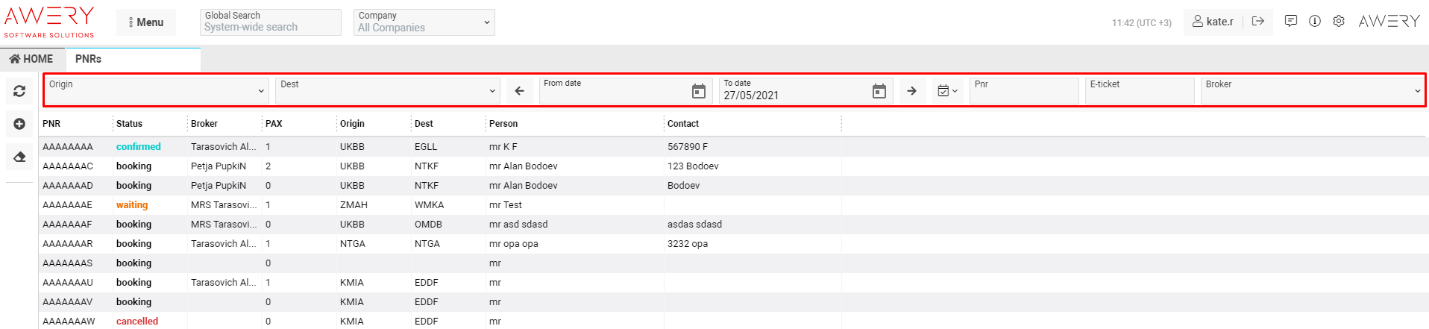
Each PNR entry contains essential booking information:
-
PNR: The unique booking reference code.
-
Status: The current status of the booking.
-
Broker: The broker associated with the booking.
-
PAX: The number of passengers.
-
Origin: The departure airport.
-
Dest: The arrival airport.
-
Person: The passenger’s last name and first name.
-
Contact: The passenger’s first name.
Filters
You can filter the PNR list using several parameters such as:
-
Origin
-
Destination
-
Date range (From / To)
-
Period selector
-
PNR code
-
E-ticket number
-
Broker
Use the Clear Filters button to reset the selections and return to the full results list.
To open, view, edit, or delete a PNR, double-click on the entry.
This will open the PNR’s interior page in the next tab.
Manuals
Creating a New PNR
To generate a new PNR code:
-
Click the + New button.

-
A new PNR creation page will open.
-
Fill in the main information fields.
-
Click Update to save.
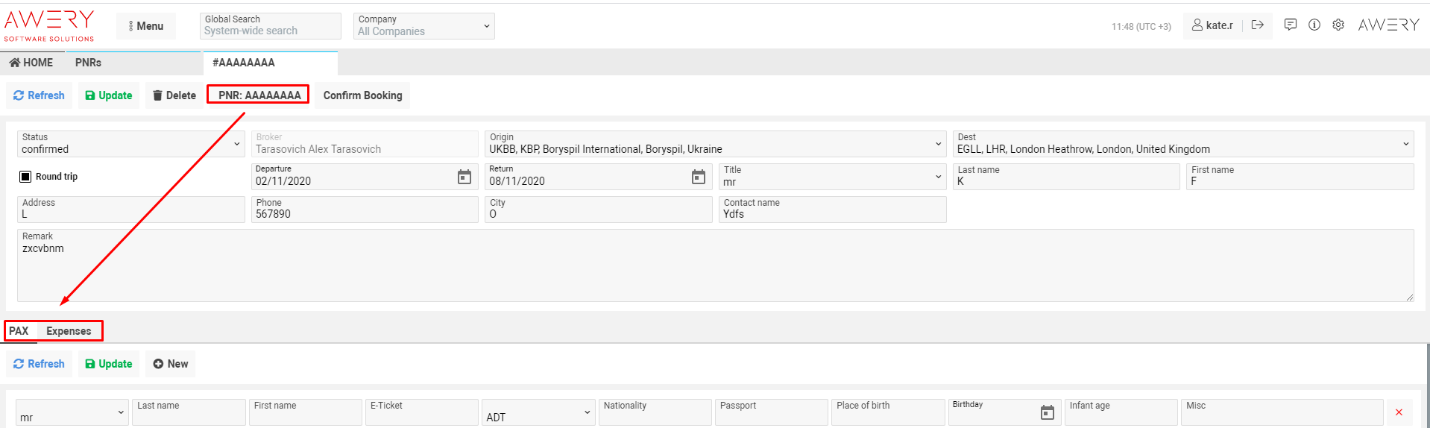
Once the PNR number has been generated, two additional tabs become available: PAX and Expenses.
PAX Tab
The PAX tab allows you to add passengers and their details to the booking.
-
To add a new passenger row, click + New.

-
To remove a row, click Delete.

-
To save changes, click Update.

This section is used to enter information such as passenger names, document details, birth dates, and other required data.
Expenses Tab
The Expenses tab allows you to enter fare-related charges associated with the booking.
For each charge, you can specify:
-
Charge type
-
Quantity
-
Price
-
Currency
The total amount will be calculated automatically by the system.
-
Click + New to add a new line.
-
Click Delete to remove a line.
-
Click Update to save all changes.
