Accessing Trucks Timeline View
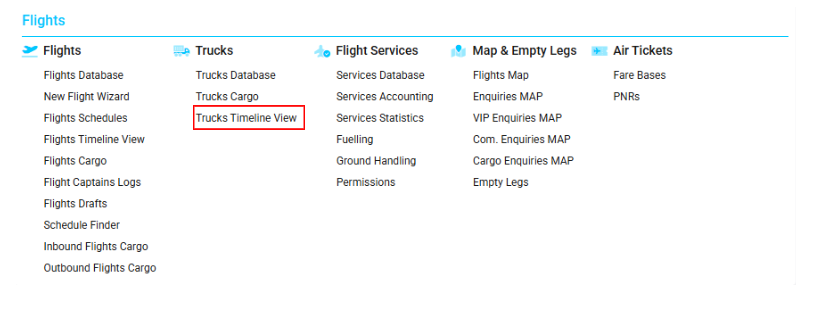
Navigate to the Flights section and under the Trucks Section, click the “Trucks Timeline View” Button.
Timeline Filters and Controls
-
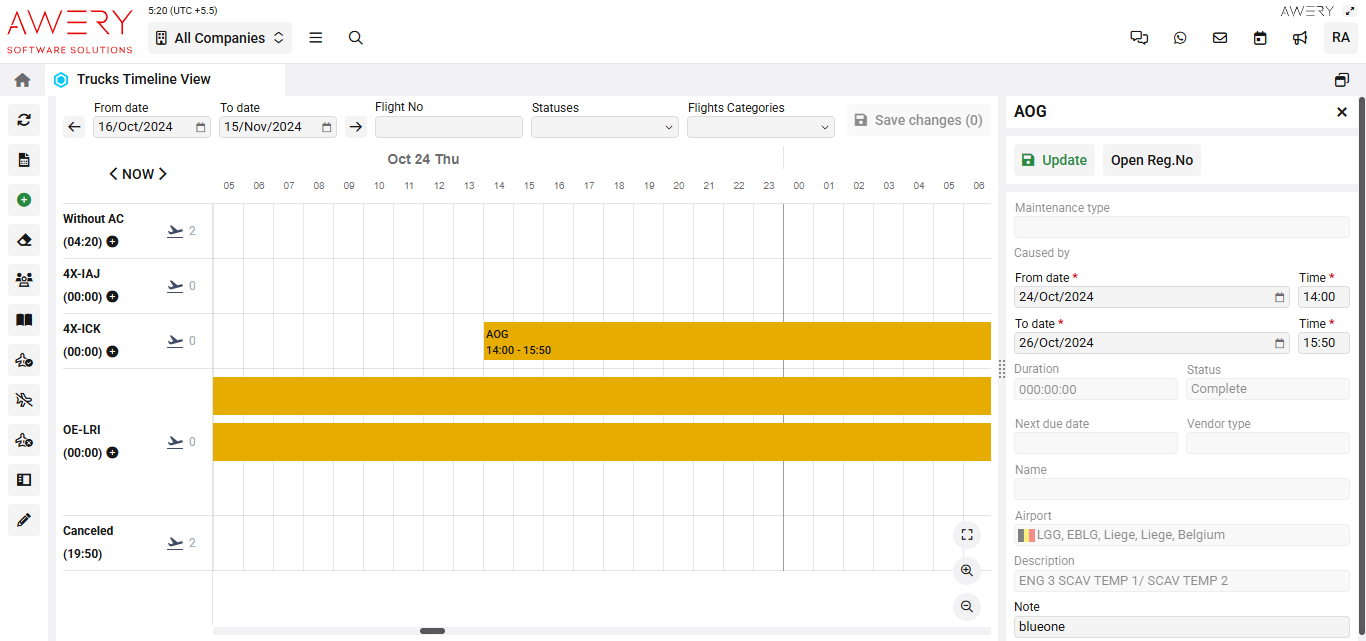
From date / To date: Define the visible period for scheduling and viewing events.
-
Flight No / Statuses: Filter by specific flight number or operational status.
-
Flights Categories: Focus the view on selected types of truck operations or assignment categories.
-
Save changes: Commit any changes or edits made to schedule data on the timeline.
Timeline Visualization
-
Horizontal Rows: Each row displays a truck identified by call sign, category, or note (e.g., Without AC, 4X-IAJ, 4X-ICK, OE-LRI, Canceled).
-
Icons: Indicate detailed vehicle information, flight tie-in, or maintenance status.
-
Gantt Bars: Colored bars represent scheduled maintenance, MX (maintenance) overrun, and other operational events. Hover to view time range, cause, and any user comments for each block.
-
Planned Maintenance: Highlighted and labeled with start/end date-times (e.g., "PLANNED MAINTENANCE 20:30 - 12:00").
-
MX OVERRUN: Indicates maintenance periods exceeding expected duration.
-
-
Timeline Scale: Spans by hour and date, facilitating rapid window navigation for day-to-day scheduling.
Editing Panel
When a Gantt bar is clicked (such as "PLANNED MAINTENANCE"), the right-hand edit panel provides full details and data entry options for the selected event.
Maintenance Edit Fields:
-
Update / Open Reg. No: Save changes or open truck/vehicle registration record.
-
Maintenance type: Specify the nature of maintenance (preventive, corrective, unplanned, etc.).
-
Caused by: Mention cause or reference incident.
-
From date & time / To date & time: Required start and end schedule for the maintenance event.
-
Duration: Automatically calculated total downtime.
-
Status: Status (e.g., Complete, In Progress, Scheduled).
-
Next due date: Schedule for next maintenance requirement.
-
Vendor type: Indicate maintenance vendor category.
-
Name: Truck/vehicle or work order reference.
-
Airport: Location of the maintenance or where truck is stationed.
-
Description: Free text for extended event notes or specific task range.
-
Note: Additional internal notes (e.g., "blueone").
Visual Reference
(The following screenshot shows the Timeline interface, maintenance records, and the detailed edit panel.)