Accessing Currency Rates
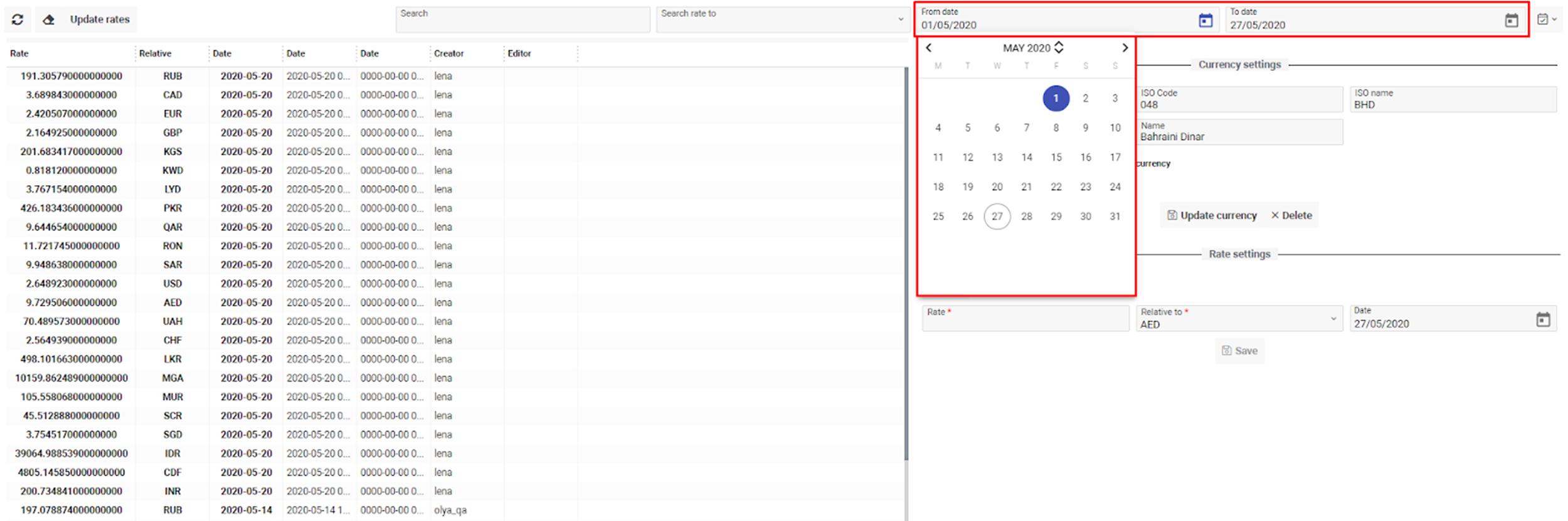
Navigate to the Settings section and under the Account Setup Section click the “Currency Rates” Button.
Overview
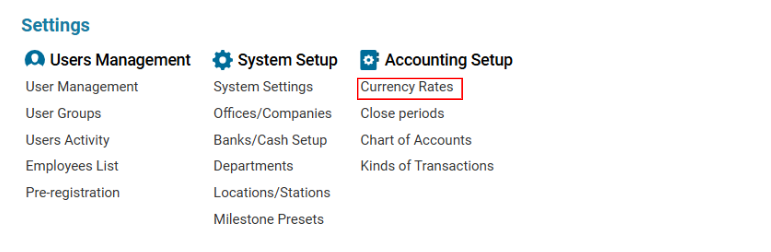
The Currency Rates page allows users to:
-
Add new currencies and set their exchange rates.
-
Define multiple relative rates and set their priorities.
-
Update existing currencies (including rate, name, and ISO code).
-
Delete unused currencies.
-
Manage all currency-related data affecting system transactions and money conversions.
List Description
|
Field |
Description |
|---|---|
|
Code |
Unique identifier of the currency |
|
ISO |
Alphabetic ISO code for the currency |
|
Name |
Local name of the currency |
|
Date |
Date the currency was added to the system |
|
Rate |
Relative exchange rate |
|
Rel. to |
Currency that the current rate is relative to |
|
Def |
Indicates if the currency is set as default |
Main Functionalities
-
Creating a New Currency
-
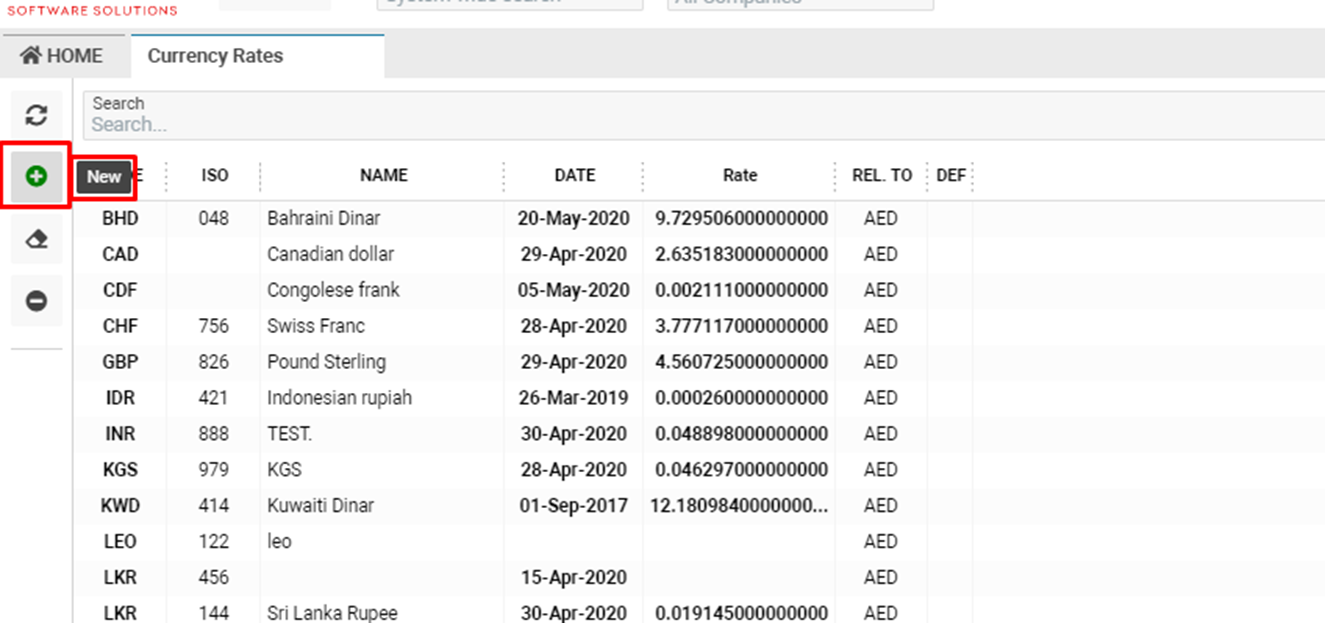
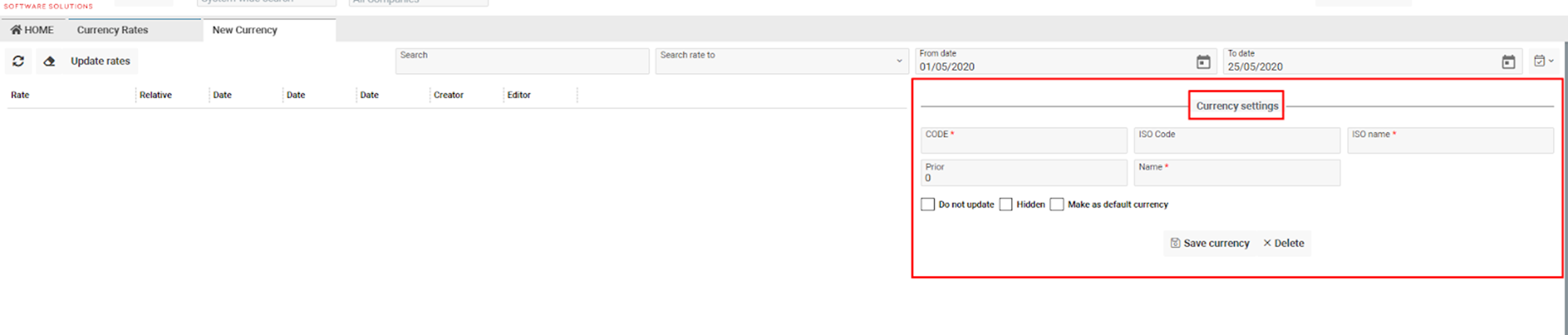
Click the ‘+’ button to open the Currency Settings form.
-
Complete the form with the required details (Code, ISO, Name, etc.).
-
Click Save currency to add the new currency.
-
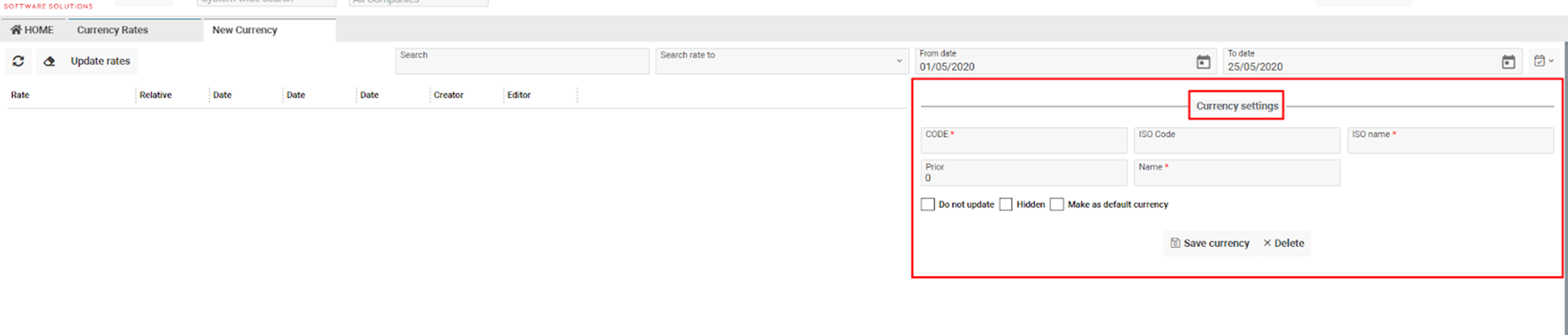
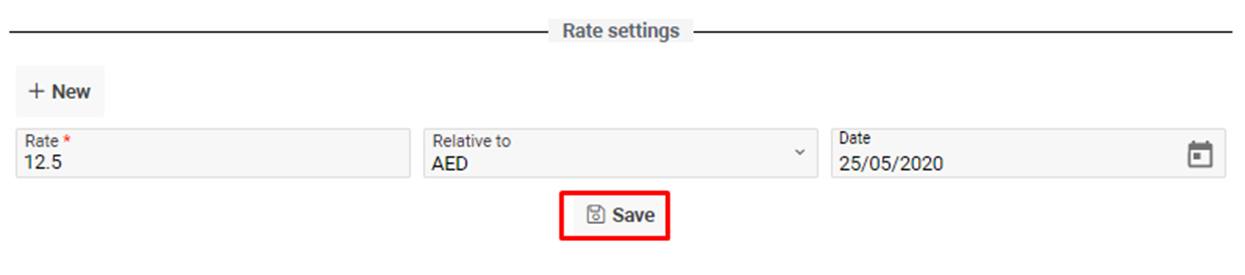
The Rate Settings block will open automatically:
-
Enter the exchange rate in the Rate field.
-
Select the currency this rate is Relative to.
-
Choose the Date for the rate.
-
Click Save to confirm the rate.
-
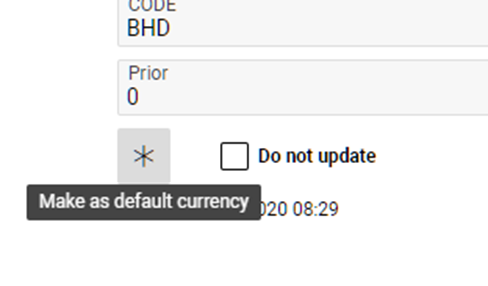
(Optional) Use the star button to set this currency as the default.
-
Use the Do not update checkbox to exclude this currency from automatic updates.
-
Managing Currency Rates
-
Adding a Rate:
-
Click + New in the Rate Settings block.
-
Fill in the rate, relative currency, and date.
-
Click Save to store the new rate.
-
-
Updating a Rate:
-
Select the rate entry from the list.
-
Edit the fields as needed.
-
Click Save to update.
-
-
Deleting a Rate:
-
Select the rate entry.
-
Click Delete and confirm in the dialog.
-
-
Updating All Rates
-
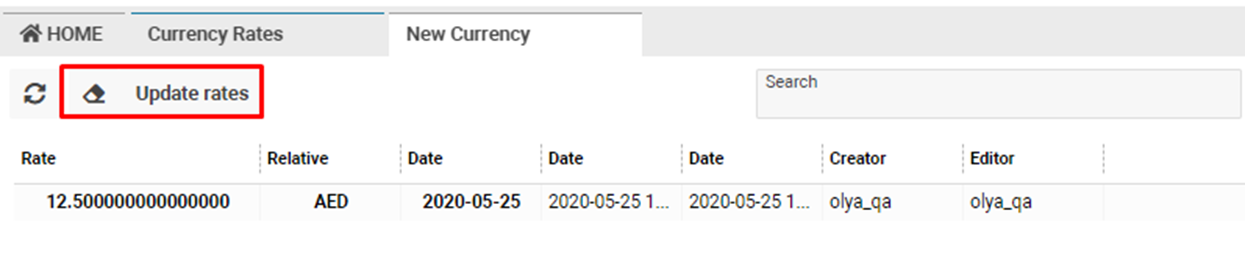
Click the Update Rates button to fetch and apply up-to-date exchange rates from the system’s data provider.
-
Deleting a Currency
-
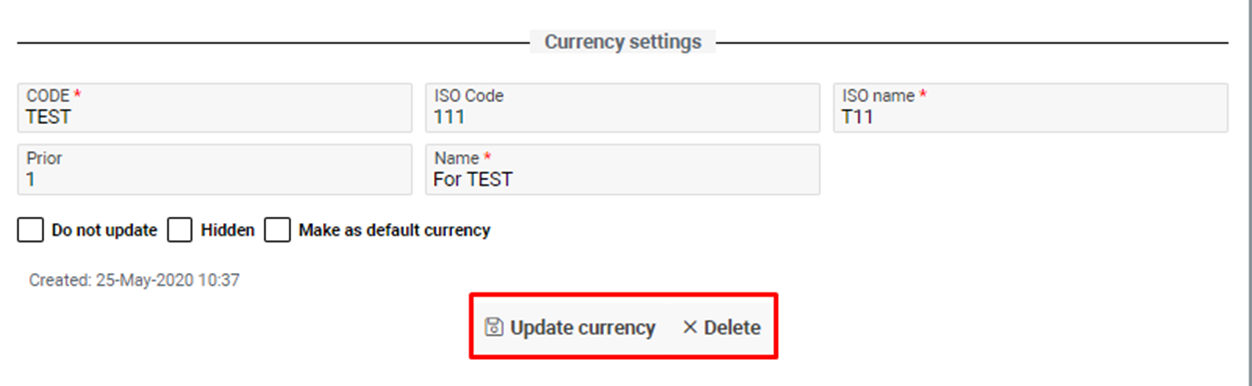
Select the currency from the list.
-
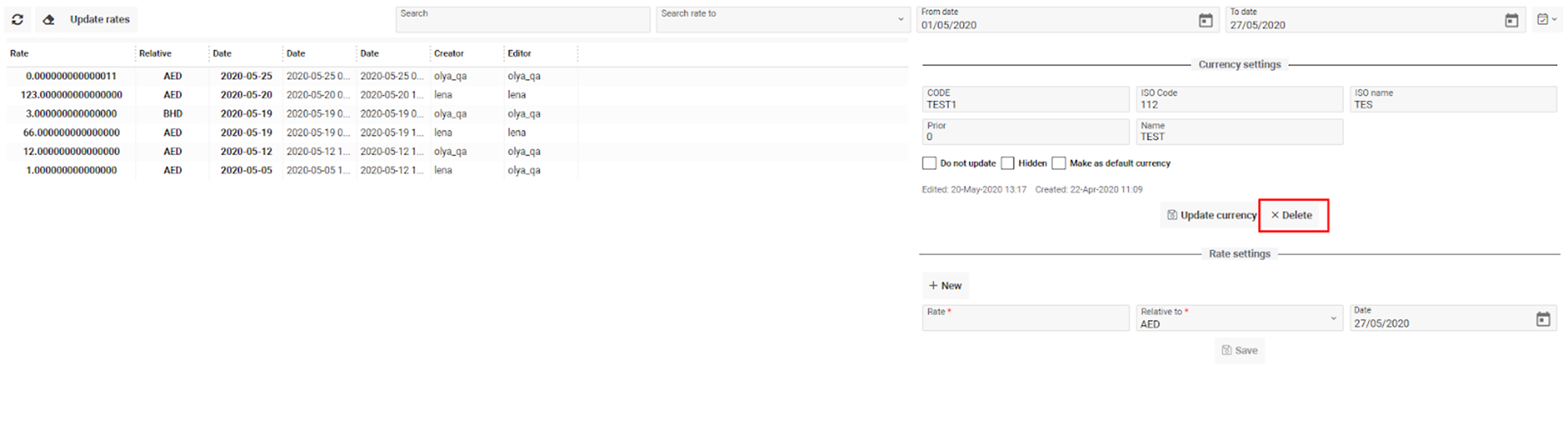
Double-click the currency name to open its details.
-
Click the Delete button.
-
Confirm deletion in the popup dialog (“Do you want to delete currency? Yes/No”).
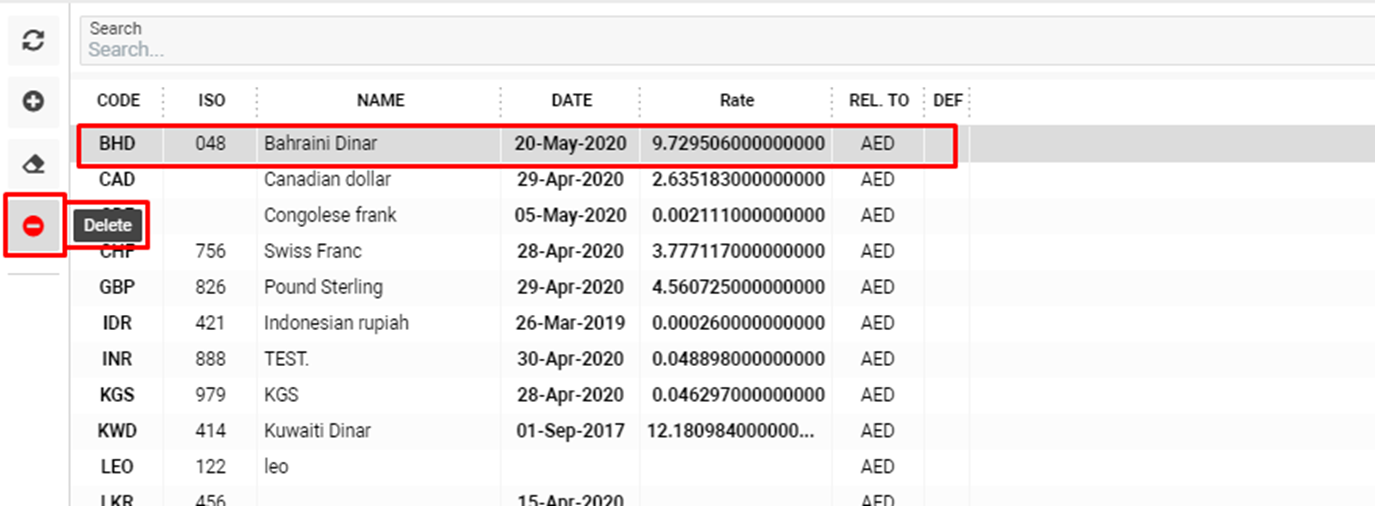
Alternatively, select the currency and use the Delete button directly from the list.
-
Sorting and Filtering
-
Sort currencies by Code, ISO, or Name.

-
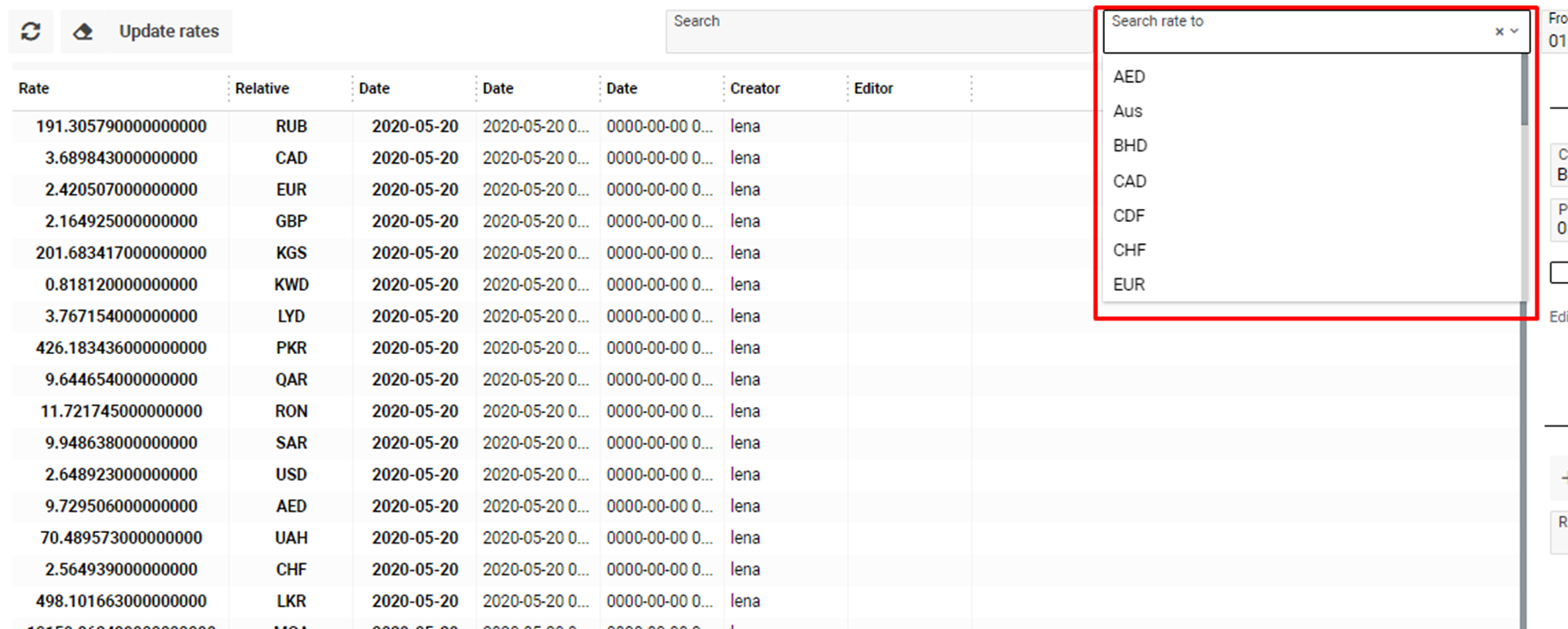
Sort rates by currency or by date:
-
Use the Search rate to selector to filter by relative currency.
-
-
Use the From/To date selectors or calendar icon to filter by date range.