
Overview
An enquiry is the starting point of the charter workflow. It contains all information required to prepare a quotation, communicate with the customer, assign an operator, and continue with flight planning.
This guide explains how to create a new enquiry and provides an overview of the information and functionality available within the enquiry page.
Create an Enquiry
Enquiry Wizard. Steps
1. Open the Enquiry Wizard
Open the appropriate Enquiry Wizard for the required enquiry type.
2. Complete the Enquiry Information
The enquiry can be completed in one of two ways:
-
Parse customer text – Paste the customer's email or message into the Enquiry Wizard. The system extracts available information and populates the enquiry fields automatically.
-
Manual entry – Complete the enquiry form manually.
Review the populated information and complete any missing details before proceeding.
3. Verify the Information
Before creating the enquiry, verify:
-
Customer information
-
Route and schedule
-
Airports
-
Enquiry type
-
Any automatically extracted information
Correct any inaccurate information before continuing.
4. Create the Enquiry
Click Create Enquiry.
The system creates the enquiry and opens the enquiry page for further processing.
Other Options for Creating Enquiry
1. Create from the Enquiry List
Create a new enquiry manually from the Office Enquiries page.
2. Create from Mail Tool
If the customer request is received through Mail Tool, you can create an enquiry directly from the email.
Relevant information is transferred into the enquiry, reducing duplicate data entry.
Business Rules
-
Select the enquiry type that best matches the customer's request.
-
Review automatically extracted information before creating the enquiry.
-
Additional information can be added or updated after the enquiry has been created.
After the enquiry is created:
-
A unique enquiry record is generated.
-
The enquiry becomes available in Office Enquiries.
-
The enquiry page opens automatically, allowing you to continue the charter workflow.
Understanding the Enquiry Page
After creating or opening an enquiry, the enquiry page becomes the primary workspace for managing the request.
Most operational tasks are performed within this page using the available tabs.
Summary
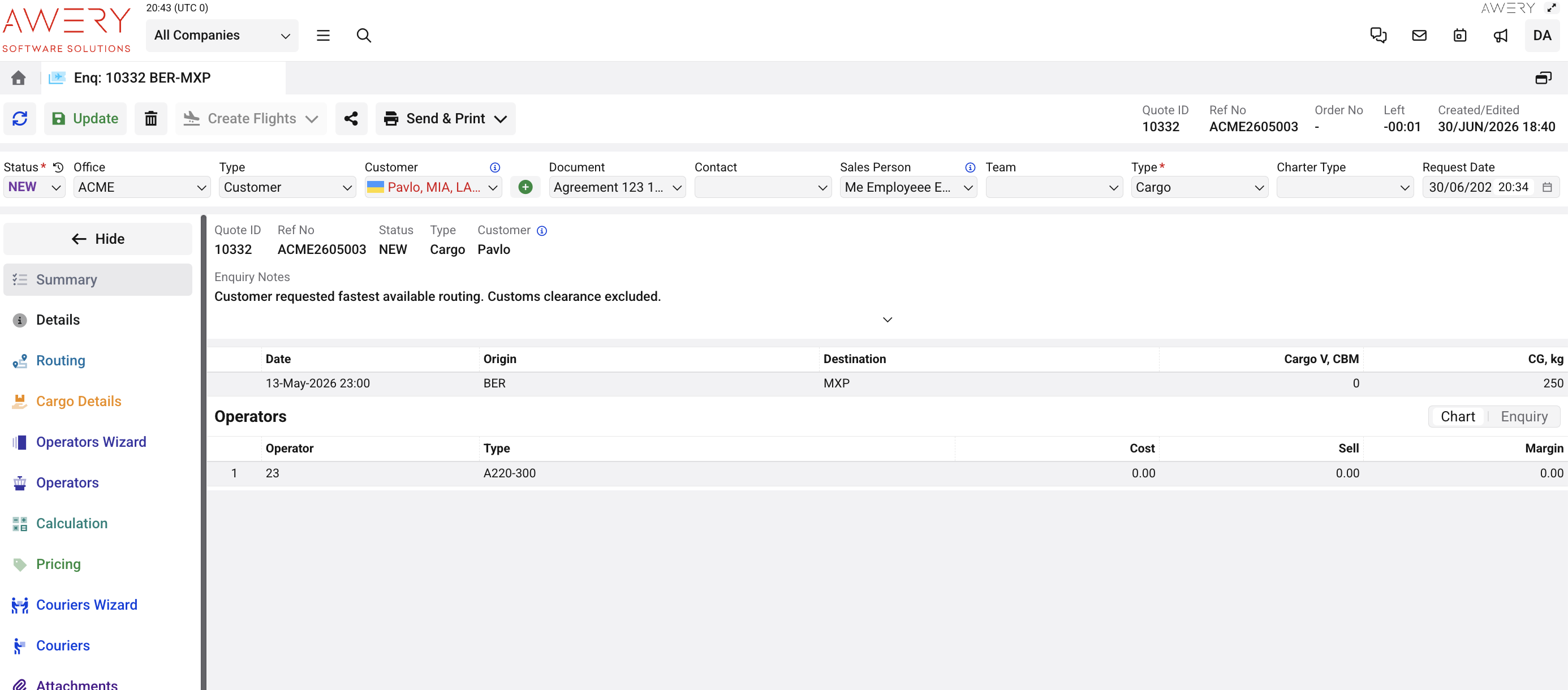
Purpose
The Summary tab provides a read-only overview of the enquiry. It allows users to quickly review the most important information without navigating through individual tabs.
Important Notes
-
The Summary tab is read-only and is intended for review purposes only.
-
To update enquiry information, use the relevant tabs (such as Routing, Operators, or Pricing).
-
This tab is useful for quickly understanding the current state of the enquiry before continuing with operational tasks.
Details
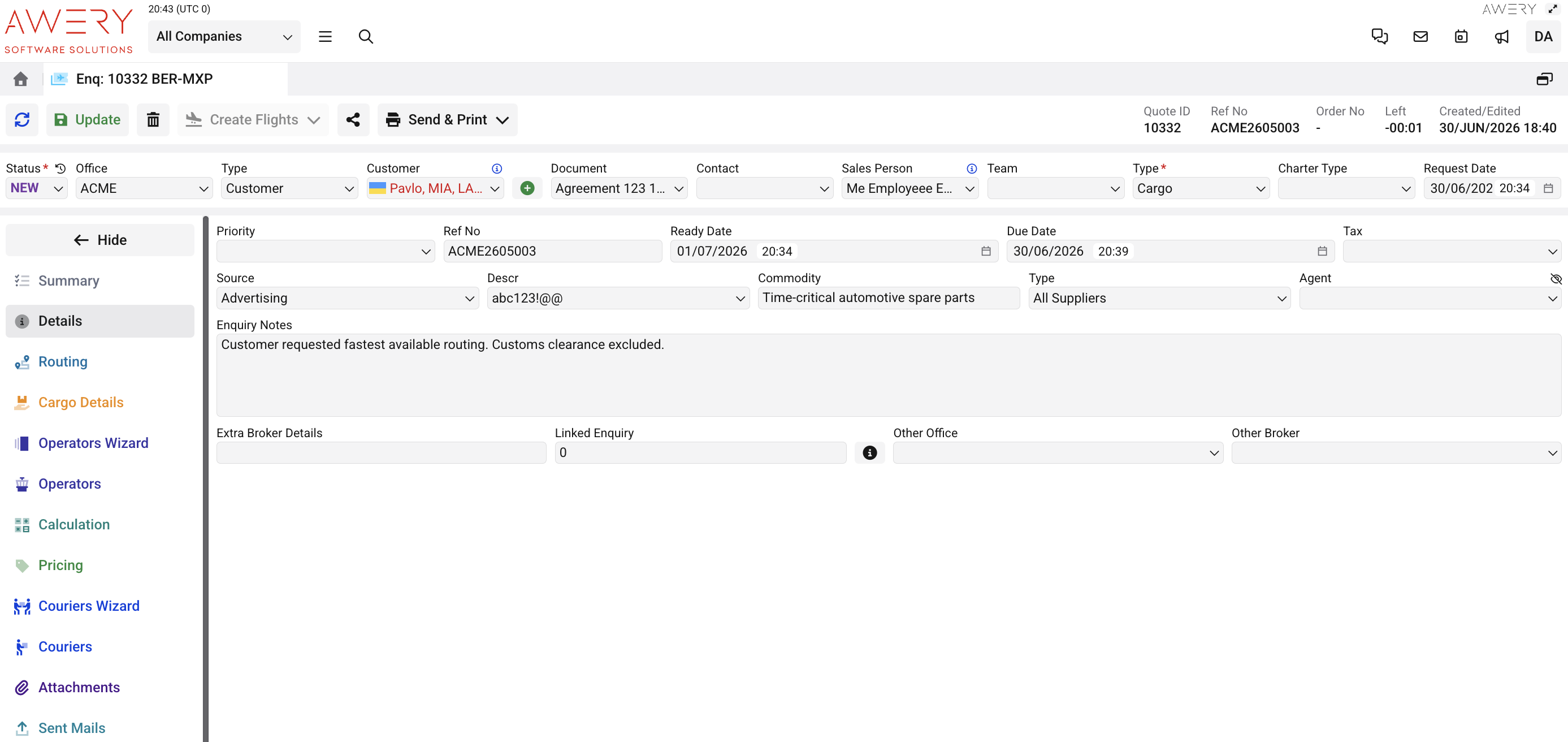
Purpose
The Details tab contains general information about the enquiry. Most fields can be updated throughout the enquiry lifecycle as new information becomes available.
Important Notes
-
The Reference Number is generated automatically according to the customer's numbering configuration. Depending on the client's setup, it may include a custom prefix (for example, ACME) or follow another numbering format.
-
Use Enquiry Notes to record additional information provided by the customer or any operational notes relevant to the enquiry.
-
All information on this page can be updated if the enquiry details change.
Routing
Purpose
The Routing tab is where you define the transportation route for the enquiry. It contains flight options, routing details, schedule information, and operational data that will be used throughout the enquiry lifecycle.
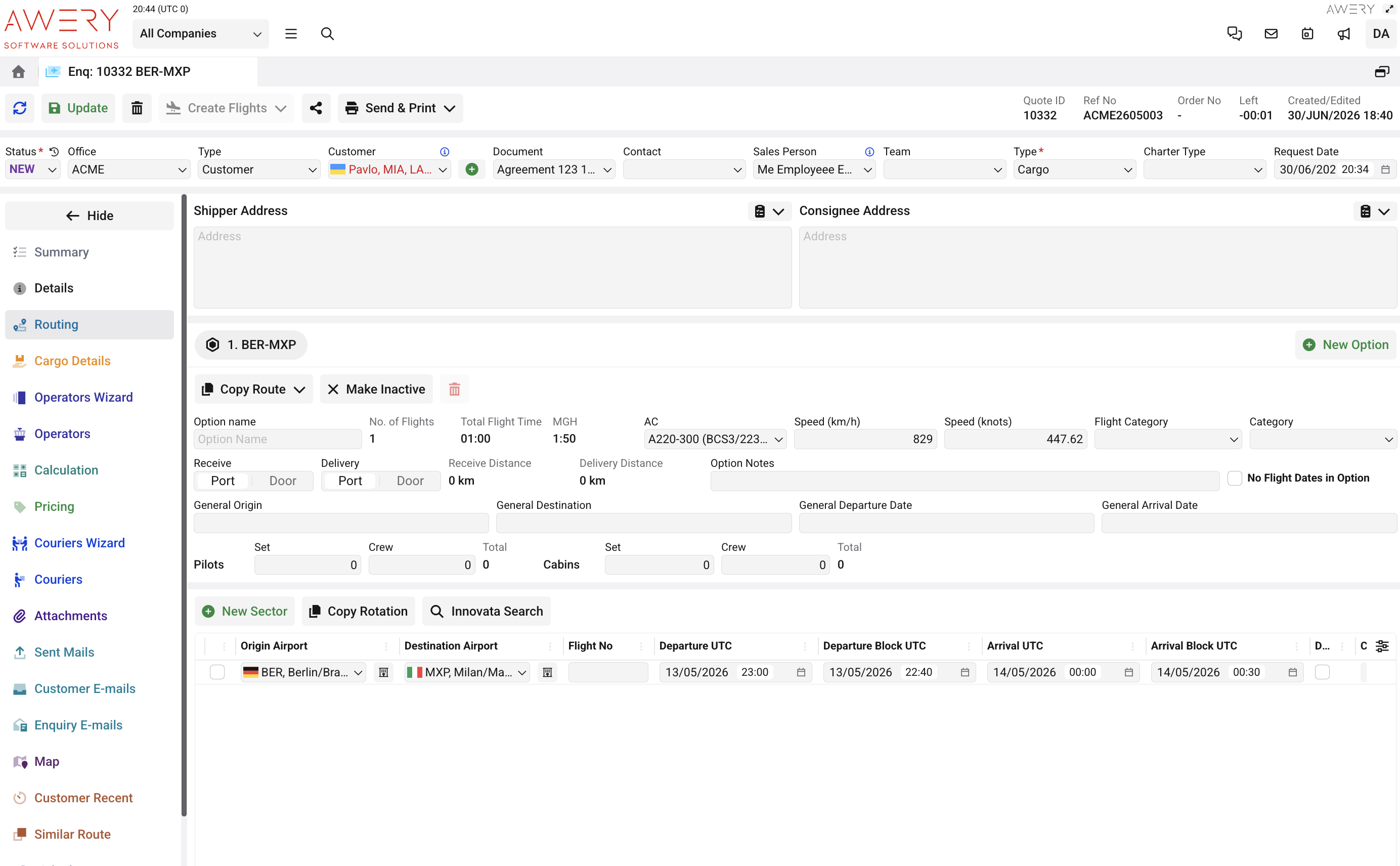
What you can do
-
Create and edit one or multiple flight options.
-
Define the route by adding flight sectors.
-
Enter planned schedule information.
-
Specify operational details such as aircraft, flight category, and option notes.
-
Add shipper and consignee addresses when applicable.
Business Rules
-
An enquiry may contain multiple flight options, allowing you to prepare alternative routing scenarios for the customer.
-
If an invoice should be issued to an agent instead of the customer, select the appropriate Agent in the Details tab. The selected agent will automatically become the invoice payer during invoice generation.
Flight Time Calculation
The system automatically calculates the planned flight times based on the routing information.
The calculation considers:
-
the selected Aircraft Type;
-
the aircraft's configured cruise speed;
-
the geographic coordinates of the selected origin and destination airports.
Based on this information, the system calculates:
-
Flight Time
-
Block Time
Changing the aircraft type or airport locations automatically updates the calculated values.
Flight Time represents the estimated airborne time between airports.
Block Time includes the complete operational time from block-off to block-on.
Aircraft Configuration
The selected Aircraft Type also determines operational parameters used during planning, including:
-
cruise speed;
-
aircraft category;
-
other aircraft-specific characteristics used in route calculations.
Airport Coordinates
Route calculations are based on the geographic coordinates stored for each airport in the system database.
If the selected airports change, the route distance and calculated flight times are automatically recalculated.
Cargo Details
Purpose
Use the Cargo Details tab to provide shipment information required for quotation, operational planning, and cargo documentation.
Details
Enter the shipment characteristics, including weight, dimensions, commodity, delivery information, and cargo pieces.
The system automatically calculates shipment values such as:
-
Total Weight
-
Volume
-
Volume Weight
-
Chargeable Weight
These calculations are used during quotation and operational planning.
Link AWB
If an Air Waybill already exists in the system, it can be linked to the enquiry instead of creating a new shipment record.
The system supports:
-
Direct Link - links the enquiry directly to an existing AWB.
-
Indirect Link - creates an indirect relationship with an existing AWB, depending on your company's workflow.
Linking an AWB keeps shipment information synchronized and avoids duplicate records.
Dangerous Goods
For Dangerous Goods shipments, complete the required regulatory information before continuing the enquiry workflow.
The system stores information such as:
-
UN Number
-
Shipping Name
-
Hazard Class
-
Packaging Group
-
Quantity
-
Packing Instructions
-
Emergency Information
This information is used to comply with dangerous goods transportation regulations.
Operators Wizard
Purpose
Use the Operators Wizard to quickly search for suitable operators based on aircraft and operational criteria.
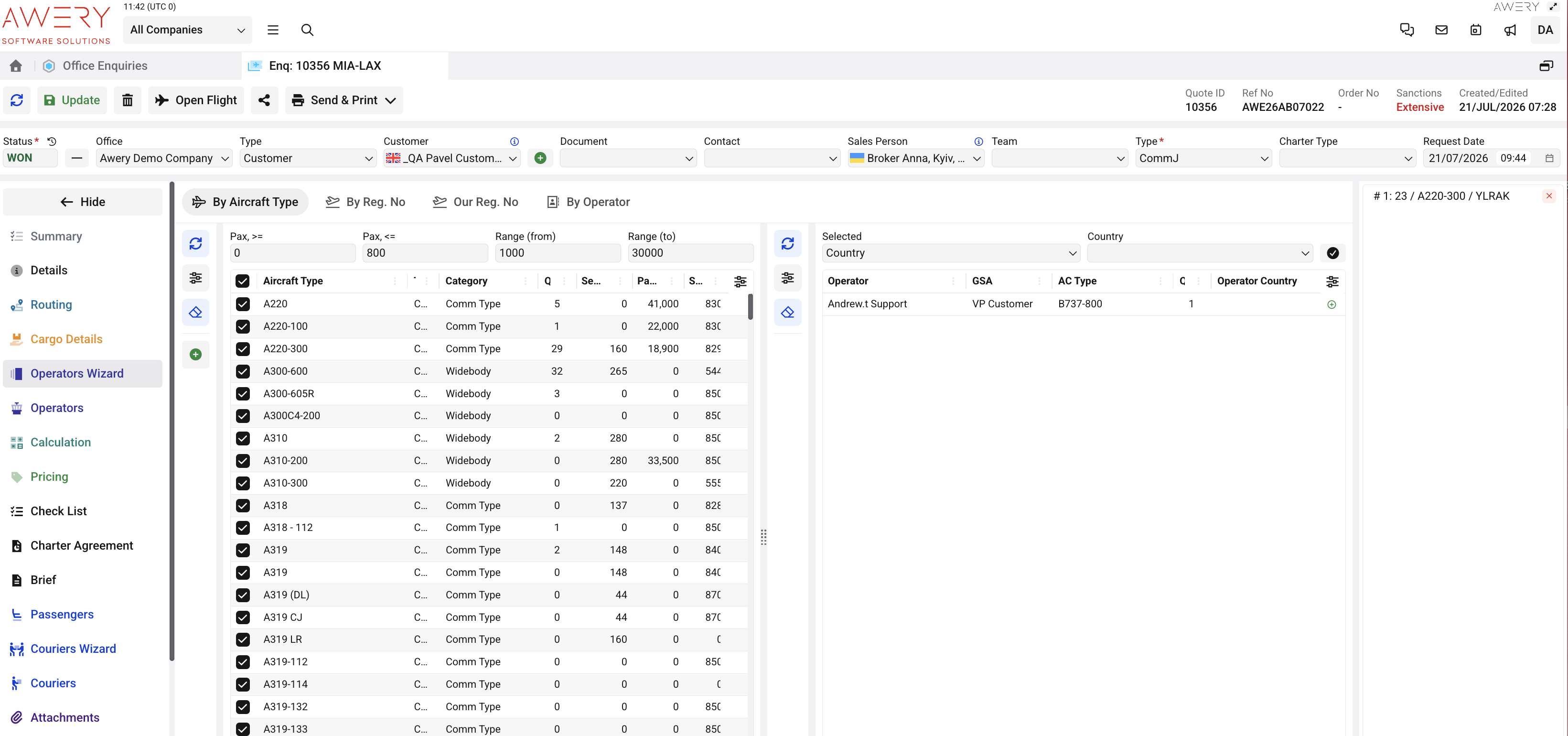
Selected operators can be added directly to the enquiry and will become available in the Operators tab for further quotation and pricing activities.
Search Methods
Operators can be searched using different criteria, including:
-
Aircraft Type
-
Registration Number
-
Our Registration Number
-
Operator
Additional filters are available depending on the selected search method.
Operator Selection
Once an operator is selected, it is automatically added to the Operators tab.
Multiple operators can be added to the same enquiry to compare available options before proceeding with quotation and pricing.
Business Rules
-
The Ready to Fly filter displays only operators that are currently available for charter operations.
-
Operators highlighted in purple are inactive and are not currently available.
-
Available search filters may vary depending on the selected search method.
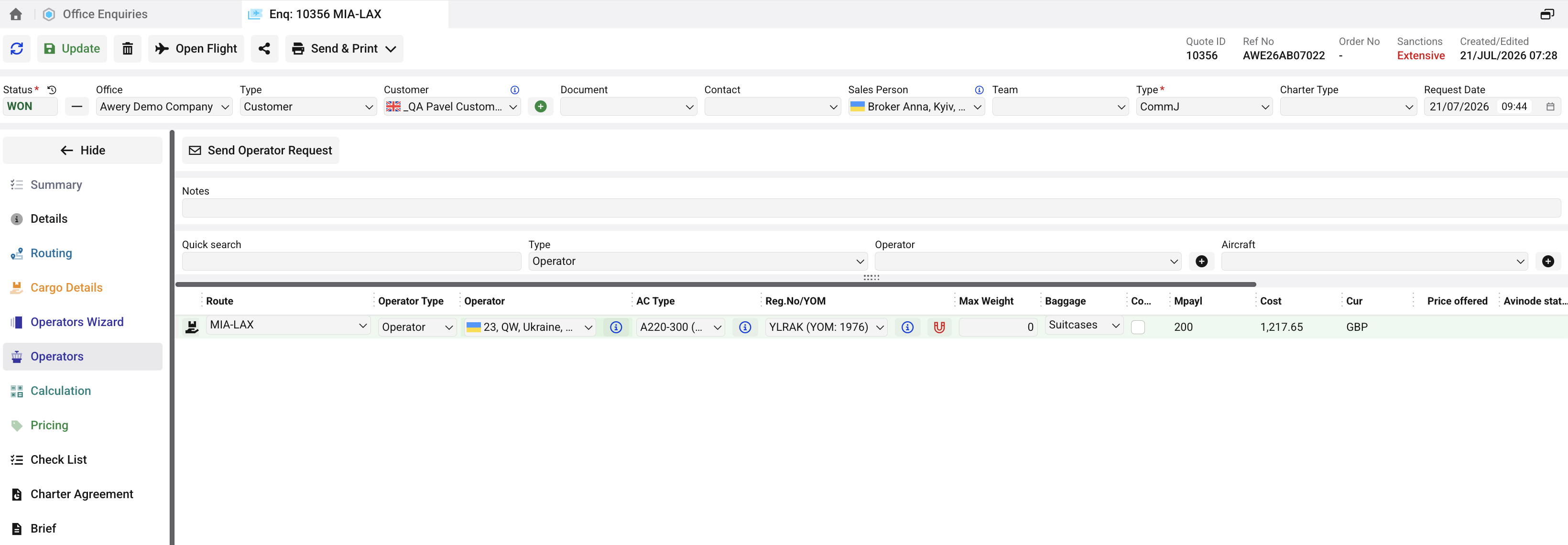
Operators
Purpose
The Operators tab contains all operators that have been selected or added to the enquiry.
Selected operators are used in the subsequent stages of the workflow, including calculations, quotation preparation, and pricing comparison.
Business Rules
-
Operators can be added manually or selected using the Operators Wizard.
-
Multiple operators can be added to the same enquiry.
-
Selected operators remain available throughout the quotation process and can be compared during calculation and pricing activities.
Calculation
The Calculation tab is used to review aircraft-related parameters, calculate operational costs, and prepare cost estimates for the selected routing and aircraft. Values displayed in this tab may be calculated automatically, transferred from other enquiry tabs, or entered manually depending on the company configuration.
The information is presented from top to bottom and includes aircraft selection, flight parameters, fuel calculations, and cost breakdowns.
Aircraft Selection
The upper section of the page provides general information for the selected aircraft and enquiry.

Aircraft
Allows you to select the aircraft for which the calculation will be performed. Multiple aircraft can be added to the same enquiry and compared within the Calculation tab.
General Margin
Displays the default margin value applied to the selected calculation.
Note
Margin calculations may differ depending on the company configuration.
General Margin %
Displays the margin percentage applied to the selected calculation.
General Fuel Units
Defines which fuel measurement unit will be used throughout the calculation.
Aircraft Summary

The summary table provides a quick overview of the selected aircraft calculations.
The available columns may vary depending on the company configuration.
Integrations and Pricing

Actions
The Actions menu provides quick access to additional calculation tools and integrations.
Depending on the company configuration, available actions may include:
-
All Route RDC;
-
Get AviaPages Data;
-
Auto Fill AviaPages Data;
-
All WFS Rates;
-
Navigation Fees Calculator;
-
Fuel Calculator;
-
Use Time From Routing;
-
Apply Time For Routing.
Note: Available actions and integrations may differ depending on the customer configuration.
Time Type and Enquiry Currency
Time Type determines whether Flight Time or Block Time is used for cost calculations. The enquiry currency is used to display all costs and pricing information in the selected enquiry currency.
Aircraft Performance

Payload
Displays the payload entered for the selected sector. For cargo enquiries, the value can be transferred from Cargo Details.
Max Payload
Displays the maximum payload capacity available for the selected aircraft type.
Distance
Calculated automatically based on the coordinates of the selected airports in the Routing tab.
Speed
Displays the cruise speed configured for the selected aircraft type. The value can be adjusted manually if required.
Flight Time
Displays the estimated flight duration for the selected route. The value is calculated automatically based on the route distance and aircraft speed, but can also be adjusted manually.
Formula
Flight Time = Distance ÷ Aircraft Speed
Block Time
Displays the total aircraft operating time for the flight. Depending on the customer's configuration, enquiry calculations can be based on either Flight Time or Block Time.
Formula
Block Time = Flight Time + Additional Time
Time in Routing
Displays the Flight Time value transferred from the Routing tab.
Crew Count
Displays the number of crew members assigned on the Routing tab.
Cargo Load / Cargo Offload
Displays the cargo loading and unloading kilograms.
Fuel Calculation
Fuel Burn
Displays the estimated fuel consumption for the selected aircraft and routing.
By default, the value is taken from the Aircraft Type configuration and is automatically calculated using the selected flight time.
Formula:
Fuel Burn = Fuel Consumption Rate × Flight Time
The value can be adjusted manually if required.
APU Fuel
Displays the fuel consumption of the Auxiliary Power Unit (APU).
Depending on the company configuration, this value can be entered manually or included in the total fuel calculation.
Formula:
APU Fuel = APU Consumption Rate × Operating Time
Total Fuel Burn
Displays the total estimated fuel consumption for the selected calculation.
Formula:
Total Fuel Burn = Fuel Burn + APU Fuel
The value is recalculated automatically when the underlying fuel values are updated.
Fuel Uplift
Displays the amount of fuel required to be uplifted (loaded onto the aircraft).
Fuel Uplift is calculated automatically and may include additional fuel requirements depending on the customer configuration.
Opening Fuel
Displays the amount of fuel already available on board before departure.
This value is used when calculating the required Fuel Uplift.
Formula (if applicable):
Fuel Uplift = Total Fuel Burn − Opening Fuel
Carbon Emissions
Displays the estimated carbon emissions for the selected flight.
The value is calculated automatically based on fuel consumption.
Formula (industry standard):
CO₂ Emissions = Fuel Burn × 3.16
Min Fuel
Displays the minimum fuel requirement for the selected flight.
Fuel Rate
Displays the fuel price used for the calculation.
Fuel rates are maintained in the system database and are provided by customers. The applicable rate is selected automatically based on the customer's configuration, effective dates and fuel location data.
A custom fuel rate can also be entered manually when required.
Formula:
Fuel Cost = Fuel Uplift × Fuel Rate
Custom Fuel Rate
Allows users to override the default fuel rate for the current calculation.
When specified, the custom value is used instead of the standard fuel rate.
Currency
Displays the currency used for fuel-related costs.
The available currencies depend on the company configuration.
Unit
Defines the unit of measurement used for fuel calculations.
Depending on the company configuration, fuel can be calculated in:
-
kilograms (kg);
-
pounds (lbs);
-
litres (ltr);
-
US gallons (USG).
Conversion Rate
Displays the exchange rate used to convert costs into the enquiry currency.
The value is applied automatically during cost calculations.
Formula:
Cost in Enquiry Currency = Cost Amount × Conversion Rate
TOW (Take-Off Weight)
Displays the total aircraft weight at the time of take-off.
The value is calculated automatically and includes the aircraft weight, payload and fuel values used for the selected calculation.
Formula
TOW = Empty Weight + Payload + Fuel Weight
LW (Landing Weight)
Displays the estimated aircraft weight at landing.
The value is calculated automatically based on the selected routing and fuel consumption values.
Formula
LW = TOW − Total Fuel Burn
AP (Available Payload)
Displays the remaining payload capacity available for the selected aircraft.
Formula
AP = Max Payload − Payload
This value is recalculated automatically when Payload or Max Payload values are updated.
FOB (Fuel on Board)
Displays the total amount of fuel available on board the aircraft.
Formula
FOB = Opening Fuel + Fuel Uplift
Pricing Tab
The Pricing tab is used to review, adjust, and finalize the commercial quotation for each routing option. Here you can calculate costs, define selling prices, monitor margins, and manage the quotation status.
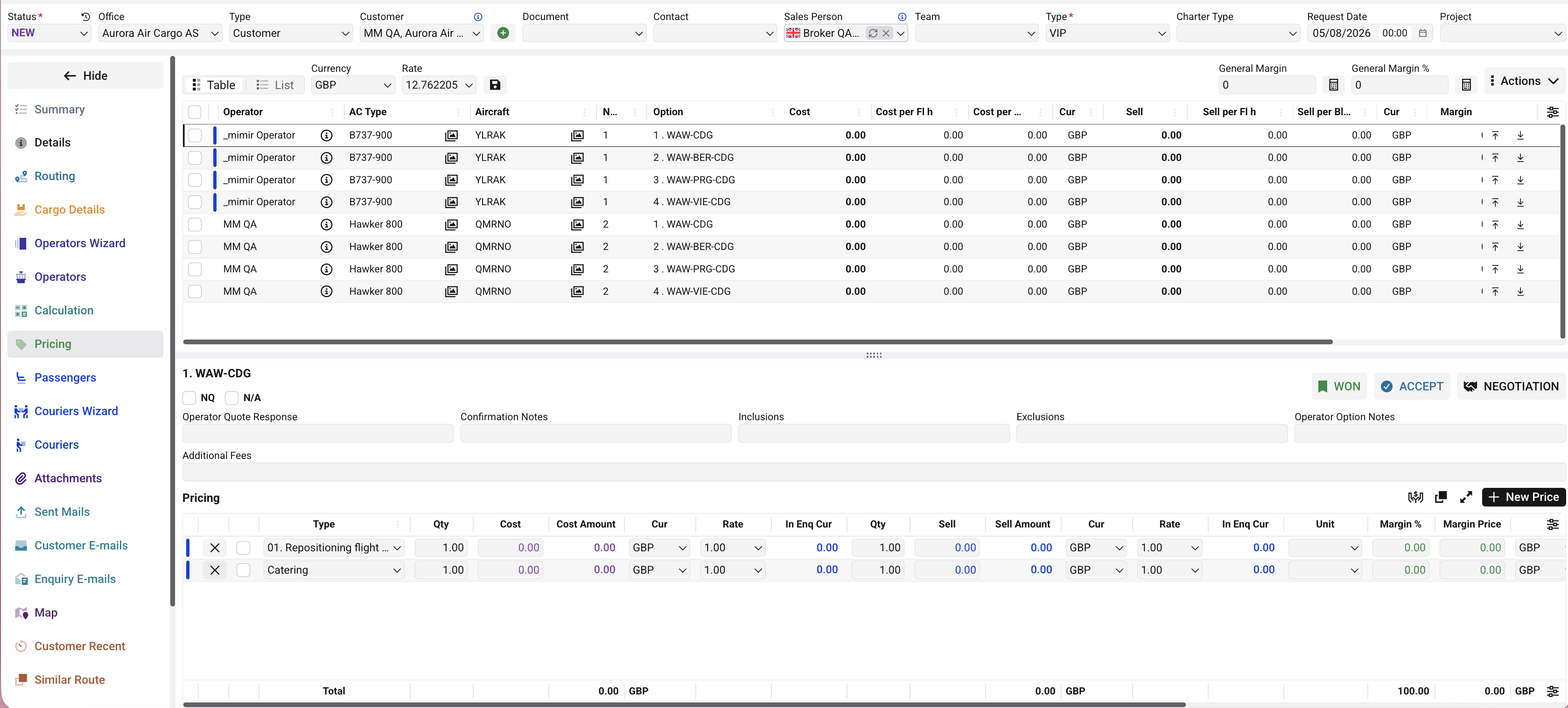
Available Views
The Pricing tab supports three different display modes.
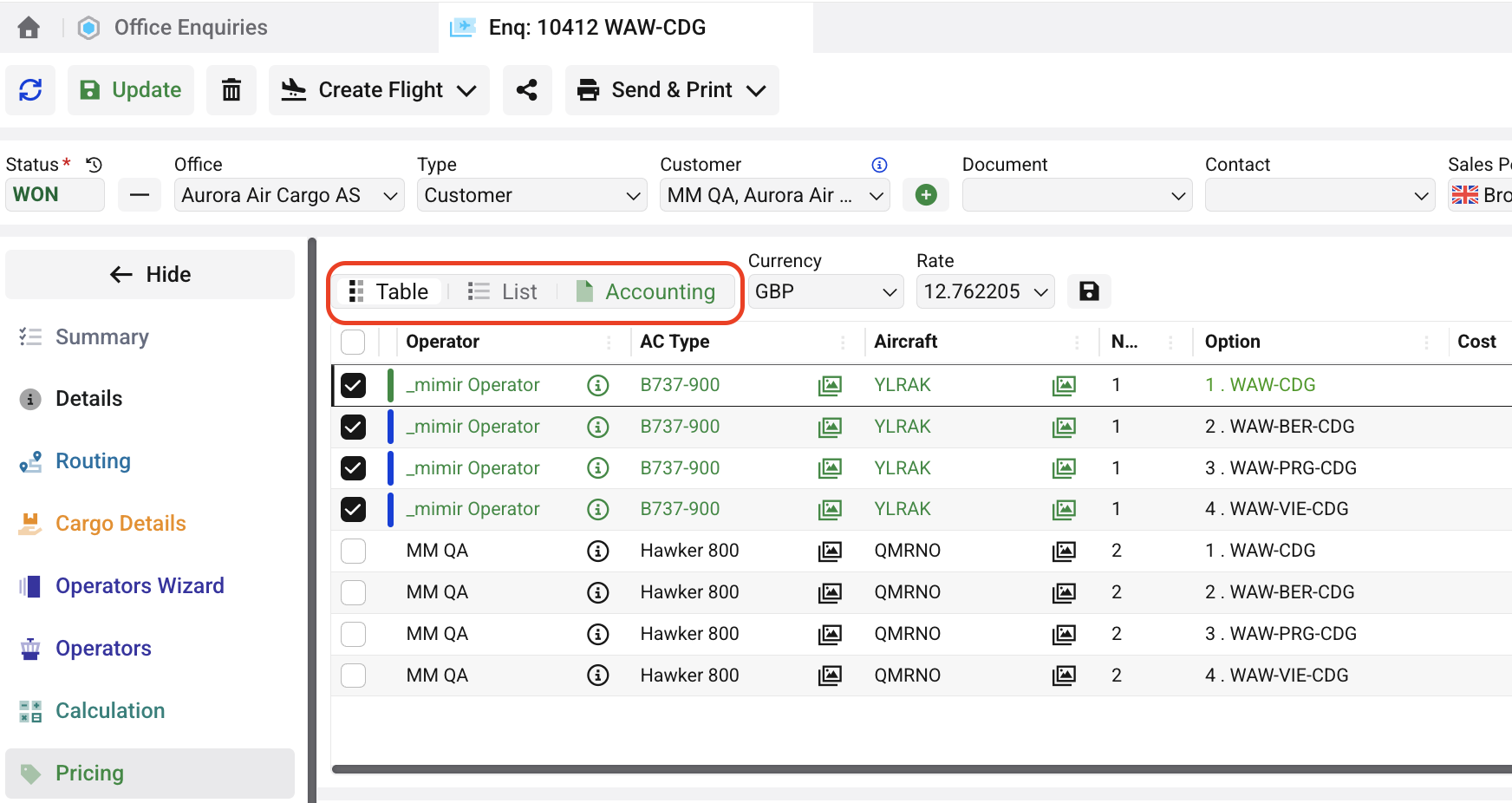
Table View
Displays each routing option separately together with its pricing breakdown. This view is typically used during quotation preparation and price calculation.
List View
Displays pricing information for all routing options in a single table, allowing quick comparison between different options.
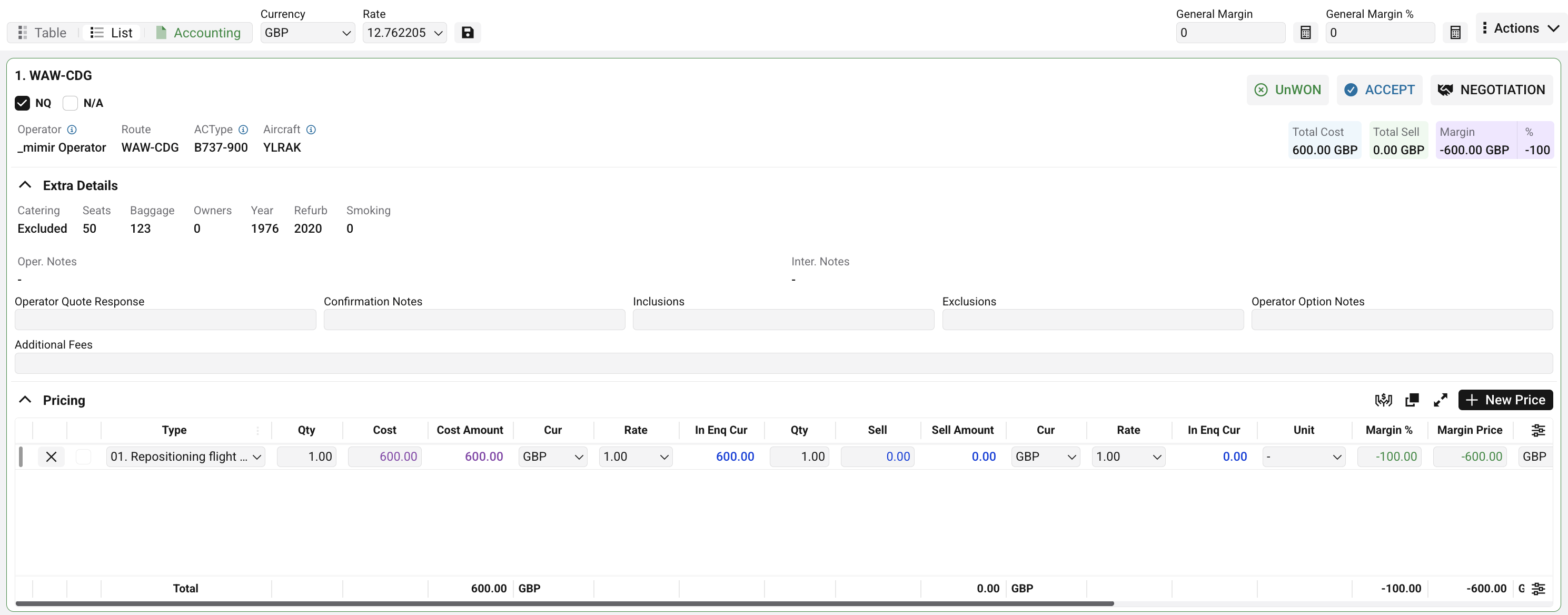
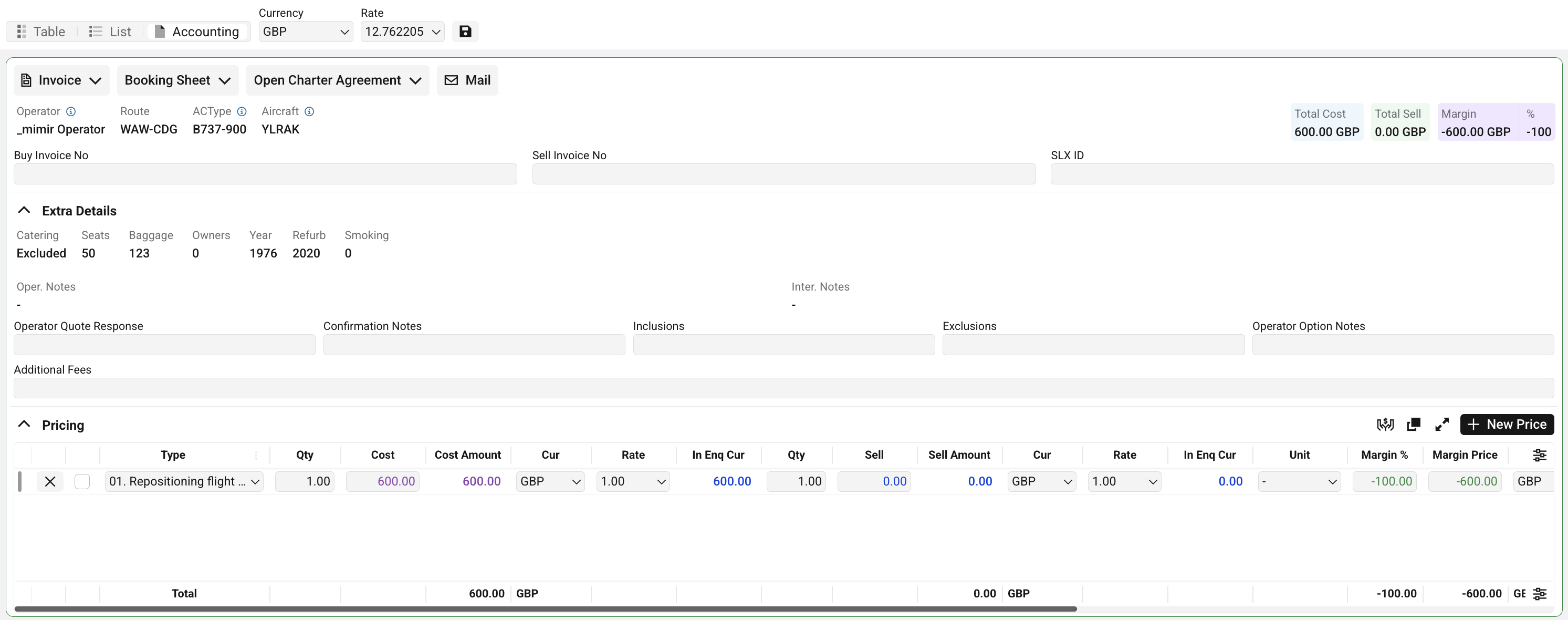
Accounting View
The Accounting view becomes available only after a routing option has been marked as WON.
This view is intended for financial processing and provides access to accounting-related information required after the quotation has been accepted.
Check List
Purpose
The Check List tab is used to track and confirm that all required compliance, contractual, and invoicing checks have been completed during the enquiry lifecycle.
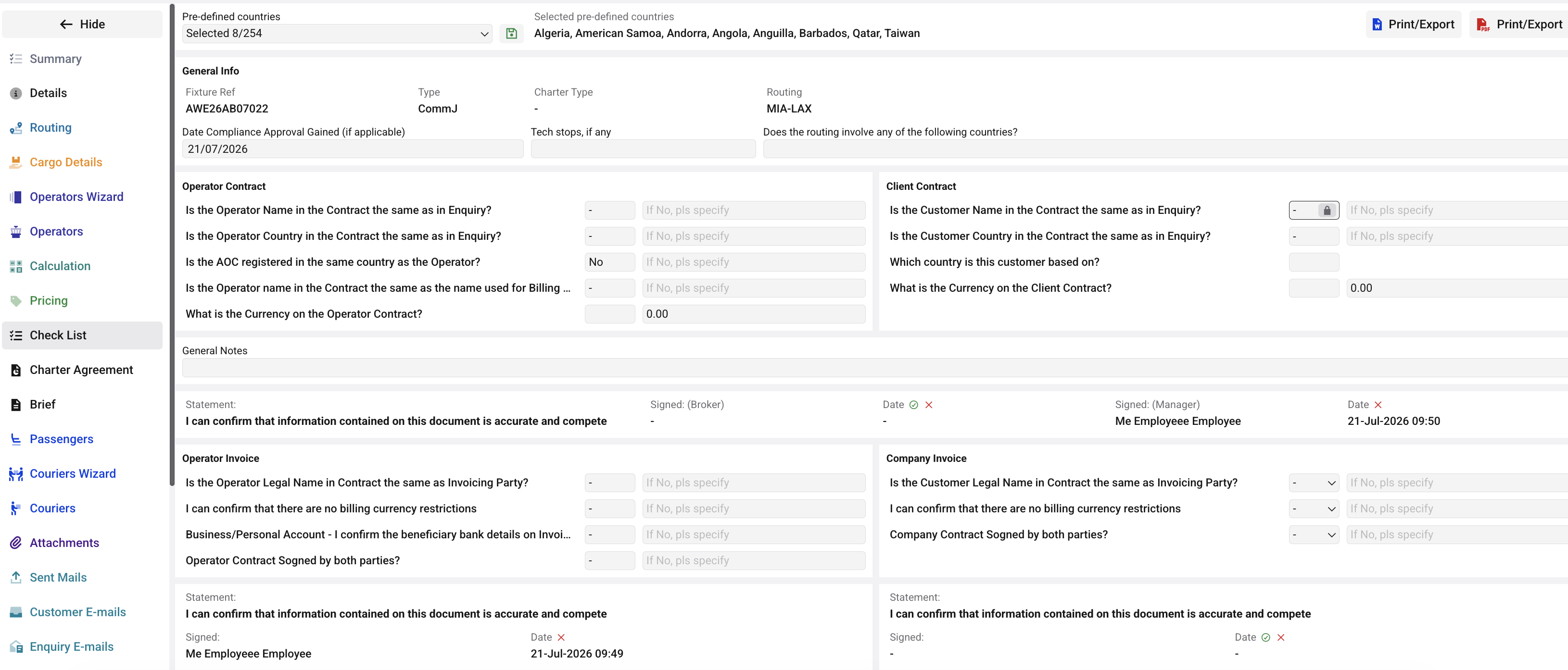
It provides visibility into the progress of the enquiry and helps ensure that all required information has been reviewed before proceeding with further business processes.
Business Rules
-
The checklist may include operator, customer, contractual, and invoicing-related confirmations.
-
Information entered in the checklist is used for internal tracking and operational control.
-
Checklist requirements may vary depending on company-specific business processes and compliance requirements.
-
Completion of checklist items can be reviewed by managers and other authorized users.
-
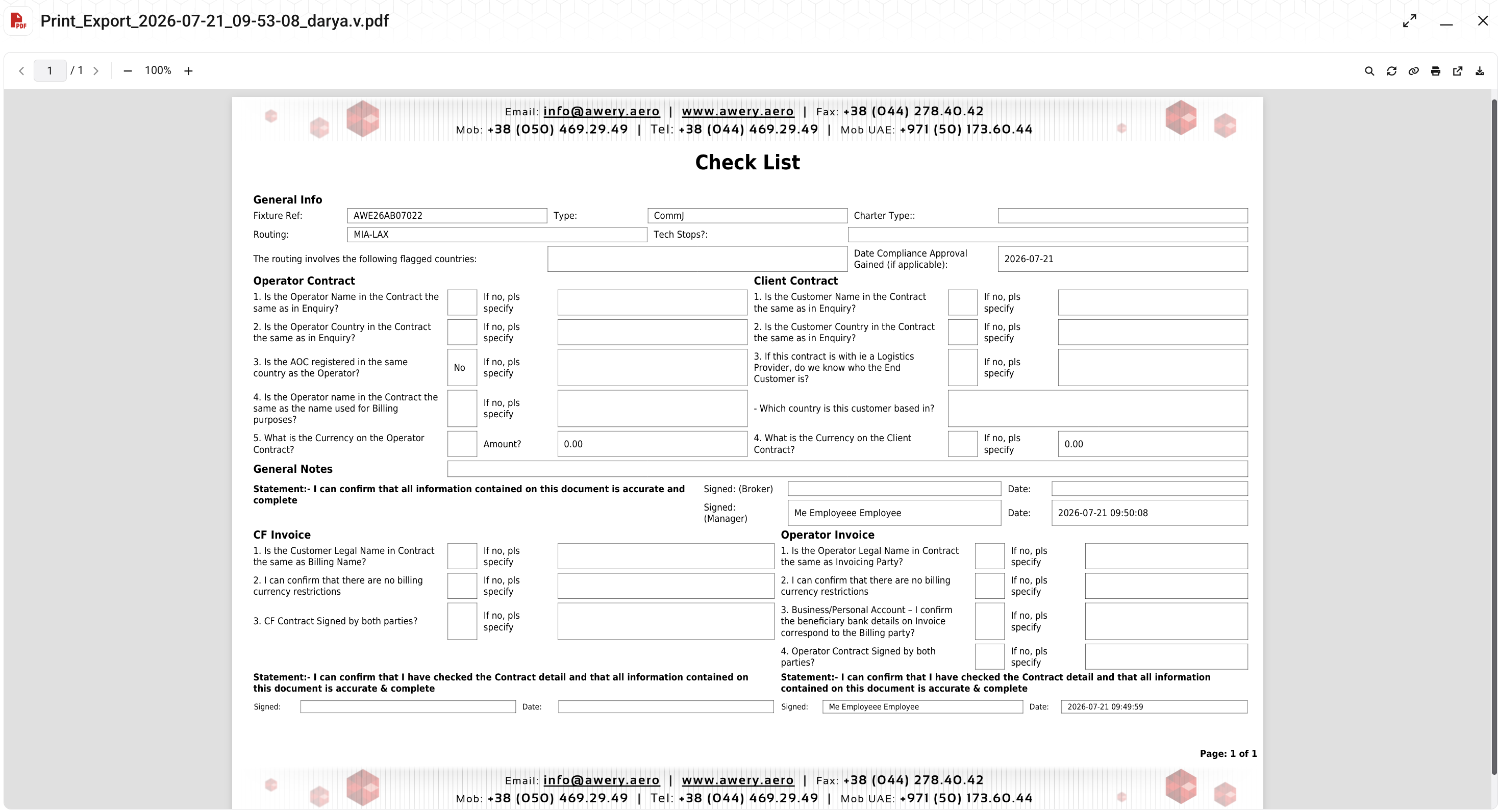
Checklist information can also be exported as a report for review, auditing, or compliance purposes.
Charter Agreement
Purpose
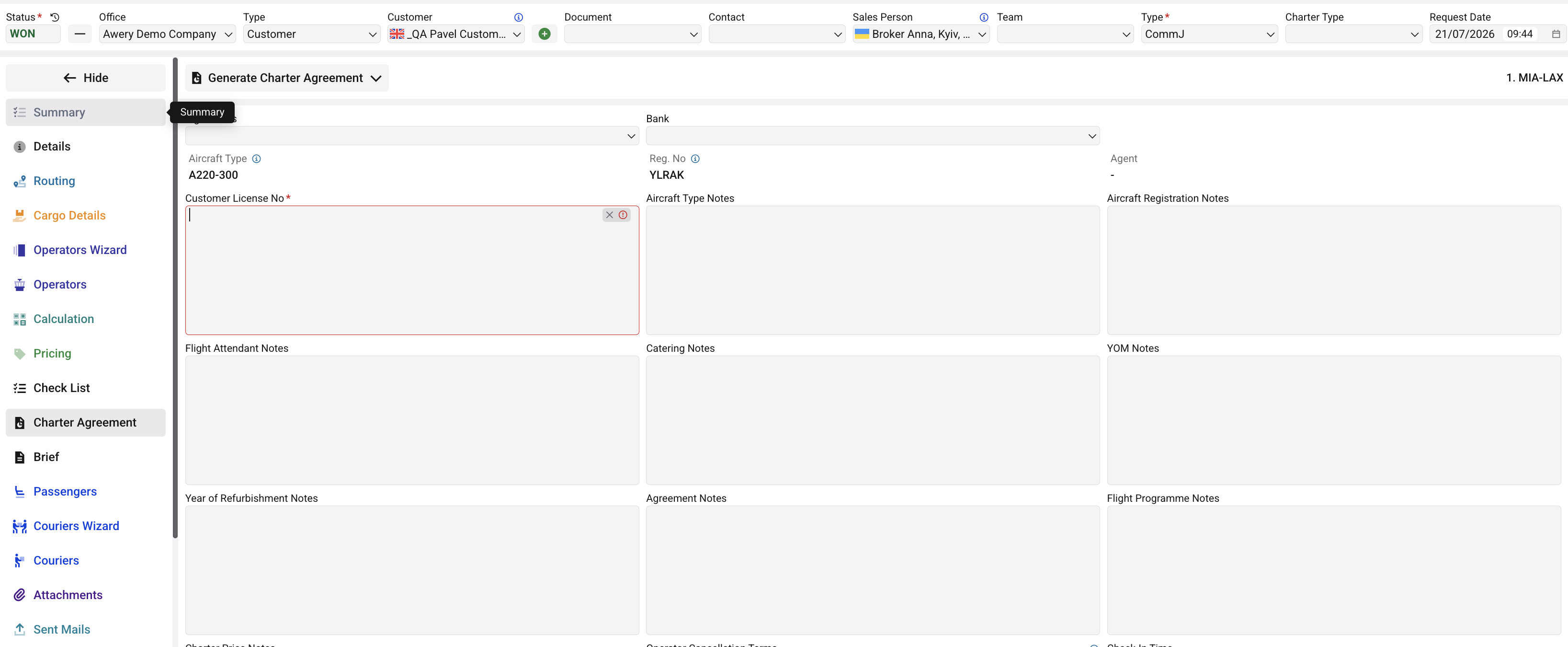
The Charter Agreement tab is used to prepare and store information required for generating a Charter Agreement document.
It allows users to provide additional contractual and operational details related to the selected aircraft and enquiry.
Business Rules
-
Information entered in this tab may be included in the generated Charter Agreement document.
-
Available fields and agreement requirements may vary depending on company-specific business processes.
Brief
The information entered on this tab is used to generate documents such as the Charter Brief and Booking Sheet, which are shared with the flight crew, handling agents, and other operational parties. Depending on the company configuration, additional operational documents may also be available.
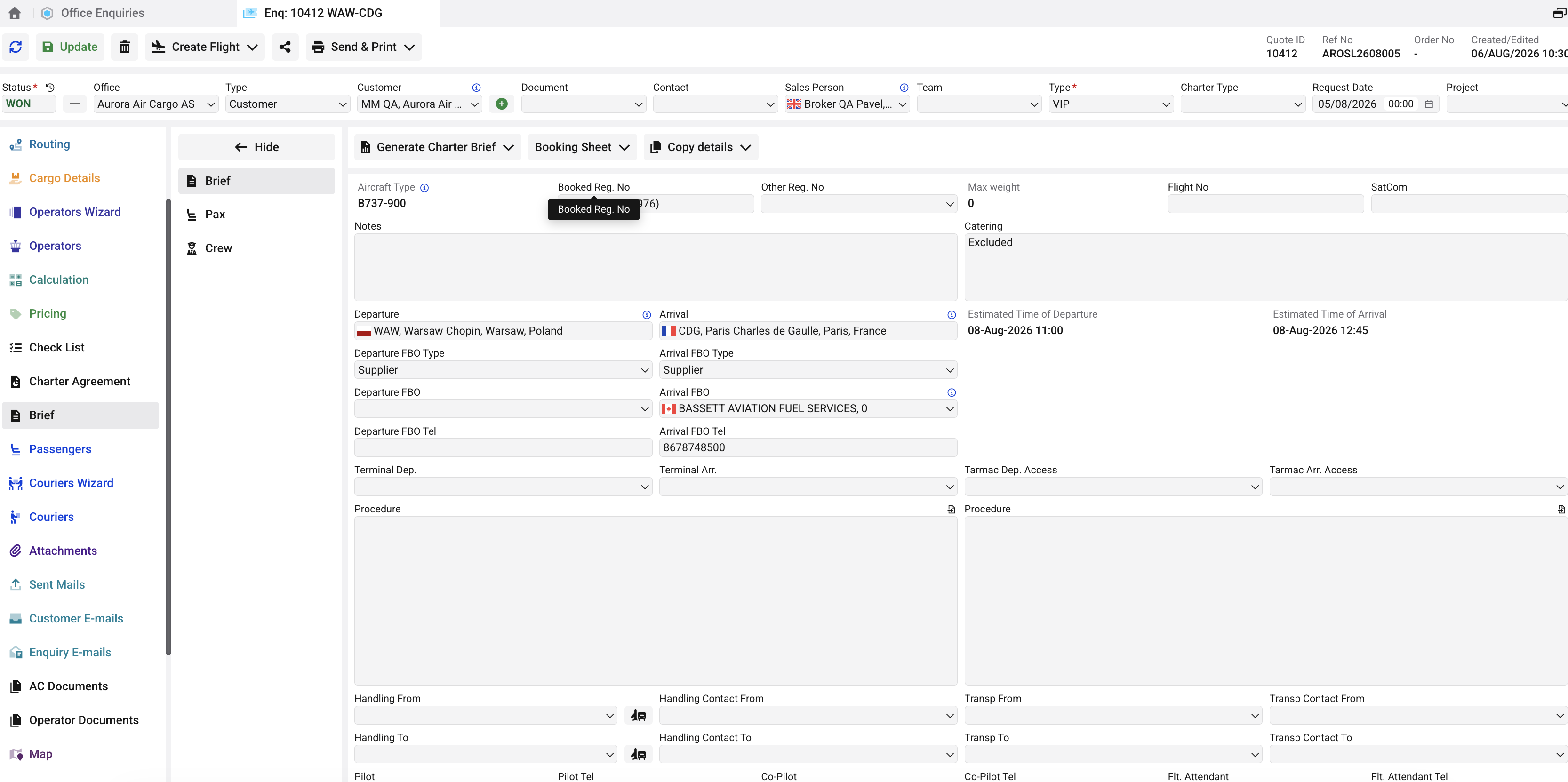
Many fields on this tab are automatically populated from the enquiry (such as the selected aircraft, routing, and calculated flight schedule), while operational details can be completed or updated manually before the documents are generated.
Passengers
The Passengers tab is used to maintain the passenger manifest for the flight. Passenger information is entered separately for each sector, allowing different passenger lists to be maintained throughout the routing if required.
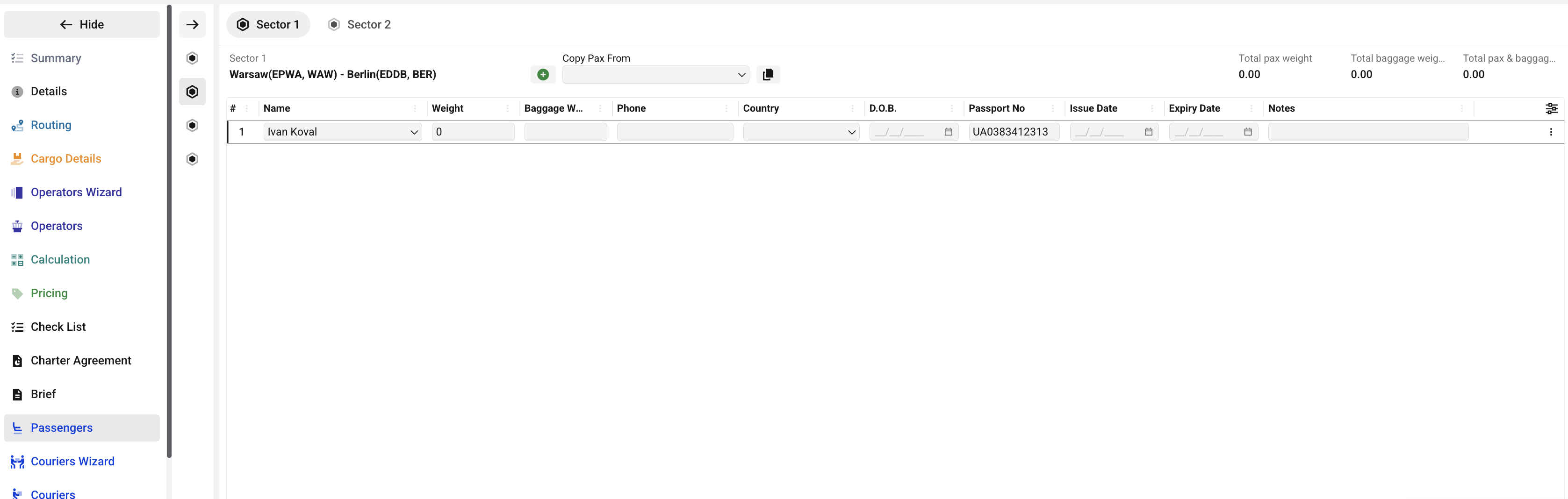
The Copy Pax From function can be used to copy passengers from another sector, reducing manual data entry.
Couriers
The Couriers Wizard and Couriers tabs is used to search for and assign couriers to an enquiry. Users can review the courier summary before adding it to the current enquiry. The complete workflow is demonstrated in the accompanying video.
For managing all couriers in the system, including creating and editing courier records, use the Couriers module. Detailed instructions are available in the Courier List documentation.
Attachments
The Attachments tab is primarily used for internal document management within an enquiry. It allows files to be organized into separate attachment groups, making it easier to manage and find enquiry-related documents.
The available groups may vary depending on the company configuration and can be renamed or customized to match the customer's workflow. For example, the tab may include Internal Attachments, Mission Attachments, and Client Attachments.
Map
The Map tab provides a visual overview of enquiry sectors and empty legs on an interactive map.
Users can filter the displayed data by origin/destination, airport, country, region, date range, and status, and choose whether to display Enquiries, Empty Legs, or both.
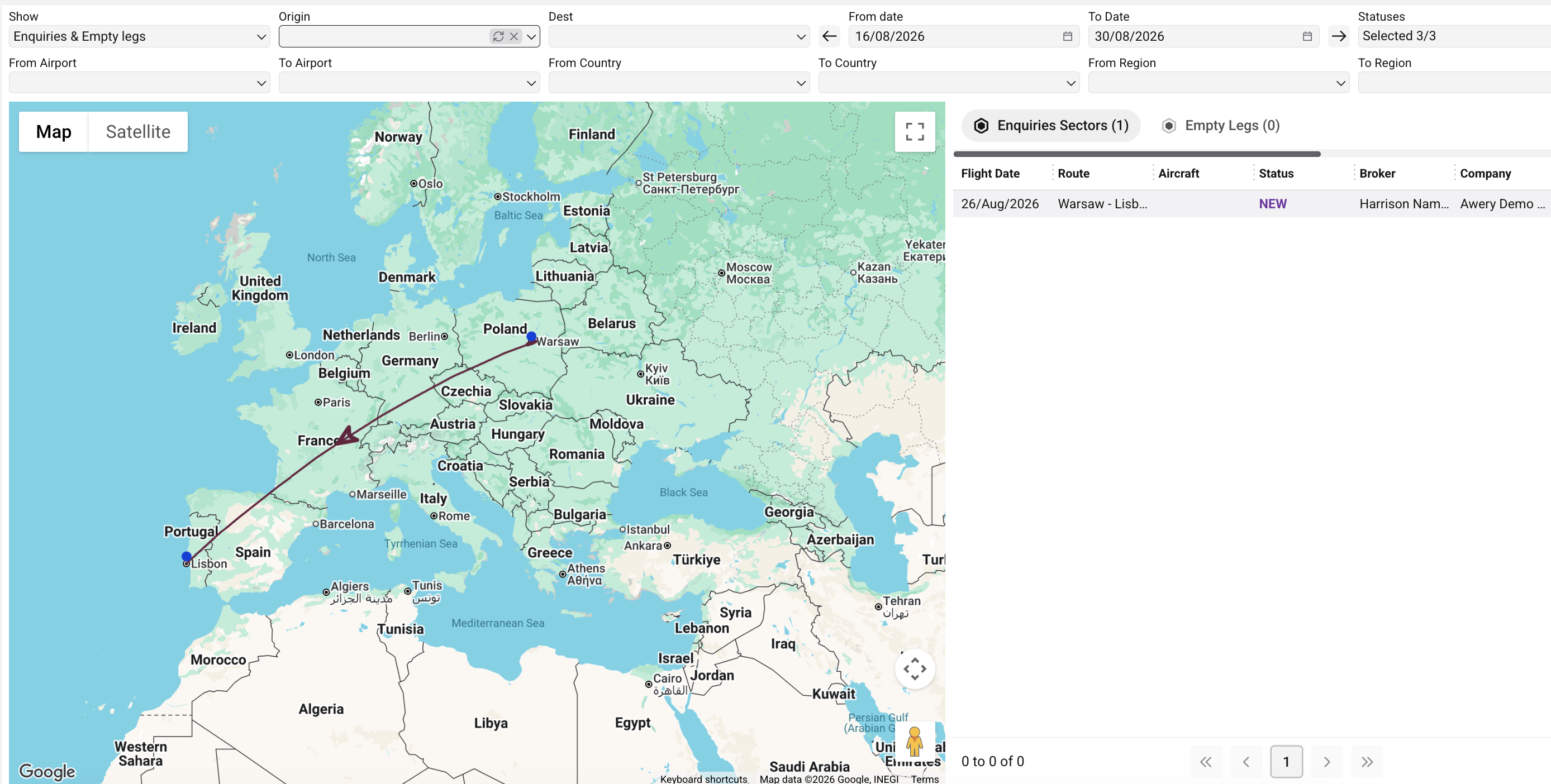
Matching records are displayed on the map together with a list of the corresponding Enquiry Sectors and Empty Legs, allowing users to quickly identify relevant routes and available aircraft movements.
Customer Recent
The Customer Recent tab provides an overview of other enquiries associated with the customer selected in the current enquiry. It allows users to review the customer’s previous and recent requests directly from the enquiry without searching for them separately.
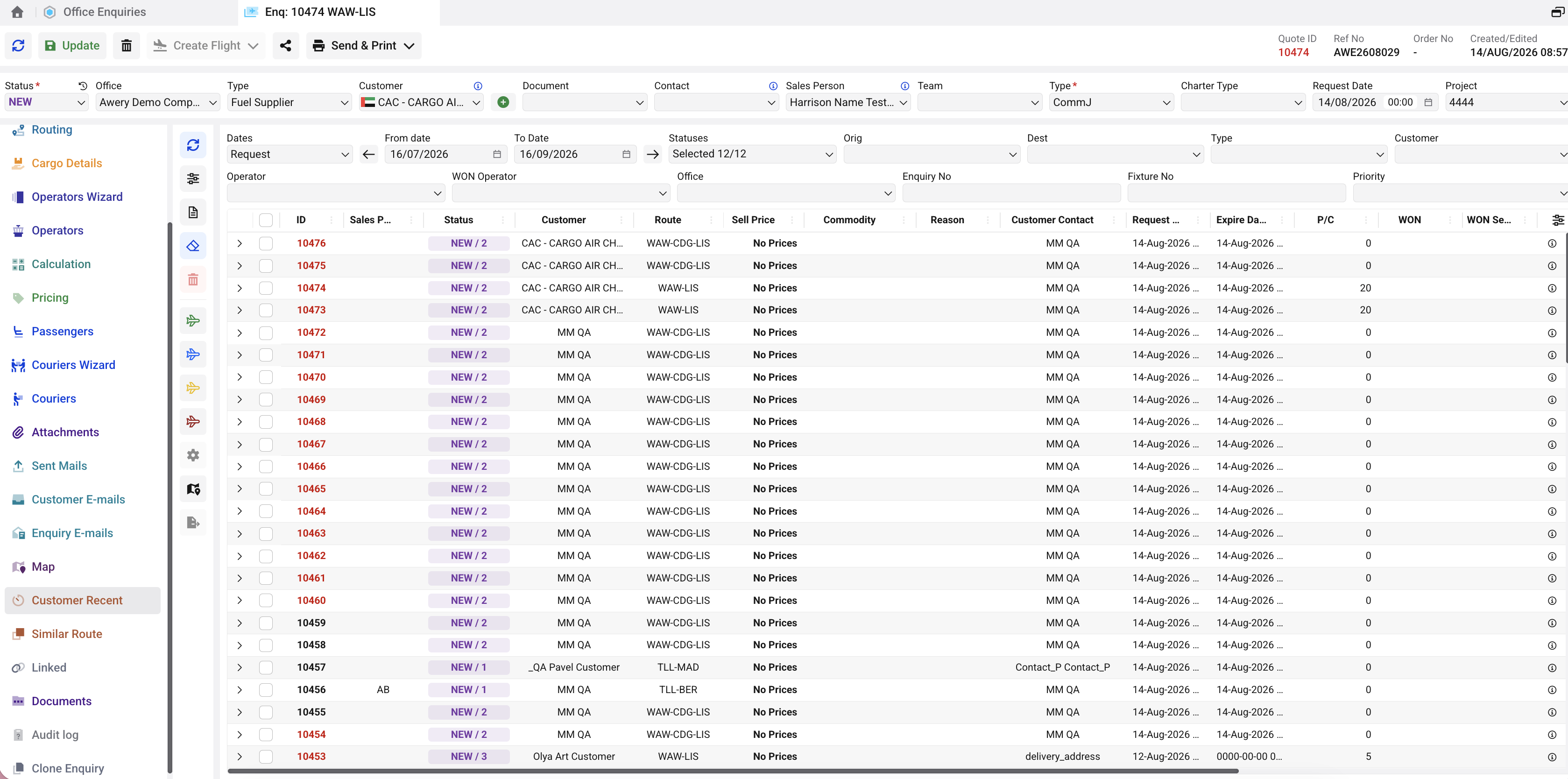
This section can be useful for checking the customer's enquiry history, reviewing previous requests and routes, and quickly opening a related enquiry when additional information or historical context is required.
Note: The exact set of columns and filters available may vary depending on the company configuration.
Similar Route
The Similar Route tab displays enquiries with the same or similar routing as the current enquiry, including enquiries created for other customers.
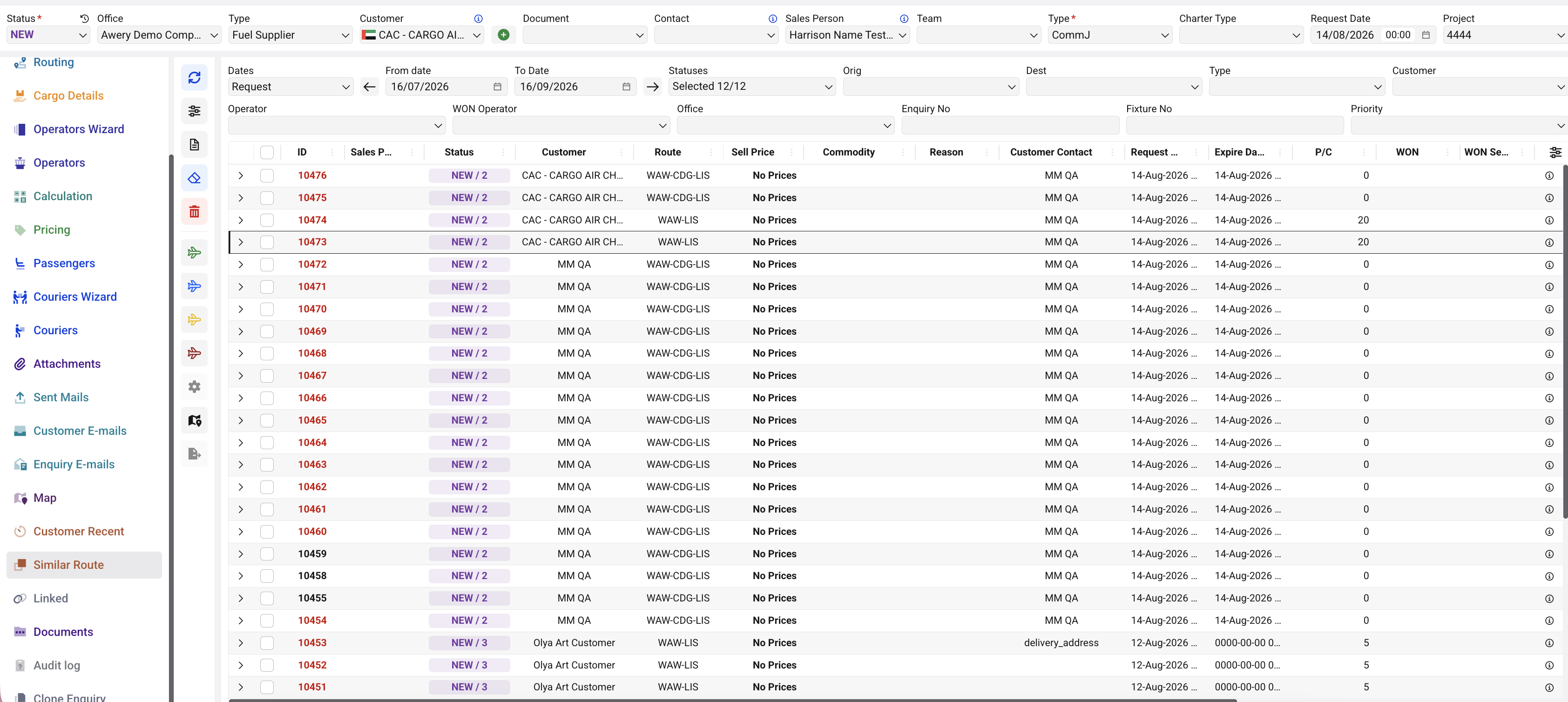
This allows users to review previously handled requests for a comparable route and use them as a reference when working with the current enquiry.
The available filters can be used to narrow the results by date range, status, origin and destination, customer, operator, office, enquiry number, fixture number, priority, and other available criteria.
From the results list, users can review key enquiry information and open a relevant enquiry for further details.
Linked
The Linked tab displays enquiries that are linked to the current enquiry. It allows users to view related enquiries in one place and quickly access their details when required.
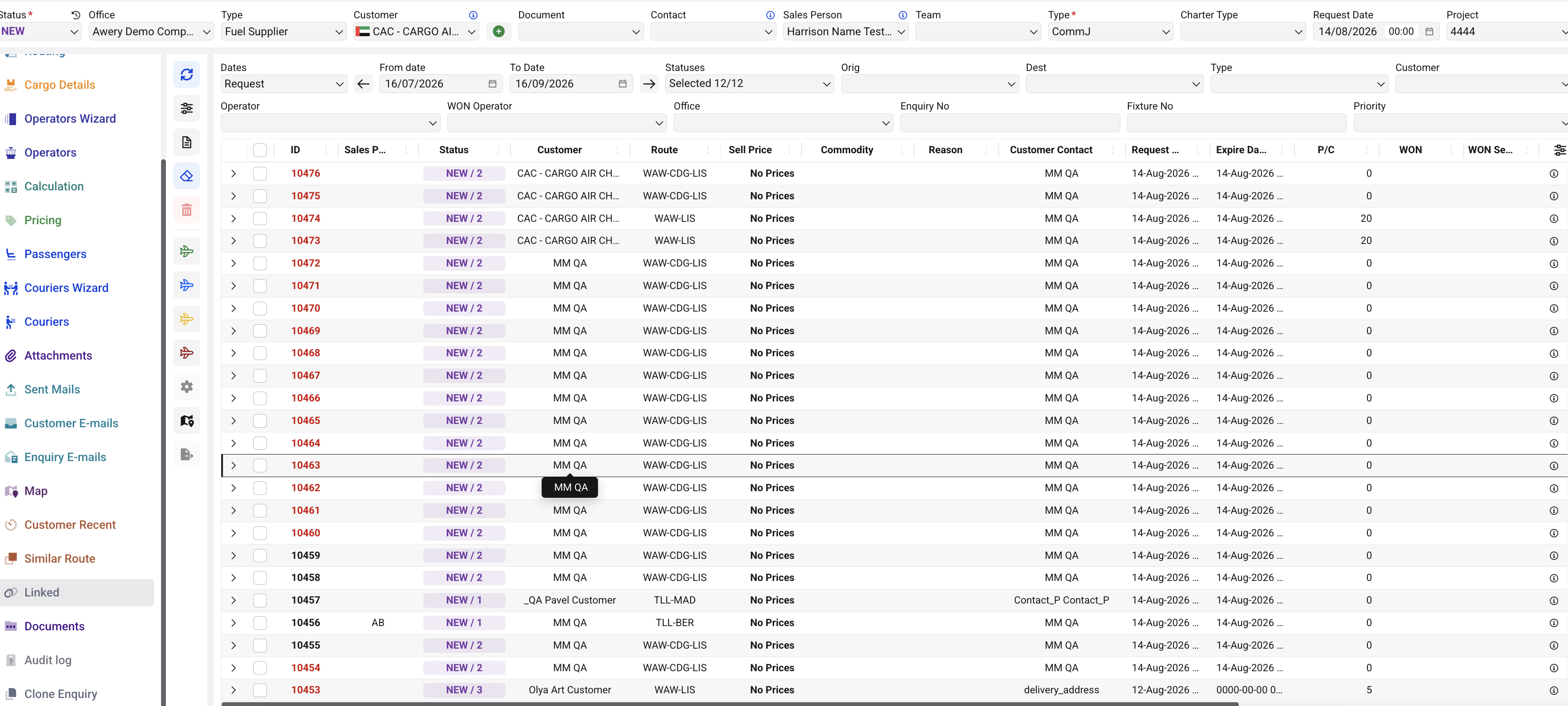
Linked enquiries are displayed in a searchable and filterable list, allowing users to narrow the results using the available enquiry filters.
Documents
The Documents tab is used to manage documents associated with the customer and the current enquiry. It provides access to document details and attached scanned copies and helps users identify documents that may require attention before the flight is booked.
For each document, users can maintain the relevant information, such as the document type, number, issue and expiry dates, issuing country, status and notes, and attach the corresponding file.
Document types and their validity periods can be configured in the system according to the company’s requirements. This allows the document structure to be adapted to different operational processes.
Audit Log
The Audit Log tab provides a history of changes made to the enquiry and its related data. It can be used to track what was changed, when the change was made, and which user made it.
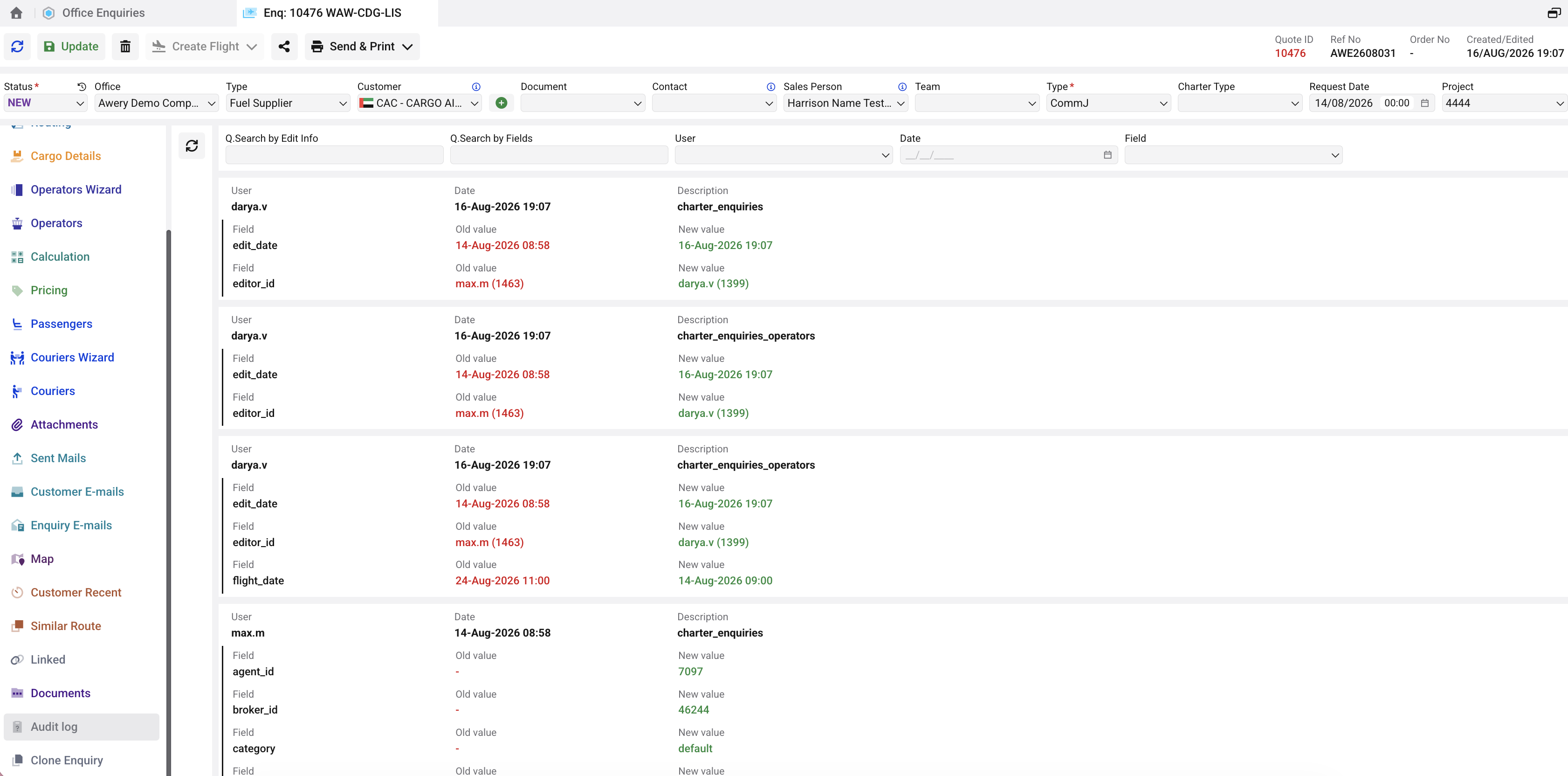
For each recorded change, the system can display the affected field together with its old and new values, making it possible to review how the enquiry information has changed over time.
The records can be filtered by edit information, field, user, and date to locate specific changes.
Clone Enquiry
The Clone Enquiry tab allows users to create a new enquiry by copying information from the current one. This is useful when a new request is similar to an existing enquiry and reduces the need to enter the same information again manually.
During cloning, the user can select which information should be copied to the new enquiry. The cloned enquiry is then created as a separate enquiry and can be updated independently without affecting the original one.