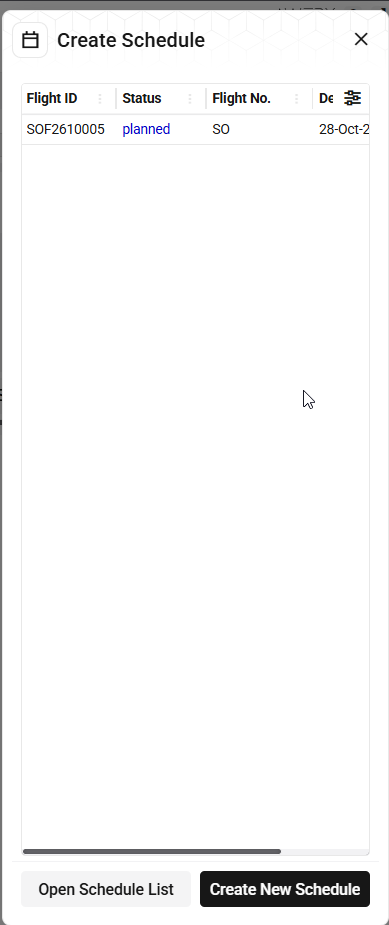
The system allows you to create a schedule directly from the flight page. Follow these steps to proceed:
-
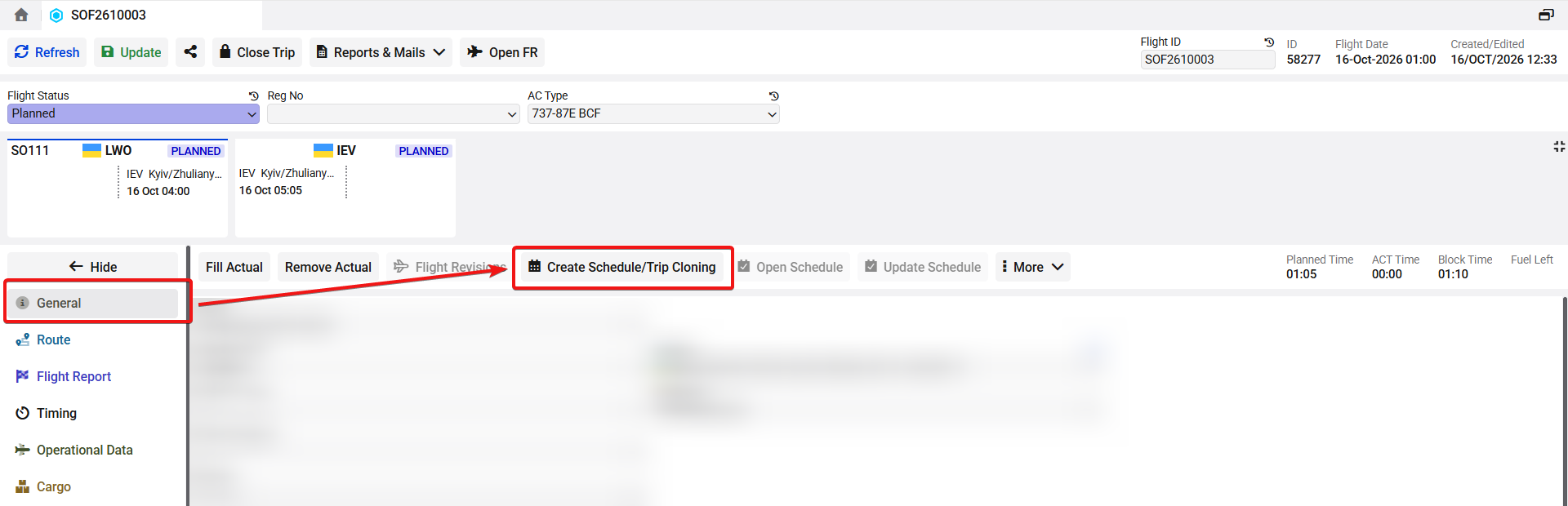
Open the flight and go to the General tab. Click Create Schedule/Trip Cloning. A panel opens on the right.
-
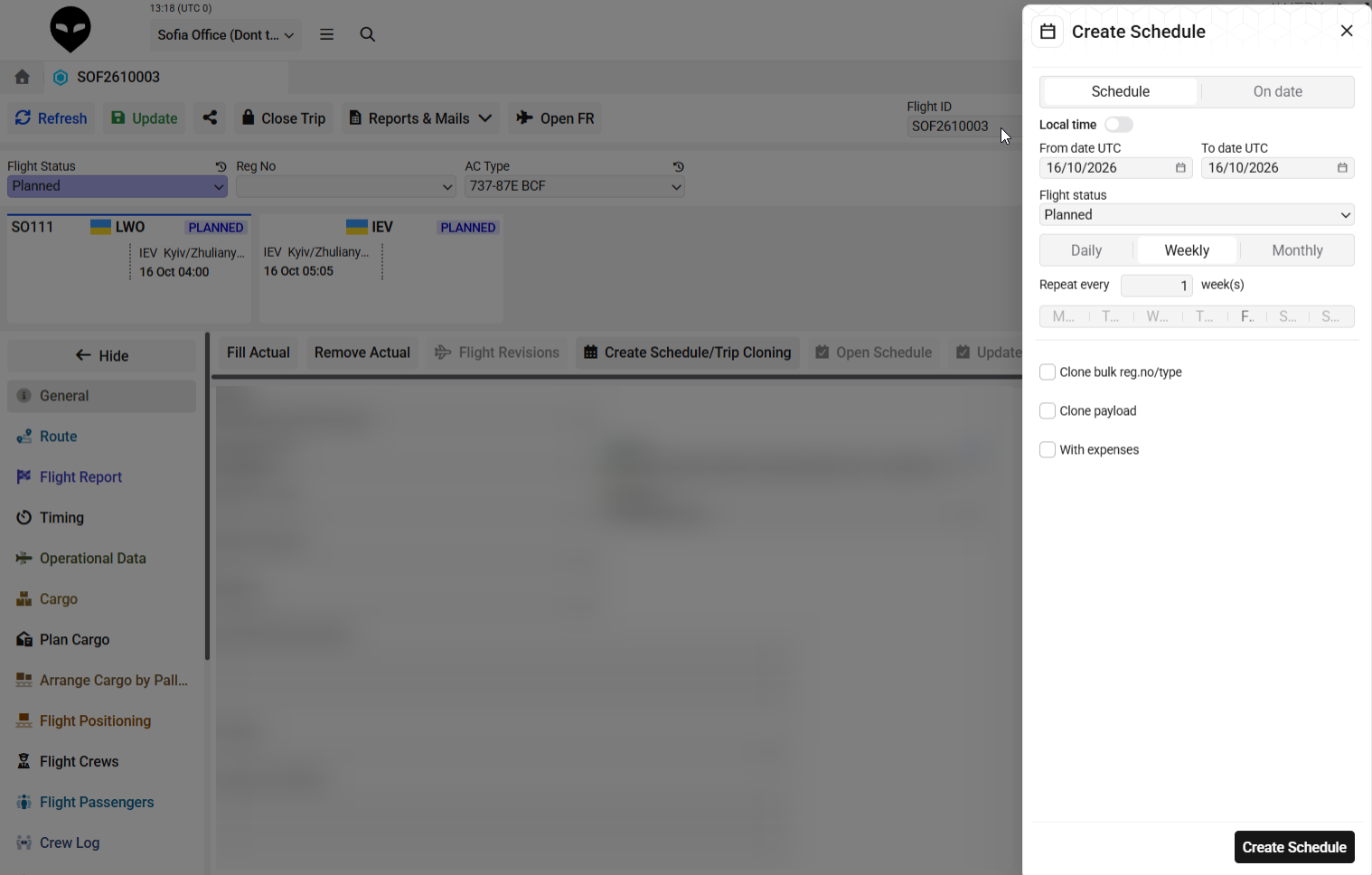
Set the selector at the top to Schedule, then fill in the fields:
-
Local time: when this is on, dates and days of the week are calculated in the flight's local time. When it's off (the default), they're calculated in UTC.
-
From/To date UTC: the period the schedule covers.
-
Flight Status: the status each new flight is created with
-
-
Choose the days the schedule runs on:
-
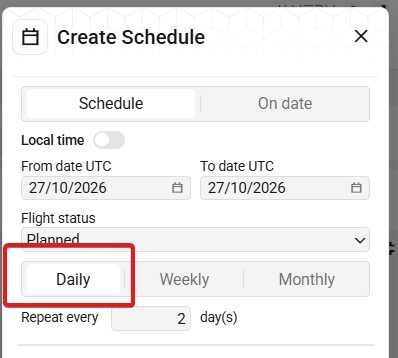
Daily: enter a number in Repeat every … days to repeat the flight every n days, whatever the day of the week.
-
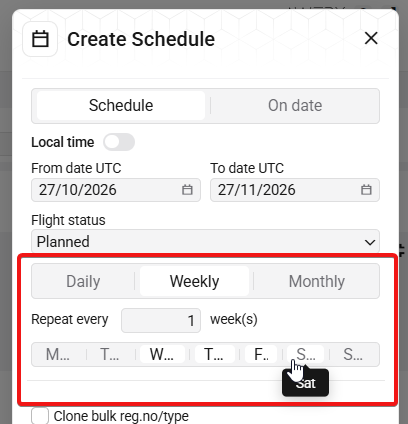
Weekly: click the days of the week you want. To repeat less often than every week, enter 2 or higher in Repeat every … weeks (the default is 1).
-
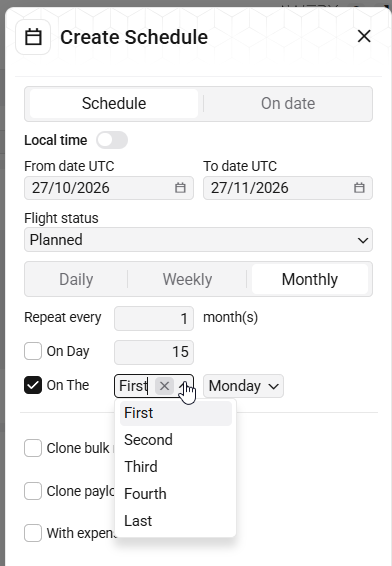
Weekly: click the days of the week you want. To repeat less often than every week, enter 2 or higher in Repeat every … weeks (the default is 1).
-
Choose optional checkboxes:
-
Clone bulk reg.no/type: copies the Bulk Reg. No. and Bulk ACFT Type fields to the new flights.
-
Clone payload: copies the payload data to the new flights. If you leave it unticked, the new flights have no payload.
-
With expenses: copies the flight's expense records to the new flights.
-
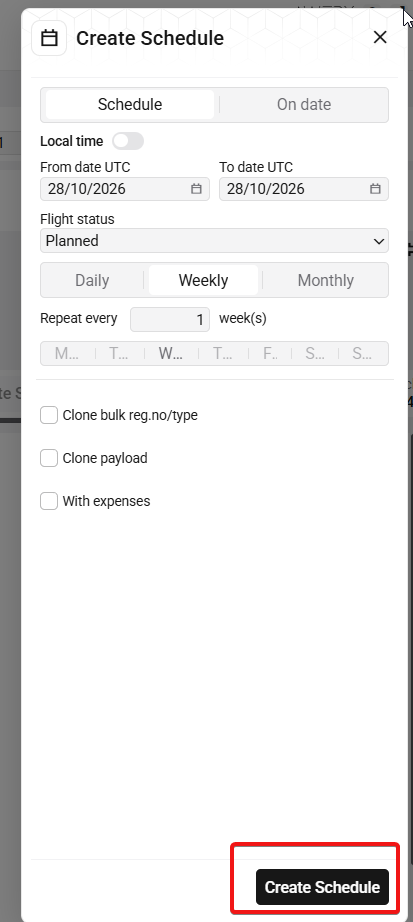
Click “Create schedule” at the bottom of the window.
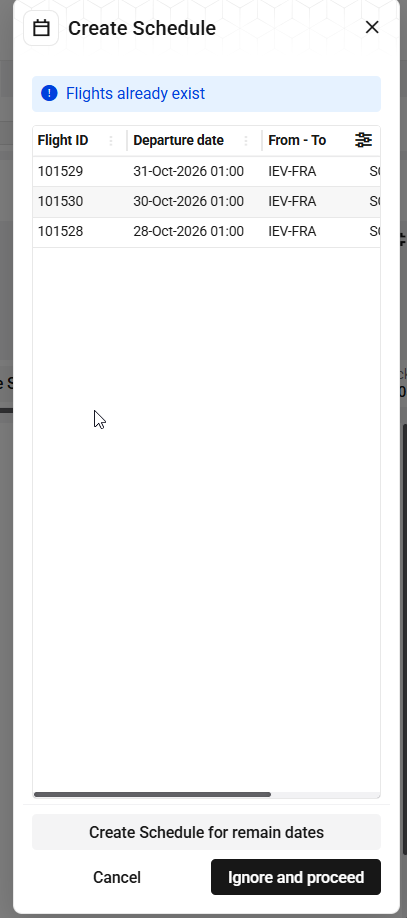
If flights already exist on some of the dates, they will be listed in a new window. It is recommended to choose the “Create Schedule for the remaining dates” button, because in other case it will create the duplicates of the existing flights.
-
When it's done, you'll see the results. The buttons at the bottom let you open the schedule or create another one.