
Navigation To Shipper/Consignment List:
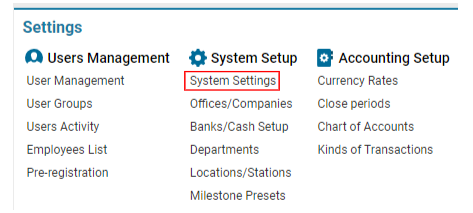
Navigate to the Settings section and under System Setup click the “System Settings” button.
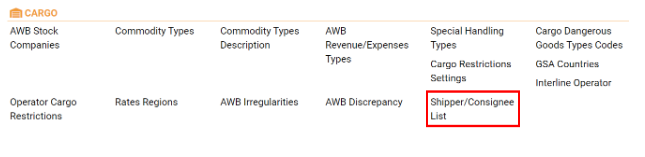
Then navigate to the Cargo section and click the “Shipper/Consignment List” button.
Main Functionalities:
-
Search Section:
-
This section is used to quickly find specific shippers or customers by their name, company details, or other relevant information.
-
Input any identifiable details such as the company name, street, city, etc., and the system will filter the list based on your search criteria.
-
-
List of Shippers/Customers:
-
Type: Indicates whether the entry is a "Shipper" or another customer type.
-
Customer: Displays the name of the customer or shipper.
-
Company, Street, City, State, Country: Shows the corresponding details for each shipper or customer entry.
-
Other Details: May include ZIP, Phone, Fax, EORI Number, and other specific identifiers.
-
Note: This list allows you to see all existing shippers/customers and their associated details.
-
Action Buttons:
-
Update: Use this button to apply any changes made to an existing shipper or customer entry.
-
New: Click this button to create a new shipper or customer entry.
-
Delete: Use this button to remove a selected shipper or customer from the system.
-
-
Details Panel (Editor):
-
Company: Enter the name of the company for the shipper or customer.
-
Street: Provide the street address for the company.
-
City: Input the city where the company is located.
-
State: Provide the state or region information.
-
Country: Select or enter the country where the company is based.
-
ZIP: Enter the postal or ZIP code for the location.
-
Phone: Provide a contact phone number.
-
Fax: Input the fax number, if available.
-
EORI No: Enter the Economic Operators Registration and Identification (EORI) number, if applicable.
-
Type: Select "Shipper" or another relevant customer type from the dropdown list.
-
Additional Fields:
-
Customer: Specify whether the entity is categorized as a customer.
Steps for Managing Shippers/Customers:
-
To Add a New Shipper/Customer:
-
Click on the New button.
-
Fill in the required fields in the Details Panel (Company, Street, City, State, Country, etc.).
-
Select the appropriate Type (e.g., Shipper).
-
Click Update to add the new shipper or customer to the list.
-
-
To Edit an Existing Shipper/Customer:
-
Select the shipper or customer from the list.
-
Modify the fields in the Details Panel as necessary.
-
Click Update to save the changes.
-
-
To Delete a Shipper/Customer:
-
Select the shipper or customer you want to remove from the list.
-
Click the Delete button.
-
Confirm the deletion if prompted.
-