
Accessing the Mail Templates Page
Navigate to the Contractors section and under the Messaging Section click the “Mail Templates” Button.
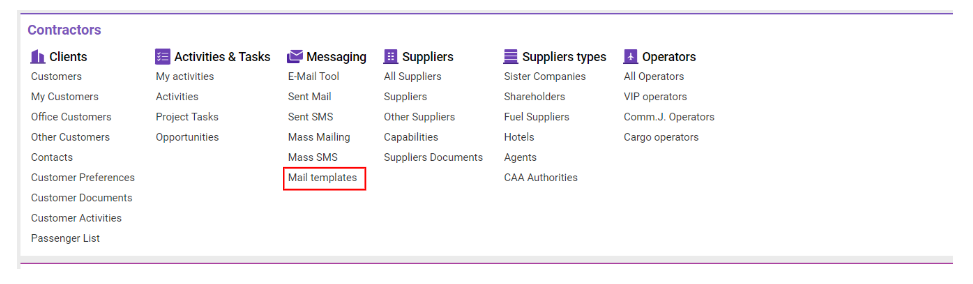
Overview
The Mail Templates interface allows us to set up email templates and set daily reports and notifications for the user.
Setting Up Email Notifications for Broker Activities
Steps to Set Up Email Notifications
-
Add Email Templates
-
New Activity: Template for new activities assigned.
-
-
Activity Coming Up: Notification for upcoming activities.
-
Activities Daily Report: Summary of activities for the day grouped by office.
-
Configure Office Notifications
-
Select Office: Choose the office requiring notification settings.
-
Add Contact:
-
Create a contact with the name Activities DailyReport Notification.
-
Specify the notification email and assign the Activities Daily Report template.
-
-
-
Configure Notification Script
-
Add a user with the following settings:
-
Notification Type: Specify the activities_daily.php script.
-
Notification Timing: Select the time for notifications.
-
Notification Email: Enter the email for notifications.
-
-
-
Set Up Broker Contacts
-
Open Employee List: Locate the broker.
-
Contacts Tab:
-
Create a default contact.
-
Enter the broker's email in the field with Mail Type.
-
-
Main Page Broker Settings
-
Specify a Control Manager and a Replacement Broker for situations where the primary broker is unavailable.
-
-
Handling Broker Unavailability
-
If the broker's status is NOT "working", a notification will be sent to:
-
Default contacts for supervisor and substitute.
-
Notification timing: One hour before the start of the activity (UTC).
-
-
-
Notification for Deleted Responsible Broker
-
If the responsible broker is deleted:
-
Notification is sent to the creator of the activity.
-
Notifications are also sent to the supervisor and substitute, one hour before the activity starts.
-
-
-
Handling Last-Minute Activities
-
If an activity is created less than an hour before its start:
-
Two templates are triggered:
-
Notification for activity creation.
-
Notification for the activity start.
-
-
-
-
Daily Report Notifications
-
To Company Contact Emails:
-
Send a daily report of activities grouped by office.
-
-
To User Notification Settings Emails:
-
Send a daily report grouped by brokers, irrespective of office.
-
-
Broker-Specific Reports:
-
Each broker receives their report for the day at their default contact email.
-
Key Workflow
-
Create Activity
-
Path: Home → Activities.
-
-
Notification Timing
-
Default Case: Notification is sent one hour before the start of the activity (UTC).
-
Exception: For last-minute activities, notifications are sent upon creation and at activity start.
-
By following these steps, you ensure a comprehensive and automated email notification process for broker activities, maintaining efficiency and transparency.