
Creating a New Mail Cargo Wizard in Awery involves the following steps:
-
Create a New Mail Cargo Wizard:
-
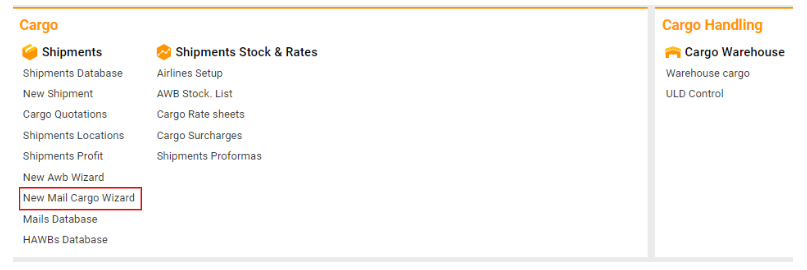
Navigate to the Cargo section and under Shipments click the “New Mail Cargo Wizard” button to create a New Mail Cargo Wizard.
-
-
Enter New Mail Cargo Wizard Details:
Fill in the necessary fields for the New Mail Cargo Wizard.
-
Main Information
-
Office: Automatically set to Awery Demo Company.
-
Type: Choose the type of AWB being created.
-
Customer*: Select the customer from the dropdown list.
-
Contact: Enter the contact information for the selected customer.
-
Team: Assign the AWB to a specific team.
-
Broker: Input the broker details if applicable.
-
AWB Number: Input or generate the AWB number.
-
Stock Company: Select the stock company associated with the AWB.
-
Type of Generation: Choose how the AWB number is generated (e.g., system or customer-generated).
-
AWB Details
-
Number of Pieces: Enter the total number of pieces in the shipment (e.g., 1).
-
Gross Weight: Input the gross weight of the shipment.
-
Chargeable Weight: Input the chargeable weight, typically determined by the greater of actual weight or volumetric weight.
-
Vol. Chargeable Weight: Enter the volumetric chargeable weight.
-
Volume: Input the physical volume of the shipment.
-
Total Volume (calc): This is automatically calculated based on the entered dimensions.
-
Comm. Type: Specify the type of communication associated with the AWB.
-
Comm. Description: Provide a brief description of the communication.
-
Origin*: Select the origin of the shipment.
-
Destination*: Select the destination of the shipment.
-
Rate Type: Choose the applicable rate type (e.g., TARIFF).
-
Load Deck: Select the load deck (e.g., LD).
-
Accounting & Handling
-
Accounting: Enter any accounting information associated with the AWB.
-
Handling Details: Provide specific handling instructions required for the shipment.
-
Internal Notes: Add any internal notes relevant to the processing of this AWB.
-
Shipper & Consignee Information
-
Shipper: Input the shipper's name and address.
-
Consignee: Input the consignee's name and address.
-
Pieces Details
-
Process Pieces Details with eMagic Service: Click this option to process the details of the pieces using the eMagic service.
-
QTY: Enter the quantity of each item.
-
LWH: Input the dimensions (Length, Width, Height) of the pieces.
-
Piece WT: Enter the weight per piece.
-
Total WT: The system will calculate and display the total weight.
-
Volume: Enter the volume of the pieces.
-
N.S.N.: If applicable, input the National Stock Number.
-
T.: Enter any other necessary details related to the pieces.
-
Finalizing the AWB
-
New: Click to add a new piece or entry.
-
Delete: Click to delete an existing piece or entry.
-
Save and Create the AWB:
-
Review the information for accuracy.
-
Click the "Create AWB" button to save the AWB.
-