
Accessing Audit Categories
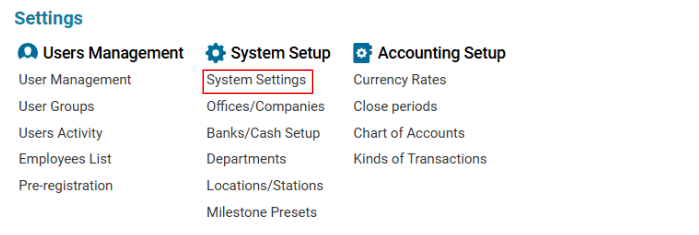
Navigate to the Settings section and under the System Setup Section click the “System Settings” Button. Then under the Accounts Section click the “Audit Categories" button.

Overview: The Audits Categories Page allows users to manage different categories relevant to audits within the system. It provides functionalities for adding, updating, and deleting categories as needed.
Page Elements:
-
Search Bar:
-
Located at the top of the page, enabling users to search for specific audit categories.
-
-
Categories List:
-
Displays a list of available categories.
-
The list includes categories such as:
-
Flight Operations
-
CAMO
-
Maintenance
-
Flight Dispatch
-
Ground Ops
-
Cargo Ops
-
Security
-
Training
-
Technical
-
-
Users can select a category from the list for editing or deletion.
-
-
Category Details Panel:
-
Located on the right side of the screen.
-
Displays the selected category’s name in an input field for editing.
-
A red asterisk (*) indicates that the field is mandatory.
-
-
Action Buttons:
-
Update: Saves any changes made to the selected category.
-
New: Creates a new category entry.
-
Delete: Removes the selected category from the system.
-
User Actions:
-
Adding a New Category:
-
Click the "New" button.
-
Enter the category name in the input field.
-
Click "Update" to save.
-
-
Editing an Existing Category:
-
Select a category from the list.
-
Modify the category name in the input field.
-
Click "Update" to save changes.
-
-
Deleting a Category:
-
Select a category from the list.
-
Click "Delete" to remove it from the system.
-
Additional Features:
-
The interface is designed for ease of use with a clean, structured layout.
-
Categories can be filtered using the search bar for quick access.
This page ensures streamlined management of audit categories, improving efficiency and organization.