
Adding a customer / Supplier
First choose the tab You need

Then the list of existing Customers/Suppliers will be shown
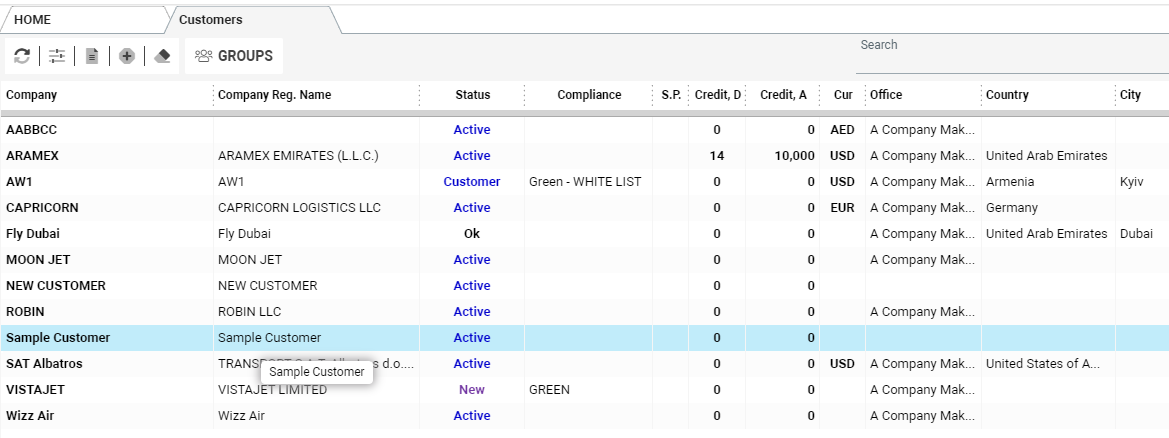
To Add new Customer/Supplier press 
And the interface for adding information will be available
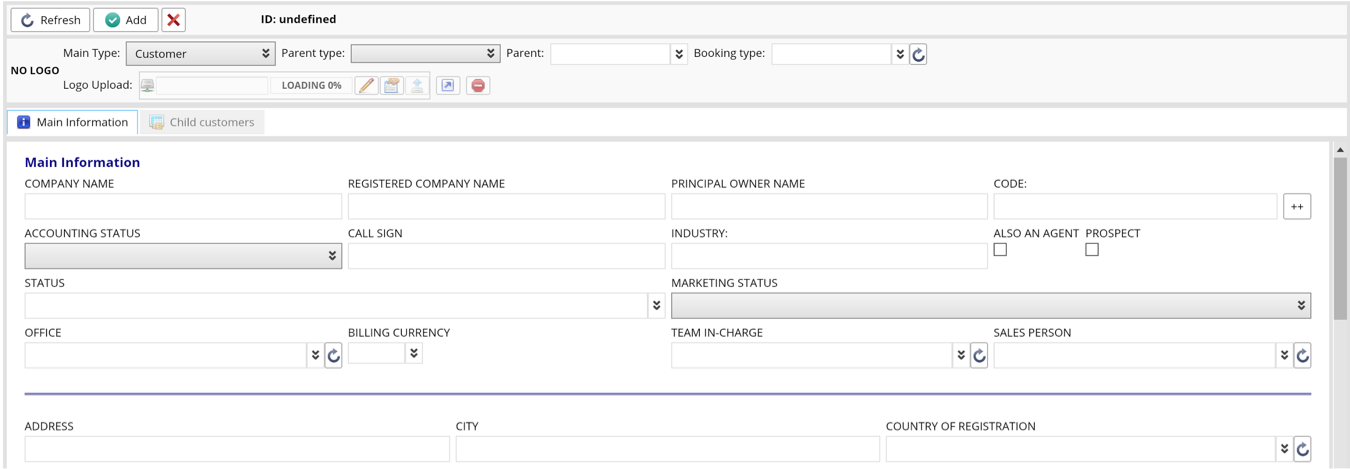
Insert the necessary information
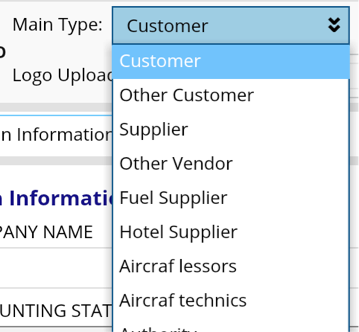
Choose the type of entry you are creating
 Option to upload the logo
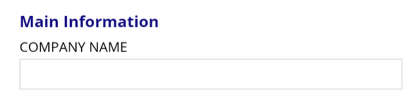 Company name used for internal purposes
Official Customer’s/Supplier’s name to be used for documentation
Insert Main Customer’s/Supplier’s contact details
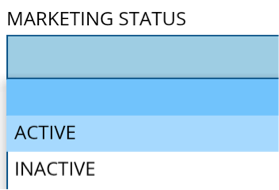
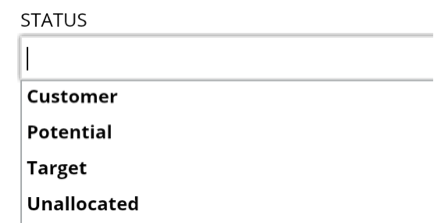
Choose the internal status of Customer/Supplier to be as additional information for users
 Team and person working with this Customer/Supplier (if necessary)
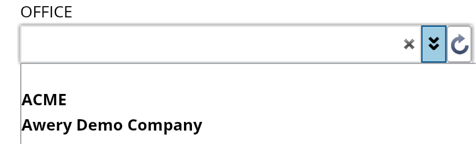 Office who is working with this Customer/Supplier
 Choose the default currency
 Tick if this Customer/Supplier is a prospect only
After main information is filled in, press  to proceed with additional information and contacts adding.
To add Customer’s/Supplier’s full contacts, please kindly follow the instructions below
https://sites.google.com/a/awery.net/wiki/en/info/11

TABS
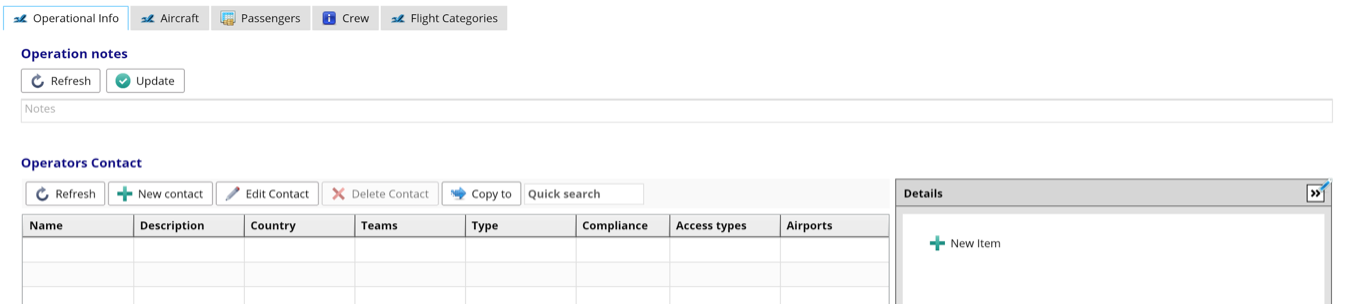
Tab Operational info
On this tab you can insert/find information for ops department such as
- Ops notes
- Ops contacts
- List of aircrafts assigned (optional)
- List of passengers (optional)
- List of crew members assigned (optional)
- Flight categories (for customers, optional)
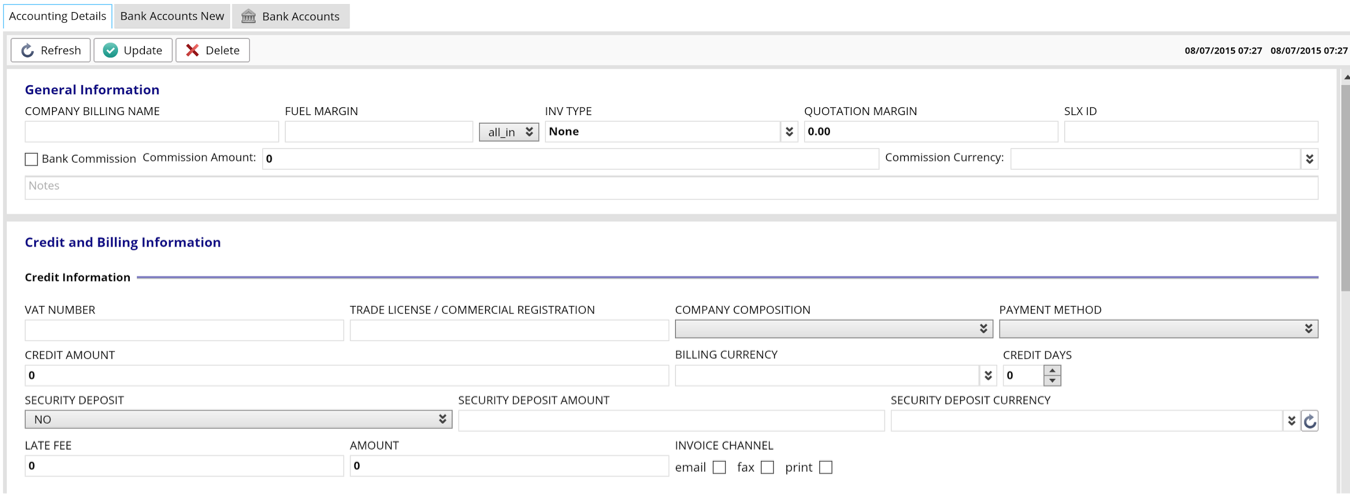
Accounting tab is dedicated for internal accounting information (optional)
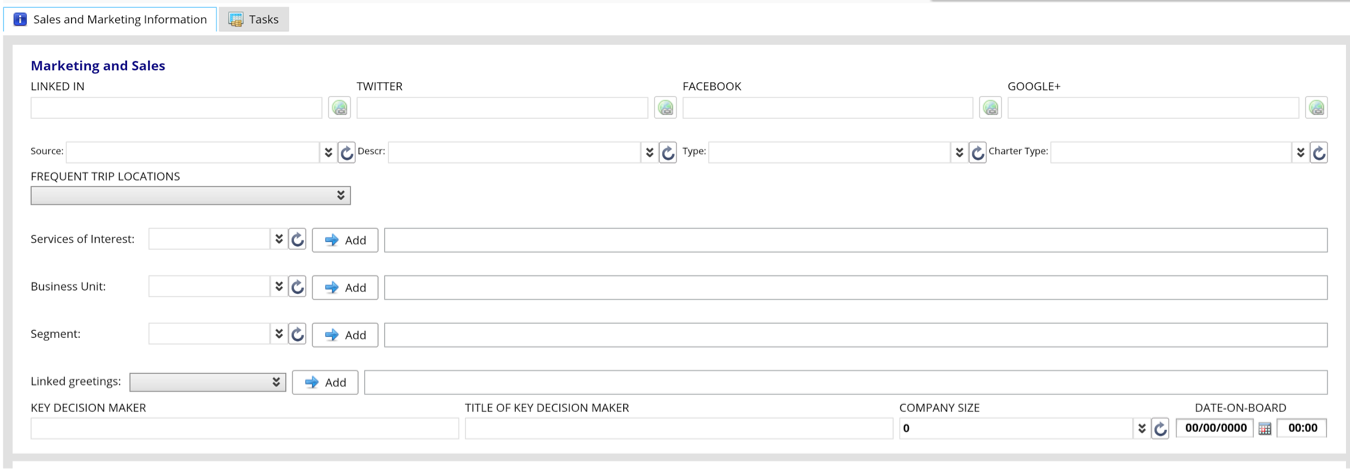
Sales and marketing tab is dedicated for social networks contacts and marketing information (optional)
Tab Additional
Customers
Suppliers
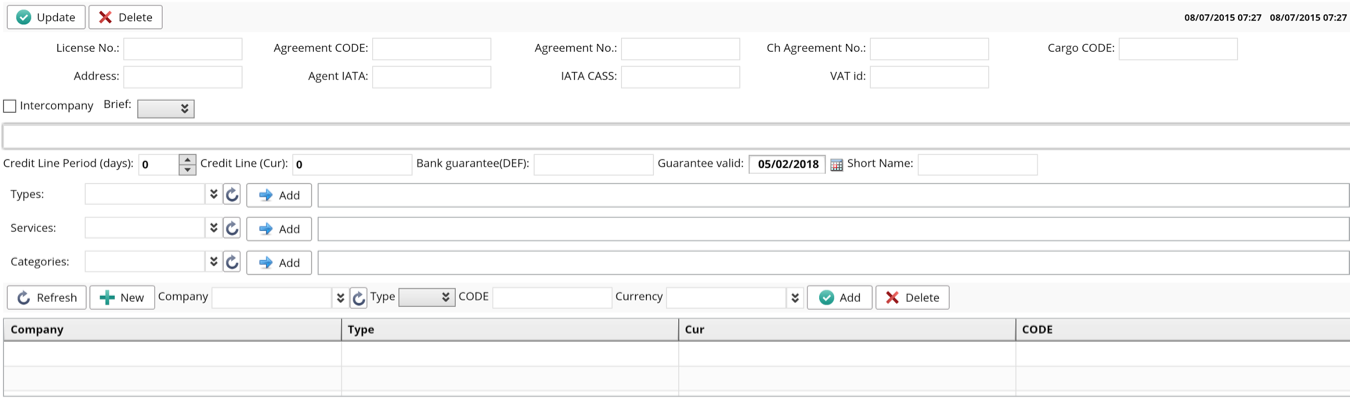
 Customer’s short internal code to be used f.ex. in automatic flight No generation etc
 Agreement number to be used for automatic agreements generation
 Agreement number to be used for automatic charter agreements generation
 Customer’s cargo code to be used for AWB management
 - tick if this is an Intercompany
 Period of Customers credit line
 Sum of credit line in default currency
 Customer’s bank guarantee sum
 Bank guarantee is valid until
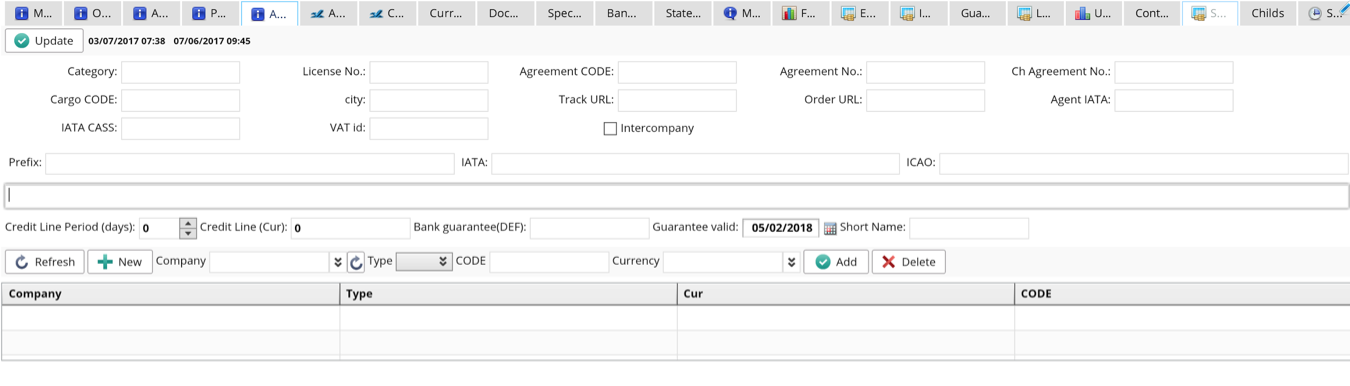
 - IATA code of Supplier
 - IATA code for CASS export/import
Documents tab
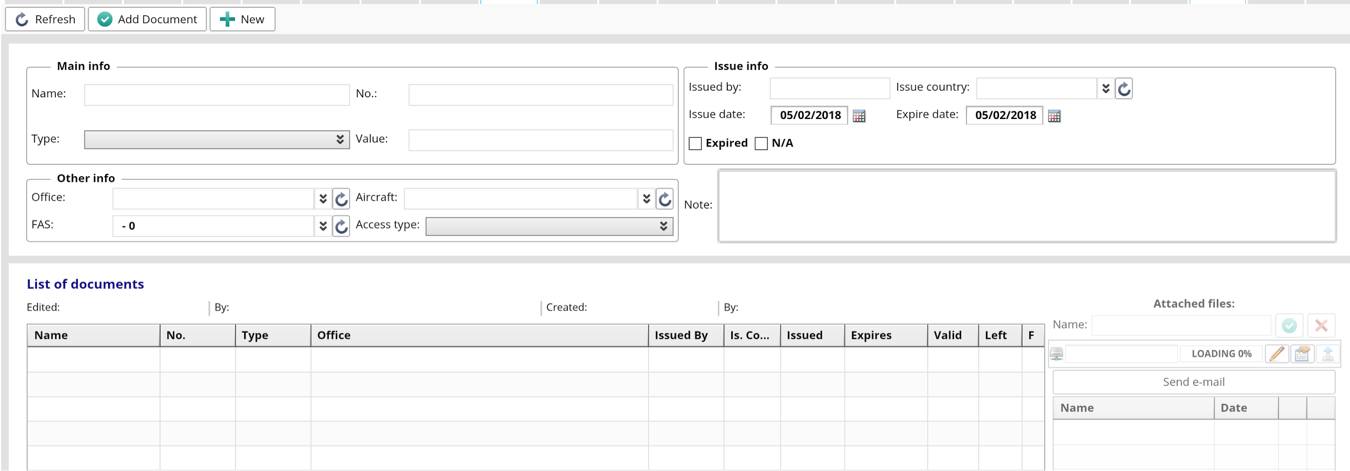
To add documents, please follow the instruction.